



How to Dynamically Filter Linked Records in a Form

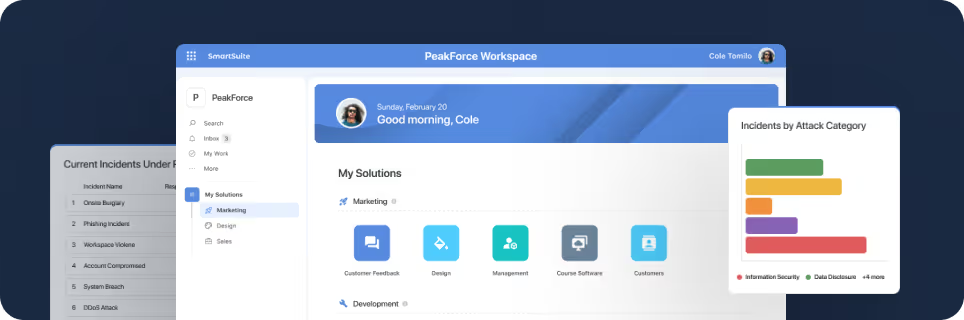
SmartSuite provides work platform for standardizing workflows in the following areas:
-
Governance, Risk & Compliance
-
IT & Service Ops
-
Project / Portfolio Management
-
Business Operations

Filtering Linked Records in Forms
You can dynamically filter linked record options in a form in SmartSuite based on other linked record values within the same form. I'm Jeff Gonzalez, and in this episode of Smart Tips I walk you through how.
This guide will provide a detailed example in a project management context—specifically, how to filter out options when submitting change requests. It's one of the features we introduced in 2024, and there's a lot to cover. So, let's get started!
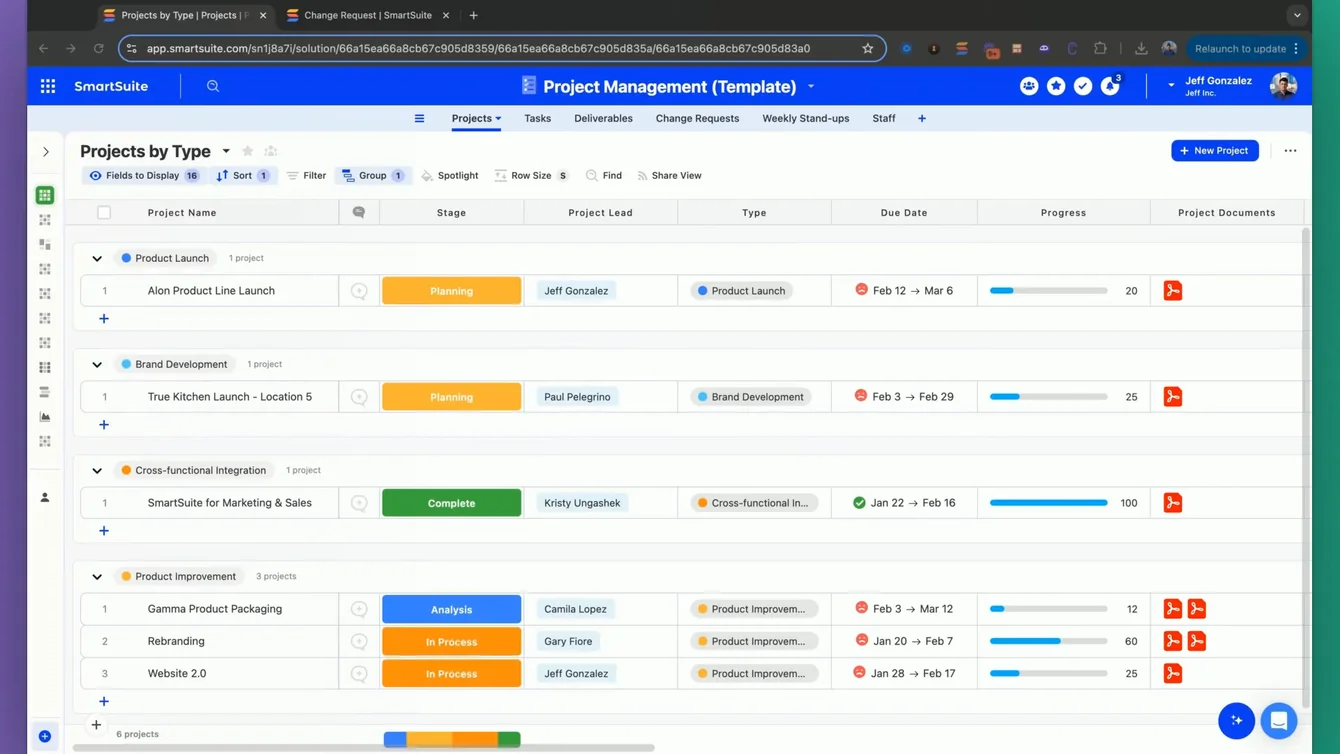
Understanding the Projects Table
To begin, let's first discuss the projects table. This table includes:
- A linked record tied to the project lead, ensuring that only one specific person is designated as the project lead.
- A table of change requests that points to a specific project via a linked record. This table also includes a linked record called "submitter," indicating who is submitting the form.
Structured Data
Here's a quick look at how the data is organized:
- Projects Table:
- Project Lead: Linked record pointing to an individual.
- Change Requests Table:
- Related Project: Linked record to the project.
- Submitter: Linked record to the staff.
Setting Up the Form View
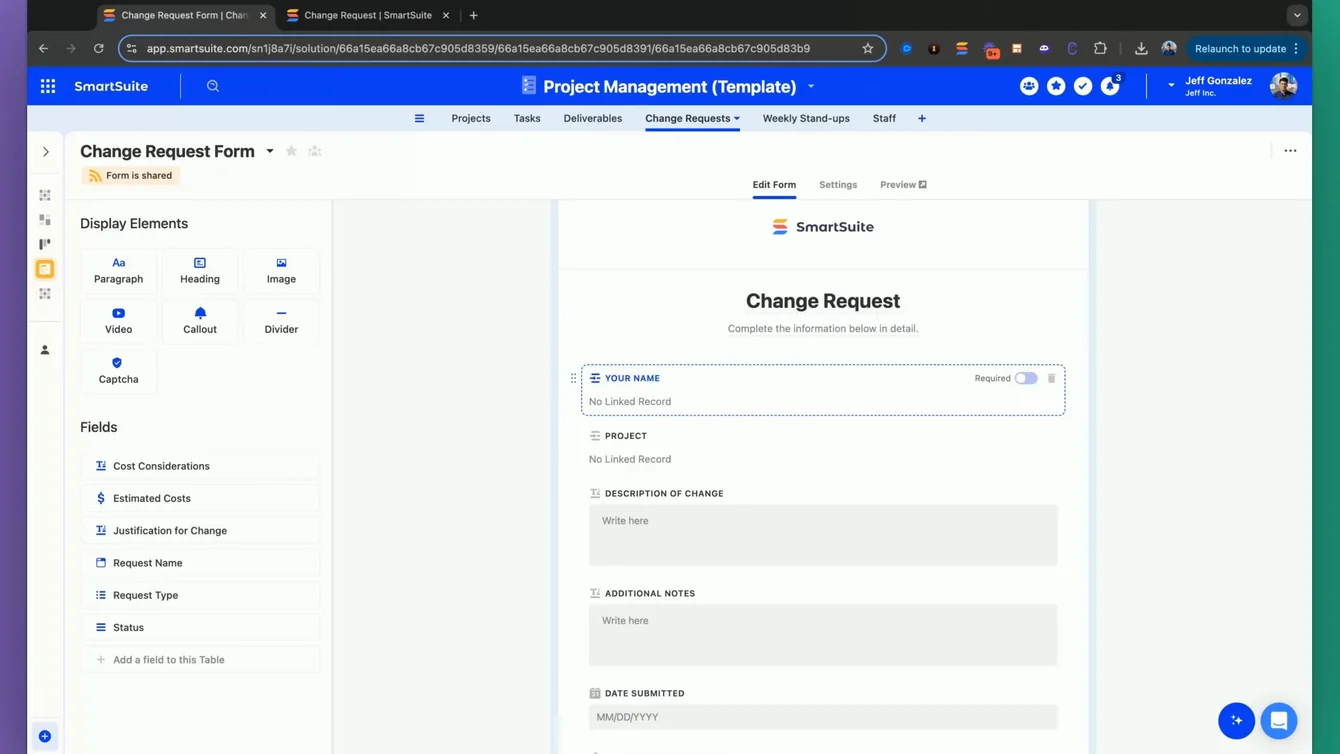
In the form view for the change requests, we've renamed the submitter field to Your Name within the form experience for simplicity. This field is essentially identical to the submitter field and will be populated accordingly.
Next, the form also includes a linked record for the project, allowing users to select which project this change request relates to.
Limiting Selection Based on Conditions
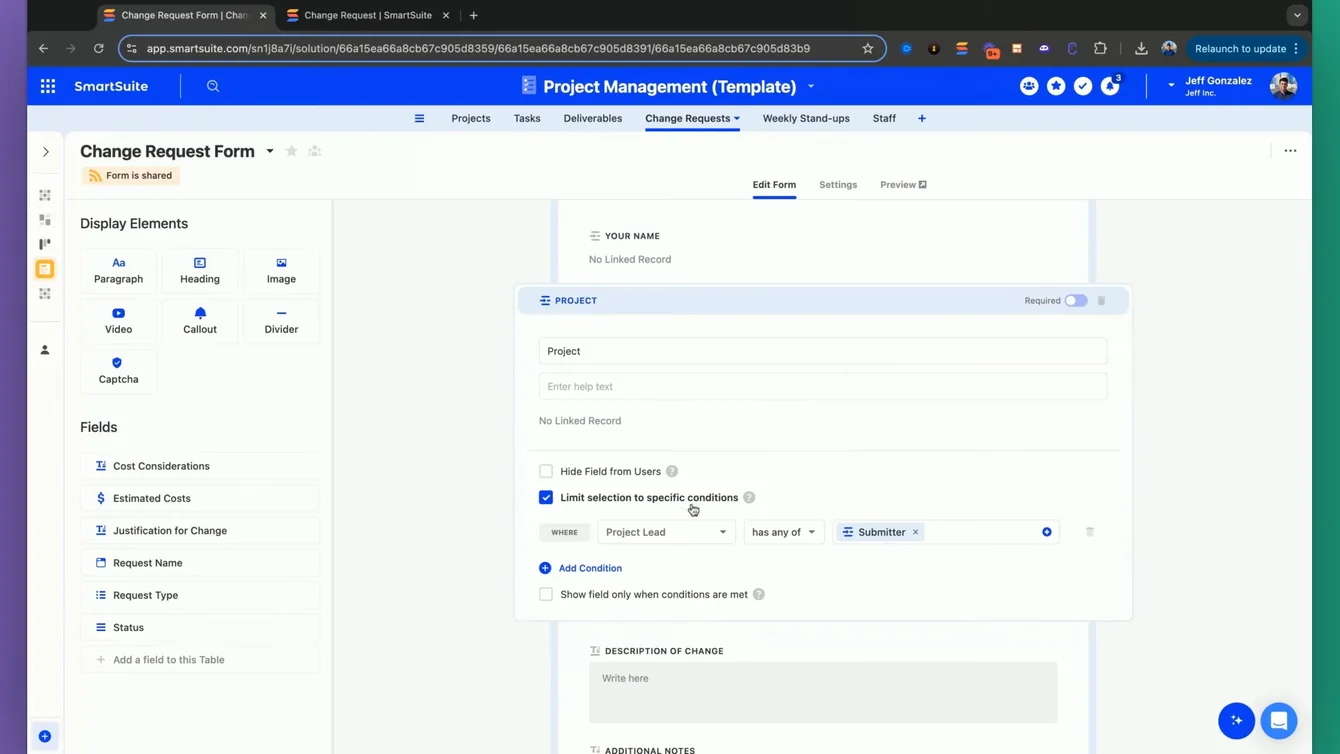
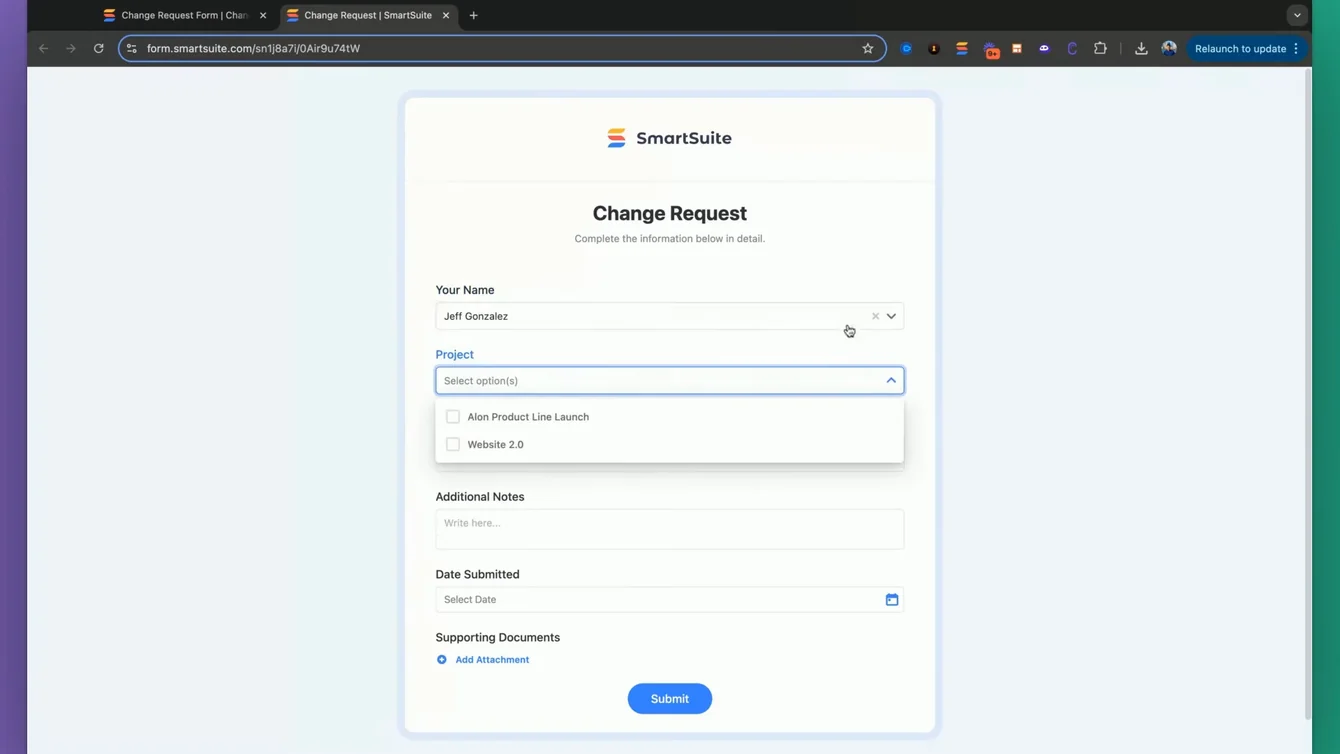
The key feature here is limiting the selection to specific conditions. Our condition checks who, in the projects table, is designated as the project lead and matches this to the submitter within the dynamic filter. This process ensures that the user only sees projects they are directly associated with.
To illustrate, if my name is Jeff Gonzalez and I am tied to two projects, only these two projects will be displayed and selectable.
Step-by-Step Walkthrough
Let's go through the steps:
- Select the Submitter: Choose who is submitting the form.
- Filter Projects: Limit the project options to only those where the submitter matches the project lead.
- Here's a quick refresher:
- Without filtering: All projects are displayed.
- With filtering: Only relevant projects are shown.
This is just one example of dynamically filtering within forms. There are dozens, hundreds, maybe even thousands, of ways to use this very flexible feature.
Conclusion
I hope this example clarifies how you can use dynamic filtering of linked records in your forms to streamline project management processes. The versatility of this feature extends far beyond, allowing for numerous innovative applications.






Put these ideas to work
Start a free trial, or book a demo and see how it runs in SmartSuite.

