




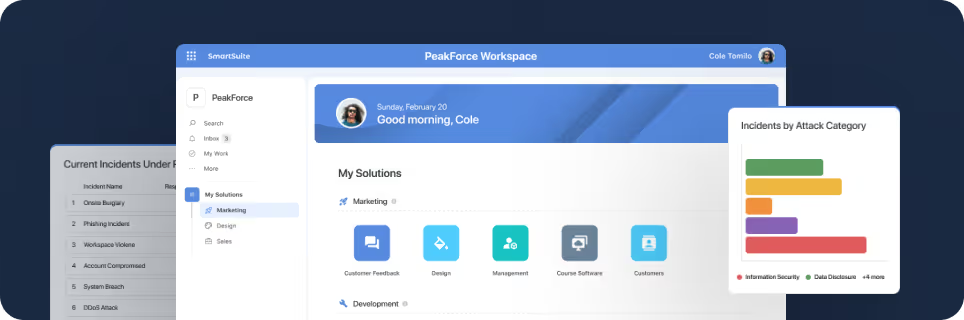
SmartSuite provides work platform for standardizing workflows in the following areas:
-
Governance, Risk & Compliance
-
IT & Service Ops
-
Project / Portfolio Management
-
Business Operations

Optimize Linked Records in a Form
You can optimize the way a linked record field appears within a form in SmartSuite by filtering out specific options, controlling the sort order, and even including field values from those linked records. I'm Jeff Gonzalez, and in this episode of SmartTips I walk us through how.
Let's jump in and see!
In this episode, we'll dive into enhancing the usability of linked record fields within forms. Specifically, we’ll cover:
- Filtering out specific options
- Controlling the sort order
- Including field values from linked records
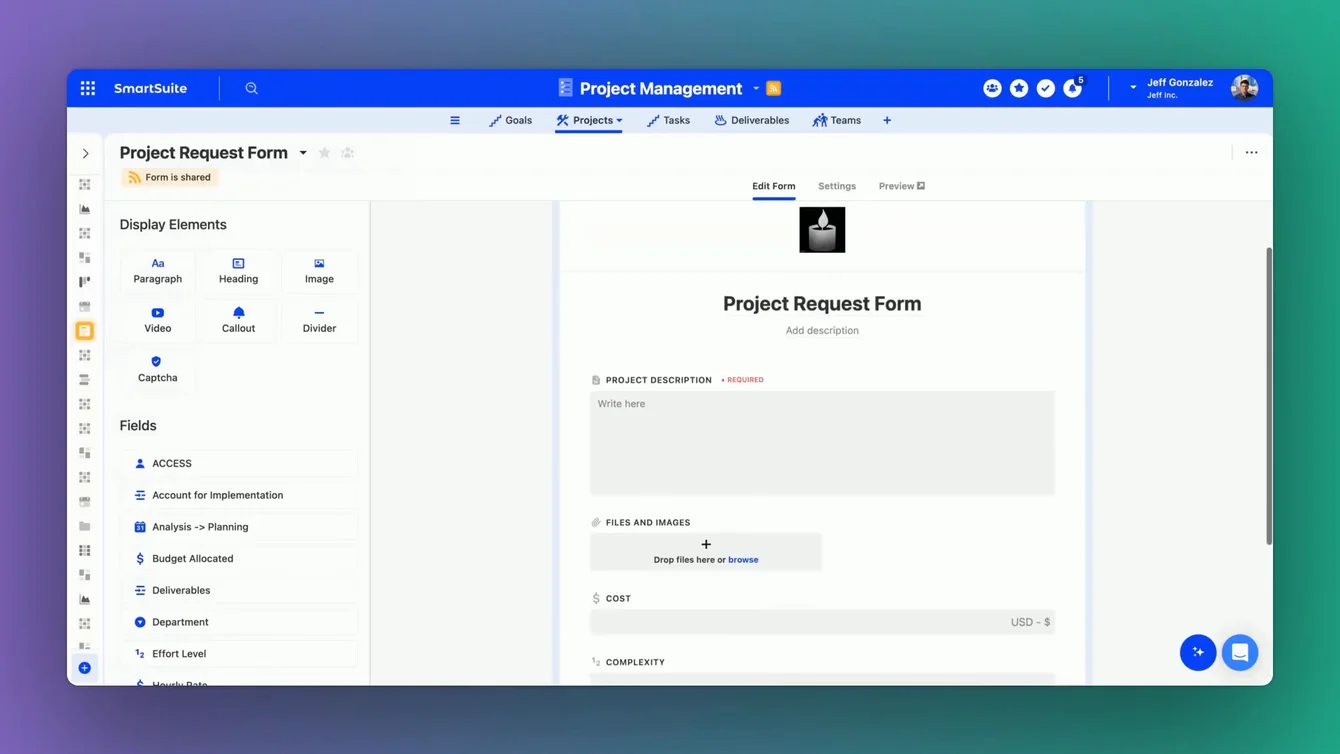
Here’s a sneak peek of the form we'll be working with.
Understanding the Project Request Form
Within our project request form, we have a variety of fields sourced from our projects table. Here are some of the fields we're dealing with:
- Product Description (SmartDoc Field)
- Attachments Field (Files and Images)
- Projected Cost (Currency Field)
- Perceived Complexity (Number Field)
Today, our focus will be on the team assigned to the project. This information will be pulled from our table of teams, using a linked record field.
Working with Linked Record Fields
Linked record fields allow us to pull data from related tables, which can be incredibly useful. Let’s explore how it works.
Modifying the Record Selector Modal
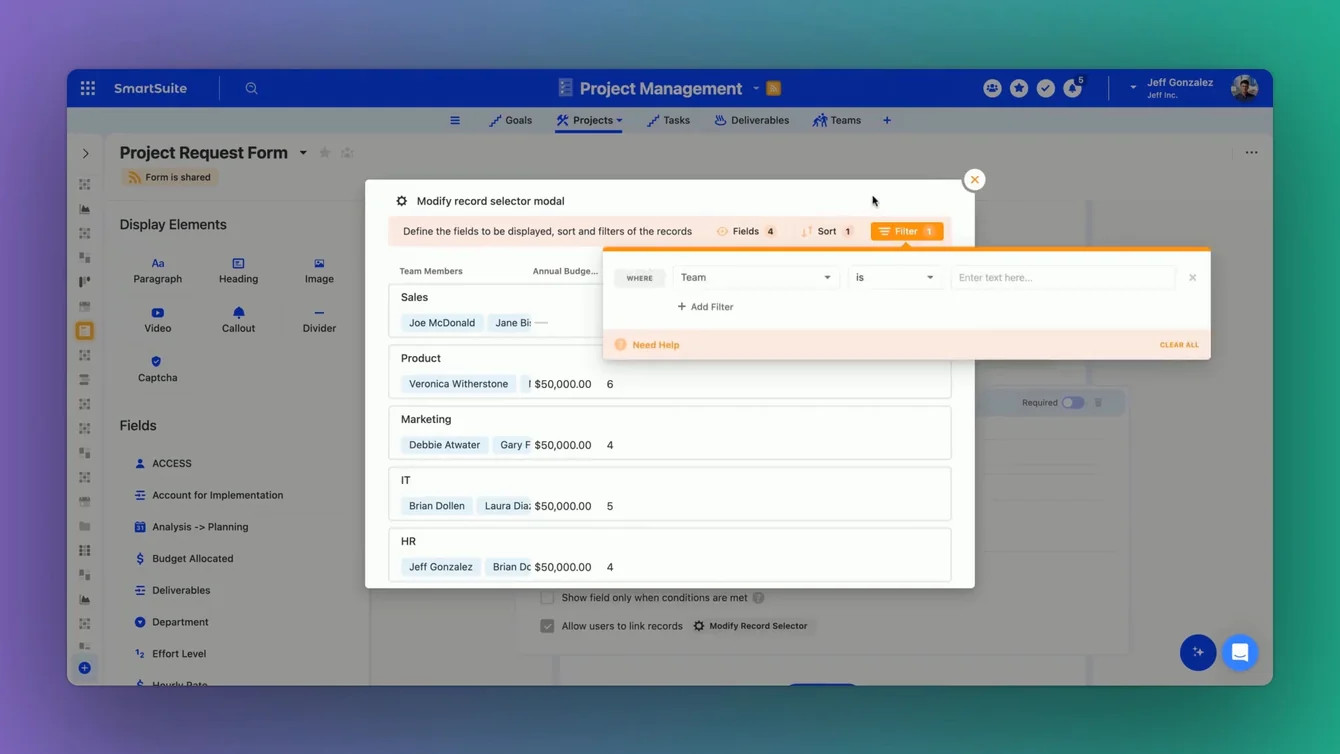
We’ll begin by opening up the linked record field to inspect the modify record selector modal. This modal provides control over which fields of information will be visible to users during their selection process.
In this modal, you can:
- Sort the fields
- Filter the options
This functionality mirrors what you can do in views within SmartSuite. But here, it’s tailored specifically to linked record screens in forms.
Previewing the Form
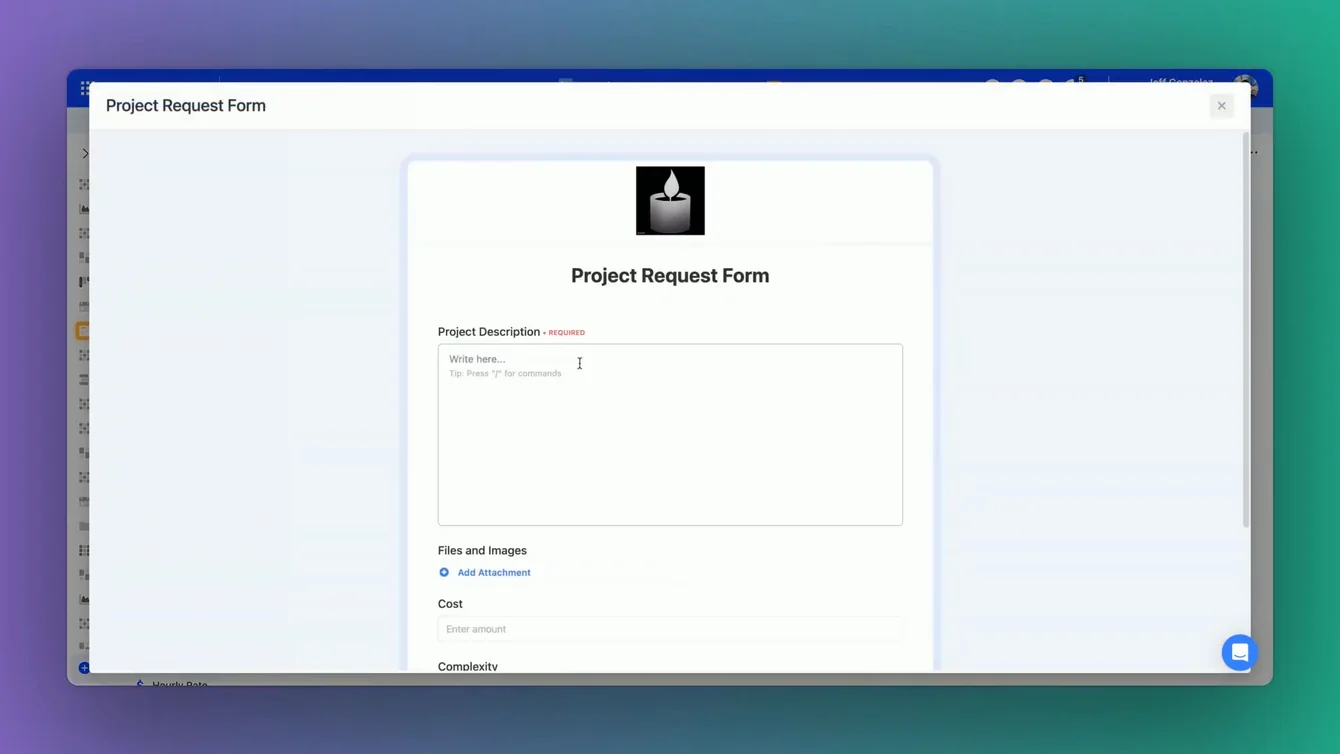
Now, let's get a preview of the form to see how it looks. With our assigned team field, we’ve chosen specific fields of information to display. This enhancement greatly assists users in understanding their selections more clearly.
Detailed Steps to Optimize Linked Records
Step 1: Access the Form Designer
To start, access the form designer within your project request form. Here, you’ll see the array of fields available for configuration.
Step 2: Configure Linked Records
Find the linked record field for team assignments. Click to open the modify record selector modal.
Sorting and Filtering
In the modal:
- Sort Order: Arrange the teams based on criteria such as alphabetical order, project priority, or team lead.
- Filter Options: Exclude teams that are over capacity or not relevant to the current project.
Include Field Values
Now, enhance the field by including additional values from the linked records. For instance, you might want to add columns like team lead’s name, current project status, or capacity.
Review and Save
Once you’ve configured the settings, preview the changes to ensure everything looks good. Make any necessary adjustments, then save your form.
Benefits of Optimizing Linked Records
Optimizing linked records in your forms leads to several benefits:
- Clarity: Users have a better understanding of their choices.
- Efficiency: Easier and quicker to locate the right team.
- Accuracy: Reduces the potential for selection errors.
Conclusion
Optimizing the way linked records appear in your forms can significantly enhance your workflow. By sorting, filtering, and including essential field values, you can create a more intuitive and user-friendly experience.
And as always, thanks for watching!






Put these ideas to work
Start a free trial, or book a demo and see how it runs in SmartSuite.

