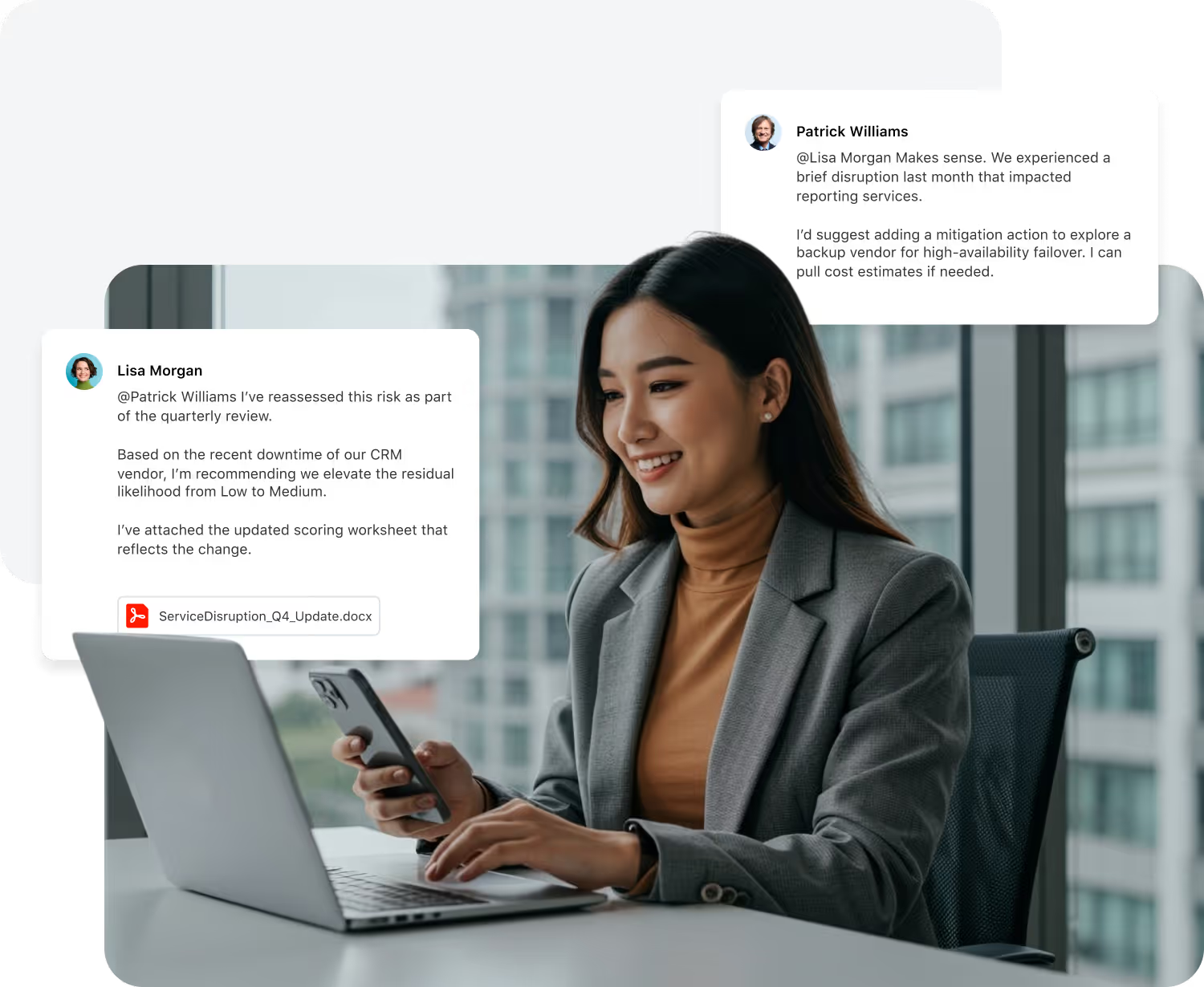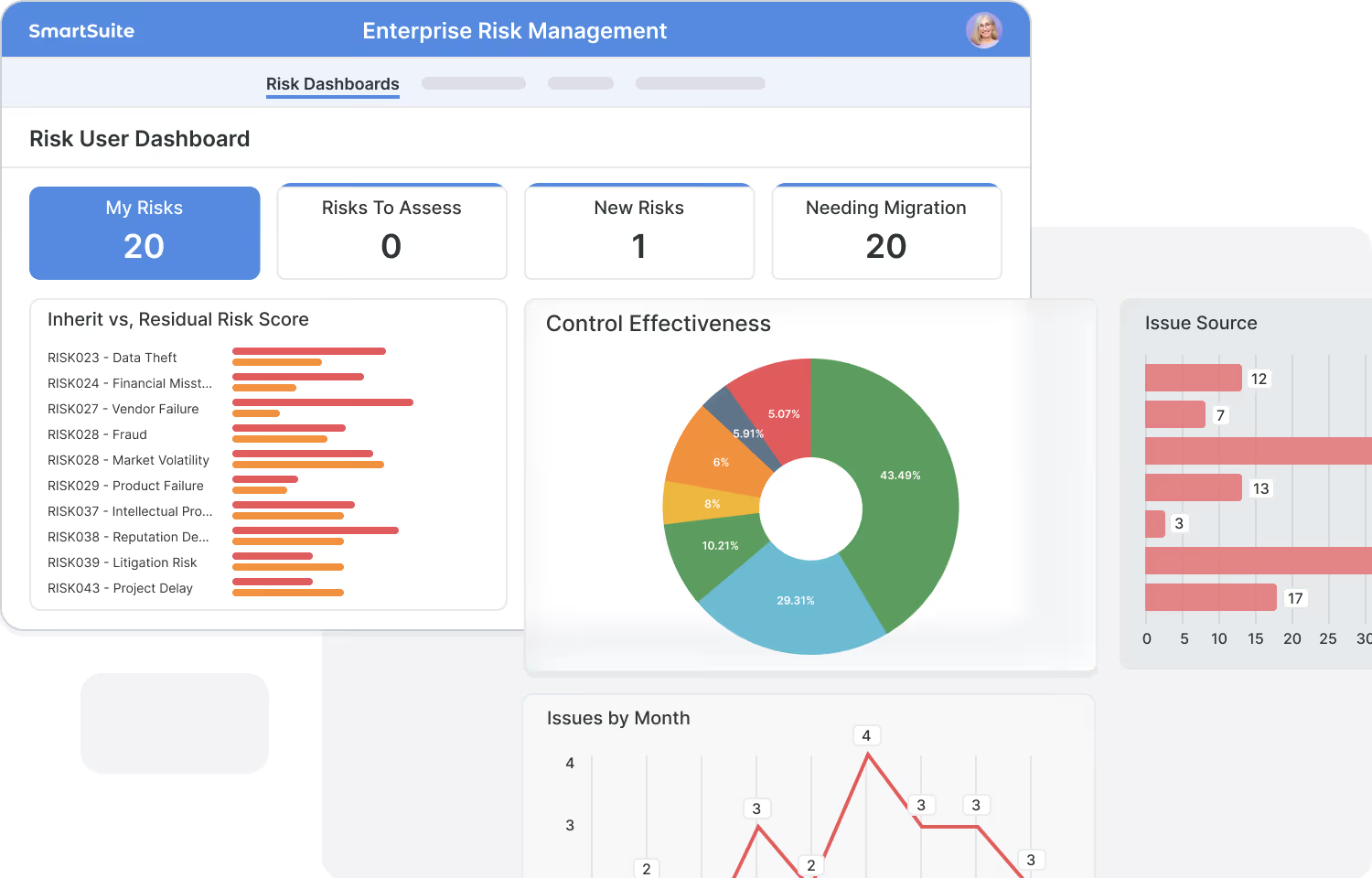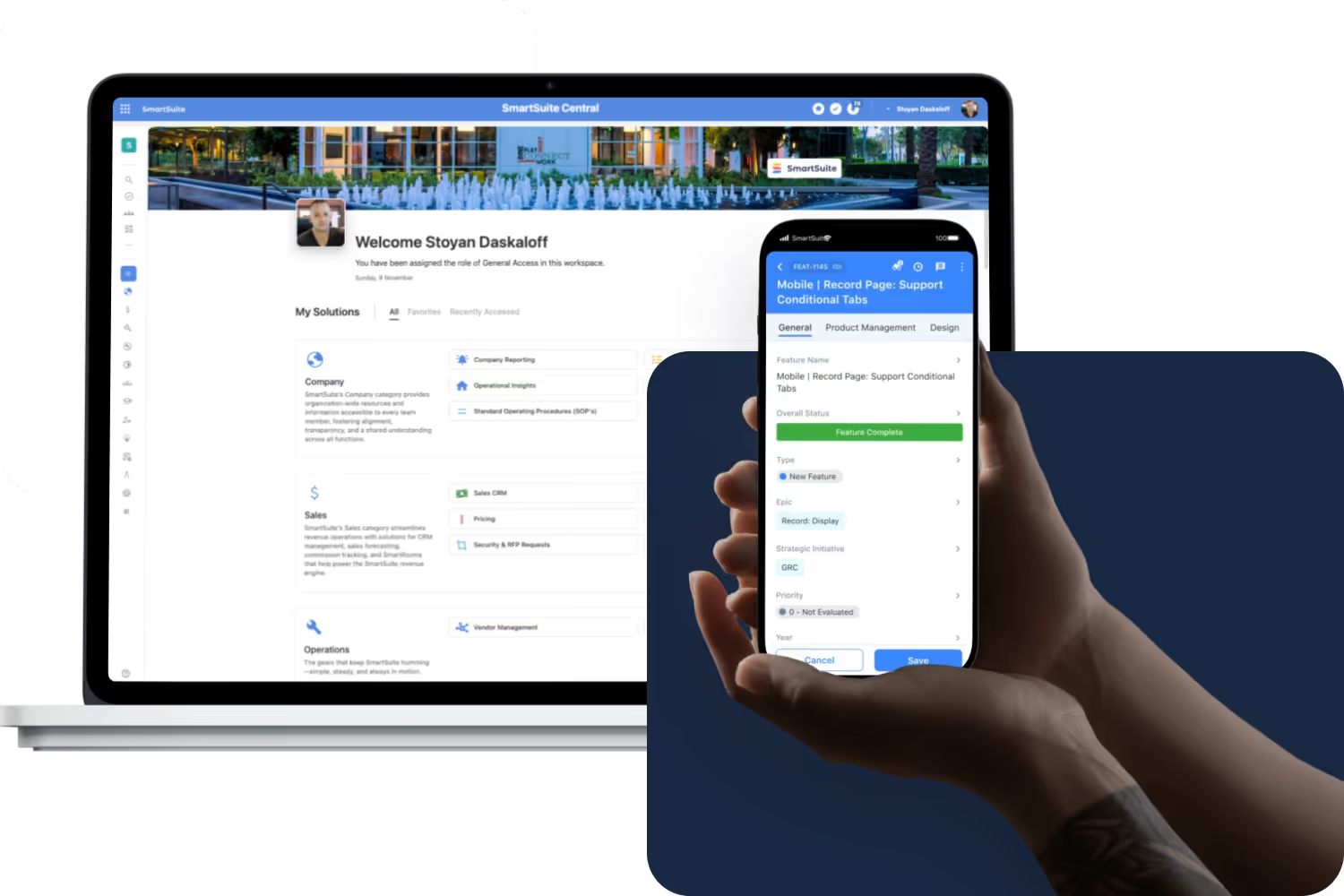
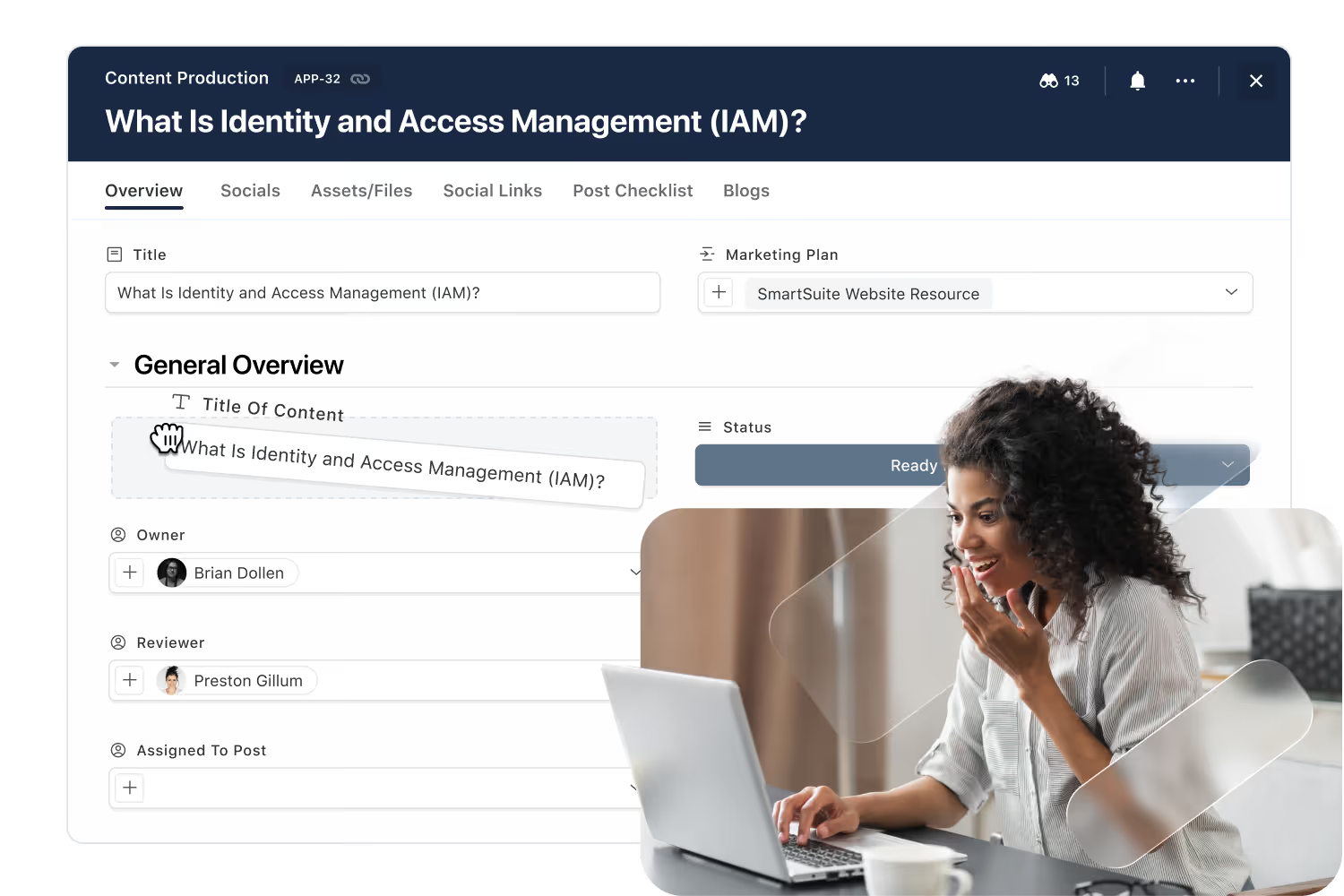
Workflow orchestration in SmartSuite Studio: plan the workflow, define the data model, add business logic, apply permissions, design the user experience and onboard users, all without code.
Key takeaways
- SmartSuite Studio is the visual, no-code environment where data, logic, permissions and layout are designed together.
- Workflows are built in six steps: plan, data model, business logic, permissions, user experience and onboarding.
- Start from a solution suite, a workflow accelerator or a blank canvas.
- Governance, auditability and role-based permissions are built into every workflow from the first step.
What is workflow orchestration in SmartSuite?
Workflow orchestration in SmartSuite is the method and the tooling for building a workflow end to end: SmartSuite Studio is the visual, no-code environment, and the six steps below (plan, data model, business logic, permissions, user experience, onboarding) are how a process owner takes an idea to a governed, running workflow.
Build and Tailor Workflows Visually in SmartSuite Studio
Build and adapt workflows visually without code.
SmartSuite Studio lets you build workflows the same way you think through them, visually. No code, no complexity: just drag, drop, and define how your data moves, who interacts with it, and what each role should see. By replacing traditional development with configuration-based design, Studio gives every team the ability to translate ideas into working solutions. Iteration becomes instant, enabling workflows to evolve as quickly as your business does. And with governance, permissions, and auditability built in, Studio delivers the freedom to innovate without sacrificing control.
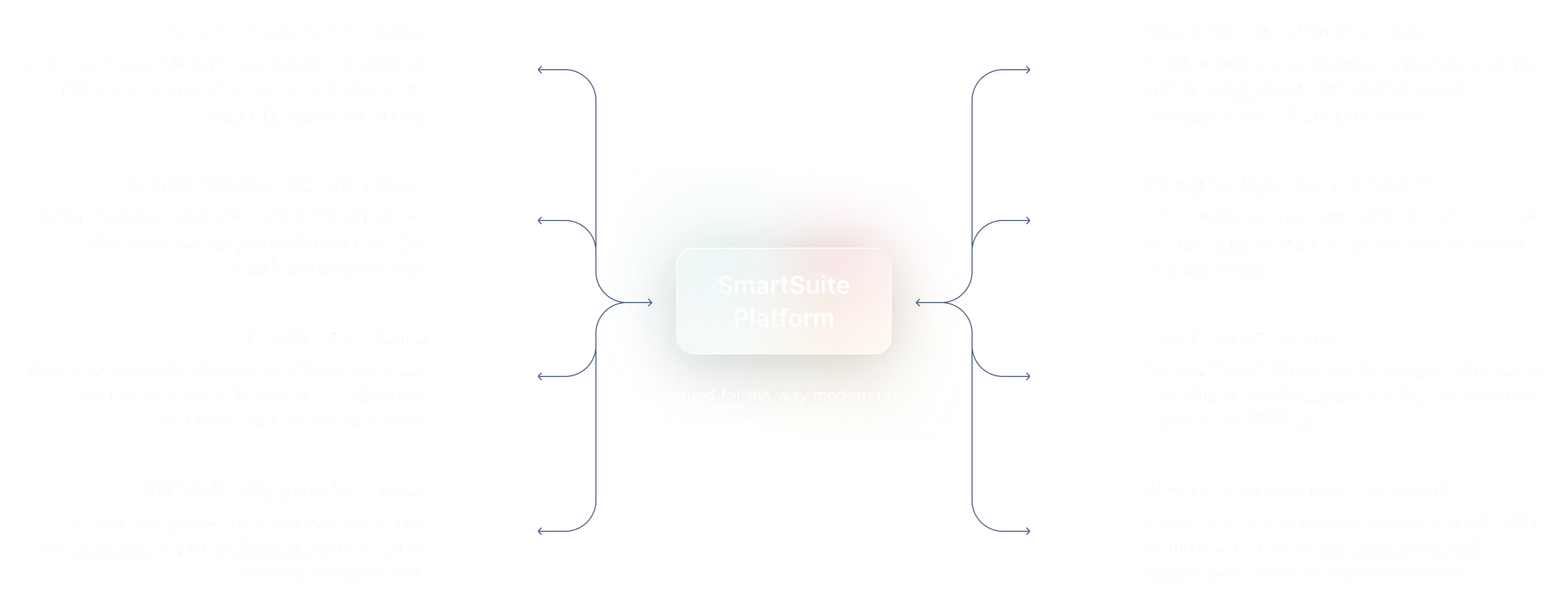
Unified Workflow Design. Design data, logic, permissions, and UI in one unified environment.
Accelerated Build & Adaptation. Build or adjust business workflows in hours, not weeks.
Enterprise-Grade Governance. Define roles, control changes, and enforce compliant workflows
Tailored User Experiences. Create intuitive, role-specific interfaces for every team.
How do you build workflows in SmartSuite?
Building and improving workflows in SmartSuite doesn’t require technical skills, it simply requires understanding how the work actually happens. Studio gives process owners a visual, no-code environment where they can shape every part of a workflow, from the information being collected to how tasks move between people. As teams learn and processes evolve, the same tools make it easy to refine steps, add new logic, or adjust responsibilities without slowing down the business. This keeps workflows aligned with real-world needs and ensures they stay relevant as your organization grows.
Step 1: Plan the Workflow
Great workflows start with clarity. Planning helps teams align on what the workflow must accomplish, why it matters, and what each person needs from it. SmartSuite makes this simple by offering three flexible ways to begin:
- Start with a Solution Suite like GRC.
- Start with a workflow Accelerator.
- Start from a blank canvas.

Step 2: Define the Data Model
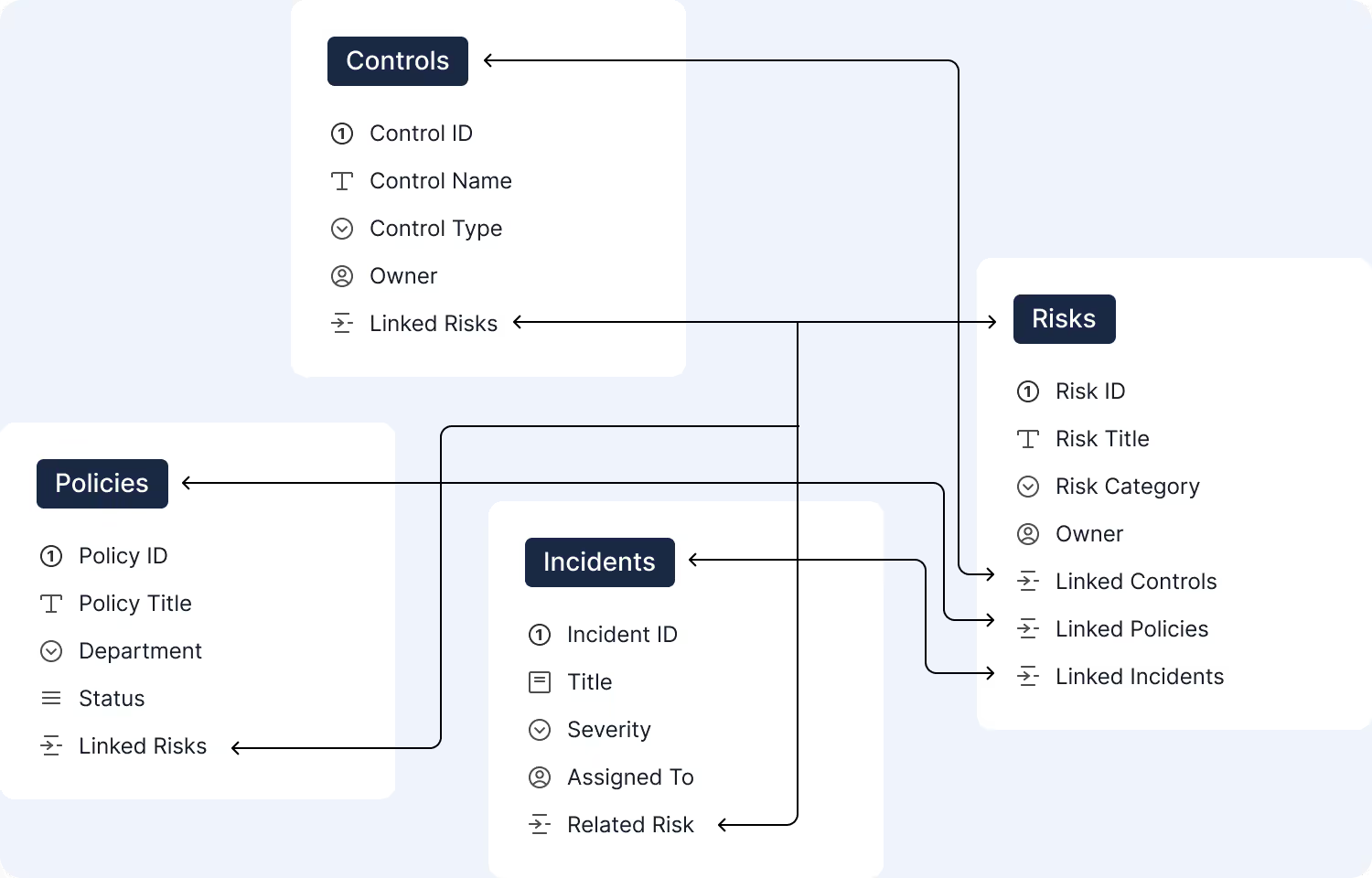
A strong workflow needs a clear structure. In this step, teams identify the information they need to track and organize it into meaningful tables and fields. SmartSuite helps you keep things simple while ensuring everything stays connected and easy to understand.
- List the key pieces of information your team needs to track.
- Create tables and fields that reflect the real objects in your process.
- Link related items so information doesn’t get siloed across workflows.
Step 3: Add Business Logic
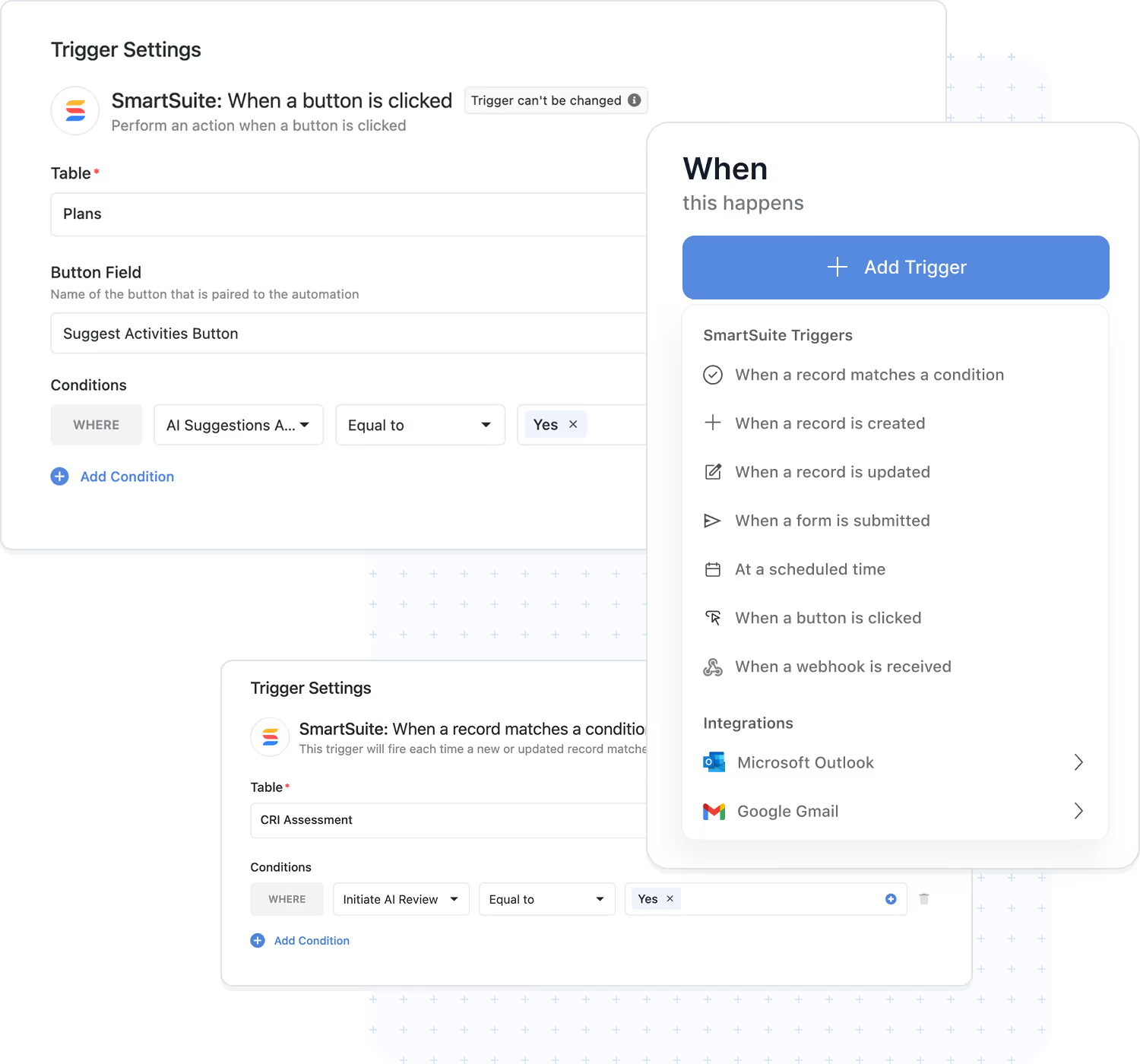
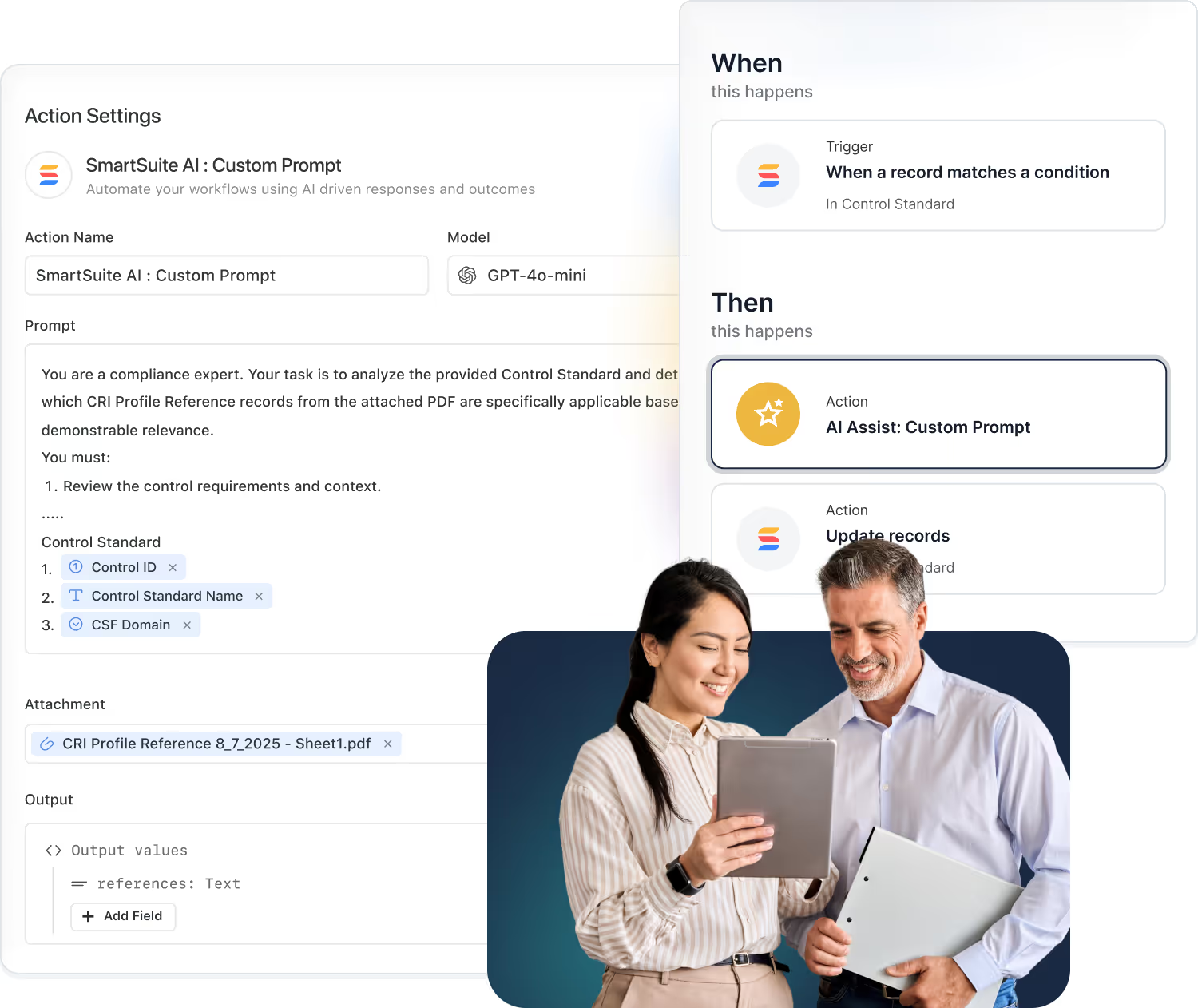
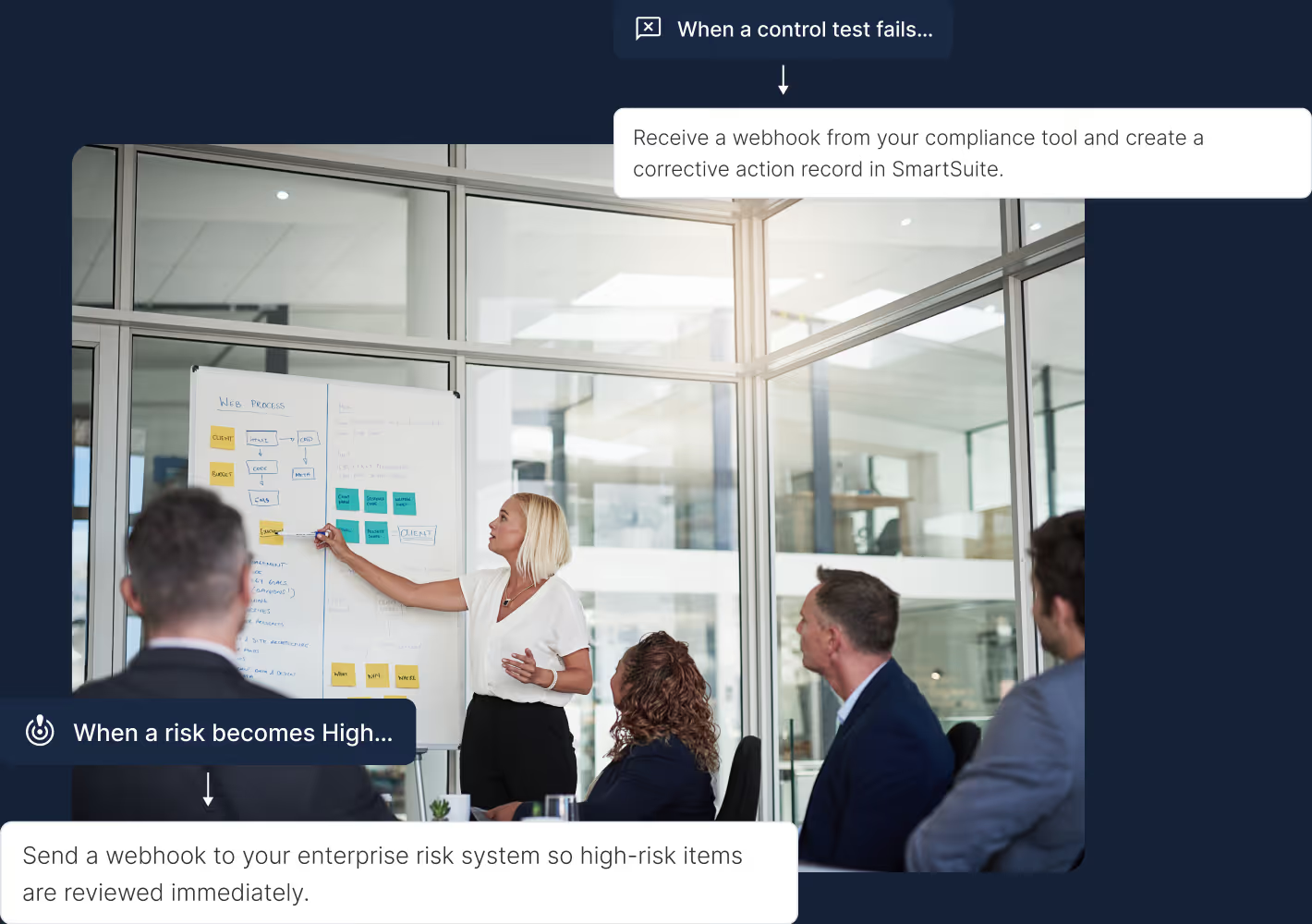
Business logic brings your workflow to life. SmartSuite lets teams create simple rules and automations that keep work moving forward without needing technical skills. This makes it easy to add structure, reduce manual steps, and ensure things happen when they should.
- Capture simple rules like 'when a task is completed, notify the owner.'
- Use automations to update fields, assign work, or send messages.
- Keep logic easy to understand so anyone can adjust it over time.
Step 4: Apply Permissions
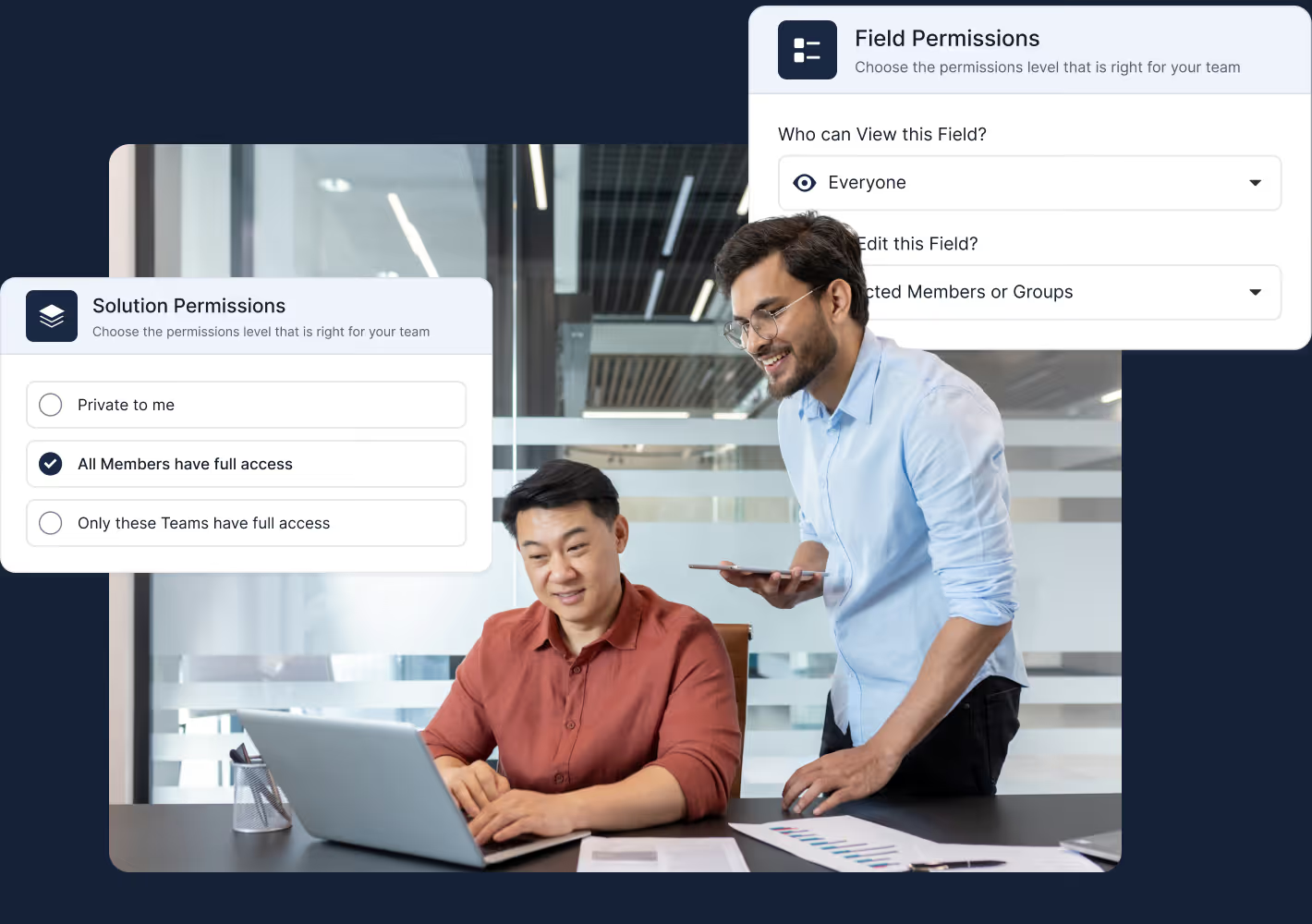
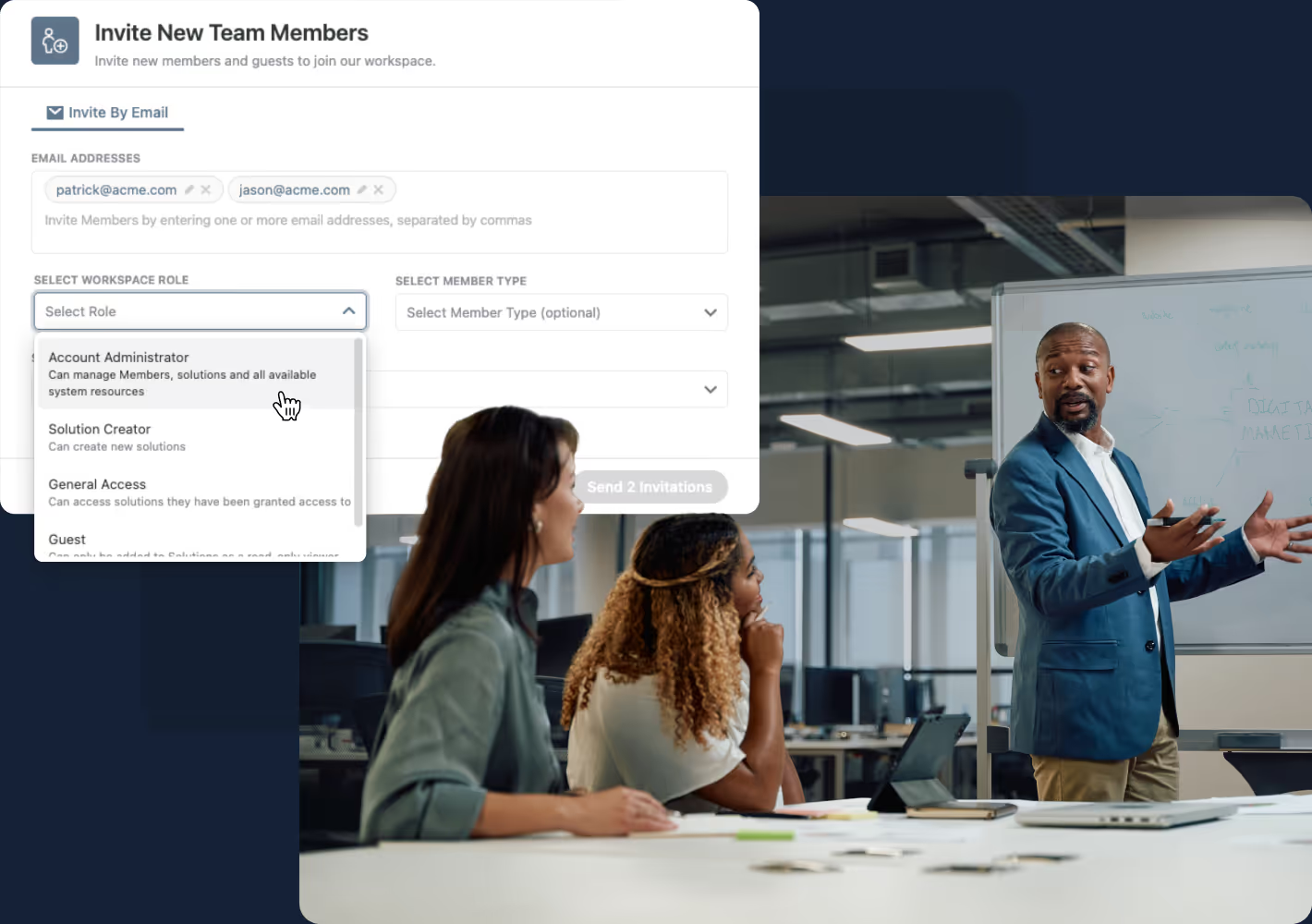
Permissions ensure every person sees only what’s relevant to their role, and nothing more. SmartSuite makes this easy with role-based settings that control access from the workspace all the way down to individual fields and views. This protects sensitive information while helping teams stay focused and productive.
- Set role-based permissions at the workspace, Solution, table, field, record, and view levels.
- Ensure sensitive information is only visible to the right people, automatically.
- Give each team the exact access they need to work efficiently, without exposing unnecessary data.
Step 5: Design the User Experience
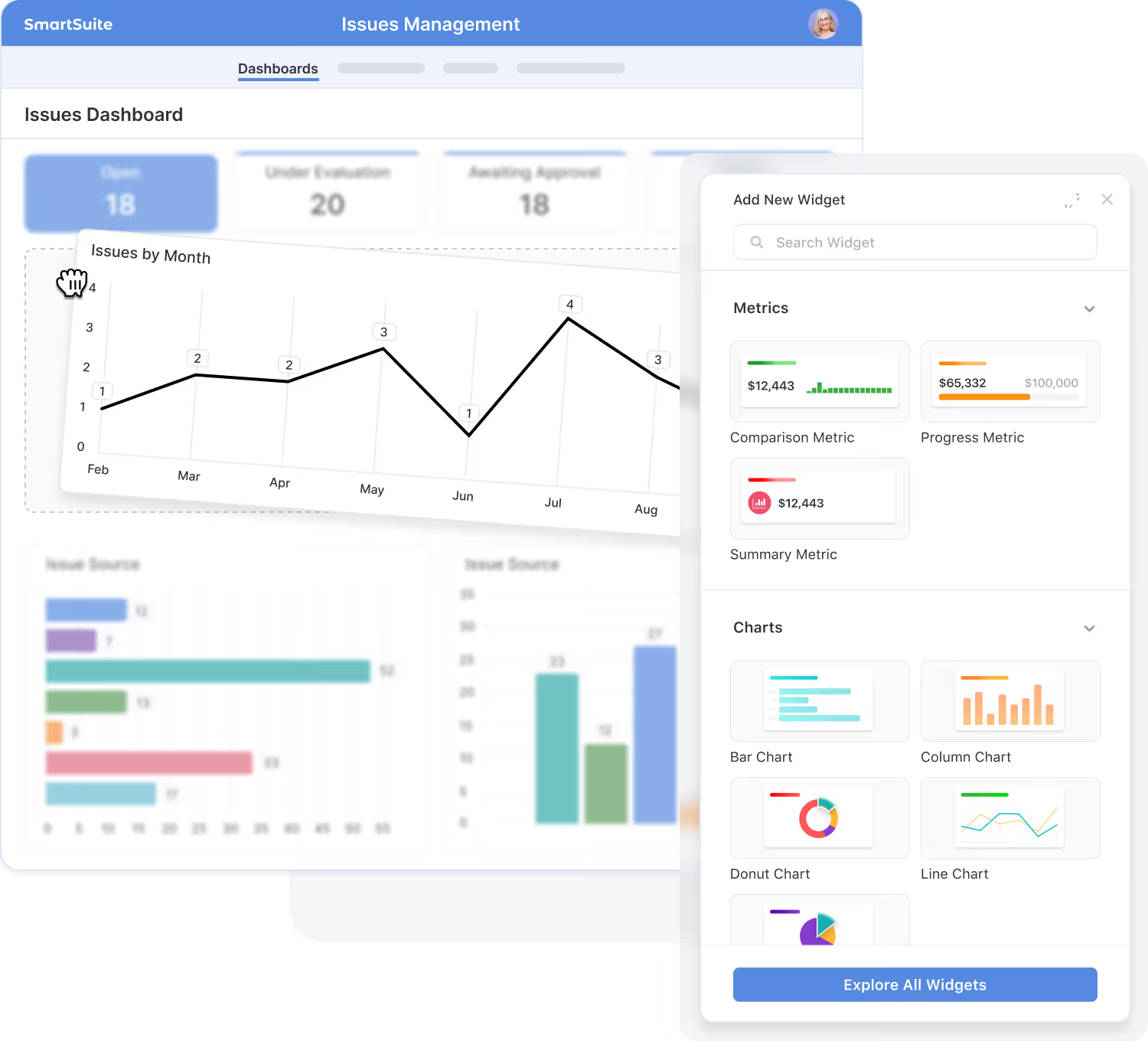
Designing the user experience is about making the workflow simple and intuitive for everyone. Teams organize record layouts with Tabs and Sections, use display logic to show only what’s relevant, and create views and dashboards tailored to each role. This helps every user feel confident from their very first interaction.
- Use Tabs and Sections to organize information clearly.
- Apply display logic to show or hide layout elements based on context.
- Create views and dashboards tailored to each role.
- Add helper text so new team members get up to speed quickly.

Step 6: Onboard Users
Onboarding is about helping people feel confident using the workflow from day one. SmartSuite makes it easy to pair each workflow with its own getting-started guides, checklists, and short videos so new users can learn in the flow of work. You can embed this content directly into layouts, views, and dashboards so help is always right where work happens.
- Add workflow-specific getting-started guides, FAQs, and videos directly into the Solution.
- Use inline instructions, helper text, and checklists to explain what to do on each screen.
- Link to deeper documentation or training resources when users need more context.
Key Capabilities.
Why SmartSuite Studio?
SmartSuite Studio brings everything you need to build and improve workflows into one unified, intuitive space. Instead of stitching together separate tools for data, logic, permissions, and layout, Studio lets teams design the entire experience in one place. It’s simple enough for process owners to build confidently and structured enough for IT to govern at scale, giving organizations a single, structured way to create workflows that function the way people actually work.
Everything in one place. Design data, logic, permissions, and layout together, not across multiple tools.
Built for non-technical teams. If you understand the process, you can build the workflow, no technical skills needed.
Enterprise-ready. Governance, audit trails, and role-based control are built-in from day one.
Who is SmartSuite Studio for?
Studio supports everyone involved in designing, operating, and governing business workflows, from frontline teams to enterprise IT. Each role can participate without stepping outside their area of expertise.

Process Owners. Design workflows that reflect real-world needs and continuously improve them over time.

Department Leaders. Manage visibility, reporting, accountability, and team alignment across processes.

Business Analyst & Ops Teams. Structure data, logic, and reporting without technical friction.

IT, Security & Compliance. Maintain governance, access control, and oversight with enterprise-grade confidence.
Example Workflows You Can Build with SmartSuite
Studio is used across industries to bring structure, visibility, and efficiency to everyday processes, all without writing code. Here are examples of how teams use SmartSuite to streamline complex, high-value workflows.
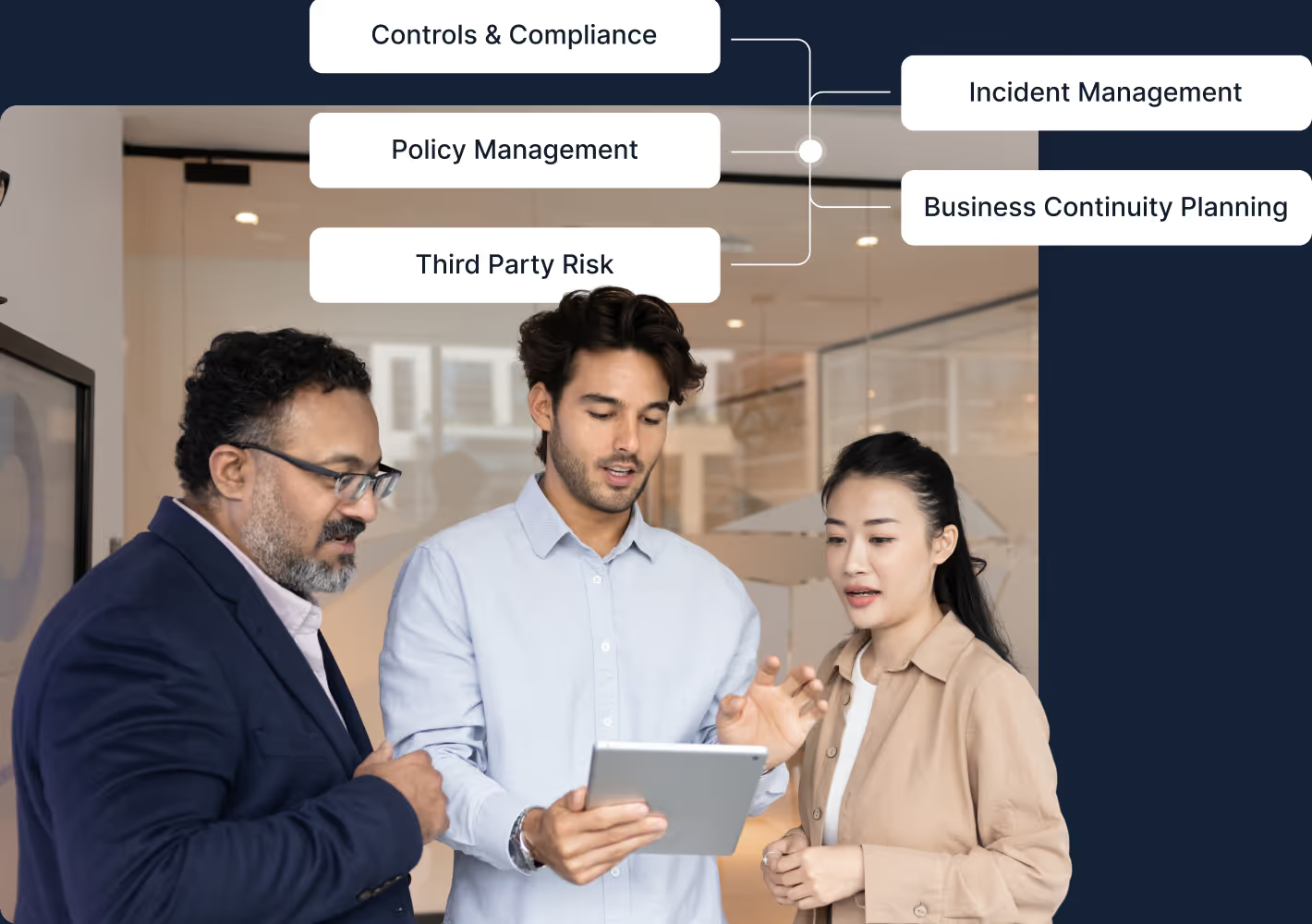
Risk assessments, third-party reviews, audit readiness, and findings tracking.
BCP program management, incident reporting, and after-action workflows.
Support Tickets, access requests, change approvals, and security review workflows.
Contract approvals, procurement workflows, budget tracking, and reviews.
Governance & Scale, Built In
SmartSuite Studio is designed for organizations that need to move fast without losing control. Every workflow is backed by enterprise-grade governance, from how access is granted, to how changes are made, and how activity is tracked over time. This gives teams the freedom to build and adapt, while IT, Security, and Compliance maintain the oversight they require.
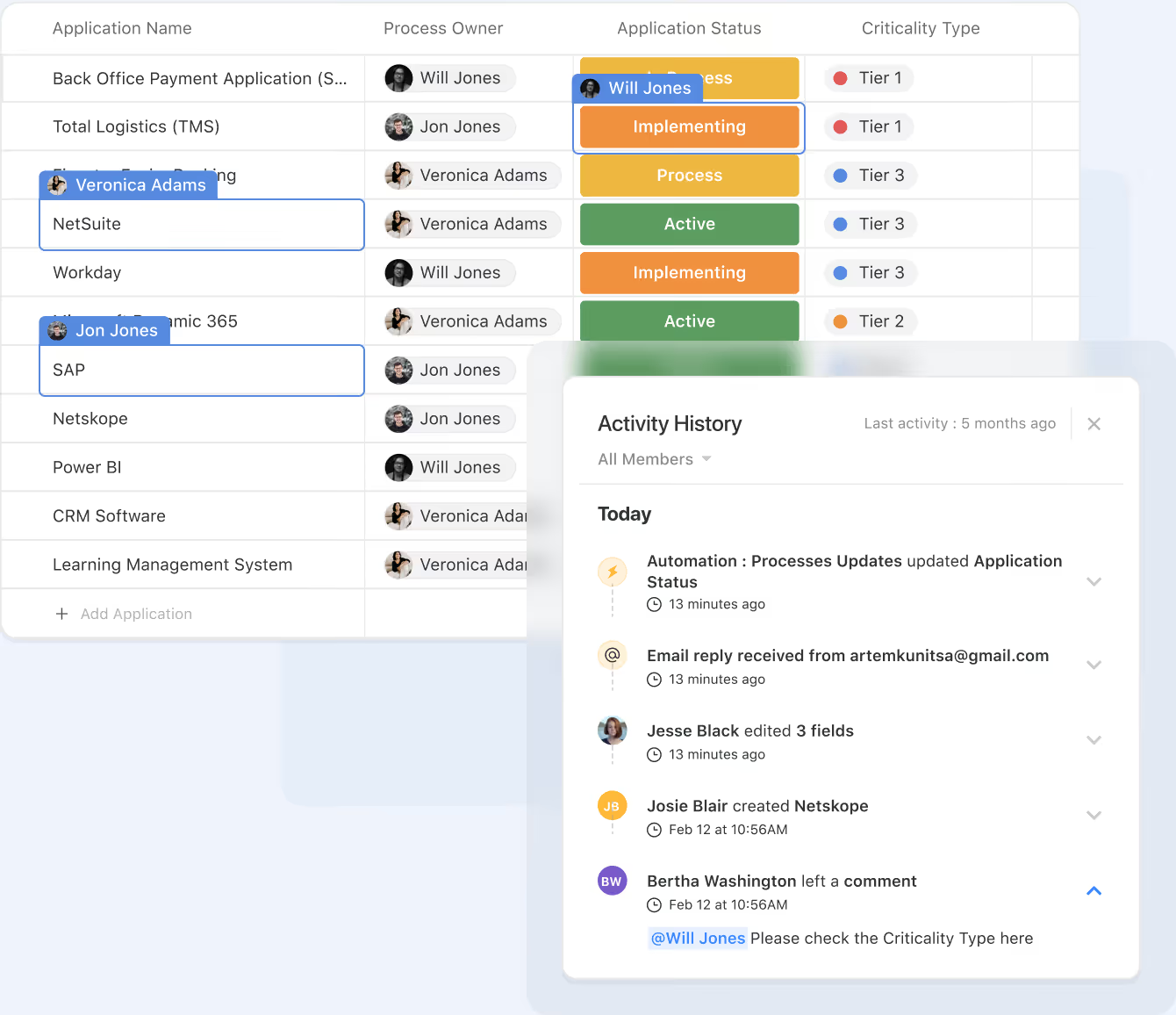
Define who can see and do what at the workspace, solution, table, field, record, and view levels using simple, role-based settings.
Evolve workflows over time while keeping changes visible and controlled, so teams can improve without introducing risk.
Track key actions and changes so you always know what happened, who did it, and when, supporting internal reviews and external audits.
Align workflows with your organization’s security, compliance, and operational standards instead of reinventing controls for every process.
Frequently Asked Questions About Building & Running Workflows
Orchestration refers to how teams design, connect, and manage workflows across SmartSuite. It brings together data, tasks, automations, logic, and handoffs to ensure each process runs smoothly from initiation to completion—across teams, systems, and departments.
Automations handle discrete triggers and actions (e.g., send a message, update a record). Orchestration is the end-to-end coordination of entire workflows, including dependencies, approvals, handoffs, stage transitions, and cross-solution interactions
Yes. Workflows can span Teams, Projects, GRC programs, ITSM processes, BCP playbooks, CRM operations, and more. Linked records, shared views, and multi-solution automations allow different teams to collaborate in a unified flow without losing data context.
SmartSuite supports everything from simple linear workflows to advanced multi-path processes with conditional logic, escalations, SLAs, looping actions, and system-to-system integrations. The platform is designed to scale with increasing operational complexity.
No. SmartSuite’s orchestration tools are fully no-code. Builders use drag-and-drop logic, field rules, automations, permissions, and solution configurations to structure workflows without writing scripts.
SmartSuite ensures reliability through required fields, conditional displays, automated assignments, notifications, approval checkpoints, SLAs, record permissions, and audit history. This creates a guided, controlled environment for critical processes.
Absolutely. Orchestrations combine human tasks (reviews, approvals, updates) with system-driven actions (notifications, integrations, record creation, status changes) to keep processes efficient without losing accountability or oversight.
Teams can monitor performance through dashboards, bottleneck analysis, record histories, automation logs, audit trails, and user feedback. Workflows can be updated safely without disrupting operations, helping organizations optimize over time.

Written by
SmartSuite Staff
· Reviewed
October 17, 2026
Explore the platform
The ten capabilities of the SmartSuite platform, each on its own page.