



How To Link Records To Form Submissions With ID Matching
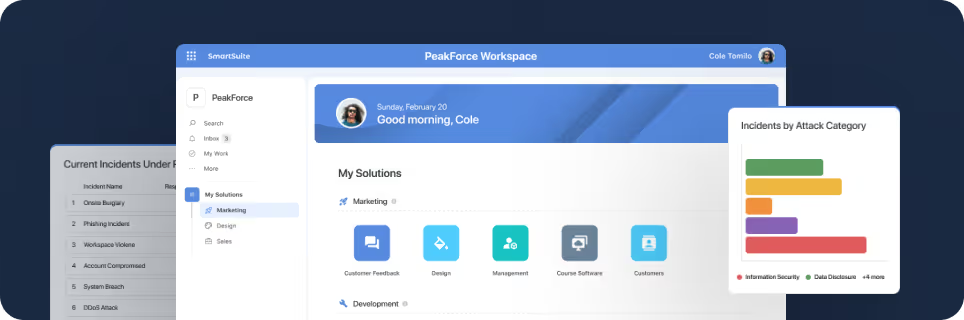
SmartSuite provides work platform for standardizing workflows in the following areas:
-
Governance, Risk & Compliance
-
IT & Service Ops
-
Project / Portfolio Management
-
Business Operations

Linking Records to Forms with Automations
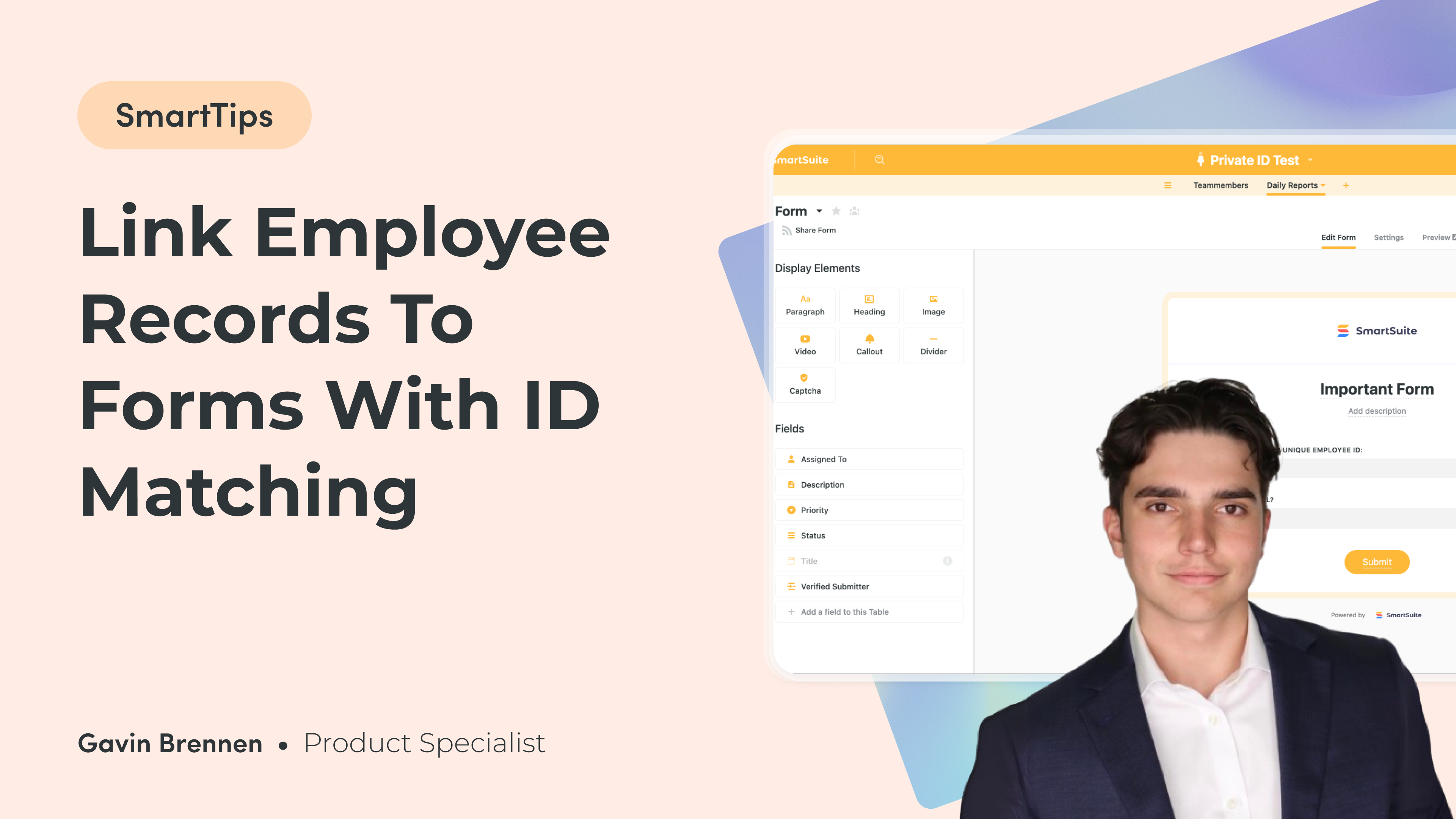
You can link employee records to forms easily in SmartSuite by using a unique identification, such as an ID. My name is Gavin Brennen, and in this episode of SmartTips I guide you through this feature step by step. Imagine this being implemented within your company’s workflow where employees submit weekly reports efficiently.
Why do you need to link employee records?
Think about it: many companies have a routine where team members complete weekly report forms. Naturally, these submissions need to link back to the respective employee's record. Traditionally, many forms allow users to select their names from a list in a dropdown menu, linking their responses manually to their records. However, this approach can be cumbersome and not very private, which is why finding a smarter solution is essential.
Issues with Traditional Approaches
The traditional method often involves users selecting their name from a visible list. While it works in some cases, there's an associated risk of privacy breaches and potential mistakes, like selecting the wrong name. Plus, managing forms manually can be error-prone as organizational size increases. Using a unique identifier simplifies and improves this process.
How do unique IDs make linking smarter?
The solution we’re focusing on today involves creating a form where employees can enter a unique identifier, such as an employee ID. This ID will then automatically link their form submission to their specific record in your employee directory.
Getting Started: Setting Up Your System
Create an Employee Directory
Begin by setting up an employee directory in SmartSuite. This directory should include each employee's name along with a unique ID or identification code. The ID could be the Auto Number, a text field, or even a formula—whatever field type fits your organization’s needs.

This directory will be the backbone of your system, holding essential employee information.
Build Your Form
Design a form that your employees will use to submit their reports. Insert a field specifically meant for entering their unique ID. This field can be set as a text input, allowing flexibility for various input styles.

Create the Automations
The real genius of this process is in automations. Once the form is submitted, an automation will kick in to match the form’s ID input against entries in your employee directory.
Steps to automate:
- Trigger: Set the automation to trigger "When a Form is Submitted"
- Action - Find Record: Implement a 'Find Record' action that searches for the employee ID within the employee directory.
- Action - Update Record: Once the automation has found a matching record, update the record to link the two together.

What does a real-world application look like?
Let’s take a practical example. Suppose employee John Doe submits his weekly report with an ID of 12345. Upon submission, the automation checks the ID against the employee directory, identifies the matching record, and automatically links the report back to John Doe without needing additional input.
Why This Method Works
Using a unique ID not only secures the process but also significantly reduces potential errors. There's no need to worry about selecting the wrong name from a long list, and it maintains a high level of privacy among employees. This approach is streamlined, efficient, and perfectly suited for scaling as organizations grow.
What If IDs Don’t Match?
In the event that an ID does not match any record within the directory, it’s crucial to have a fallback process. Ensure that your automation notifies the submitter or the HR that there’s a discrepancy, allowing for quick resolutions.
Wrap Up and Next Steps
In summary, utilizing unique IDs within SmartSuite’s automation tools transforms how you process employee form submissions. By implementing this system, you're sure to enjoy a more efficient and error-proof way of managing data.
Empower your workplace with smarter automation and stay tuned for more innovative tips in the coming weeks. Until then, keep exploring the limitless potential of SmartSuite!
Feel free to experiment with and adapt this setup to fit your specific business needs, making sure you maintain security and privacy for all your employees. Happy automating!






Put these ideas to work
Start a free trial, or book a demo and see how it runs in SmartSuite.

