

Forms for Project Updates
Welcome to another episode of SmartTips. I'm Jeff Gonzalez, and today I'm going to demonstrate how to use a form to update project records in your solutions. Leaders often want to make it easy for team members to navigate SmartSuite, knowing what to update and where to update it. We'll integrate forms into a dashboard and leverage some formulas to aggregate information at the project level to understand each update's details. Let's dive in!
Setting Up Our Project Management Template
Today, we'll be operating out of our project management template solution. First, I've hidden a few tables that aren't necessary for today's demonstration and added one additional table—Updates.
The Updates Table Structure
This new Updates table includes several fields:
- Assigned To: Identifies who is submitting the update.
- Linked Record: Specifies the project relevant to the update.
- Rating Fields: Various aspects of project performance such as deliverables, budget, capacity, and customer happiness.
- Notes: A text area for additional information.
By incorporating all these elements into a form, with some conditional logic baked in, we make updates accessible and straightforward for users.

Creating a Dashboard for Easy Access
To ensure your team can easily access the update form, I've created a dashboard within the Projects table. With this setup in mind, let's go over the steps to achieve this workflow:
- Folder Organization: Created a folder to house the dashboard views.
- Permissions: If you are a Professional or Enterprise SmartSuite customer, you can set permissions for these folders to control who can access them.
- Dynamic Filters: List all projects, dynamically filtered to show projects managed by the current user.
- Spotlight on Updates: Highlight projects needing updates if the last update was over a month ago or if the field is empty.

Submitting an Update
Let’s go through the process of submitting an update:
For instance, when updating for Website 2.0:
- Select the project.
- Fill in the update fields—providing ratings on deliverables, budget, capacity, and customer happiness.
- Add additional notes if necessary.
- Submit the form.
After submission, the form status updates, and relevant project details reflect the latest submission.

Linking and Aggregating Data with Formulas
Once updates are submitted, SmartSuite uses formulas to aggregate the data at the project level.
Using Related Record Sort
The cornerstone function here is Related Record Sort:
- Pulls Values: Extracts values from linked records, referencing dates or alphabetically organized fields.
- Order: Configures the function to pull either the first or last record, ordered by created date.
Here’s how we set it up:
- Budget: Pull the most recent budget rating.
- Customer Relationship Health: Get the latest customer happiness score.
- Deliverables on Track: Retrieve the last deliverable status.
- Staffing Capacity: Assess the latest capacity status.

The formula then sums these values and computes a blended average to indicate overall project health.
Summary
Seeing and implementing these steps should inspire the next solution you build for your team. By making project updates simple and clear through forms and dashboards, you enhance efficiency and clarity within your projects.
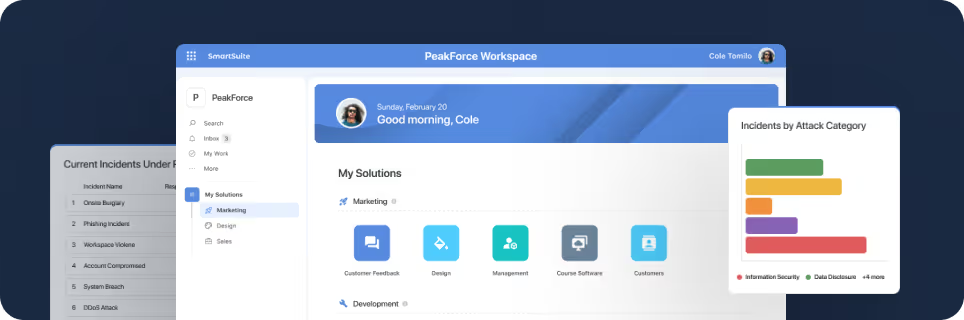
SmartSuite provides work platform for standardizing workflows in the following areas:
- Governance, Risk & Compliance
- IT & Service Ops
- Project / Portfolio Management
- Business Operations