



Button Field: Create Record and Open Form Actions
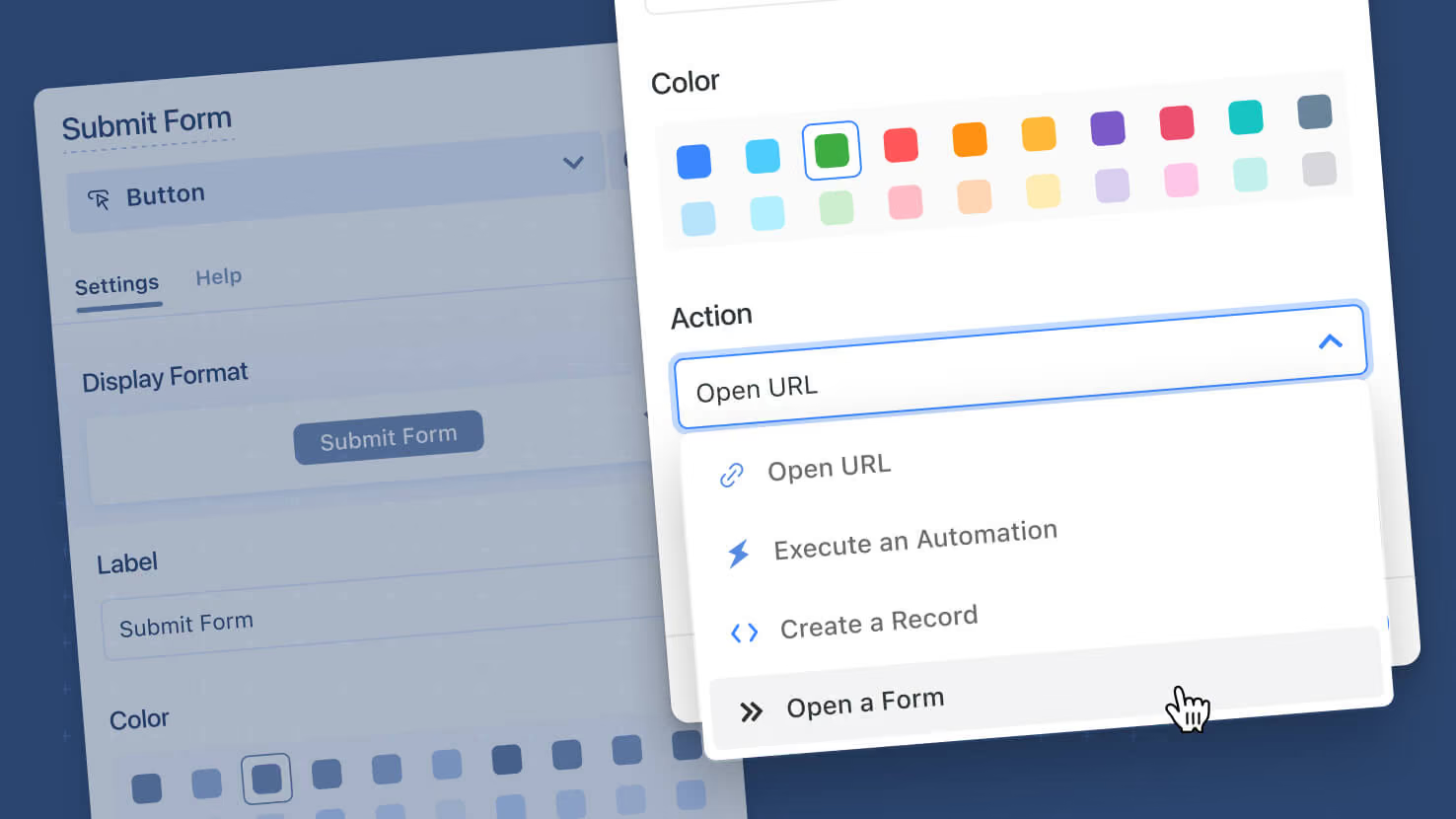
The Button field on a record now supports Create a Record and Open a Form actions, matching what Button widgets on dashboards have offered. Service desks placing a 'Create Follow-Up Ticket' button on every incident, change boards launching a CAB approval form from a record, and GRC programs offering one-click attestation submissions can now wire the action directly onto a record without leaving it.
Key Highlights
- Create a Record Action: Open the standard record creation page in any Solution and Table, with default values pre-applied to specific fields, all configured directly in the button's settings.
- Open a Form Action: Launch any form from any table in Popup (default), Slider, Fullscreen, or New Tab mode, keeping the user's session and pre-loading the form ready for input.
- Default Values: Most input field types are supported (text, number, date, select-based, etc.). The button overrides field-level default values when both exist, so the button's value wins for that launch.
- Broken Config Handling: If the target Solution, Table, or referenced Field is deleted or migrated, the button surfaces a clean error toast and recovers automatically when the resource is restored from the Recycle Bin.
- Action Parity Across Surfaces: The Button field, Button Row widget, Simple Banner widget, Hero widget, dashboard tabs, and view-based widgets all now share the same action set.
How It Works
- Open a record's field configuration and add a Button field; pick a Display Format (Colored Pill or Text Only), Label (default 'Click me'), and Color.
- Under Actions, choose Create a Record or Open a Form (Open URL and Run an Automation remain available).
- For Create a Record, pick the target Solution and Table, optionally select a Record Template, and configure Default Values for specific fields by adding them one at a time.
- For Open a Form, pick the target Solution and Table, choose the Form from a dropdown of available forms in that table, and pick the rendering mode (Popup, Slider, Fullscreen, New Tab).
- Save and the button appears on the record in your selected display format; clicking it executes the configured action with the user's session and permissions.
Use this when a record needs a one-click follow-up that produces a related record or opens a structured form, without forcing users to navigate to a different surface first.
More updates
The newest releases and improvements across the platform, each with its video and help article.
See all updates


Put these ideas to work
Start a free trial, or book a demo and see how it runs in SmartSuite.