



Filter Widget: Static Filters
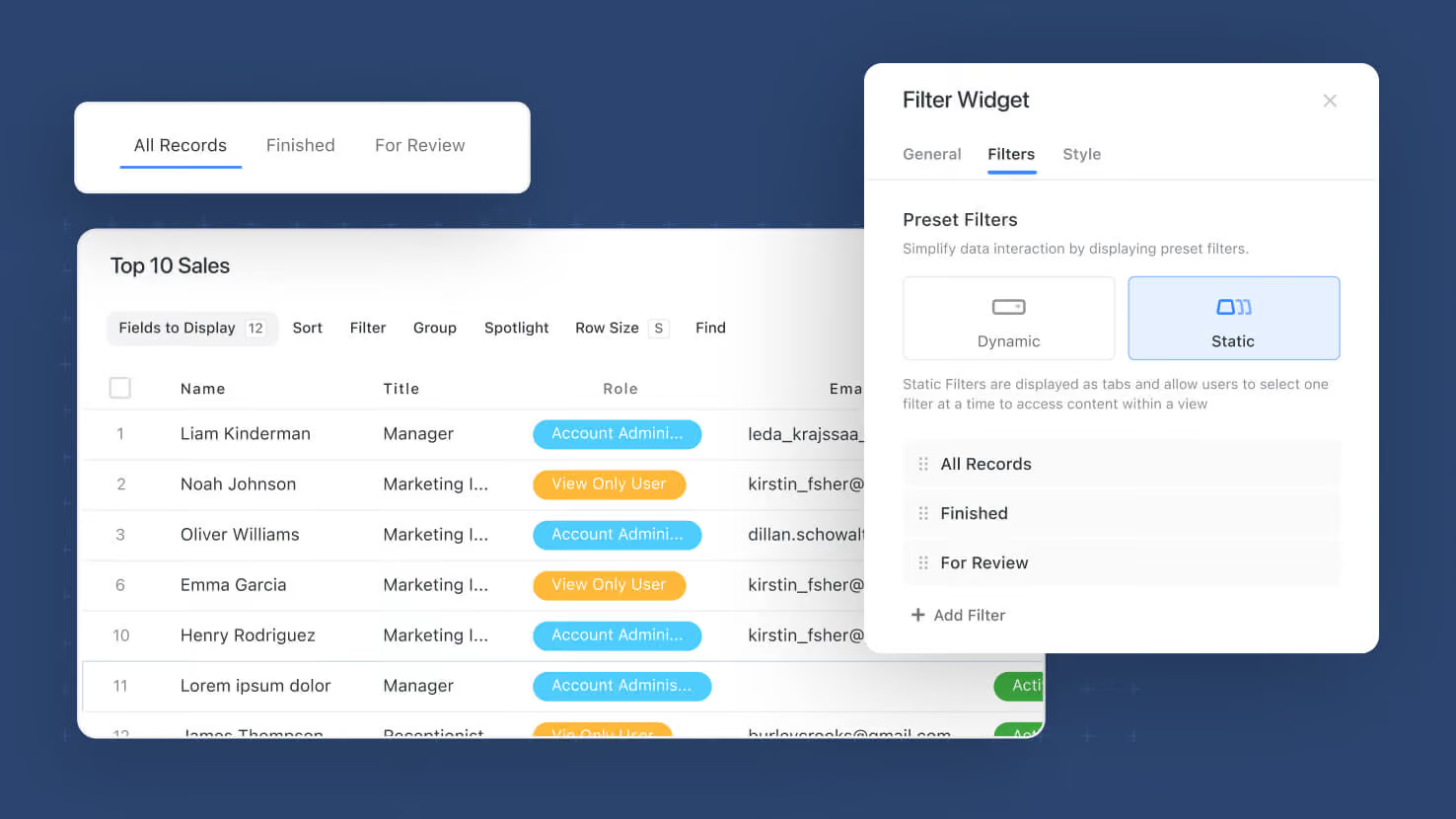
The Filter Widget on SmartSuite dashboards now supports Static Filter mode. Solution Managers pre-configure named filter sets, the widget renders them as tabs across the top, and connected dashboard widgets re-load their data when a viewer clicks a different tab. Service desks toggling between ticket cohorts, GRC dashboards switching between audit areas, and PMO sprint dashboards flipping between sprint stages all get a viewer-facing filter surface that is consistent across the team.
Key highlights
- Static Filter Mode: Configure named, pre-baked filter sets on a Filter Widget instead of exposing fields for viewers to fill in. Each filter set supports multiple conditions and condition groups, just like Filter on a table view.
- Tab-Based Viewer Experience: Configured static filters render as tabs across the top of the widget. Only one tab is active at a time, and any connected widgets re-load their data against the active filter set.
- Up to 20 Per Widget: Add, edit, delete, and reposition up to twenty static filters per Filter Widget during configuration, with full drag-and-drop ordering.
- Combines with Widget-Level Filters: Static filter conditions combine with the underlying widget's own filters using AND, so the Filter Widget never grants access to records that the widget would not show on its own.
- Mode Switching with Preserved Config: Switch a Filter Widget between Static and Dynamic modes during configuration without losing the other mode's settings. End users cannot toggle between modes on the canvas.
How it works
- Open a dashboard you manage and add a Filter Widget, or edit an existing one; set the Filter Type to Static on the Filters tab.
- Click Add Filter to add a new static filter; give it a name and compose its conditions using the standard Filter control (multiple conditions, condition groups, all supported operators).
- Repeat for up to twenty filter sets per widget; drag the tiles in the configuration UI to reorder how the tabs appear on the rendered widget.
- Use Connected Widgets on the General tab to specify which widgets on the dashboard should react to the Filter Widget; only widgets pulling data from the same table on the same tab are selectable.
- Save the widget. Viewers see the static filter tabs across the top of the widget; clicking a tab activates that filter set and refreshes the connected widgets.
Use this when the dashboard's filter combinations are stable and curated by a manager, and you want viewers to switch between them with a single click instead of building filters themselves.
More updates
The newest releases and improvements across the platform, each with its video and help article.
See all updates


Put these ideas to work
Start a free trial, or book a demo and see how it runs in SmartSuite.