



New Feature
Forms: Layout and Appearance
All plans
Summarize with
In this article
Published
June 25, 2026
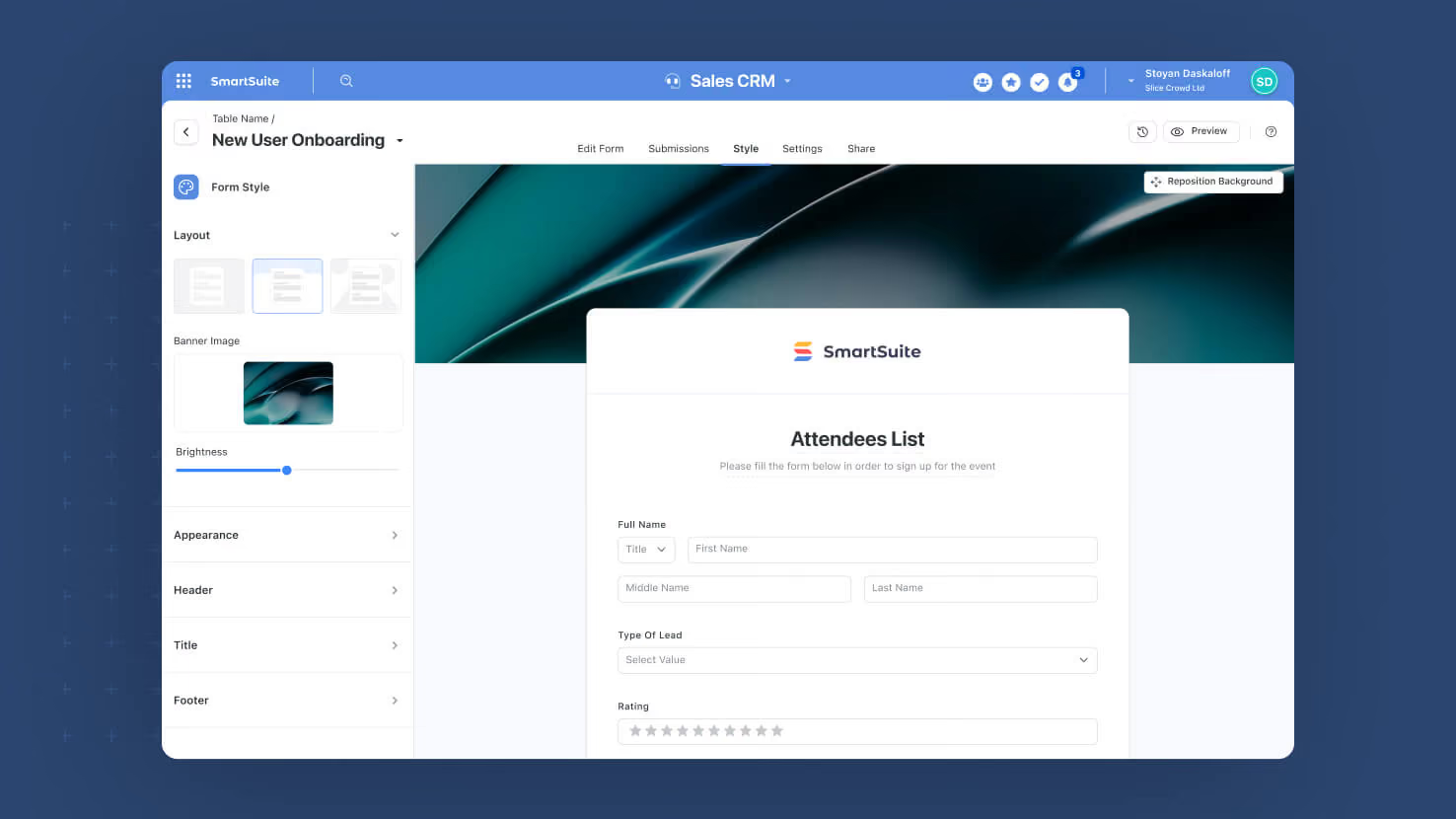
The form designer's Style tab now exposes a Layout section with Classic, Banner, and Full options, plus a new Appearance section for background color and button styling. Service desk intake forms can wear corporate branding, GRC attestation forms can use full-bleed hero imagery, and HR onboarding forms can match team-specific color treatments without leaving the form designer.
Key highlights
- Three Layout Options: Classic (form on a colored background, default), Banner (configurable banner image above the form with brightness and reposition), Full (edge-to-edge banner imagery, no reposition).
- Banner Image Controls: Standard Assets Library for image selection, 0 to 100 percent brightness slider (default 50 percent), and real-time canvas preview. Banner layout also supports image repositioning within the banner area.
- Background Color Control: New Appearance setting controls the form's background color from the standard SmartSuite palette or a custom value. Defaults to the Solution color. Rendered only when Layout is not Full.
- Button Color Control: Same palette plus custom picker controls the Submit and Next button color. Defaults to the Solution color for consistent solution-level brand inheritance.
- Internal Form Defaults: Classic layout is always applied to internal forms opened as a side panel, so Banner and Full are reserved for publicly-shared and full-page variants where hero imagery makes sense.
How it works
- Open the Style tab on any form in the designer and find the new Layout section in the left side panel.
- Pick Classic, Banner, or Full. The form canvas updates in real time to show the selected layout.
- For Banner or Full, click the banner area to open the Assets Library modal; pick an image, adjust the brightness slider, and (Banner only) drag the image within the banner area to reposition.
- Open the Appearance section to set Background Color (palette plus custom picker) and Button color; both default to your Solution color.
- Save the form. The selected Layout and Appearance treatments apply to the publicly-shared and full-page variants; internal side-panel forms continue to use Classic.
Pair this with the rest of the Forms 2.0 work shipping this year, including Multi-Page Forms, Progress Bar, Enhanced Submission Page, and the New Forms Page.
Released
June 25, 2026
New Feature
More updates
The newest releases and improvements across the platform, each with its video and help article.
See all updates


Put these ideas to work
Start a free trial, or book a demo and see how it runs in SmartSuite.