
When comparing Smartsheet vs Microsoft Planner, the decision often comes down to whether your team needs spreadsheet-level control or lightweight task tracking inside Microsoft 365.
Both tools work well in specific scenarios, but each introduces limitations once workflows grow beyond their core use case.
So, to help you make the best choice, I’ll break down where Smartsheet and Microsoft Planner fit best, and then introduce SmartSuite as a more flexible alternative for modern teams.
TL;DR
- Smartsheet works best for teams that want structured project control built around spreadsheet logic. Its formulas, automation, and multi-view layouts make it powerful for tracking timelines, budgets, and repeatable processes, but complexity can grow quickly once sheets, dashboards, and data tools scale.
➡️ Choose Smartsheet if your workflows revolve around structured tables and you want deeper project management without leaving an Excel-style environment.
- Microsoft Planner focuses on simplicity. It’s designed for lightweight task coordination with visual boards and seamless Microsoft 365 collaboration, making it easy to adopt for day-to-day work, though it lacks advanced reporting, automation depth, and flexibility for complex projects.
➡️ Choose Microsoft Planner if your team already lives in Teams and Outlook and needs a straightforward way to organize tasks without heavy configuration.
- SmartSuite approaches work management as a connected system rather than a single tool. It combines relational workflows, automation, AI, reporting, and collaboration into one platform, helping teams move beyond siloed apps or spreadsheet-driven processes as operations grow.
➡️ Choose SmartSuite if you want a flexible, all-in-one workspace that scales from simple projects to fully connected business workflows.
Smartsheet vs. Microsoft Planner vs. SmartSuite: Features
Let’s begin by looking into all three platforms’ features, starting with Smartsheet.
TL;DR
- Smartsheet is strong for structured, spreadsheet-style project management with formulas, automation, and data-driven workflows.
- Microsoft Planner is best for simple, bucket-based task tracking inside the Microsoft 365 ecosystem, with lightweight planning and basic analytics.
- SmartSuite stands out as the most comprehensive option, combining connected workflows, no-code customization, AI, automation, reporting, and collaboration in one unified platform.
Smartsheet’s features
1. Spreadsheet-style work management with multiple views
Smartsheet is built around a spreadsheet-style grid where rows represent work and columns act as structured fields, making it familiar for teams already comfortable with Excel-like workflows.
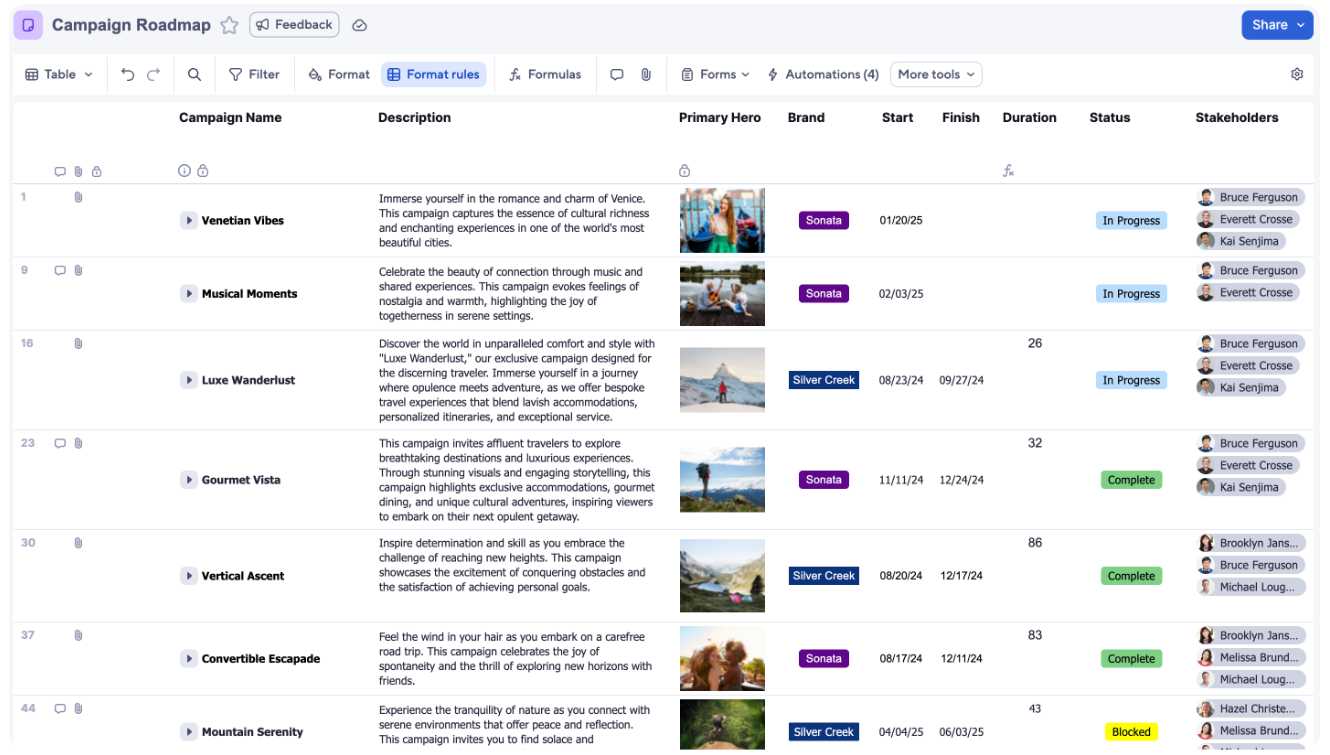
It supports powerful formulas, cross-sheet references, and automated calculations, allowing teams to track progress, budgets, dependencies, and rollups directly inside their sheets.
The same data can then be viewed through Grid, Gantt, Card, or Calendar layouts, helping teams switch perspectives without rebuilding their workflow structure.
2. No-code workflow automation
Smartsheet includes automation rules that trigger actions like reminders, approvals, status updates, and task assignments based on changes in sheet data.
Teams can build multi-step workflows using simple trigger-condition-action logic, helping reduce manual coordination and keep processes moving without writing code.
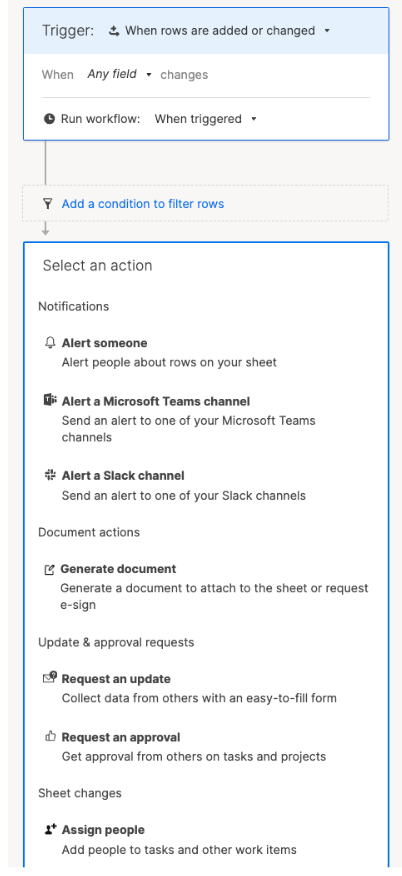
Notifications can be delivered through email, Slack, or Microsoft Teams, making it easier to keep stakeholders aligned across tools.
This approach works especially well for structured, repeatable workflows that stay closely tied to the underlying sheet logic.
3. AI-powered assistance built into everyday work
Smartsheet AI is designed to help teams move faster by generating formulas, analyzing project data, summarizing content, and suggesting clearer descriptions directly inside sheets and dashboards.
It also guides new users through personalized project setup, recommending tools and workflows based on their role and goals so teams can start seeing value quickly.
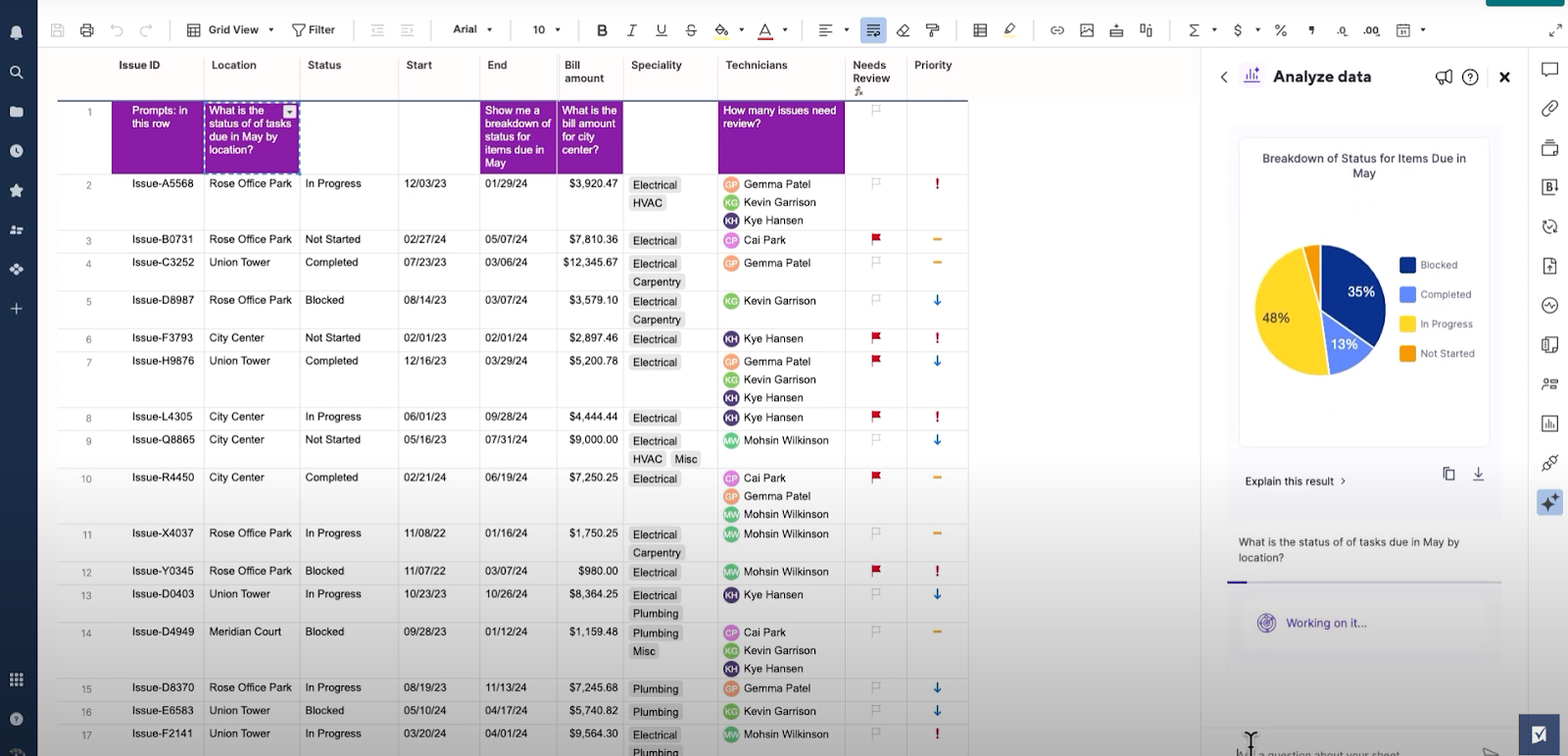
Beyond built-in features, Smartsheet connects with enterprise AI tools like Microsoft Copilot, Amazon Quick Suite, Glean, and Atlassian Rovo to surface insights and automate actions across your broader tech stack, all while emphasizing secure and transparent AI use.
4. Advanced data management and analytics tools
Smartsheet extends beyond basic project tracking with a set of data management features designed for teams working with large or connected datasets.
Tools like Data Shuttle automate data imports and exports between Smartsheet and external systems, while DataMesh keeps sheets and reports synced automatically without relying on manual copying or complex formulas.
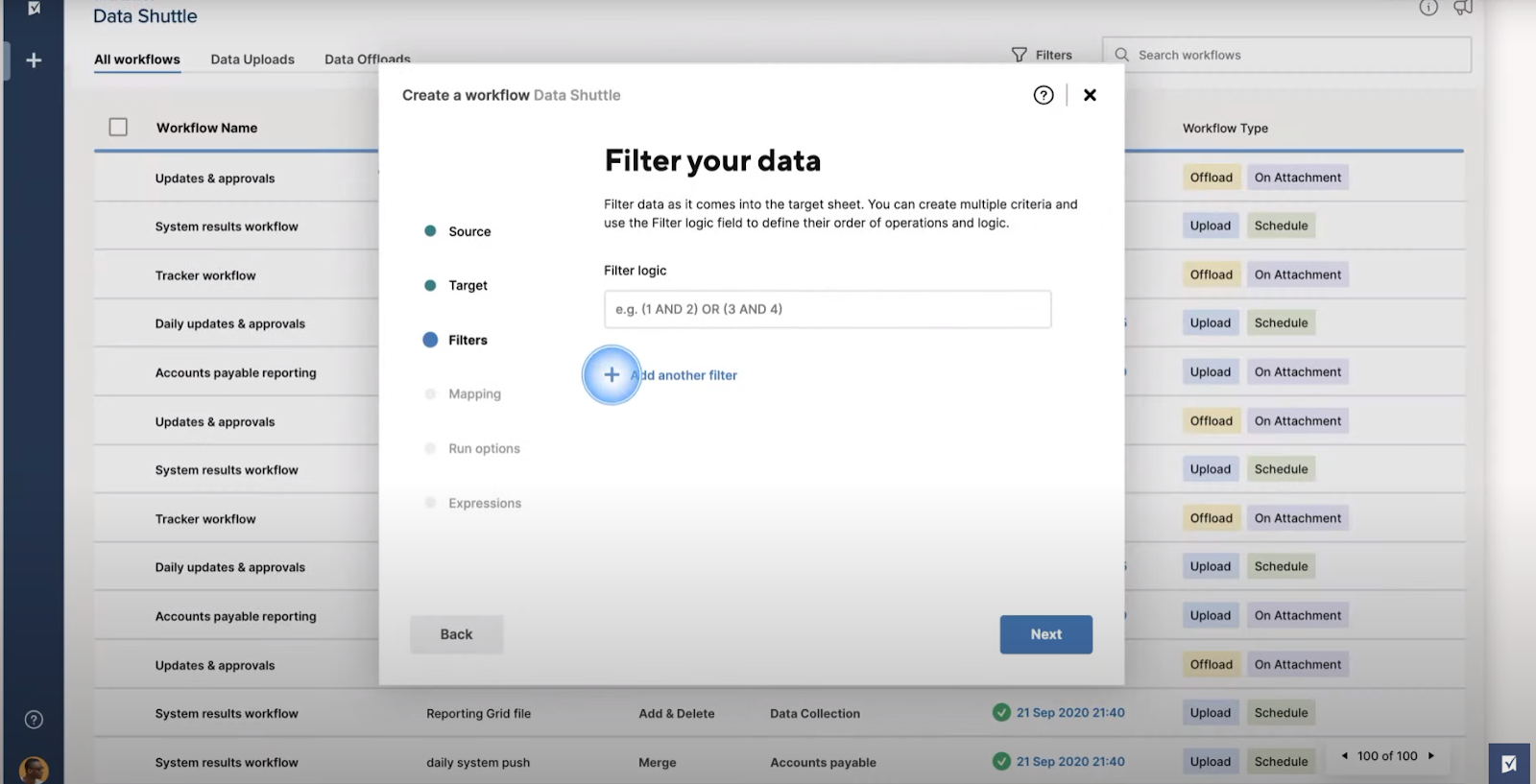
For deeper analysis, DataTable helps teams work with large datasets from ERPs, CRMs, or databases, while the Pivot App makes it easier to summarize information, identify patterns, and generate insights that support more data-driven decision-making.
Smartsheet is ideal if you:
✅ Prefer spreadsheet-style work management with formulas, rollups, and structured tables driving how projects and workflows are organized.
✅ Run structured, repeatable processes where automation can be triggered directly from changes inside sheets.
✅ Need flexible data management options, including comprehensive tables, pivots, and integrations with external data sources or enterprise tools.
Smartsheet isn’t the best choice if you:
❌ Manage work that doesn’t fit cleanly into rows, columns, or formula-driven logic and requires more relational or flexible workflows.
❌ Want a lightweight task manager with minimal setup because Smartsheet’s depth can introduce complexity as sheets, automations, and data tools scale.
❌ Prefer an all-in-one platform where projects, workflows, databases, and collaboration feel native rather than built around spreadsheets.
Microsoft Planner’s features
1. Task boards, buckets, and lightweight planning
Microsoft Planner is built around simple Kanban-style boards where tasks are organized into customizable buckets that represent stages, priorities, or workflows.
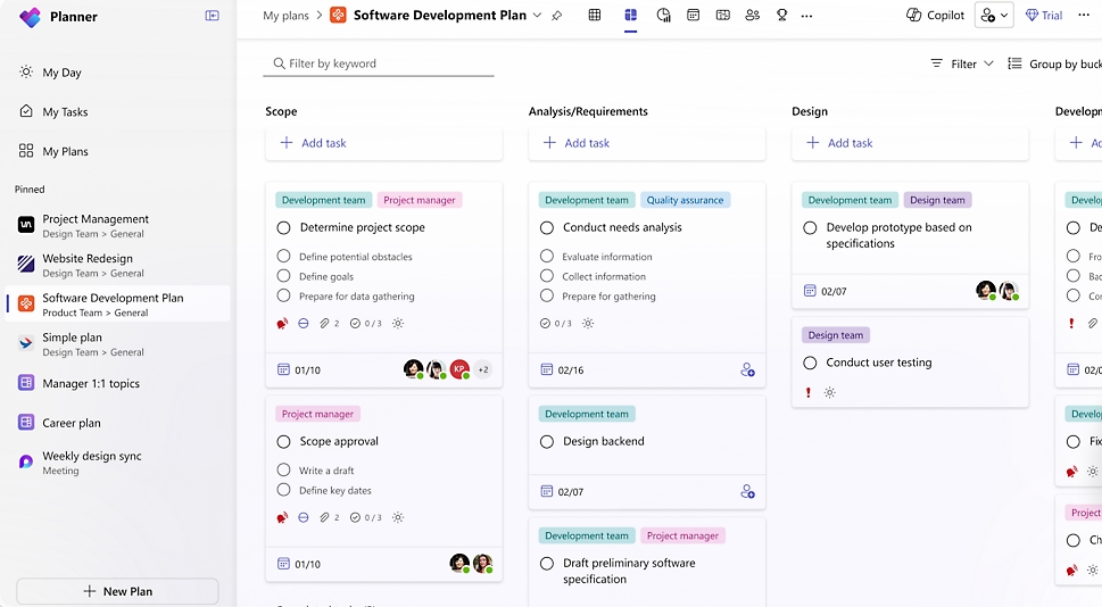
Teams can assign owners, set due dates, add checklists, attach files, and move tasks between buckets using drag-and-drop, making it easy to track progress without heavy setup.
This lightweight structure makes Planner especially approachable for teams that want straightforward task coordination rather than complex project configuration.
2. Deep Microsoft 365 collaboration and ecosystem integration
Microsoft Planner is tightly connected to the broader Microsoft 365 environment, allowing teams to manage tasks directly inside tools like Teams, Outlook, and SharePoint without switching platforms.
Tasks can be discussed through comments, attached to SharePoint files, surfaced in Outlook calendars, or managed inside Teams channels, keeping communication and execution in one place.
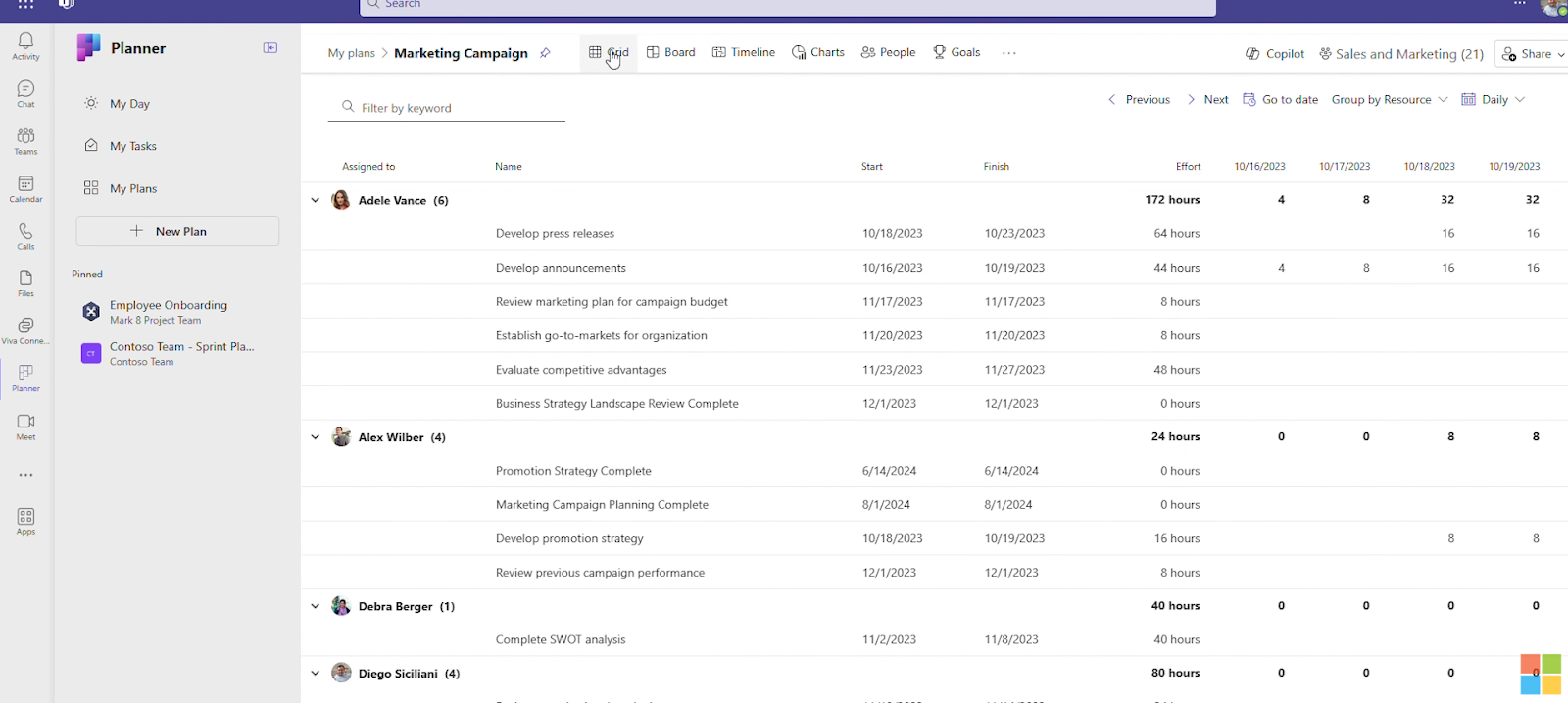
This deep integration enables real-time collaboration, shared dashboards, and automatic notifications across the Microsoft ecosystem, making Planner particularly effective for organizations already operating inside Microsoft 365 workflows.
3. Built-in charts, tracking, and lightweight analytics
Microsoft Planner includes a native Charts view that gives teams a quick visual snapshot of project progress without needing complex reporting setups.
You can track task status, priorities, workload distribution, and bucket progress through simple pie and bar charts, helping teams quickly identify delays, overdue work, or uneven assignments.
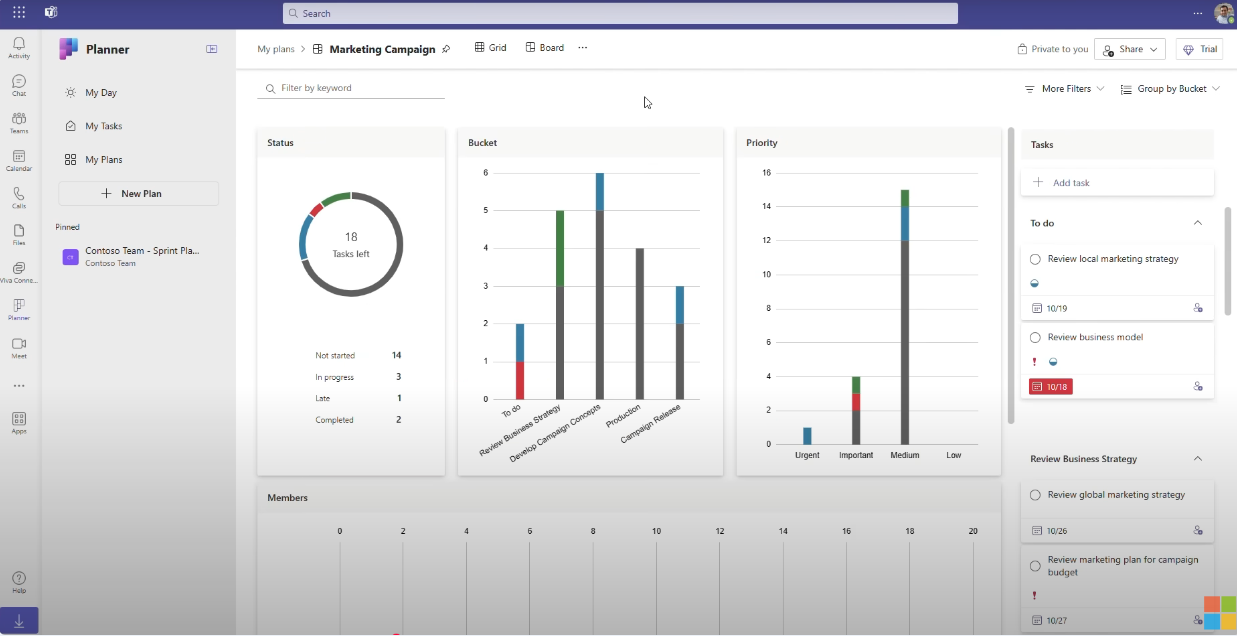
These analytics are intentionally lightweight, offering real-time visibility into tasks and performance, but they focus more on high-level tracking rather than deep customization or advanced reporting.
4. AI and Copilot-powered planning assistance
Microsoft Planner is evolving with AI through Microsoft Copilot, which helps teams generate task lists, suggest project structures, and summarize plans using natural-language prompts.
Copilot can assist with creating buckets, drafting tasks, and answering questions about progress, helping teams get started faster without building everything manually.
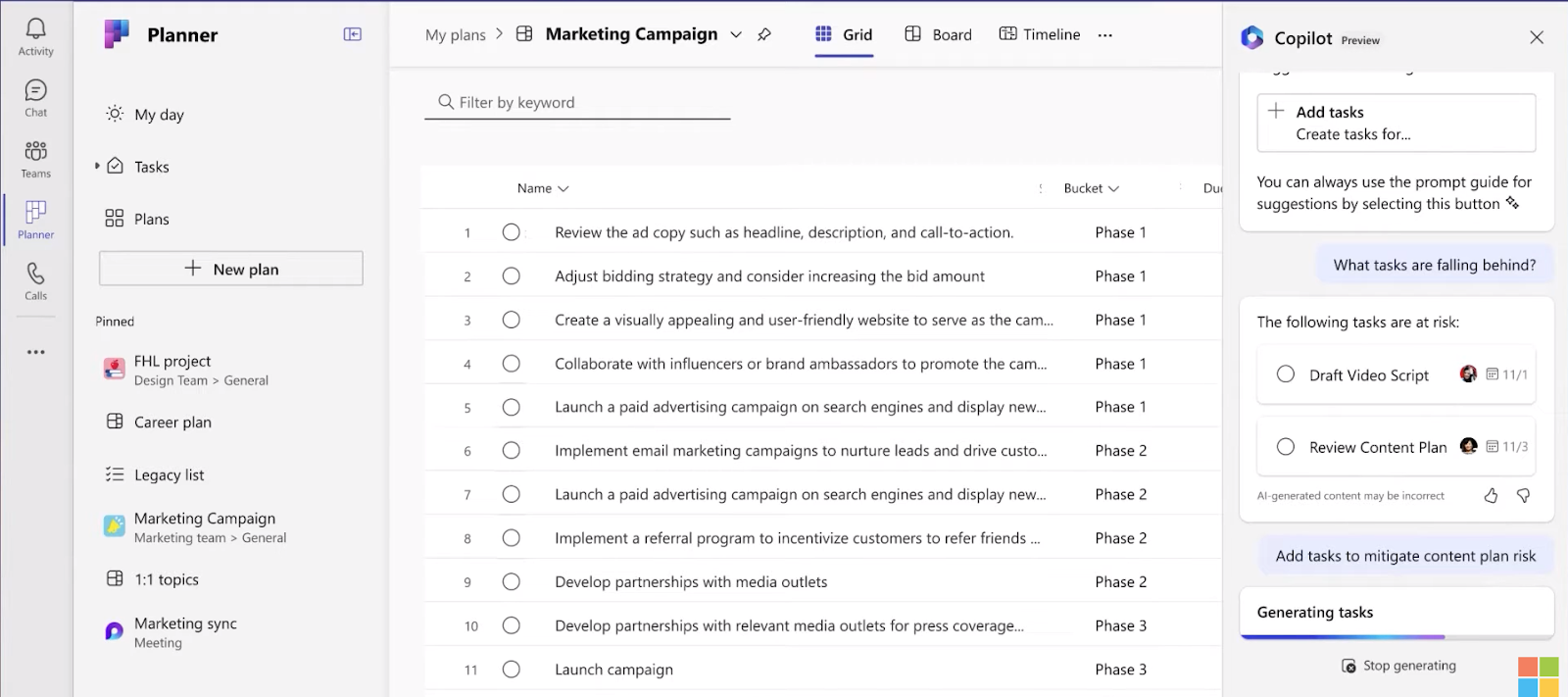
Rather than deep workflow automation, these AI features act as a planning assistant layered on top of Planner’s lightweight task management experience.
Microsoft Planner is ideal if you:
✅ Want a simple, lightweight task management tool that uses Kanban boards and buckets to organize day-to-day work.
✅ Already work inside Microsoft 365 and need tasks tightly connected to Teams, Outlook, and Loop without adding another platform.
✅ Prefer quick setup and straightforward collaboration rather than complex configuration, formulas, or advanced workflows.
Microsoft Planner isn’t the best choice if you:
❌ Manage complex projects that require advanced automation, relational workflows, or detailed reporting beyond simple charts.
❌ Need flexible data structures, custom workflows, or deeper project management capabilities that go beyond bucket-based planning.
❌ Are looking for a standalone project platform outside the Microsoft ecosystem, as Planner works best when paired with Microsoft 365 tools.
SmartSuite’s features
SmartSuite takes a very different approach from both Smartsheet and Microsoft Planner.
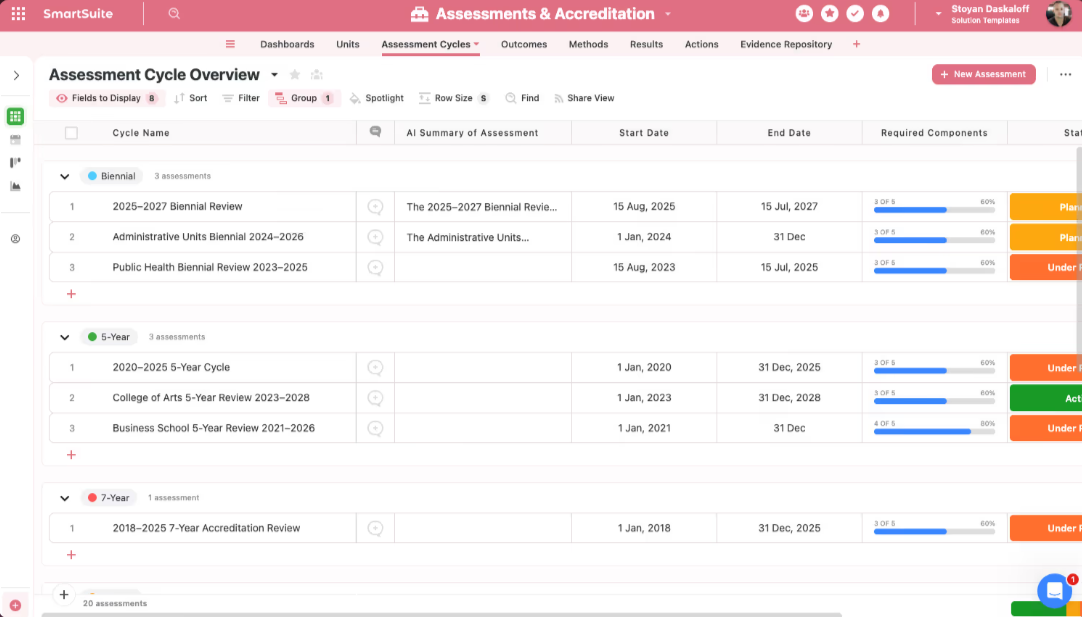
Instead of focusing just on spreadsheets or lightweight task boards, it acts as a comprehensive work OS, meaning you get a single platform where you can design connected workflows, manage structured data, automate processes, and collaborate in one governed environment.
As a result, SmartSuite helps organizations reduce tool sprawl, create a single source of truth, and scale work across teams without stitching together multiple apps.
And that’s exactly why I’m introducing SmartSuite here as an alternative: it bridges the gap between Smartsheet’s structured spreadsheet logic and Planner’s simplicity, giving teams a more flexible foundation for managing real business workflows end-to-end.
Let’s take a closer look at some of its standout features.
1. Unified work management platform for connected workflows
SmartSuite is built as a comprehensive work management platform designed to unify the workflows that run your business inside one governed system.
Instead of stitching together separate tools for projects, operations, structured data, or process management, SmartSuite provides a single foundation where teams can standardize how work is designed, executed, and scaled, all without relying on custom development.
Here’s what that looks like in practice:
- One platform for multiple workflows: Manage projects, operational processes, structured data, and cross-team initiatives inside a single system instead of switching between disconnected tools.
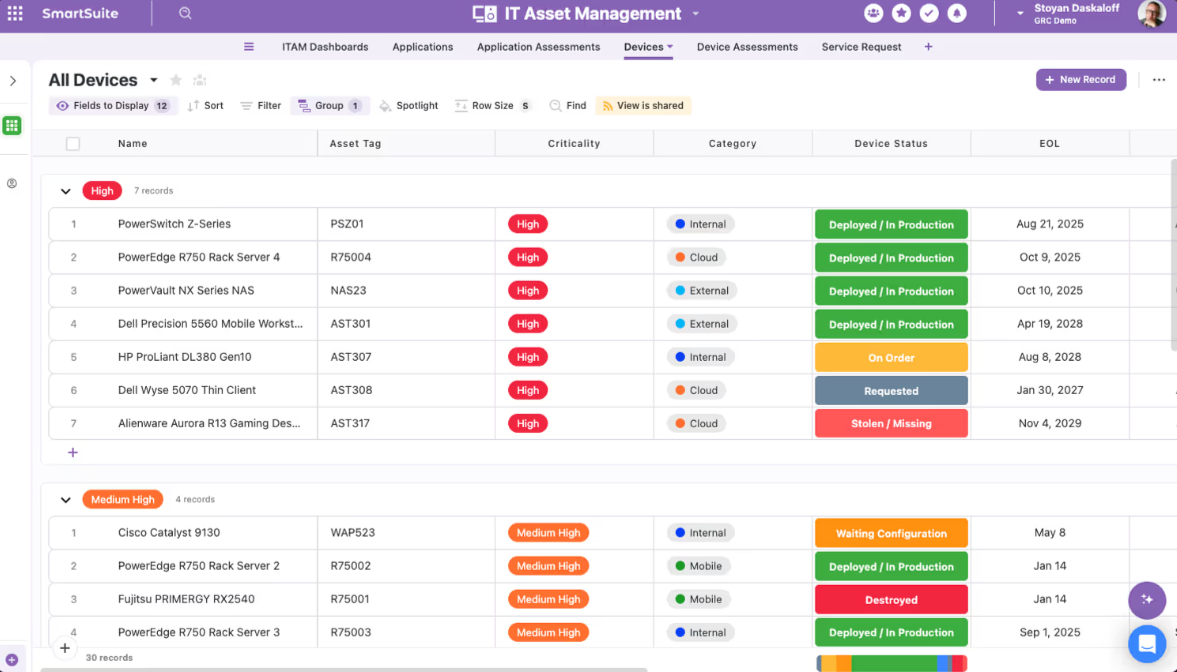
- Ready-made solution frameworks: Start quickly with built-in solutions designed to standardize common business workflows (e.g., GRC, ITSM, project and portfolio management, etc.), then tailor them as processes evolve.
- Custom workflows without code: Design forms, records, and workflow structures visually, giving business teams flexibility while IT maintains governance and control.
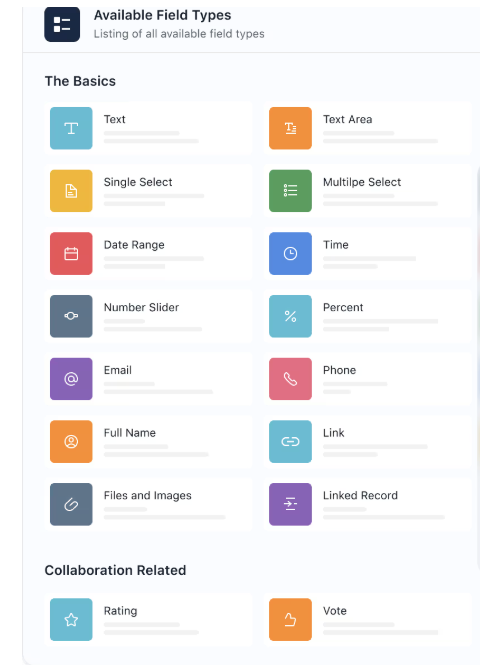
- Structured, relational data architecture: Build scalable workflows using connected data models that keep information consistent across teams and departments.
- Enterprise-grade governance built in: Permissions, access controls, and standardized structures help organizations maintain visibility and consistency as they grow.
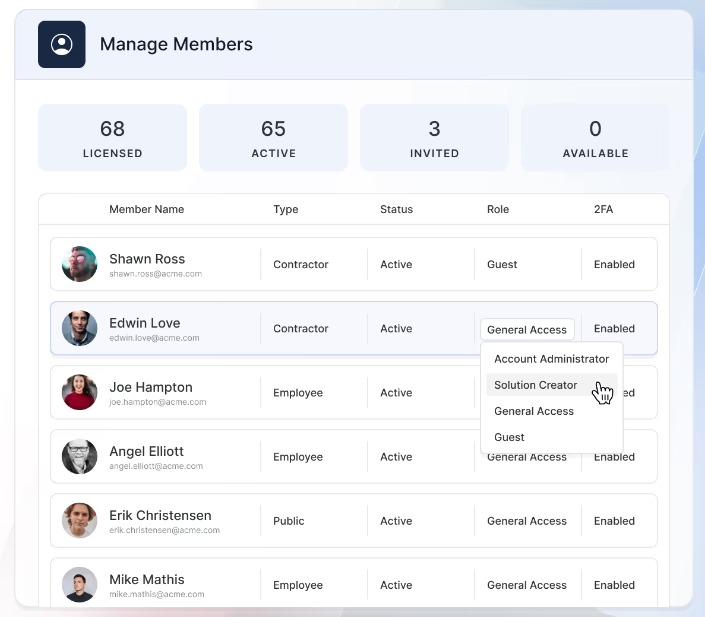
- Reduced tool sprawl and stronger visibility: By consolidating workflows into one platform, teams gain a single source of truth with clearer ownership and real-time oversight.
So, rather than focusing on a single execution style, SmartSuite provides a flexible foundation that connects workflows across the entire organization.
2. No-code workflow automation and orchestration
SmartSuite’s automation engine is designed to move work forward automatically as processes evolve - not just inside individual tasks, but across connected workflows, teams, and systems.
Using a visual drag-and-drop builder, teams can create simple or multi-step automations that trigger actions based on real-time events, helping eliminate repetitive work while maintaining full visibility and governance.
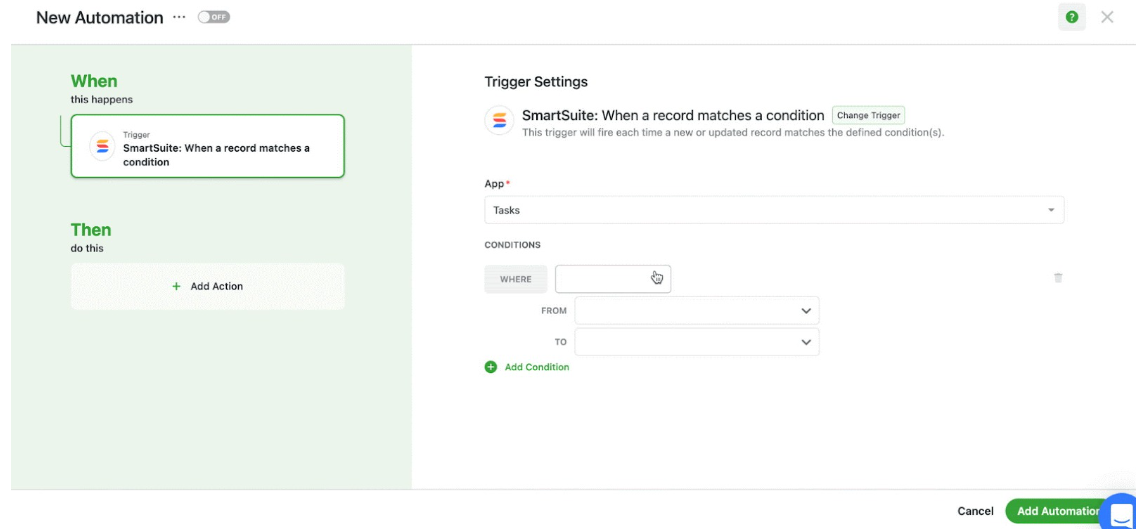
Here’s what makes SmartSuite’s automation layer stand out:
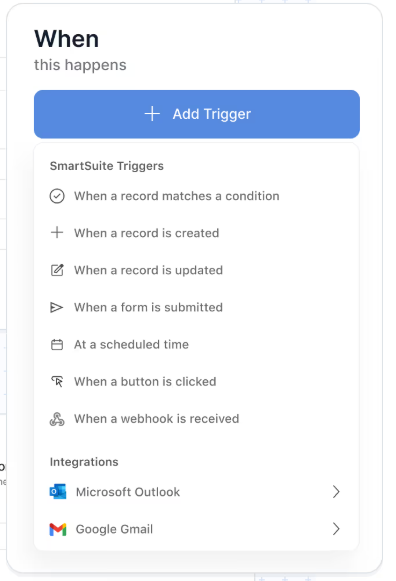
- Real-time triggers that react to work as it happens: Automations can start when records are created or updated, dates are reached, buttons are clicked, or external systems send webhooks, ensuring workflows stay responsive without manual intervention.
- Precise execution with trigger filters: Define exact conditions for when actions should run, preventing unnecessary automation loops and keeping processes accurate and controlled.
- Multi-step actions across teams and tools: Automatically assign work, update records, notify stakeholders, create meetings, or sync data with external platforms like Slack, Microsoft Teams, Google Calendar, Salesforce, Jira, or ServiceNow, all from a single workflow.
- AI Assist embedded into automation: AI can analyze attachments, generate summaries, extract insights, or calculate values mid-workflow, allowing teams to add intelligence directly into operational processes.
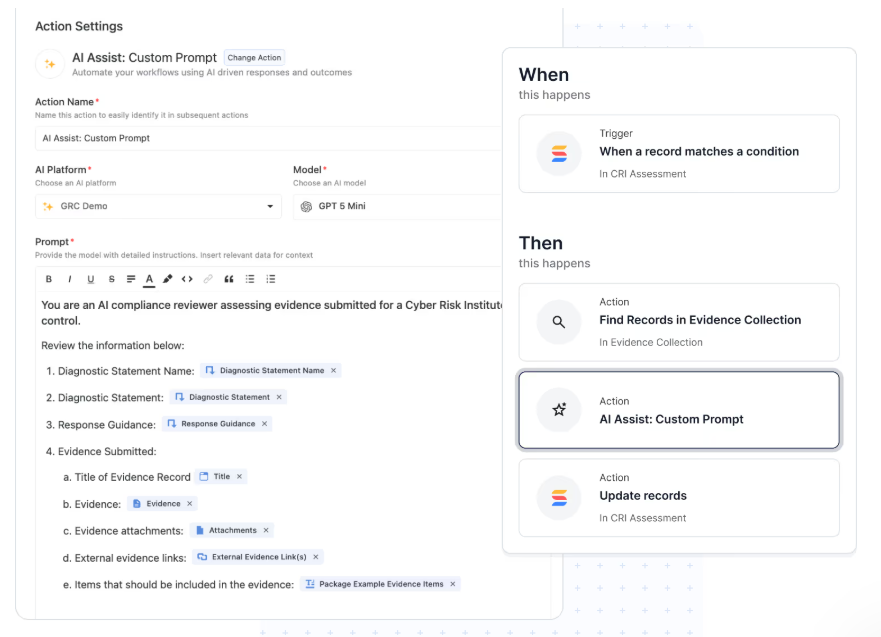
- Looping actions across related records: When one change impacts multiple items, automations can update linked records sequentially, maintaining data integrity across complex workflows.
Because automations are built visually and require no coding, business teams can design and evolve processes quickly while IT maintains oversight through governance controls and detailed execution logs.
The result is a workflow system that doesn’t just track work, but actively orchestrates how it moves across your organization.
3. AI embedded directly into workflows
Instead of only generating content or helping with planning, SmartSuite AI operates inside workflows, helping teams enrich data, refine processes, and support decisions exactly where work happens.
Here’s how SmartSuite’s AI capabilities elevate everyday execution:
- AI that runs inside workflows: Intelligent steps can summarize information, classify records, extract insights, or suggest next actions as work moves through a process, helping teams maintain clarity without manual effort.
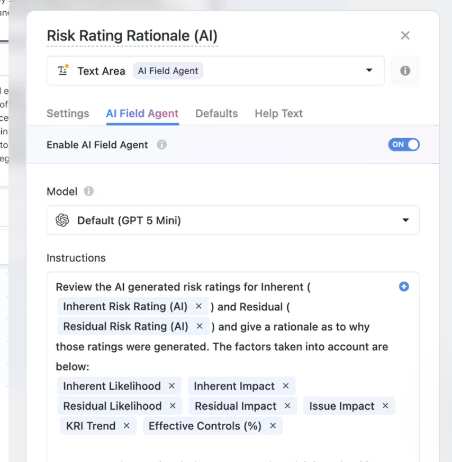
- SmartDoc AI for content and communication: Create summaries, rewrite updates, translate content, or extract action items directly inside records, turning unstructured inputs into usable data that feeds downstream workflows.
- AI Field Agents for smarter data management: Monitor fields for anomalies, missing context, or patterns, then recommend updates like risk scores, priorities, or classifications while keeping humans in control of final decisions.
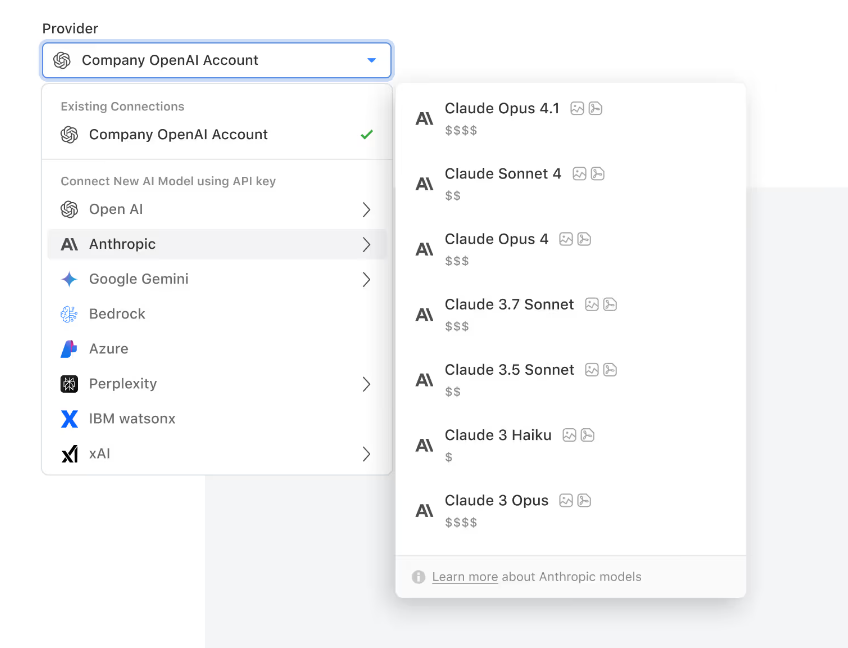
- Bring-your-own-LLM flexibility: Organizations can connect models like OpenAI, Gemini, Anthropic, AWS Bedrock, or IBM WatsonX, maintaining control over security, compliance, and data residency while keeping a consistent AI experience inside SmartSuite.
Because AI operates on structured workflows and relational data, insights stay grounded in real business context rather than isolated prompts.
The result is an intelligent work environment where automation, decision-making, and execution evolve together, helping teams move faster without losing control.
4. Enterprise reporting and real-time dashboards
SmartSuite brings reporting directly into the workflows teams already use, turning dashboards and views into a live source of truth rather than a separate analytics layer.
Because reporting sits on top of structured data and permissions, every chart, metric, and list updates in real time, giving leaders and teams clear visibility without exporting data into external BI tools.
Here’s what makes SmartSuite’s reporting approach stand out:
- Real-time dashboards that reflect live work: Metrics, charts, and widgets update automatically as records change, helping teams track progress, risks, and performance without rebuilding reports.
- Cross-workflow visibility: Combine data from multiple solutions and processes into unified dashboards, giving leadership a single view of projects, operations, or organizational performance.
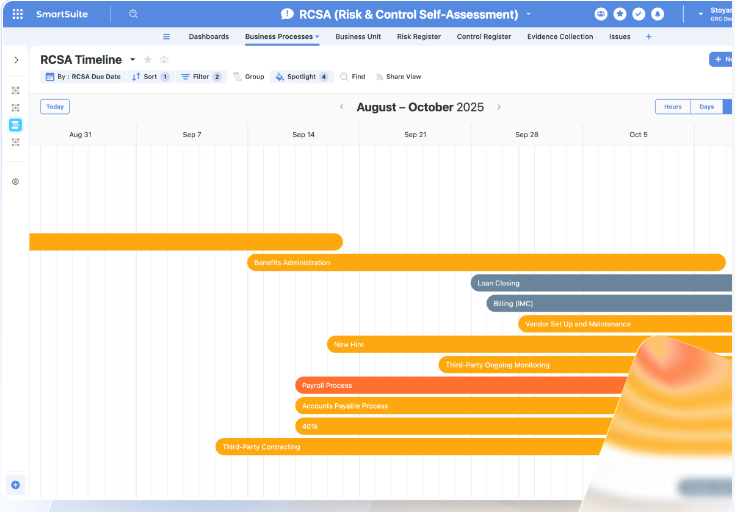
- Flexible views for every role: Teams can work in Grid, Kanban, Timeline, Calendar, Gantt, Chart, Map, or Dashboard views, each tailored to how different users interact with work day to day.
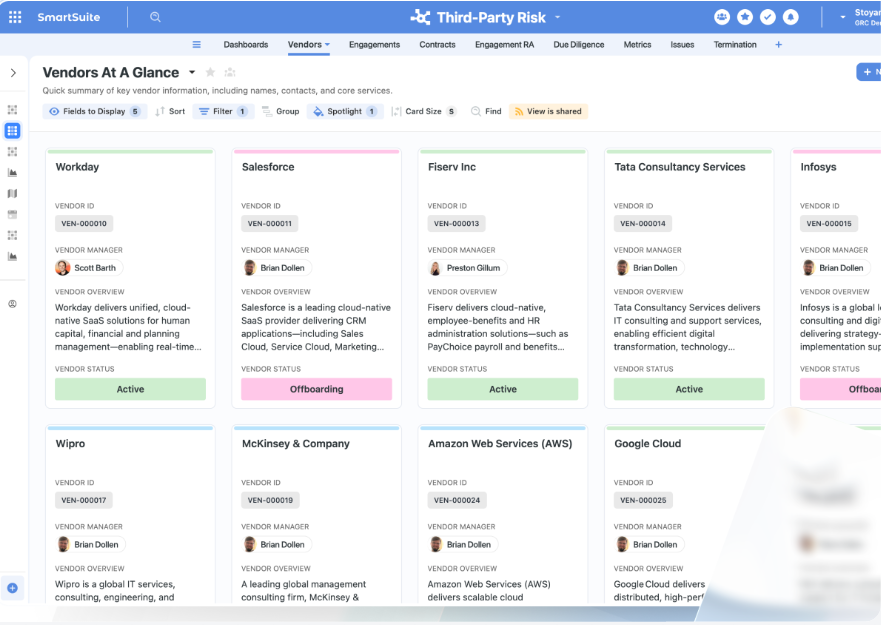
- Self-service reporting without BI complexity: Anyone can build dashboards, charts, and filtered views using visual configuration, reducing reliance on analysts or external reporting tools.
- Permission-aware analytics: Field-level and record-level security automatically applies to dashboards and metrics, ensuring sensitive data stays protected while maintaining transparency where needed.
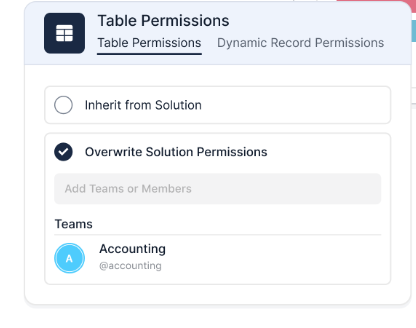
Finally, since reporting is connected to SmartSuite’s data architecture and workflow logic, insights stay grounded in how work actually moves across the organization, giving leaders and contributors a clearer picture of performance at every level.
5. In-context collaboration that moves work forward
In SmartSuite, conversations, emails, approvals, and updates live inside the records and processes where work happens, helping teams keep decisions visible, contextual, and easy to act on without jumping between tools.
Here’s how SmartSuite keeps collaboration connected to execution:
- Contextual conversations inside records: Teams can comment, @mention teammates, attach files, and start discussions directly inside tasks, projects, or workflows, ensuring every conversation stays tied to the work it impacts.
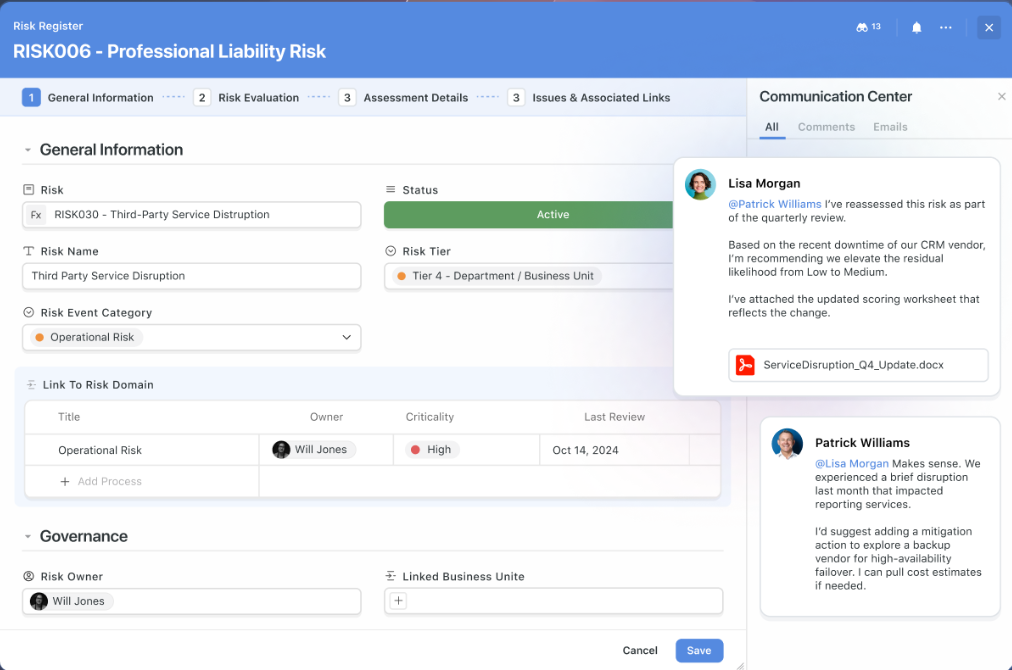
- Email and communication tied to workflows: Messages with customers, vendors, or stakeholders can be routed into the right records automatically, keeping context centralized instead of scattered across inboxes.
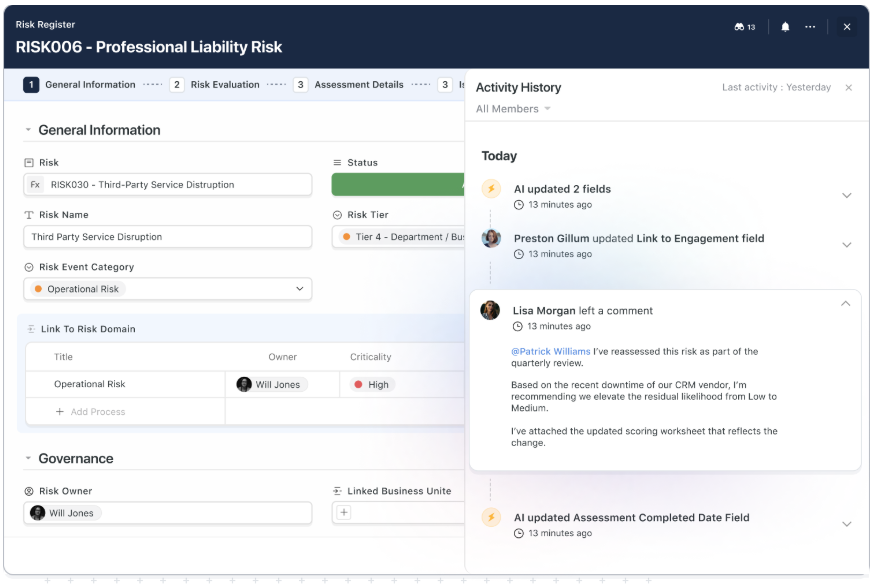
- Complete activity history and transparency: Every update, comment, and status change is captured in a timeline, helping teams understand how work evolved while supporting audits and smoother onboarding.
- Actionable collaboration: Turn discussions into tasks, approvals, or workflow changes in a single step, allowing conversations to drive measurable progress rather than getting lost in chat threads.
- Smart notifications that reduce noise: Role-based alerts, mentions, and digest notifications keep teams informed without overwhelming them, while integrations with Slack or Microsoft Teams ensure communication flows smoothly across tools.
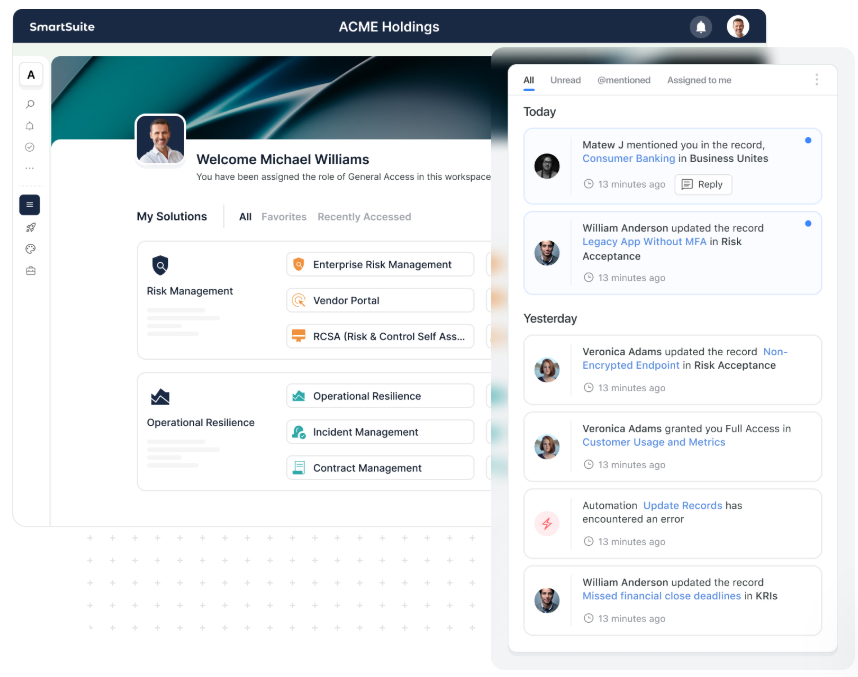
- Governed collaboration across teams: Permissions and role-based access control what users can see or edit, enabling secure collaboration even across departments or external stakeholders.
The result is a system where collaboration stays aligned with execution, helping teams move faster while maintaining clarity and accountability.
SmartSuite is ideal if you:
✅ Want a unified platform that connects projects, operations, structured data, and workflows instead of managing work across multiple disconnected tools.
✅ Need flexible no-code configuration that lets teams build and evolve processes quickly while maintaining governance and consistency.
✅ Rely on automation, AI, and real-time reporting to move work forward and keep leadership aligned with live data.
✅ Value collaboration that happens directly inside workflows where conversations, approvals, and updates stay tied to the work itself.
✅ Are looking to reduce tool sprawl and create a single source of truth across departments without sacrificing scalability.
SmartSuite isn’t the best choice if you:
❌ Only need a narrow, single-purpose project tracker rather than a broader work management platform that connects multiple processes.
❌ Want to work almost entirely inside spreadsheet-style interfaces driven primarily by formulas and static grids.
Winner: SmartSuite
When it comes to features, SmartSuite stands out as the most complete platform of the three.
Microsoft Planner keeps things simple with lightweight task boards and deep Microsoft 365 integration, while Smartsheet offers stronger structure through spreadsheets, formulas, and automation.
SmartSuite goes further by combining connected workflows, no-code customization, AI-driven execution, real-time reporting, and built-in collaboration into one unified system, making it the most flexible choice for teams that need more than basic task tracking or spreadsheet-style project management.
Integrations: Smartsheet vs. Microsoft Planner vs. SmartSuite
Smartsheet integrations
Smartsheet offers a broad ecosystem of integrations designed to connect project workflows with the rest of your tech stack.
It integrates deeply with Microsoft tools like Outlook Calendar, Excel Online, Power BI, and Single Sign-On, while also supporting analytics platforms such as Tableau and collaboration tools like Figma, Miro, and Prezi through dashboard embeds.
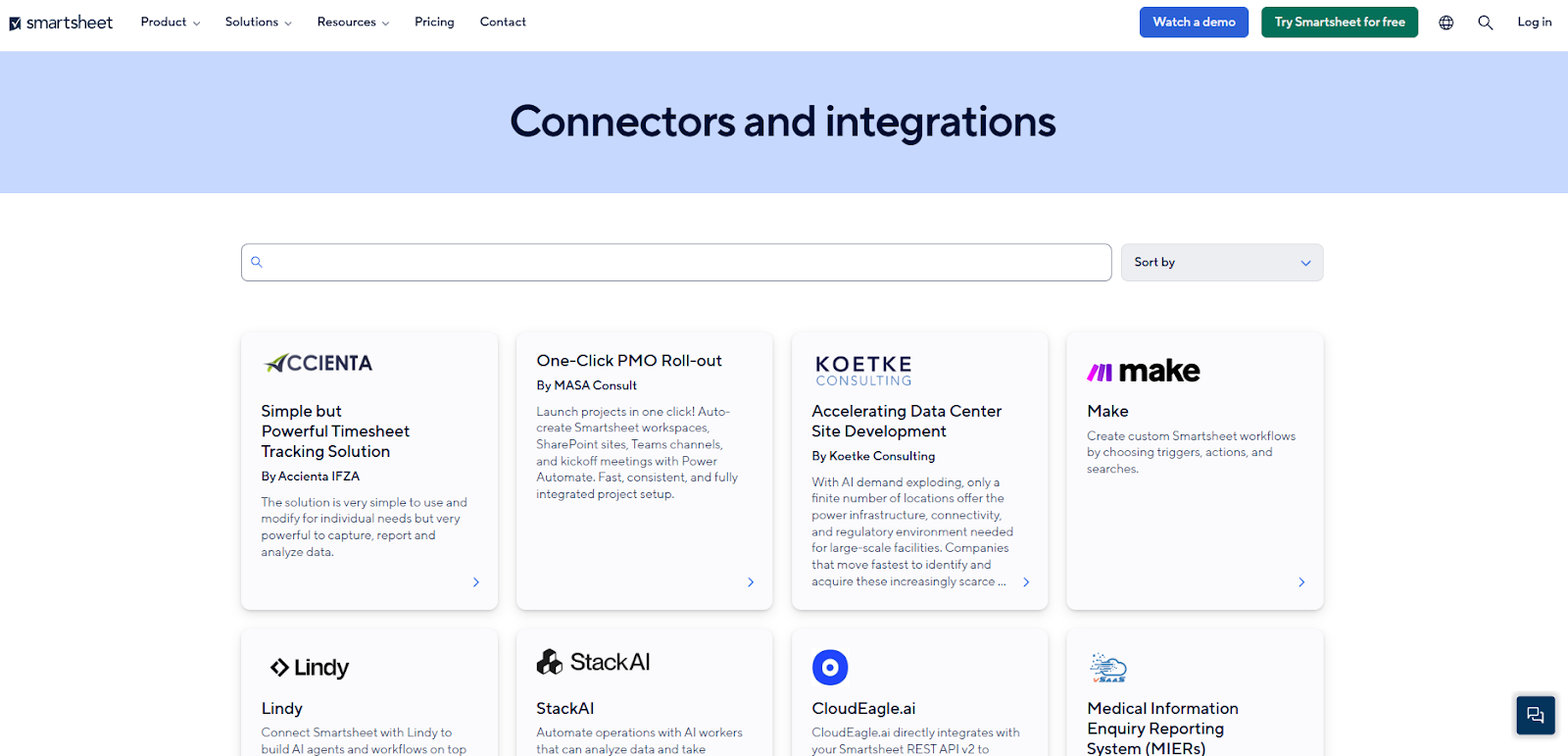
Beyond native connections, Smartsheet works with automation and integration platforms like Tray.ai and supports REST API connections, allowing organizations to extend workflows, sync data, and build more advanced automation across systems.
Overall, Smartsheet’s integration library is one of its strongest advantages, making it easier for teams to connect reporting, collaboration, and enterprise data sources without moving work out of the platform.
Microsoft Planner integrations
Microsoft Planner’s biggest integration strength comes from how deeply it’s embedded inside the Microsoft 365 ecosystem.
It connects natively with tools like Microsoft Teams, Outlook, and Loop, allowing tasks to be created from conversations, synced with calendars, and tied directly to files and collaboration spaces without leaving the Microsoft environment.
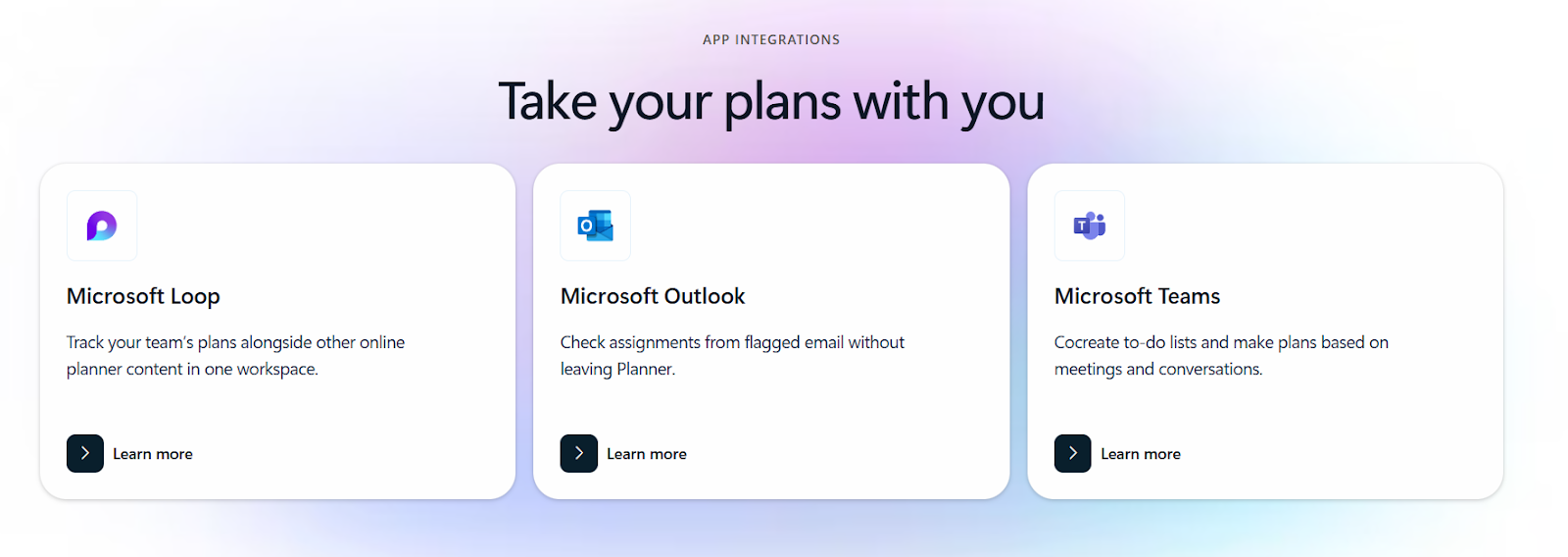
These built-in connections make Planner feel less like a standalone app and more like a natural extension of everyday Microsoft workflows.
SmartSuite integrations
SmartSuite’s integration layer is built to support connected workflows across your entire tech stack, rather than acting as a simple add-on feature.
Teams can connect external systems using native integrations, iPaaS platforms like Zapier or Make, and full REST API and webhook support, allowing workflows to move seamlessly between SmartSuite and other business tools.
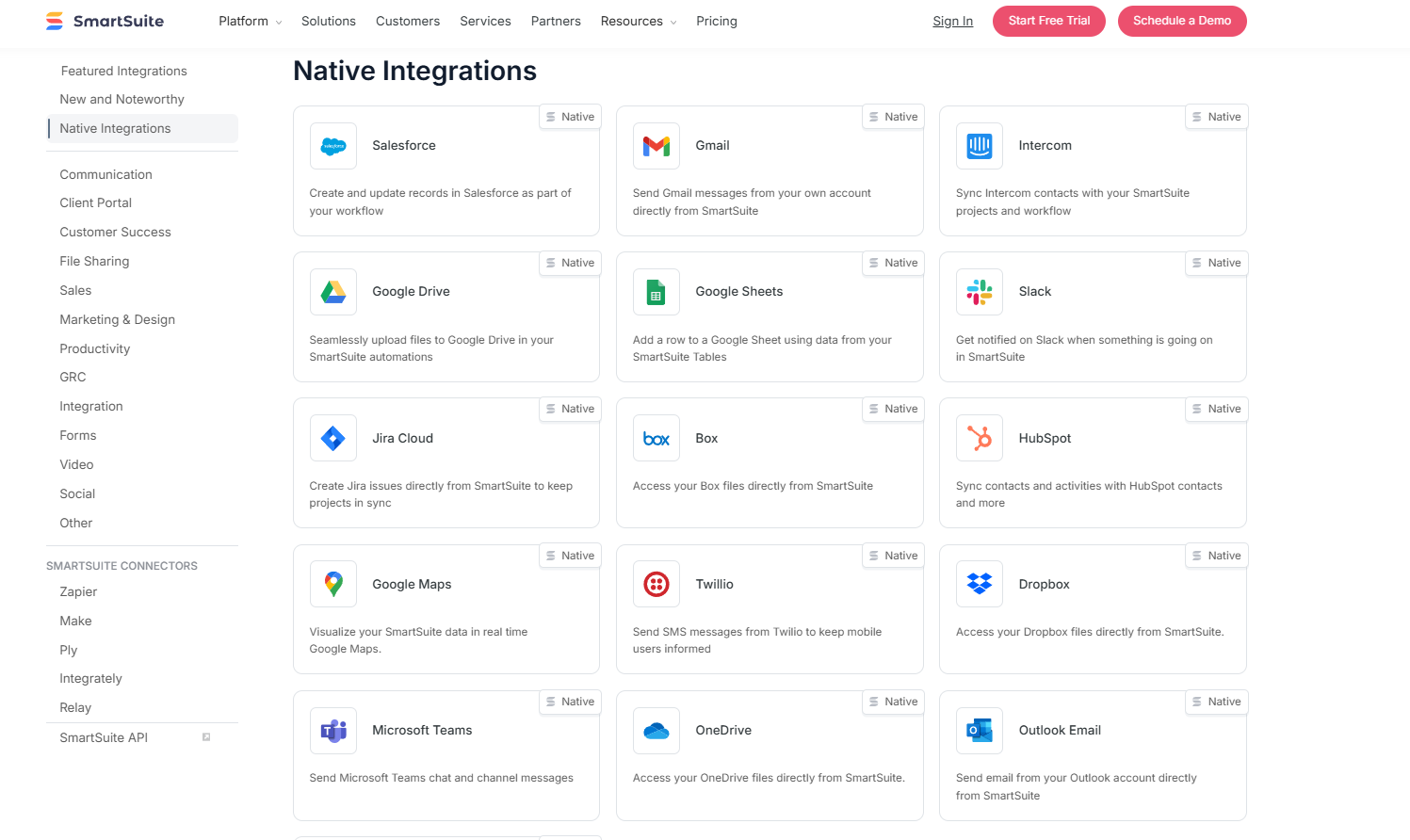
Out of the box, SmartSuite offers native actions for platforms like Slack, Microsoft Teams, Salesforce, Gmail, Google Drive, Jira, HubSpot, Outlook, and Google Calendar, helping teams keep communication, customer data, and scheduling aligned without writing code.
For more advanced use cases, integrations with tools like Power Automate, Make, and APIs enable organizations to build custom automations, sync data programmatically, or embed SmartSuite into internal systems, creating an integration layer that supports true end-to-end workflow orchestration.
Winner: Smartsheet
When it comes to integrations, Smartsheet takes the lead thanks to its broad library of native connectors and third-party solutions.
Microsoft Planner works best inside the Microsoft 365 environment, offering seamless collaboration with Teams, SharePoint, and Outlook, while SmartSuite focuses more on flexible automation through native actions, APIs, and iPaaS connectors.
However, based purely on the sheer breadth of native integrations available, Smartsheet stands out as the strongest option for teams that rely heavily on connecting multiple external tools.
Pricing: Smartsheet vs. Microsoft Planner vs. SmartSuite
Smartsheet pricing
Smartsheet offers several pricing tiers designed to scale from small teams to large enterprises:
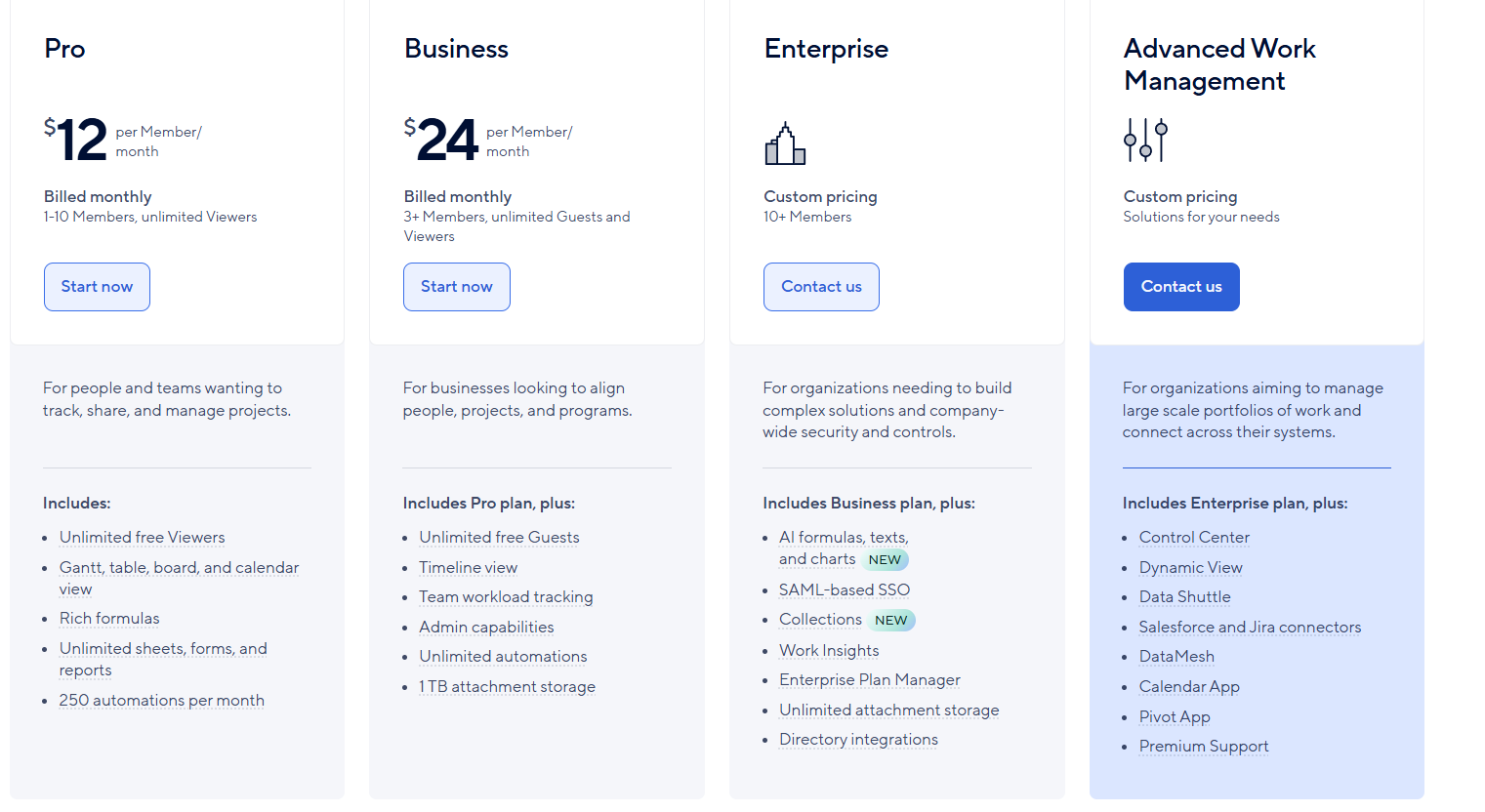
- Pro: $12 per user/month, for 1-10 users, includes Gantt, table, board, and calendar views, rich formulas, unlimited sheets, forms, and reports, plus 250 automations per month.
- Business: $24 per member/month, for minimum 3 members, includes everything in Pro, plus timeline view, team workload tracking, stronger admin controls, unlimited automations, and 1 TB of attachment storage.
- Enterprise: Custom pricing, for teams with more than 10 members that need advanced security and governance controls, includes everything in Business, plus AI-powered formulas, text, and charts, SAML-based SSO, directory integrations, unlimited storage, Work Insights, WorkApps, and enterprise-level management tools.
- Advanced Work Management: Custom pricing, designed for organizations managing large portfolios and complex, cross-system workflows. Includes everything in Enterprise, plus control center, dynamic view, data shuttle, DataMesh, calendar and pivot apps, Salesforce and Jira connectors, and premium support.
Microsoft Planner pricing
Microsoft Planner’s pricing is structured differently from most project tools because its core version is already included inside many Microsoft 365 subscriptions.
This makes it accessible for teams that are already using the Microsoft ecosystem, while more advanced planning features are unlocked through separate Planner and Project plans.
Here’s how the main options break down:
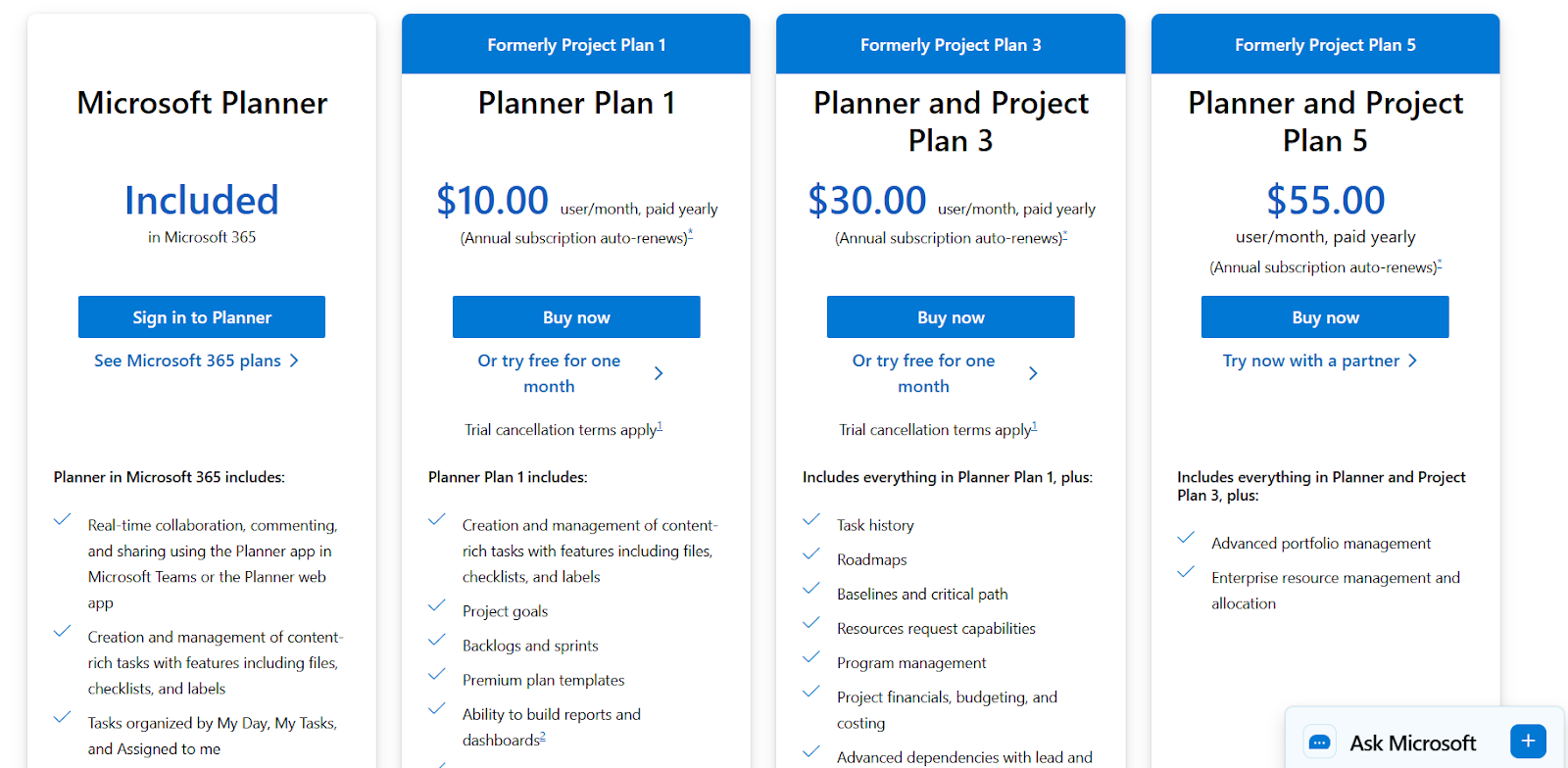
- Planner (included in Microsoft 365): Basic planning and task management features come bundled with many Microsoft 365 plans. This includes collaboration, task tracking, templates, dashboards, and views like Board, Grid, Schedule, and Charts, making it a lightweight option for teams that don’t need advanced project management capabilities.
- Planner Plan 1: $10/user/month (annual billing), includes everything in basic Planner and adds more structured planning features such as project goals, backlogs and sprints, premium templates, reporting capabilities, Timeline (Gantt) view, and deeper customization options.
- Planner and Project Plan 3: $30/user/month (annual billing), includes everything in Plan 1 and expands into full project management with roadmaps, baselines, resource requests, budgeting tools, advanced dependencies, and access to Project Online and Project desktop.
- Planner and Project Plan 5: $55/user/month (annual billing), includes everything in Plan 3, plus advanced portfolio management, enterprise resource allocation, and deeper organizational oversight.
Microsoft also offers one-time purchase options like Project Standard 2024 ($679.99), Project Professional 2024 ($1,129.99), and Project Server (custom price), which are on-premises solutions focused more on traditional project management without the collaboration-heavy Microsoft 365 experience.
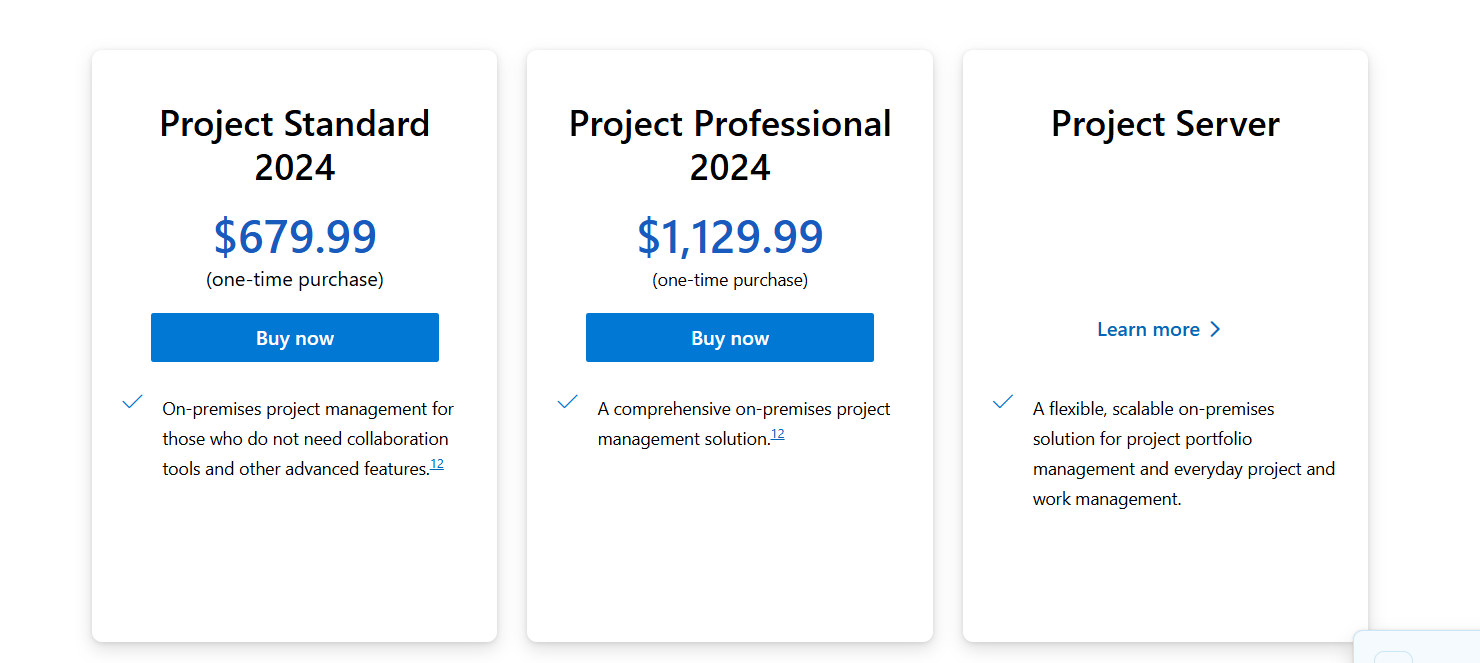
Overall, Planner’s pricing works best for organizations already invested in Microsoft 365, since the entry-level functionality is often included, while more advanced planning features scale up through the Project plan tiers.
SmartSuite pricing
SmartSuite follows a transparent pricing model with plans that scale alongside your team’s needs.
You can try it free for 14 days - no credit card required - before choosing a tier.
Here’s a closer look at the available options:
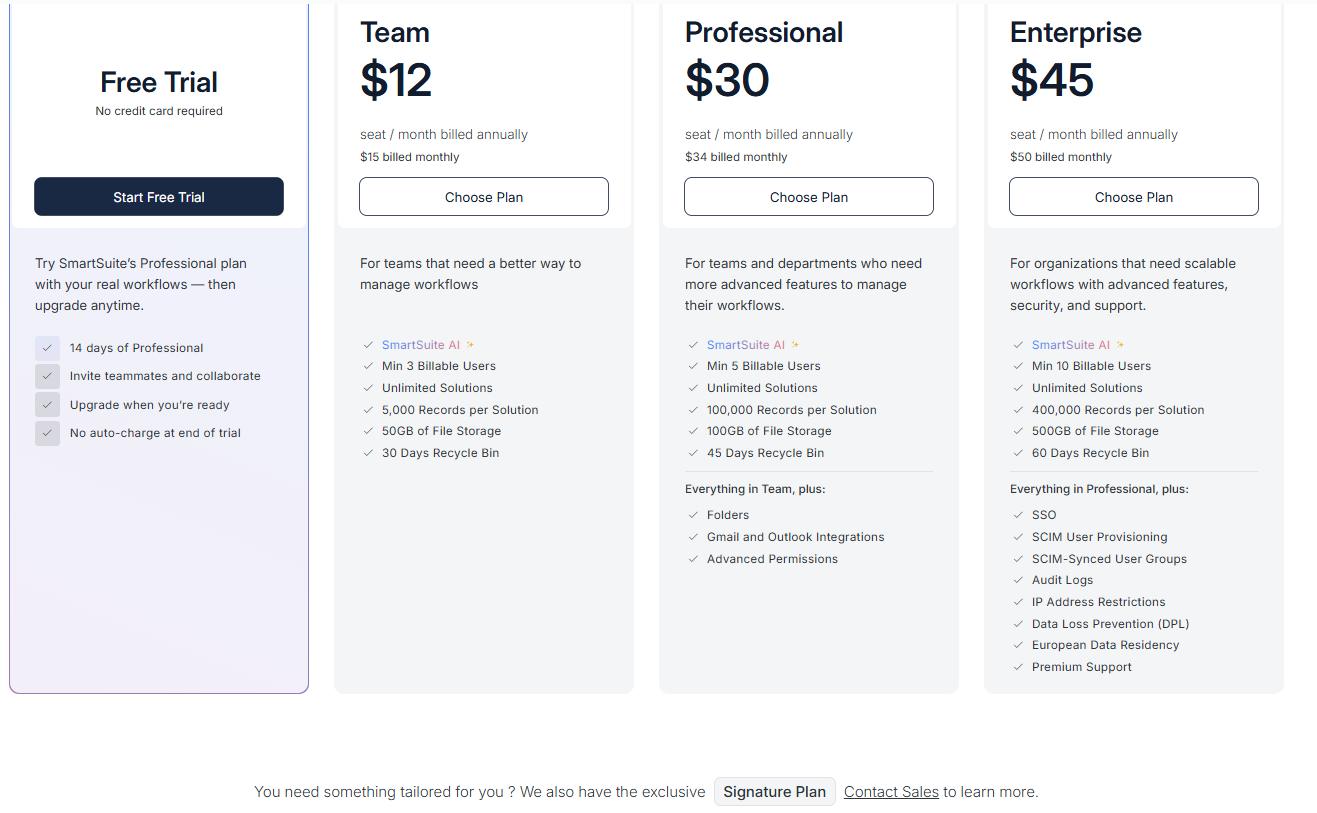
- Team: $12 per seat/month (billed annually), includes SmartSuite AI, unlimited solutions, up to 5,000 records per solution, 50 GB of file storage, a 30-day recycle bin, and core collaboration and automation features.
- Professional: $30 per seat/month, includes everything in Team, plus folders, Gmail and Outlook integrations, advanced permissions, higher record limits (100,000 per solution), 100 GB of storage, and a 45-day recycle bin.
- Enterprise: $45 per seat/month, includes everything in Professional, plus SSO, SCIM user provisioning, audit logs, IP restrictions, data loss prevention, European data residency, premium support, and higher limits (400,000 records per solution and 500 GB storage).
- Signature: Custom pricing. A tailored plan for organizations with specific requirements around scale, security, or data architecture.
Winner: SmartSuite
SmartSuite keeps its pricing clear and predictable while including core capabilities like AI, automation, reporting, and customization from the entry level. For teams looking for a single platform that scales without forcing multiple upgrades or add-ons, SmartSuite offers the most straightforward value across small teams and growing organizations.
Microsoft Planner can be extremely cost-effective for teams already paying for Microsoft 365, but its advanced capabilities quickly shift into higher-priced Project plans that may feel fragmented depending on your needs.
Smartsheet provides strong scalability, yet many advanced features, including enterprise-grade data tools and connectors, sit behind higher tiers or custom pricing.
What are the customers saying about Smartsheet, Microsoft Planner, and SmartSuite?
TL;DR
- Smartsheet (4.4★ on G2) is powerful and flexible for spreadsheet-style project management with strong automation and multiple views, but complexity, pricing, and performance issues can become noticeable as workflows scale.
- Microsoft Planner (4.2★ on G2) is simple, visual, and tightly integrated with Microsoft 365, making it great for lightweight task tracking, though it lacks deeper customization, advanced reporting, and complex project capabilities.
- SmartSuite (4.8★ on G2) is the most positively rated overall, praised for flexibility, ease of use, and no-code workflow building with only minor UX requests and pricing structure feedback compared to the limitations seen in the other two tools.
Smartsheet reviews
G2 Rating: 4.4/5
What users love:
- Familiar Excel-like interface that’s intuitive and easy to adopt.
- Strong automation, dashboards, and reporting that improve visibility into projects.
- Flexible project tracking with multiple views like Grid, Gantt, Card, and Calendar.
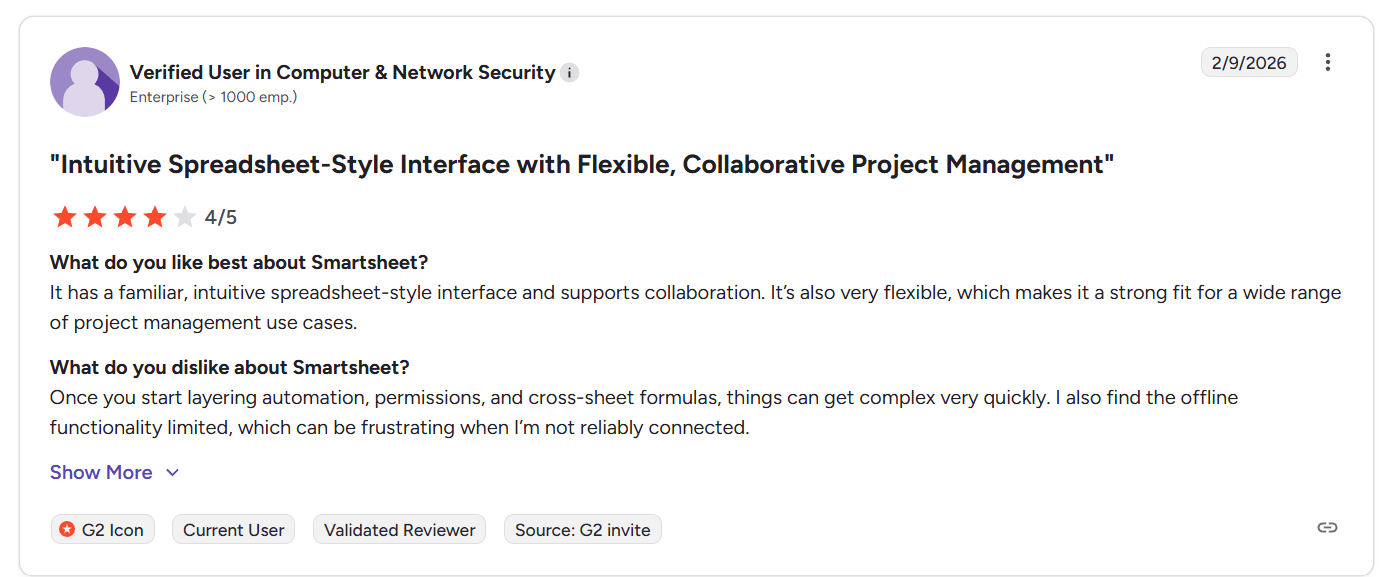
“It has a familiar, intuitive spreadsheet-style interface and supports collaboration. It’s also very flexible, which makes it a strong fit for a wide range of project management use cases.” - G2 Review
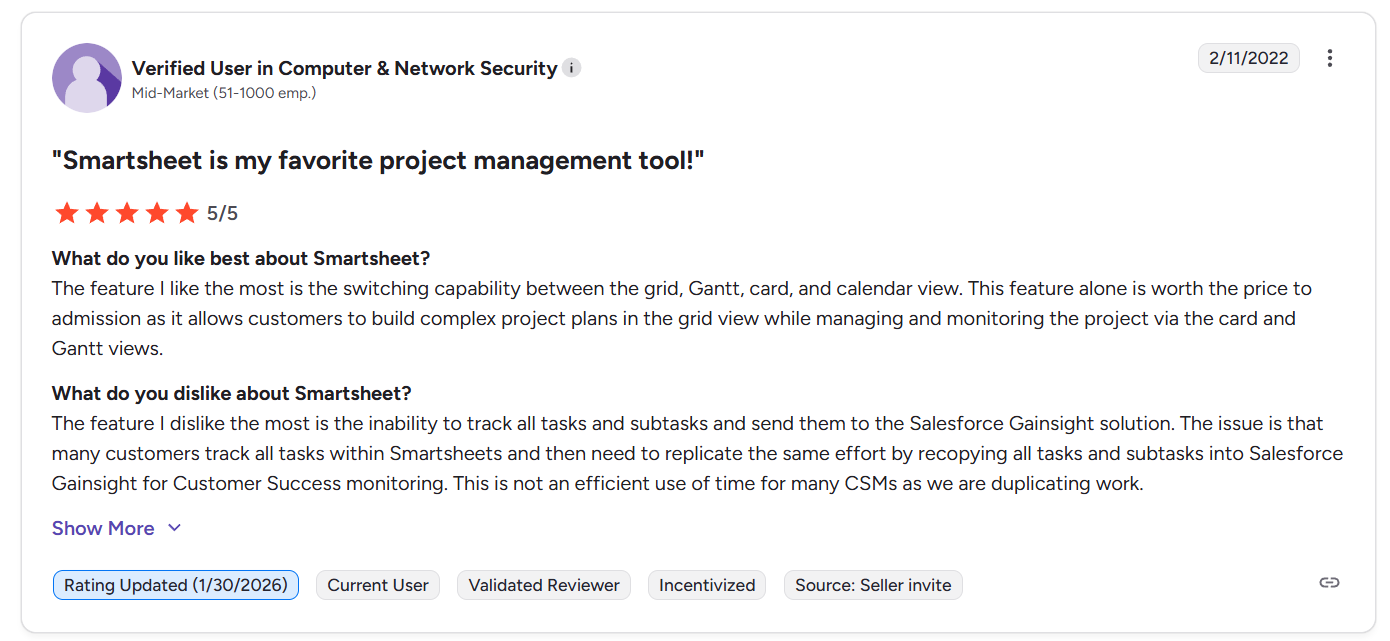
“The feature I like the most is the switching capability between the grid, Gantt, card, and calendar view. This feature alone is worth the price to admission as it allows customers to build complex project plans in the grid view while managing and monitoring the project via the card and Gantt views.” - G2 Review
Common complaints include:
- Steep learning curve once advanced automations, dashboards, or cross-sheet formulas are introduced.
- Performance slowdowns or complexity when working with very large sheets.
- Integrations and customization sometimes feeling clunky or harder to maintain long term.
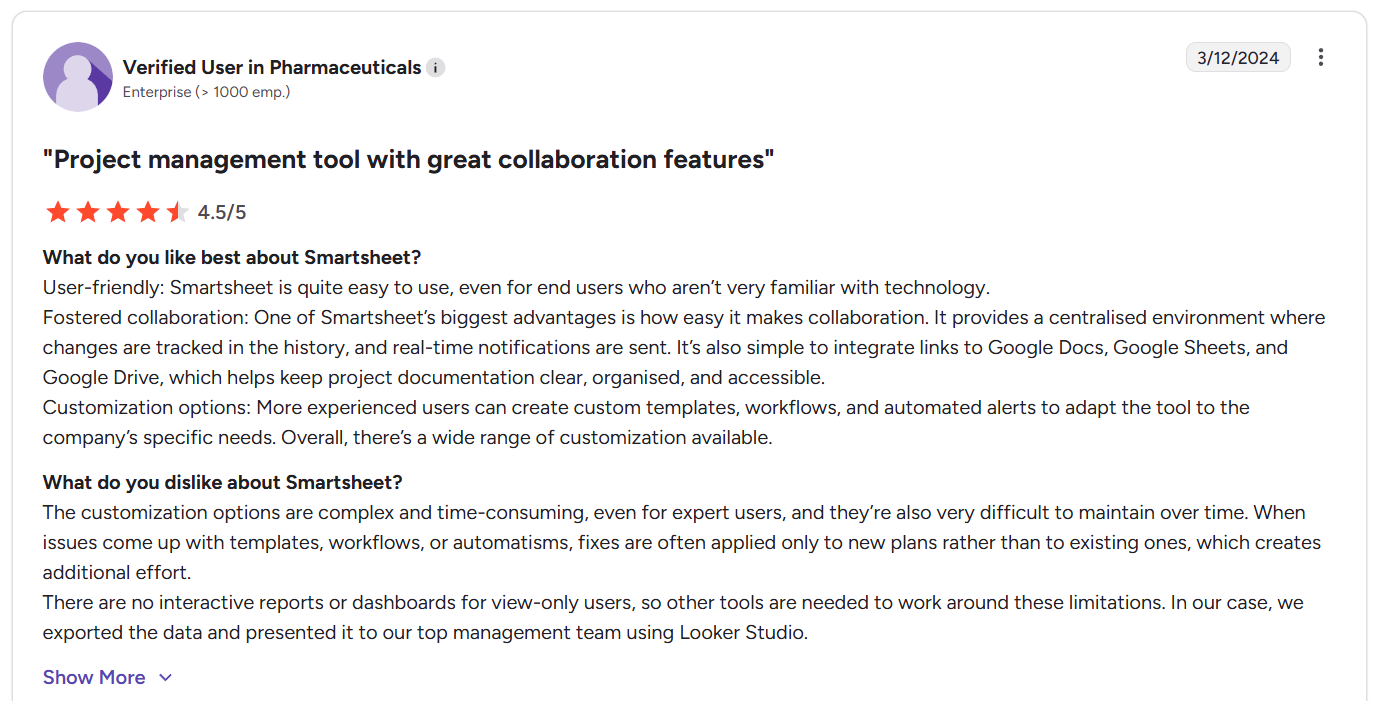
“The customization options are complex and time-consuming, even for expert users, and they’re also very difficult to maintain over time. When issues come up with templates, workflows, or automatisms, fixes are often applied only to new plans rather than to existing ones, which creates additional effort.
There are no interactive reports or dashboards for view-only users, so other tools are needed to work around these limitations. In our case, we exported the data and presented it to our top management team using Looker Studio.” - G2 Review
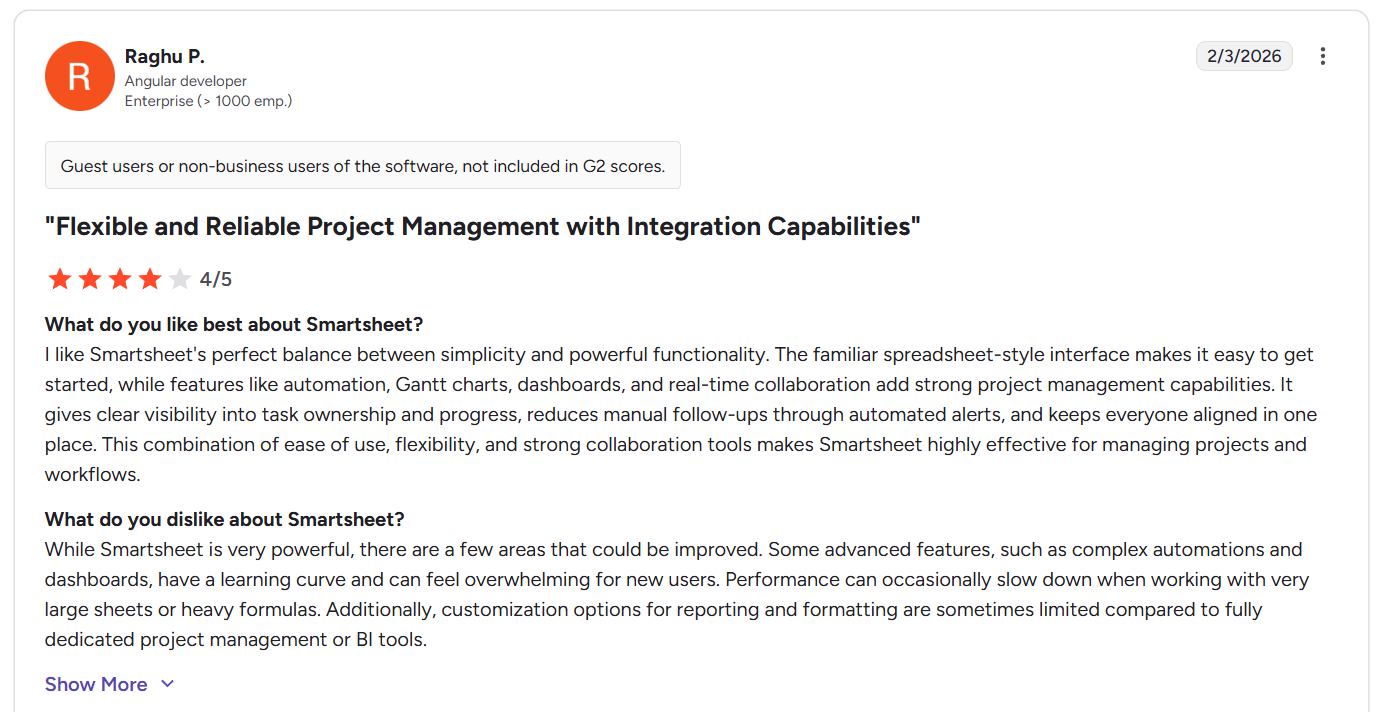
“While Smartsheet is very powerful, there are a few areas that could be improved. Some advanced features, such as complex automations and dashboards, have a learning curve and can feel overwhelming for new users. Performance can occasionally slow down when working with very large sheets or heavy formulas. Additionally, customization options for reporting and formatting are sometimes limited compared to fully dedicated project management or BI tools.” - G2 Review
Microsoft Planner reviews
G2 Rating: 4.2/5
What users love:
- Simple, intuitive task tracking with visual boards and buckets that are easy to understand.
- Strong collaboration through comments, file attachments, and real-time notifications.
- Deep Microsoft 365 integration, allowing teams to manage work directly inside Teams, Outlook, and SharePoint.
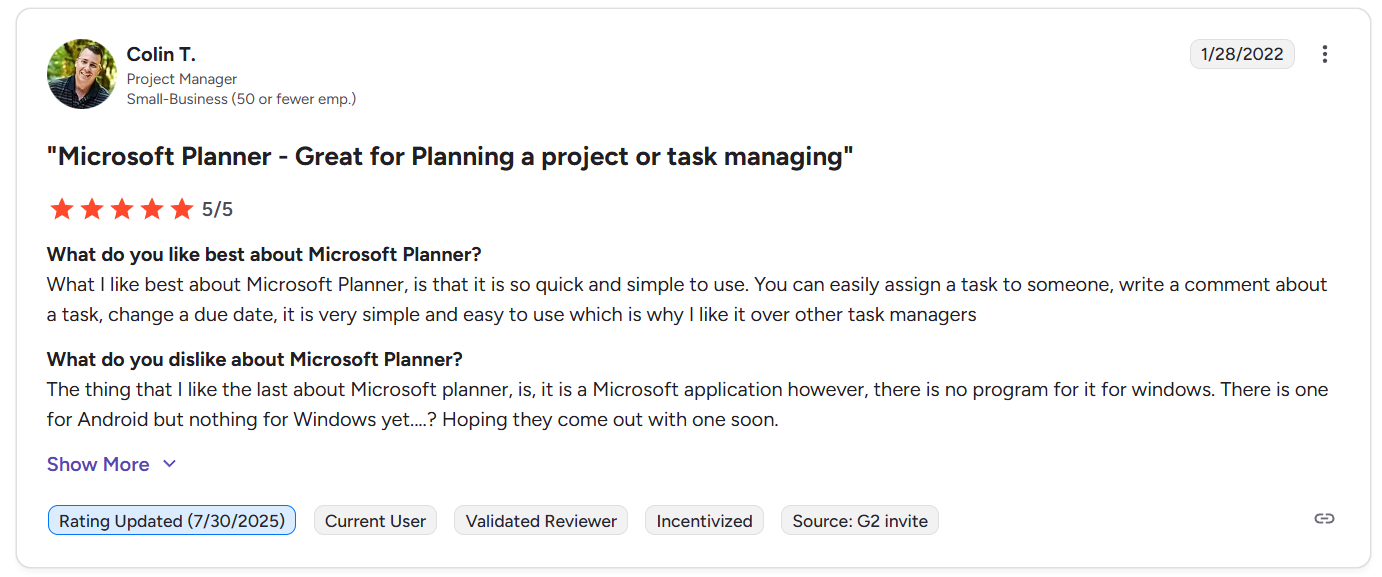
“What I like best about Microsoft Planner is that it is so quick and simple to use. You can easily assign a task to someone, write a comment about a task, change a due date, it is very simple and easy to use which is why I like it over other task managers.” - G2 Review
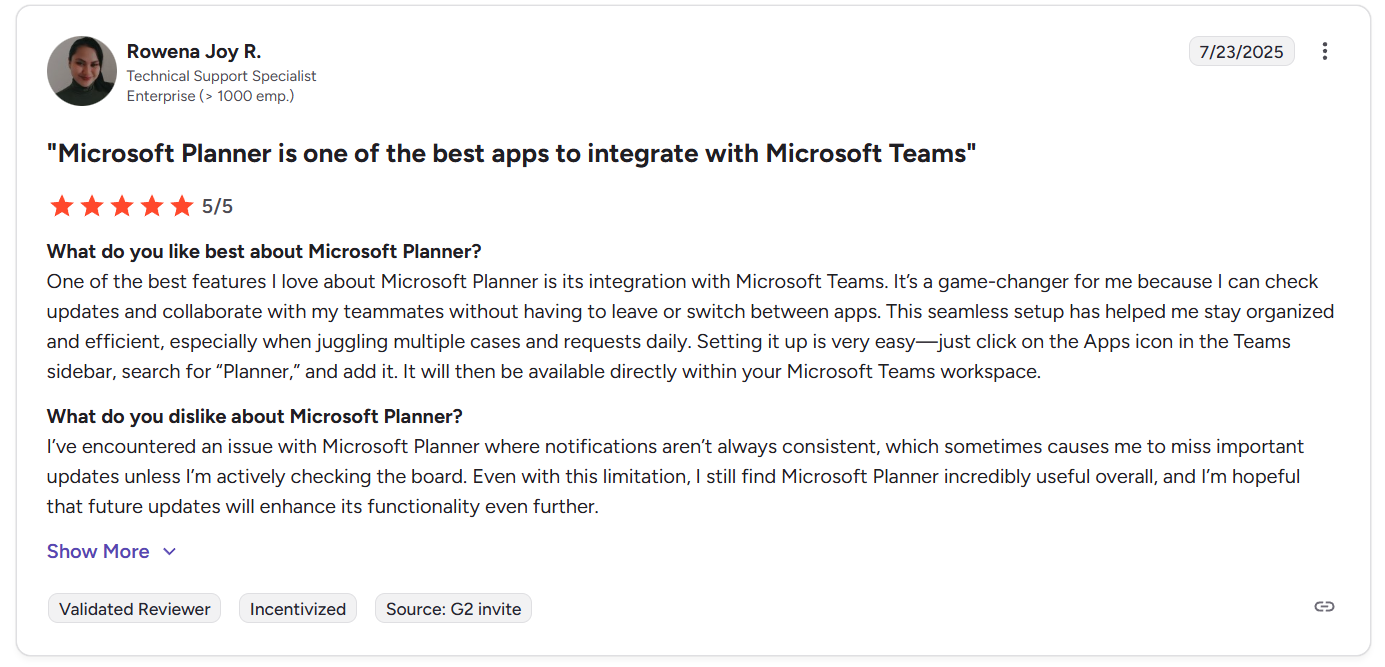
“One of the best features I love about Microsoft Planner is its integration with Microsoft Teams. It’s a game-changer for me because I can check updates and collaborate with my teammates without having to leave or switch between apps. This seamless setup has helped me stay organized and efficient, especially when juggling multiple cases and requests daily. Setting it up is very easy—just click on the Apps icon in the Teams sidebar, search for “Planner,” and add it. It will then be available directly within your Microsoft Teams workspace.” - G2 Review
Common complaints include:
- Limited advanced project management features like Gantt charts, deep reporting, or time tracking.
- Basic customization options for boards, labels, and workflows.
- Less flexibility outside the Microsoft ecosystem, with fewer integrations compared to broader work platforms.
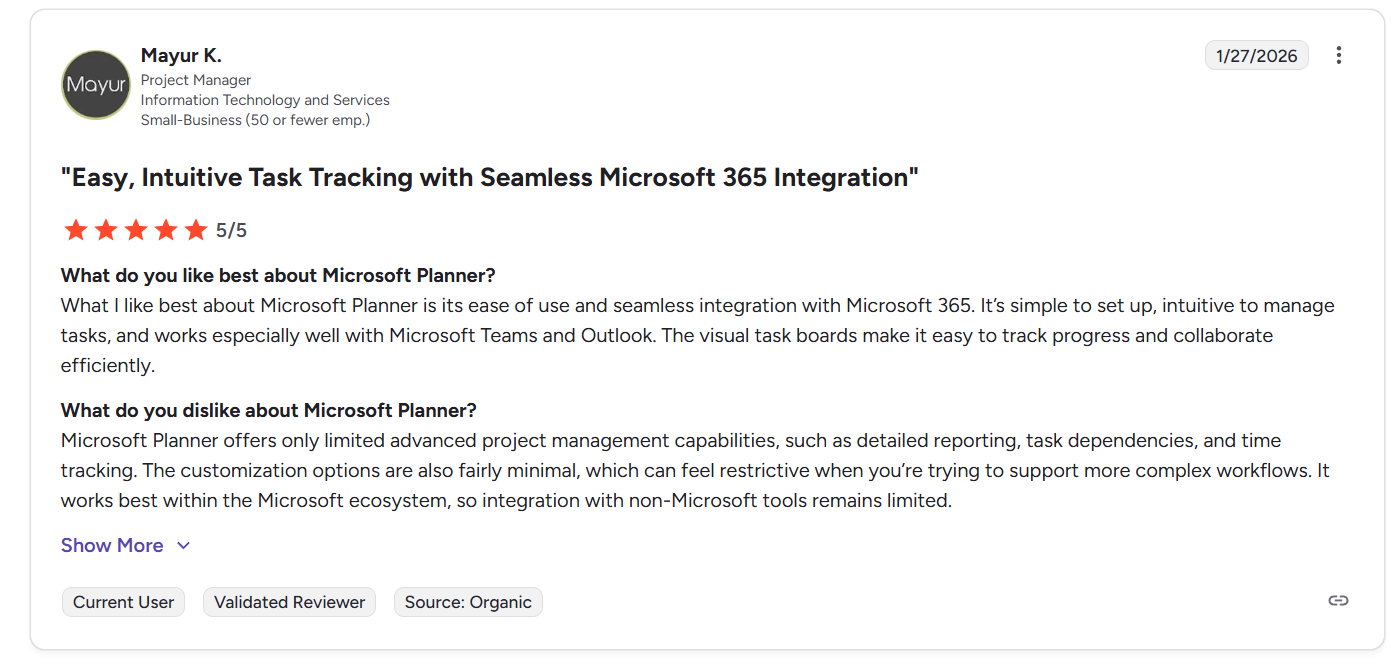
“Microsoft Planner offers only limited advanced project management capabilities, such as detailed reporting, task dependencies, and time tracking. The customization options are also fairly minimal, which can feel restrictive when you’re trying to support more complex workflows. It works best within the Microsoft ecosystem, so integration with non-Microsoft tools remains limited.” - G2 Review
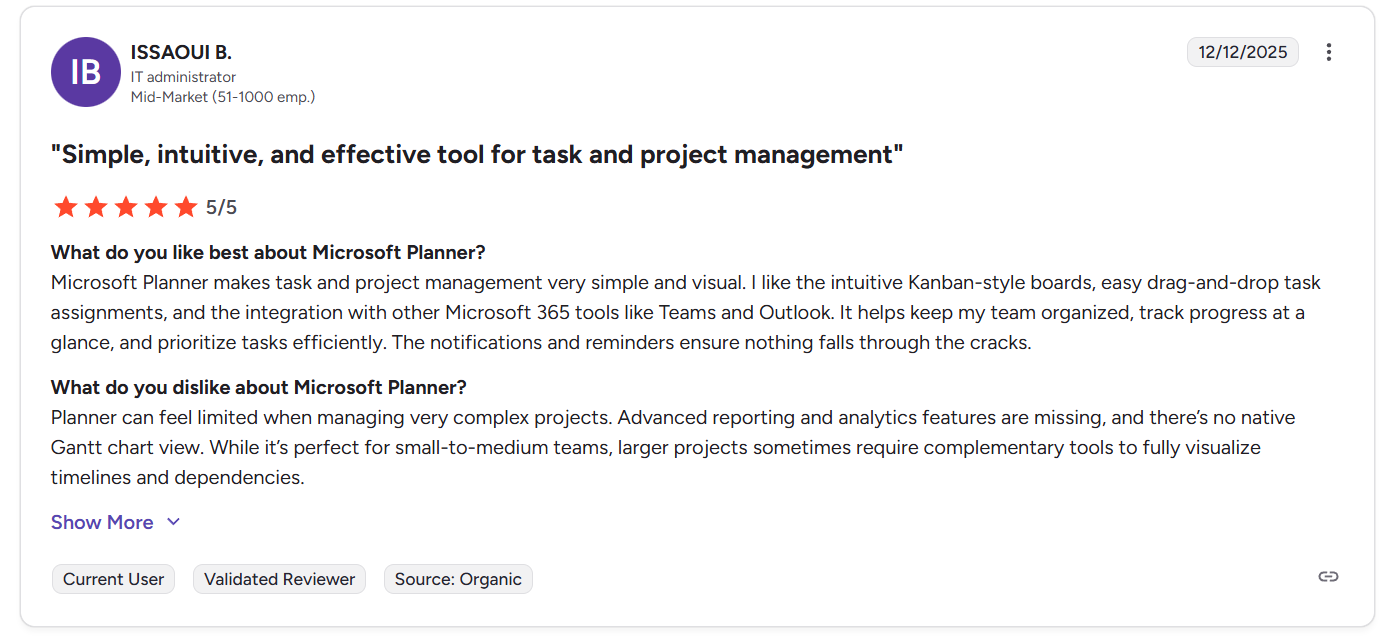
“Planner can feel limited when managing very complex projects. Advanced reporting and analytics features are missing, and there’s no native Gantt chart view. While it’s perfect for small-to-medium teams, larger projects sometimes require complementary tools to fully visualize timelines and dependencies.” - G2 Review
SmartSuite reviews
G2 Rating: 4.8/5
What users love:
- Highly flexible platform that lets teams build custom workflows, tools, and internal systems without code.
- Intuitive interface with a relatively short learning curve compared to many enterprise work platforms.
- Strong automation, templates, and structured data management that improve efficiency.
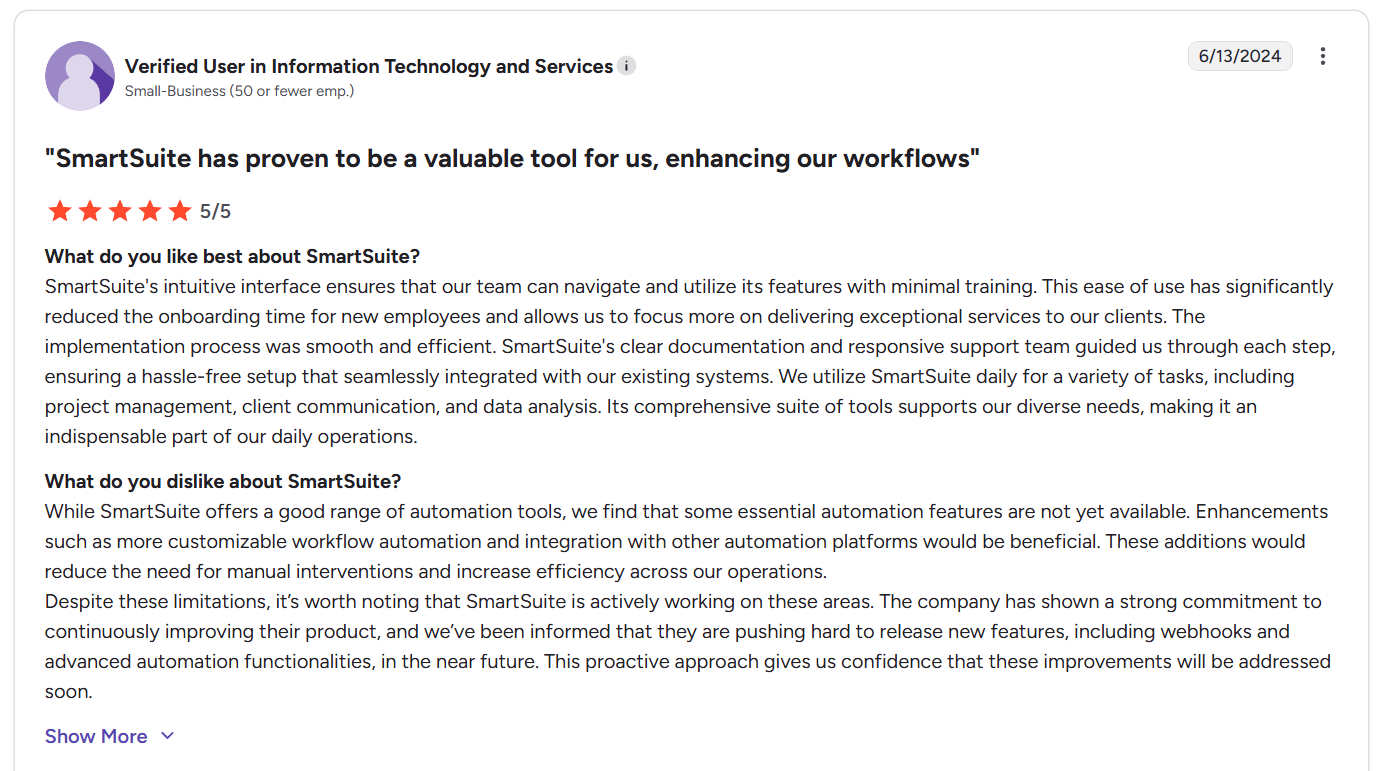
“SmartSuite's intuitive interface ensures that our team can navigate and utilize its features with minimal training. This ease of use has significantly reduced the onboarding time for new employees and allows us to focus more on delivering exceptional services to our clients. The implementation process was smooth and efficient. SmartSuite's clear documentation and responsive support team guided us through each step, ensuring a hassle-free setup that seamlessly integrated with our existing systems. We utilize SmartSuite daily for a variety of tasks, including project management, client communication, and data analysis. Its comprehensive suite of tools supports our diverse needs, making it an indispensable part of our daily operations.” - G2 Review
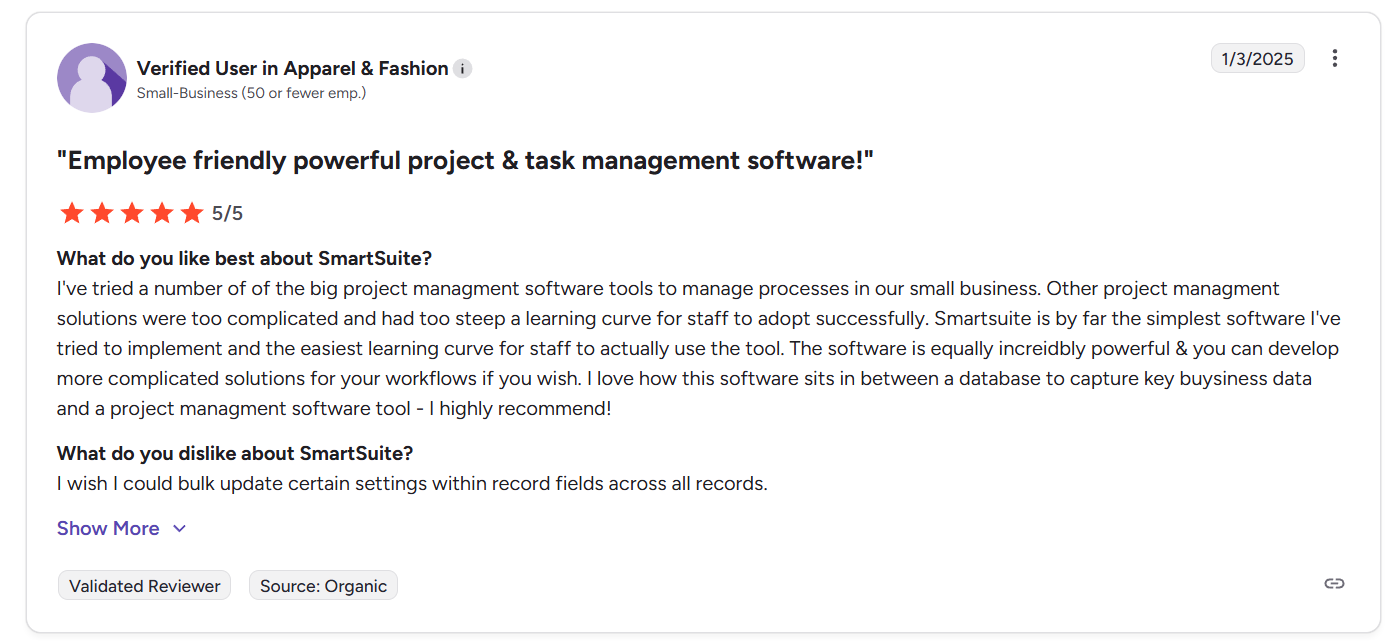
“I've tried a number of the big project management software tools to manage processes in our small business. Other project management solutions were too complicated and had too steep a learning curve for staff to adopt successfully. Smartsuite is by far the simplest software I've tried to implement and the easiest learning curve for staff to actually use the tool. The software is equally incredibly powerful & you can develop more complicated solutions for your workflows if you wish. I love how this software sits in between a database to capture key business data and a project management software tool - I highly recommend!” - G2 Review
Common complaints include:
- The need for minor UX improvements, such as mobile app enhancements or additional layout customization.
- Lack of a middle tier between Professional and Team plan.
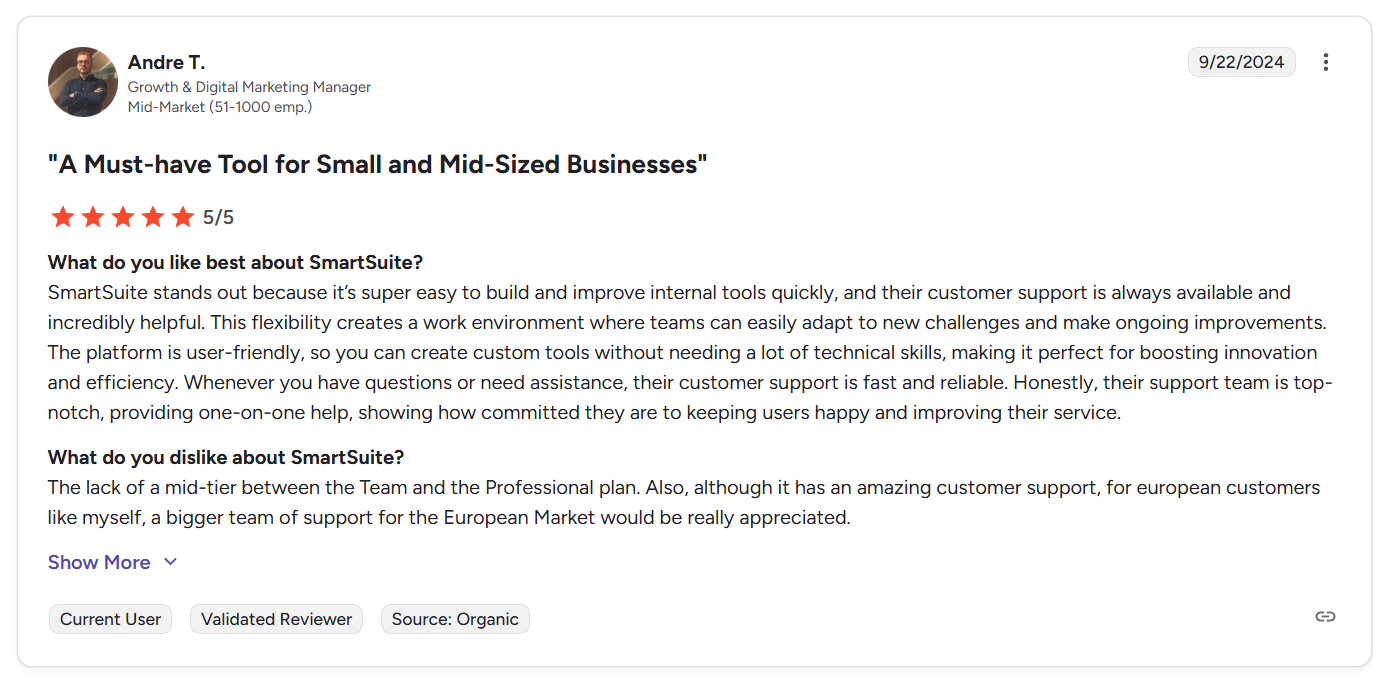
“The lack of a mid-tier between the Team and the Professional plan. Also, although it has amazing customer support, for European customers like myself, a bigger team of support for the European Market would be really appreciated.” - G2 Review
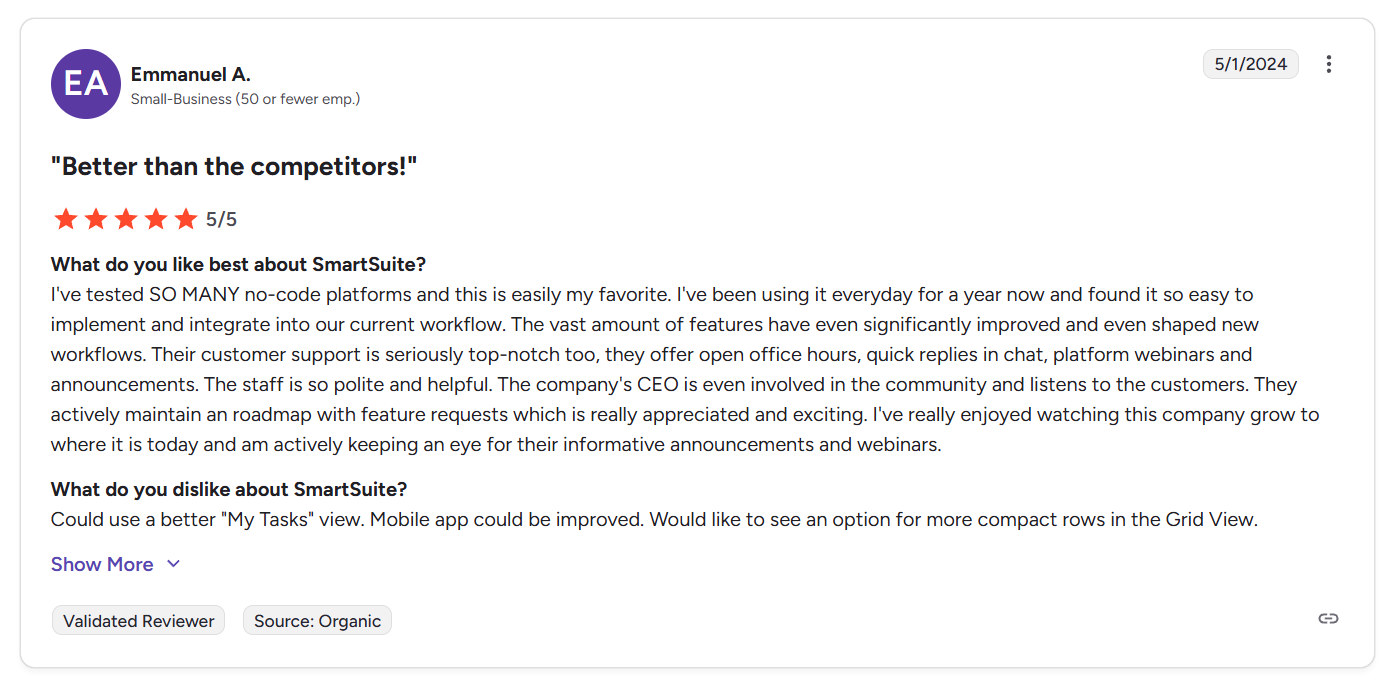
“Could use a better "My Tasks" view. Mobile app could be improved. Would like to see an option for more compact rows in the Grid View.” - G2 Review
Smartsheet vs. Microsoft Planner vs. SmartSuite: Summary
Get started with SmartSuite for free today
Choosing between Smartsheet vs Microsoft Planner ultimately depends on how your team prefers to work, and how far you expect your workflows to evolve.
Microsoft Planner is the easiest starting point if you’re already inside Microsoft 365 and just need lightweight task tracking with simple boards and collaboration. It’s quick to adopt, but its limitations become clear once projects require deeper reporting, automation, or customization.
Smartsheet offers far more structure, especially for teams that think in spreadsheets. Its formulas, automation, and data tools make it powerful for structured project management, though that same depth can introduce complexity as sheets, workflows, and integrations scale.
SmartSuite takes a broader approach than both.
Instead of choosing between spreadsheets or basic task boards, it gives you a unified work platform where projects, automation, AI, reporting, and collaboration live together, helping teams reduce tool sprawl and build workflows that grow with the business.
If your team has outgrown basic task managers or spreadsheet-driven work management, SmartSuite is worth exploring.
Start with a 14-day free trial or book a demo to see how connected workflows, AI automation, and real-time reporting work together inside one platform.
Read more
- 10 Best Hyperproof Alternatives For GRC In 2026 - Explore the top Hyperproof alternatives that simplify compliance workflows, automate evidence collection, and give teams stronger visibility into risk without heavy overhead.
- Smartsheet vs. Wrike vs. SmartSuite: Which One Is Better? [2026] - A practical breakdown of how Smartsheet, Wrike, and SmartSuite compare across automation, flexibility, reporting, and real-world project workflows.
- LogicManager Pricing: Is It Worth It In 2026? - A clear look at LogicManager’s pricing model, hidden cost factors, and whether the platform delivers enough value for modern GRC teams.
- Smartsheet vs. Zoho Projects vs. SmartSuite: Which Tool to Pick? [2026] - Compare three popular project platforms side by side to see which one actually fits your workflow style, automation needs, and scalability goals.
- 10 Best BMC Helix Alternatives For ITSM In 2026 - Discover the strongest BMC Helix alternatives for ITSM teams that want modern automation, easier workflows, and better long-term flexibility.
- AI For Project Management: Best Software & Use Cases In 2026 - Learn how AI is reshaping project execution, from smarter planning and automation to predictive insights that help teams deliver faster.
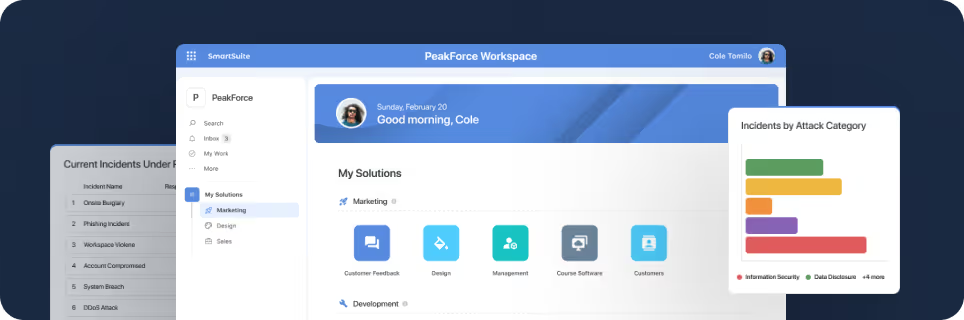
SmartSuite provides work platform for standardizing workflows in the following areas:
- Governance, Risk & Compliance
- IT & Service Ops
- Project / Portfolio Management
- Business Operations