

What’s New in SmartSuite
New features inspired by our user community
All Updates

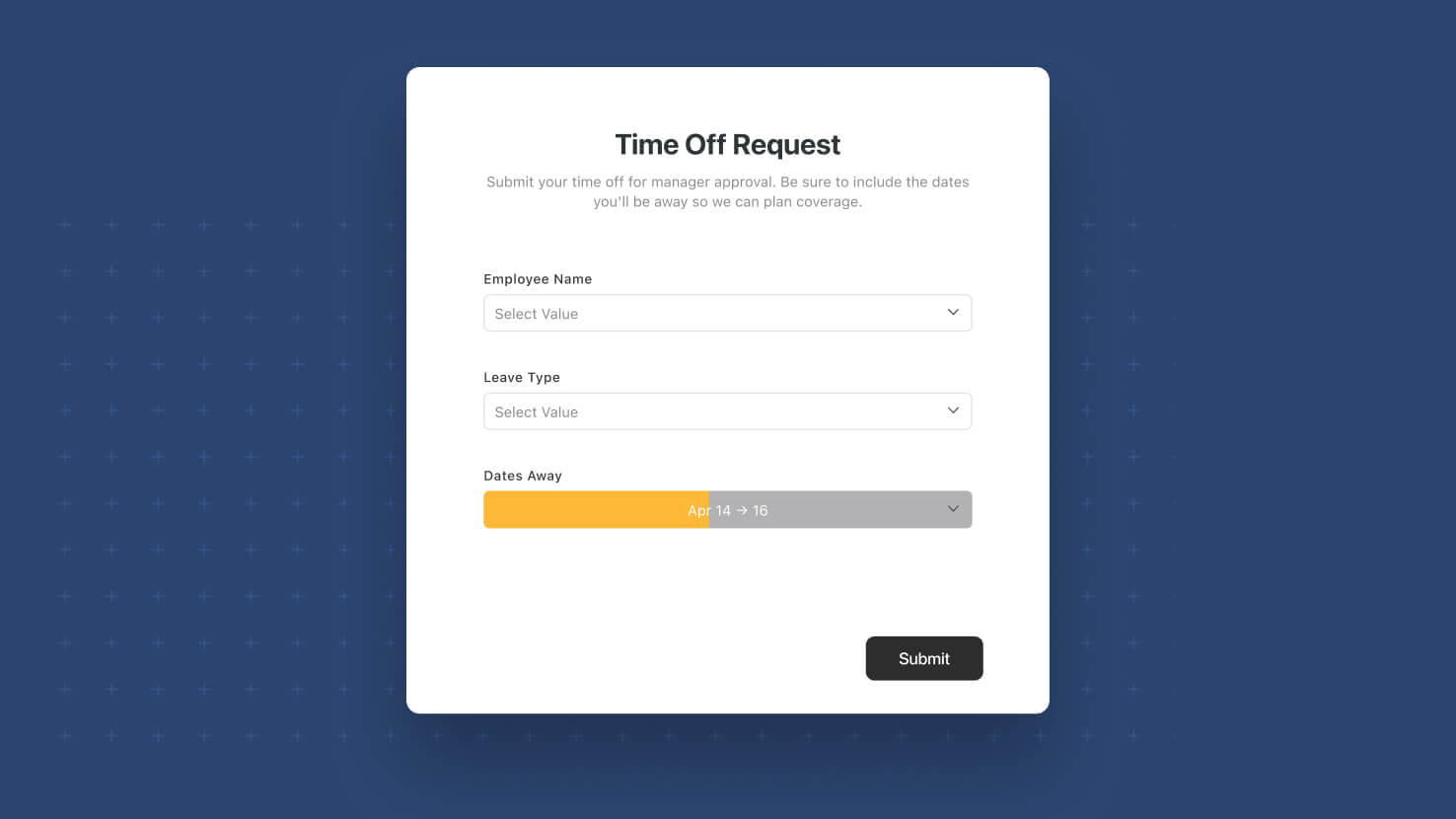


Forms: Support for Date Range Field

Forms now support the Date Range field. Respondents can submit both a start date and end date in a single form field, using whichever Display Format (Compact, Standard, Long, or Pill) the underlying field is configured with. Event teams collecting session times, PMO leads gathering project phase start and end dates, and HR teams scheduling interview windows all get a native single-field control instead of composing two separate date fields.
Key Highlights
- First-Class Form Input: Date Range fields now appear alongside every other supported field type when building a Form, with no extra configuration needed beyond adding the field to the underlying table.
- Display Format Honored: The form field renders using whichever Display Format (Compact, Standard, Long, or Pill) is set on the underlying Date Range field. No separate form-only styling to configure.
- Time Entry Support: If the underlying Date Range field has time enabled, respondents can enter both date and time components — otherwise it's date-only.
- Works in Read-Only Forms: Date Range fields display correctly in read-only form contexts, so confirmation and review flows work as expected.
- Same Auto-Fill Invariant: If a respondent enters only a start or only an end value, the missing side auto-fills to the same value, preserving the invariant that Date Range fields always carry both endpoints.
How It Works
- Add or open a Date Range field on the source table (from Grid View column menu, or Record View add-field control).
- Open the Form Builder for that table and drag the Date Range field into the form layout, or turn it on via the field toggle if you're editing an existing form.
- Save the form. Respondents see a Date Range control on the live form, matching the Display Format configured on the underlying field.
- Submitted responses populate the Date Range field on the record as expected, including in Timeline View, which relies on Date Range values.
With Date Range as a native form input, SmartSuite's Form Builder now covers the full span of scheduling, phase-capture, and window-based workflows in a single field.
Mobile Dashboards: Calendar and Card View Widgets
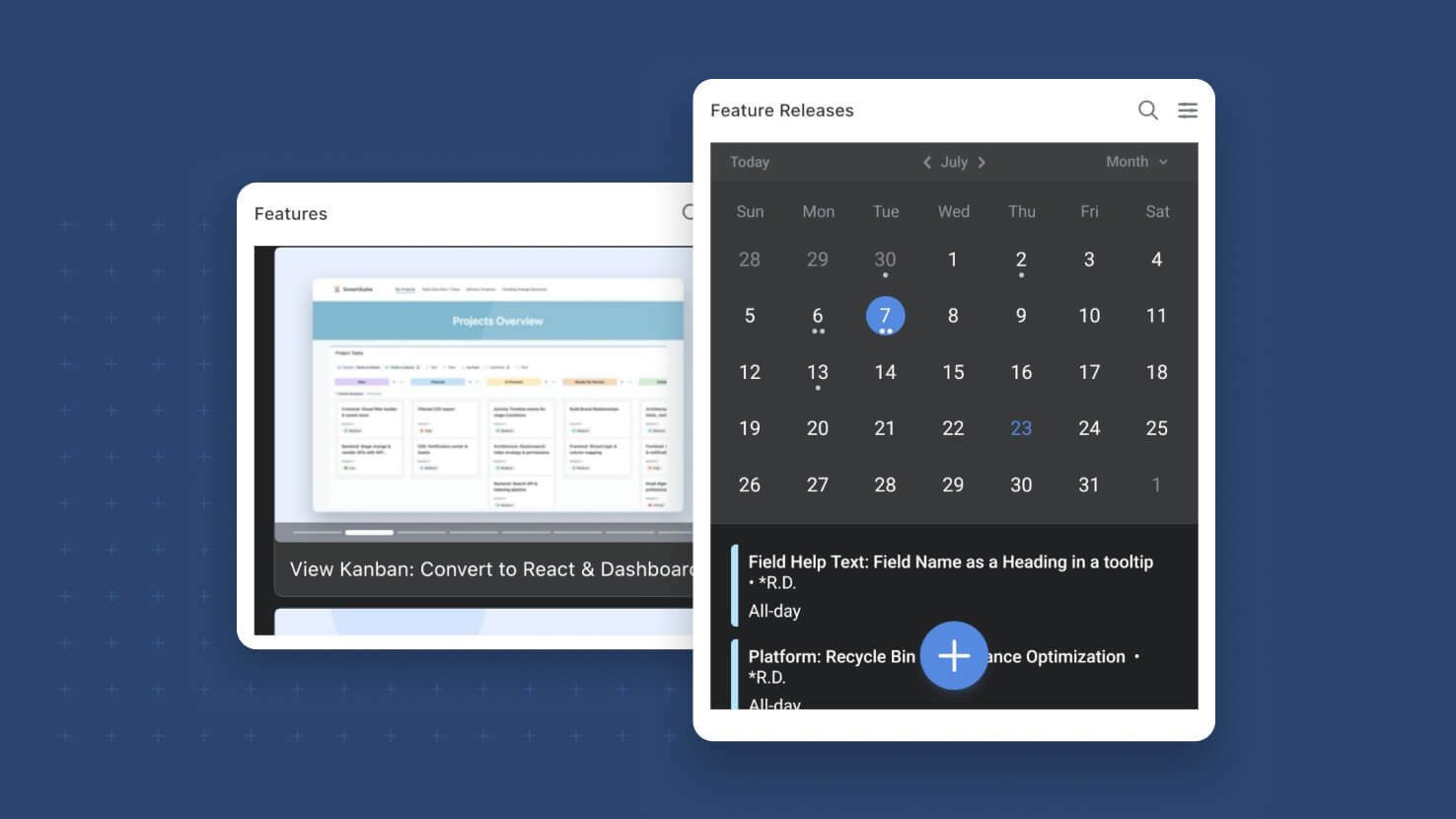
Calendar View and Card View widgets are now supported on mobile Dashboards. Field service techs checking today's assigned work on a mobile Calendar widget, sales reps scrolling through a Card View of open opportunities between meetings, and PMO leads sharing status dashboards that work across every device all get two more layouts that render properly on phone and tablet.
Key Highlights
- Calendar View on Mobile: The Calendar View widget now renders on SmartSuite Mobile with the same date-field configuration as the desktop version. Scheduled records appear against a calendar grid that scrolls and taps cleanly on phone and tablet.
- Card View on Mobile: The Card View widget now renders on SmartSuite Mobile as an image-and-text card list that scrolls naturally on a small screen — no more falling back to Grid View when a gallery-style layout is the right presentation.
- Broader Mobile Coverage: These two widget types join Grid View, Timeline View, all chart widgets (Bar, Column, Line, Area, Pie, Donut, Bubble, Scatter, Heatmap), Summary Card, Progress Metric, Comparison Metric, Filter Widget, Countdown, World Clock, and the full set of embed widgets. The mobile dashboard toolbox is now closer to feature parity with the desktop experience.
- Same Configuration Model: No new configuration to learn — Calendar and Card View widgets configured on desktop render as expected on mobile with their existing settings, filters, and sort order. Dashboard builders don't have to design a separate mobile version.
How It Works
- Open any dashboard in the Web app you'd like to make mobile-friendly, and add or edit a Calendar View or Card View widget as you normally would.
- Configure the widget with the date field, sort order, filter conditions, and visible fields you want — same controls as any other widget on the dashboard.
- Save the dashboard. Open the SmartSuite Mobile app, navigate to the dashboard, and see the Calendar or Card View widget rendered natively.
- The widget honors the same filters and permissions on mobile as it does on desktop — no separate mobile configuration needed.
With Calendar and Card View joining the mobile-supported set, SmartSuite Dashboards keep closing the gap on full mobile-desktop parity, giving builders a growing library of layouts that work wherever their teams do.
Manage Members: Access Level Overview
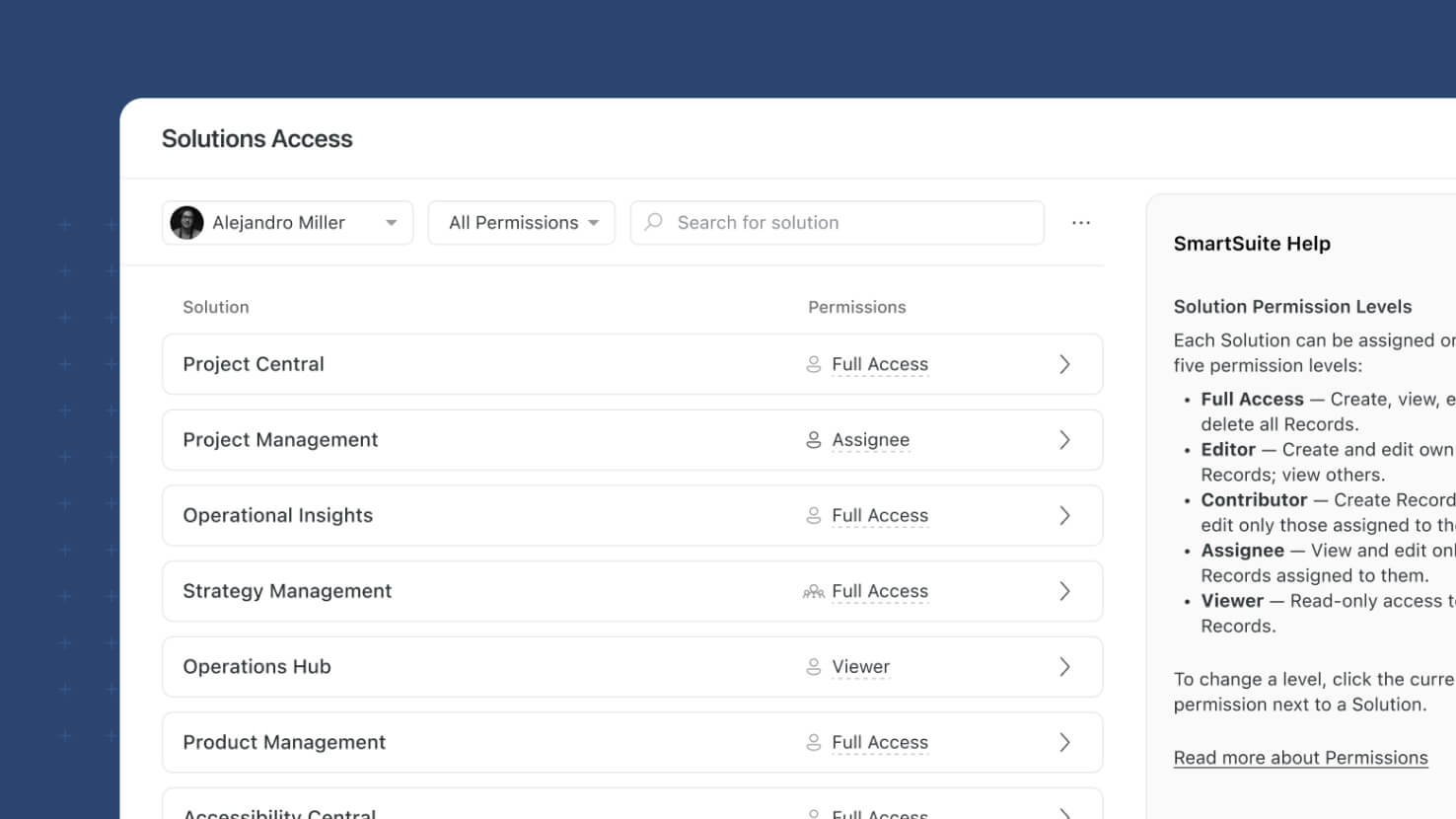
The Manage Members page adds a new Solution Access modal that gives Workspace Admins a full access map for any user in the workspace. Open a member's three-dot menu, pick Solution Access, and see every Solution they can reach with the highest combined personal-and-team permission for each — drill into a Solution to see its Tables, filter, search, and export to CSV. ITSM operators reviewing who can access the Incident Management solution, GRC compliance teams verifying auditor scope before a SOC 2 review, and Workspace Admins running quarterly access reviews all get member-level visibility from a single pane.
Key Highlights
- Solution Access Modal from Manage Members: A new option under each member's three-dot menu opens a modal showing every Solution the user can reach with the highest combined (personal + team) permission — no more reconstructing effective access by hand.
- Two Modes, One Modal: Solutions listing is the default; click a Solution to switch to Tables listing for that Solution, complete with breadcrumbs showing the selected User and Solution.
- Personal-vs-Team Source Indicator: Every permission value shows whether it was granted directly at the personal level or inherited through a Team, so admins know exactly where to go to change it.
- Filter, Search, and Switch Users In-Place: User Selector to jump between users without closing the modal, Permission Selector to narrow to a specific access level, name search across the current listing, all working together.
- Click-Through to Permissions Editors and CSV Export: Click any permission value to open the corresponding Solution Permissions or Table Permissions modal and edit access in place; the listing refreshes immediately when the editor closes. Export the current filtered listing to CSV for evidence or offline review.
How It Works
- Open Workspace Administration → Manage Members. Find the user you want to audit and open their three-dot menu; pick Solution Access.
- The Solution Access modal opens in Solutions listing mode: every Solution the user can reach, sorted A-Z, with the highest combined permission and an icon showing whether that permission came from a personal grant or a Team grant.
- Filter the listing with the Permission Selector (defaults to All Permissions), search by Solution name, or switch to a different user via the User Selector without closing the modal.
- Click a Solution to drill into Tables listing mode for that Solution: same layout, same filters, breadcrumbs indicating the selected User and Solution.
- Click any permission value to open the Solution Permissions or Table Permissions modal. Adjust the permission; when the modal closes, the listing refreshes to reflect the new effective access immediately.
- Export the current listing to CSV via the Export control for offline record-keeping or audit-evidence attachment.
Record Page: Conditional Required Fields
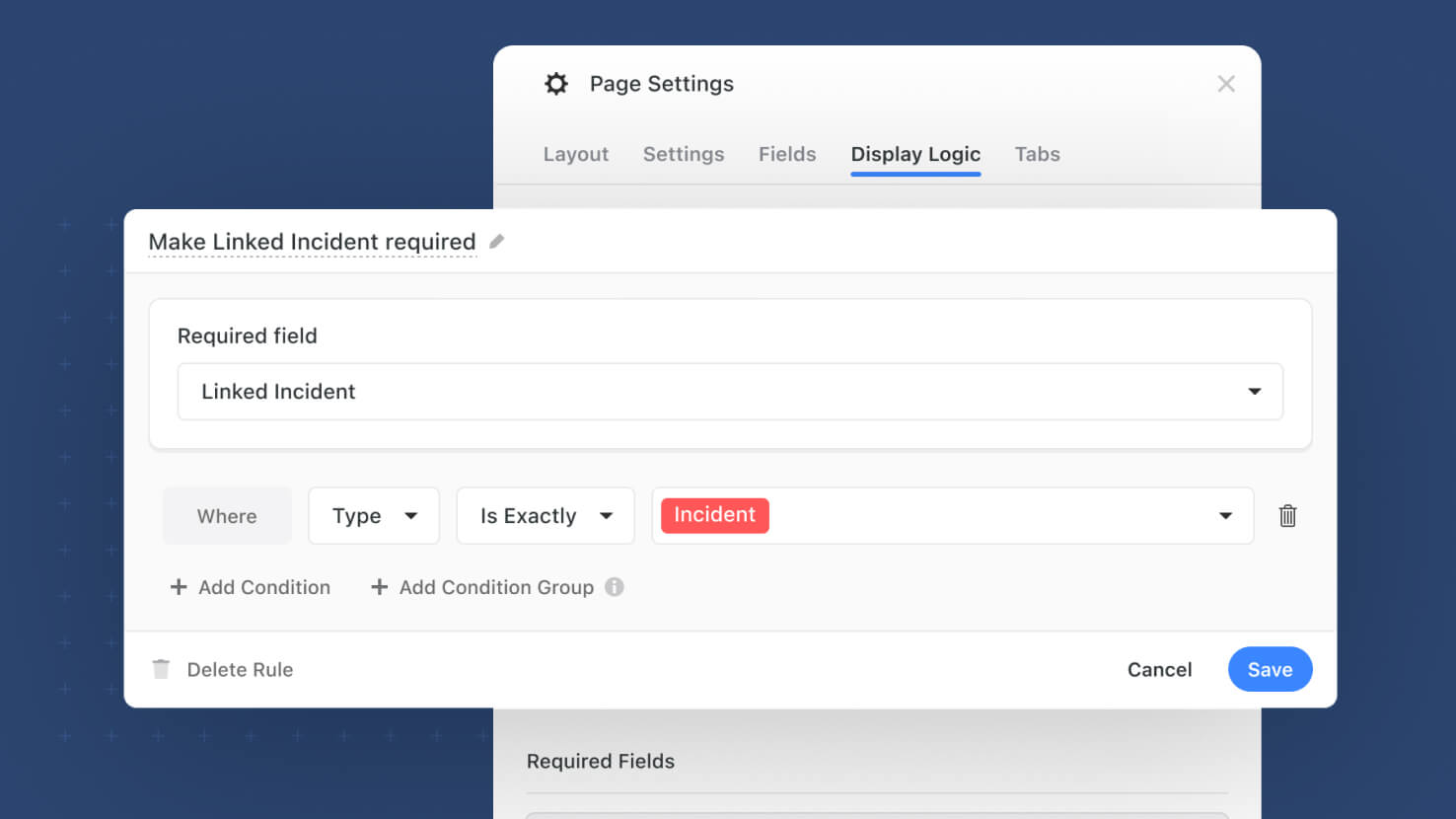
The Record Page now supports Conditional Required Fields. Solution admins define per-field rules on the Display Logic tab that make a field mandatory when other field values dictate it, and the rule fires immediately as users edit the record — no save-time surprise. ITSM incident forms requiring a resolution note only when Status equals Resolved, GRC attestation records requiring an evidence link only when Result equals Pass, and PMO project intakes requiring an executive sponsor only when Priority equals Critical all get conditional validation at the right moment.
Key Highlights
- New Required Fields Section on Display Logic: A dedicated Required Fields area on the Display Logic tab lets solution admins define rules that make a field required when another field's value matches a condition. Same UI pattern as the existing Sections, Tabs, and Fields rule types.
- Immediate Enforcement, Not Just On Save: Rules become effective as soon as the triggering field value changes on an open record, before the record is saved. Users see the required-state indicator update in real time and can complete the record before submission.
- Visibility Wins: If a field is hidden by a Display Logic rule (whether directly or because its tab or section is hidden), the conditional-required rule doesn't fire against it. Hidden fields are never treated as required, no matter what the require rule says.
- One Rule Per Field: Every field can have at most one conditional-required rule. System fields (Record ID, First Created, Followed By, and so on), calculated fields (Formula, Lookup, Rollup, Count, Autogenerated Title), and fields already marked as required in the field settings are excluded from the rule builder.
- Same Tab-Level Validation UX: When a save action generates multiple required-field errors, the Record Page shows the count of empty required fields per tab, exactly matching the existing required-field validation model. No new failure UI to learn.
How It Works
- Open a table's field settings and go to the Display Logic tab. The new Required Fields section sits alongside the existing Sections, Tabs, and Fields rule categories.
- Click Add Rule, pick the field that should become required, define the condition against another field's value (Status equals Resolved, Priority equals Critical, Result equals Pass), and save the rule.
- The rule-indicator icon appears on the field in the Fields tab so admins can see at a glance which fields have a conditional-required rule attached.
- On the Record Page, as users edit a record and change the triggering field's value, the conditionally-required field shifts to a required state immediately. If they try to save without providing a value, validation errors surface per tab.
- Pair conditional-required rules with existing conditional-display rules for the full picture: hide a field until it's relevant, then require it once it is.
Available on Enterprise and Signature plans.
SmartSuite AI: Managed Connections
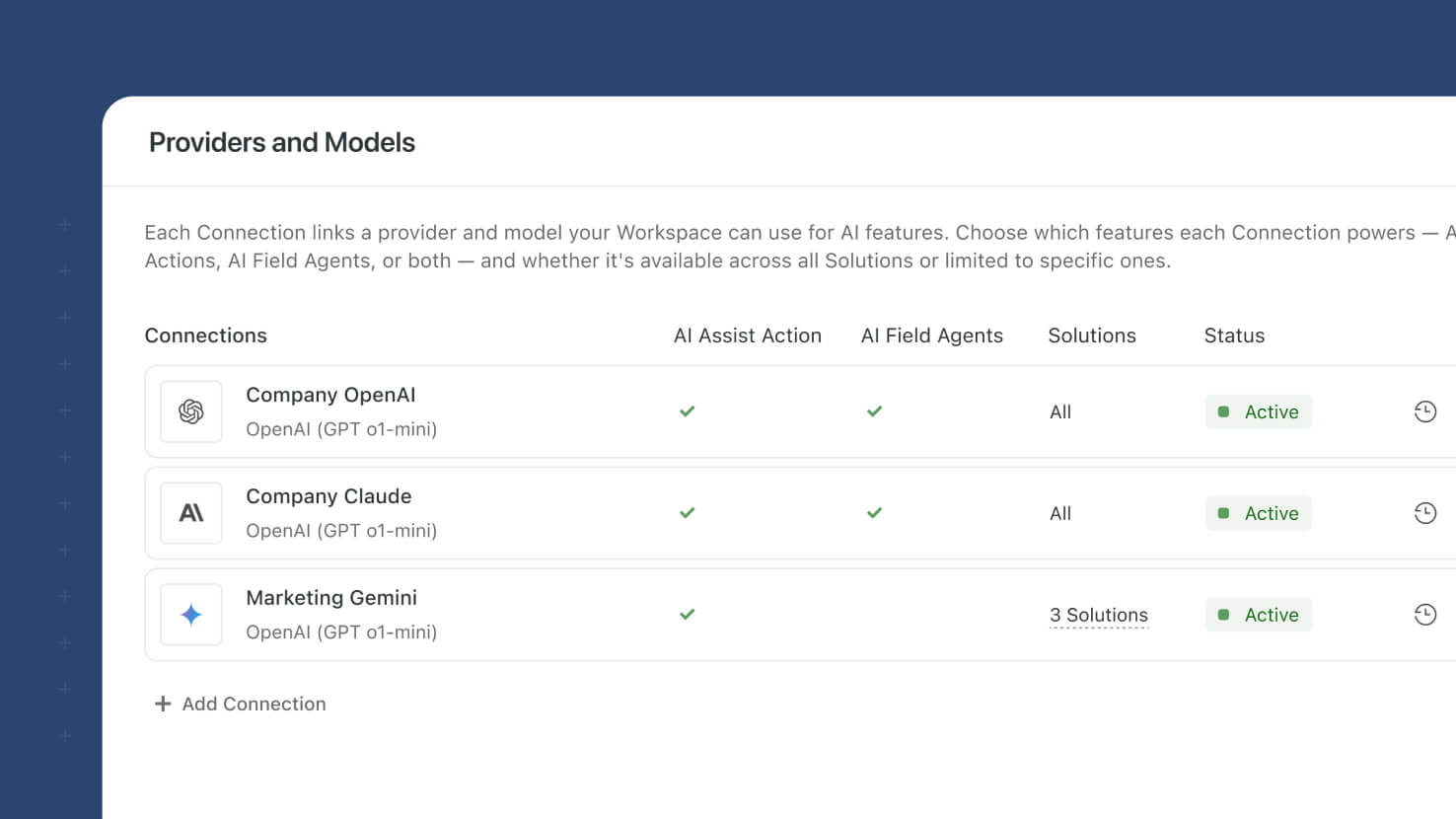
SmartSuite AI now centralizes LLM provider connections in a new AI Control Center under Workspace Administration. Workspace admins configure a provider key once, scope it to specific solutions and features, and reuse it across AI Workflow Agent actions and AI Field Agents. Existing configurations migrate automatically; new workspaces get a pre-configured Trial Connection with 100 free requests. Compliance-conscious ITSM teams, GRC programs enforcing model governance, and any organization scaling AI across multiple solutions get the configuration surface that production AI use warrants.
Key Highlights
- Centralized Connection Registry: A new Providers and Models section under Workspace Administration → AI Control Center lets admins add, edit, test, disable, and delete AI provider connections in one place. API keys are encrypted at rest and only visible to workspace admins.
- Solution and Feature Scoping: Every connection is scoped to all solutions or a specific list, and to AI Workflow Agent Action, AI Field Agent, or both. Governance-restricted solutions can be limited to specific approved connections without the risk of stray keys leaking across projects.
- Test Before Saving: Every new or edited connection runs through a live test-connection step (system prompt sent to the provider, response displayed) before the connection saves. A failed test blocks the save; a successful one gates the Next button.
- Usage and Activity Log: Each connection has a Used-In tab showing every automation and Field Agent consuming it, plus an Activity History tab with every API call's status (success or error), filterable and sortable. Three-year retention on activity records.
- Trial Connection Built In: New workspaces get a pre-configured SmartSuite Trial Connection (OpenAI GPT 5.1, 100 free requests) so evaluators and new customers can experience the full AI feature set without configuring their own key first.
How It Works
- A workspace admin opens Workspace Administration and finds the new AI Control Center section with Providers and Models inside.
- Click Edit to open the Providers and Models modal; click Add Connection to start the setup wizard. Pick a provider, enter the required credentials, name the connection, optionally add a description, and set Enable Internet Access for models that support web browsing.
- Click Test Connection. The system sends a test system prompt to the provider and shows the response; a successful test unlocks the Next button.
- Pick a scope of solutions (All Solutions by default, or Only Selected with a solution picker) and pick which features can use this connection (AI Workflow Agent Action, AI Field Agent, or both).
- Save. Automation builders and Field Agent authors now see the connection in their Select Connection dropdown wherever it matches the solution and feature filter, no key re-entry required.
Existing AI Field Agent and AI Workflow Agent Action configurations migrate automatically. Workspaces without a previously-configured key get automatically pointed at the SmartSuite Trial Connection so no automation or agent breaks.
Forms: Configurable Footer
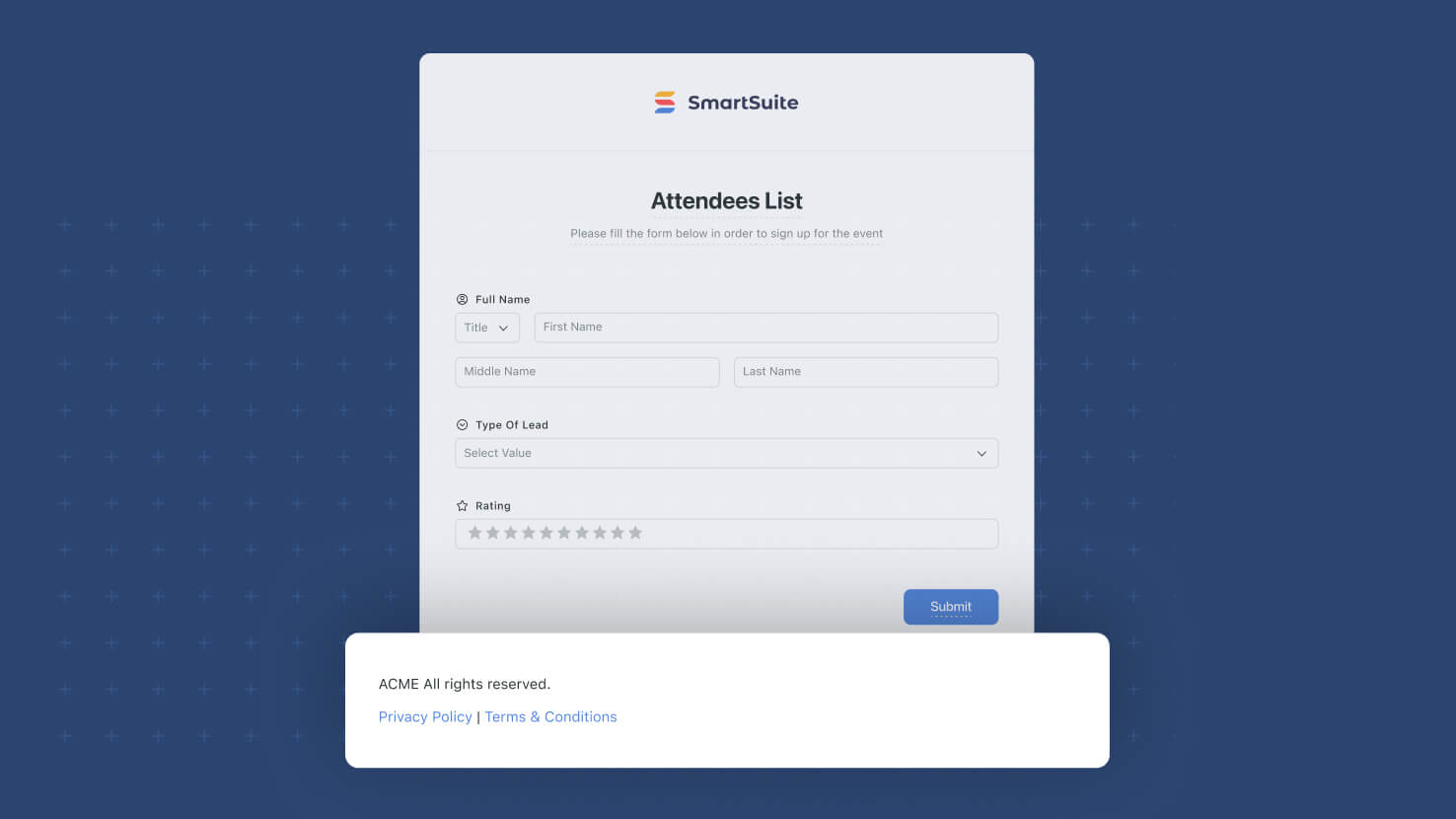
Forms now support a configurable Footer on the Style tab, giving form builders visual control at the bottom of the form to match what the Layout and Appearance sections provided at the top. Service desk intake forms with contact info and SLA reminders, GRC attestation forms with compliance boilerplate, and customer-facing forms with company brand messaging all now have a proper footer surface without leaving the form designer.
Key Highlights
- New Footer Section: A dedicated Footer section on the Style tab exposes a toggle (default off), a rich-text Content editor, a Background Color picker, and a SmartSuite Branding toggle.
- Rich-Text Content: Compose the footer content in a rich-text editor from the left side panel; formatting options include the standard font styles, links, and text emphasis available in the rest of the form designer.
- Background Color from the Standard Palette: Match the footer to your form's Appearance or your brand's palette, with a custom-color picker available for exact matches. Default is White.
- Display SmartSuite Branding Toggle: The small 'Powered by SmartSuite' line stays visible by default (on for most form owners), but can be toggled off when a fully-white-labeled experience is required for a customer-facing form.
- Applies to Publicly-Shared and Full-Page Variants: Matches the rest of the Style tab's behavior, internal forms opened as a side panel continue to use the Classic layout without a footer, so the new setting only kicks in where it makes visual sense.
How It Works
- Open the Style tab on any form in the designer and find the new Footer section in the left side panel.
- Toggle Footer on. Two controls appear: Footer Content (rich-text editor) and Background Color (palette plus custom picker).
- Compose the footer copy in the Content editor; use formatting for links, emphasis, and structure as needed. Pick a Background Color that complements your form's Appearance treatment.
- Use the Display SmartSuite Branding toggle to keep or hide the 'Powered by SmartSuite' line at the very bottom of the form.
- Save the form. The Footer renders on publicly-shared and full-page variants; internal side-panel forms continue to display without a footer.
Pair this with Forms: Layout and Appearance (Jun 22 release) and the rest of the Forms 2.0 work shipping this year for a full end-to-end style pass on any customer-facing or publicly-shared form.
Filter Widget: Support for Lookup Fields
Dynamic Filter Widgets on dashboards can now filter by Lookup fields. ITSM service desks filtering a Tickets widget by the linked Change Request's Priority, GRC dashboards filtering a Findings widget by the linked Control's Status, and PMO dashboards filtering a Tasks widget by the linked Sprint's Owner all get filter behavior that reaches through the relationship instead of only working with the direct record's own fields.
Key Highlights
- New Filter Source: Lookup fields join Status, Single Select, Multiple Select, Yes/No, Assigned To, Linked Record, and Date-based fields as choices in the Dynamic Filter's field-to-filter-by dropdown.
- Full Target-Type Support: Lookups that resolve to Status, Single Select, Multiple Select, Yes/No, Assigned To (single or multiple), Linked Record (single or multiple), or any Date-based field all render as filter options with the right control for their type.
- Same Configuration Surface: Selections (choices shown), Default Value, Default Condition, and Sort Values controls work exactly the same as they do for direct-field filters. No new configuration model to learn.
- Reach Through the Relationship: Filter dashboard widgets by attributes of related records (the linked Change Request's Priority, the linked Control's Status) even when those attributes aren't fields on the source table directly.
- Connected Widget Behavior Unchanged: The Lookup filter combines with the underlying widget's own filters using AND, matching the existing Filter Widget behavior, the filter narrows visible records, it never grants access beyond the widget's own scope.
How It Works
- Open a dashboard you manage and add a Filter Widget, or edit an existing one; keep the Filter Type at Dynamic on the Filters tab.
- Click Add Filter to add a new dynamic filter; the field-to-filter-by dropdown now shows Lookup fields alongside the other supported types.
- Pick a Lookup field. The Filter Settings modal opens; the controls (Selections, Default Value, Default Condition, Sort Values) render based on the field type the Lookup resolves to, matching the direct-field filter experience.
- Save the Filter Widget. Viewers see a filter tile with the Lookup's field label, and applying the filter narrows the connected widgets by the value the Lookup returns.
- Use this whenever the filter criterion your team cares about lives on a linked record, reach for a Lookup field on the source table, then filter on that Lookup in the widget.
Pair this with the Static Filters mode released in the June 22 cohort for dashboards where the filter combinations are stable enough to expose as tabs.

AI Center: Support for new models
The AI Center now supports the latest flagship models from Anthropic, OpenAI, and Google Gemini, organizes every model into four clear price tiers, and retires deprecated model IDs. Cost-optimizing existing automations and upgrading to flagship reasoning for complex work both get a lot easier.
Key Highlights
- Latest Flagship Models: Claude Opus 4.8, GPT 5.5, and Gemini 3.1 Pro (2M-token context) are available for the most demanding reasoning, extraction, and analysis tasks across the full Anthropic, OpenAI, and Gemini catalogs.
- Four-Tier Pricing Structure: Every model is classified as Budget (up to two dollars per MTok output), Standard (two to six dollars), Premium (six to twenty dollars), or Flagship (over twenty dollars), so picking the right model for a workflow no longer requires researching each provider's pricing page separately.
- Retired Models Removed: Anthropic's Sonnet 4, Opus 4, Sonnet 3.7, Sonnet 3.5, Claude 3 Haiku, and Claude 3 Opus are no longer callable on the API and have been removed from the catalog. Gemini 2.0 Flash and Flash-Lite are also removed.
- Tier Revisions on Kept Models: Several models have moved between tiers to match current provider pricing (Sonnet 4.5 up from Standard to Premium; GPT 5.1 and GPT 5 down from Flagship to Premium; GPT 5 Mini and GPT 4o Mini down to Budget). Existing configurations continue to work; the tier badge is what changed.
How It Works
- Open the AI Center in Workspace Administration and browse the refreshed catalog; models are grouped by provider (Anthropic, OpenAI, Gemini) and labeled with tier badges.
- Pick the right model for a workflow based on tier: Budget for tagging and lightweight extraction, Standard for everyday summaries and structured output, Premium for content generation and analysis, Flagship for the hardest multi-step reasoning.
- Configure the model on any AI Field Agent, AI Assist prompt, or automation-driven AI action; existing configurations continue to work unless they reference a removed model ID (in which case update to the recommended replacement).
- Use the tier badges to spot cost-optimization opportunities: high-volume automation runs using a Premium model for a task that a Standard or Budget model could handle just as well are the easiest wins.
Applies to every AI-powered surface in SmartSuite: AI Field Agents, AI Assist, and automation-triggered AI actions.
Linked Record: Default Value Support
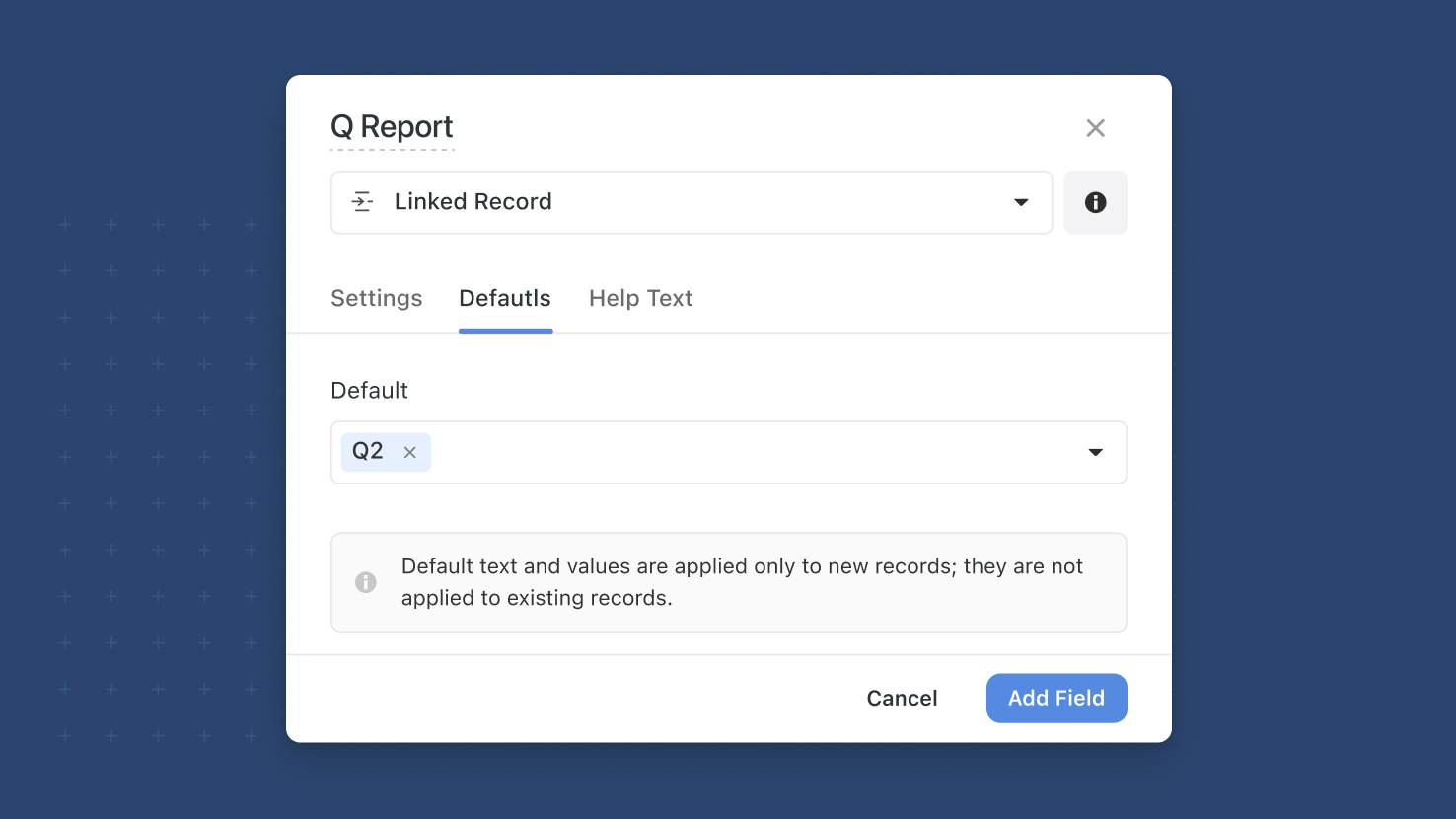
Linked Record fields now support default values on the field, on Create-a-Record button actions, and on forms. Pre-populate the most common relationship so new records start with the right connections in place; multi-link fields can carry multiple defaults. Service desks routing new tickets to a default queue, GRC programs attaching new findings to a default control area, and PMO templates pre-populating a linked Sprint all benefit.
Key Highlights
- Default Values on Linked Record: Pick one or more existing records (by Title) as the pre-selected value for any Linked Record field. Multi-link fields support multiple defaults; single-link supports one.
- Three Places of Application: Set defaults on the field itself, on a Create-a-Record button action, or per-form. Form-level defaults override field-level defaults inside their form, matching the pattern from other Default Values work this year.
- Search-and-Pick UI: The default picker reuses the existing Filter control for selecting records, with lazy loading for long tables and a search filter that kicks in once the choice list exceeds five records.
- Graceful Deletion Handling: If a record used as a default is later deleted from the linked table, the default-value control voids automatically and falls back to a no-default state instead of erroring out.
- No Retroactive Changes: The default applies only to new records created after the default is configured; existing records with an empty or different Linked Record value stay as they were.
How It Works
- Open a Linked Record field's settings on any table where you have edit access, and enable the Default Value toggle.
- Pick one record (single-link) or multiple records (multi-link) from the picker; use the search input to filter long lists.
- Save the field settings. Every new record created in that table will pre-populate the Linked Record field with the selected record(s).
- On a Create-a-Record button action, configure the same default-value control in the button's settings; the button's default applies when a user clicks it to create a record.
- On a form, use the field-in-form default control to override the field-level default for that specific form; the form's default value takes priority when a submitter opens the form.
Pair this with the rest of the Default Values rollout this year, including Yes/No default values from last week and the broader Default Values framework in the form designer.
Automations: Run Links in Activity History
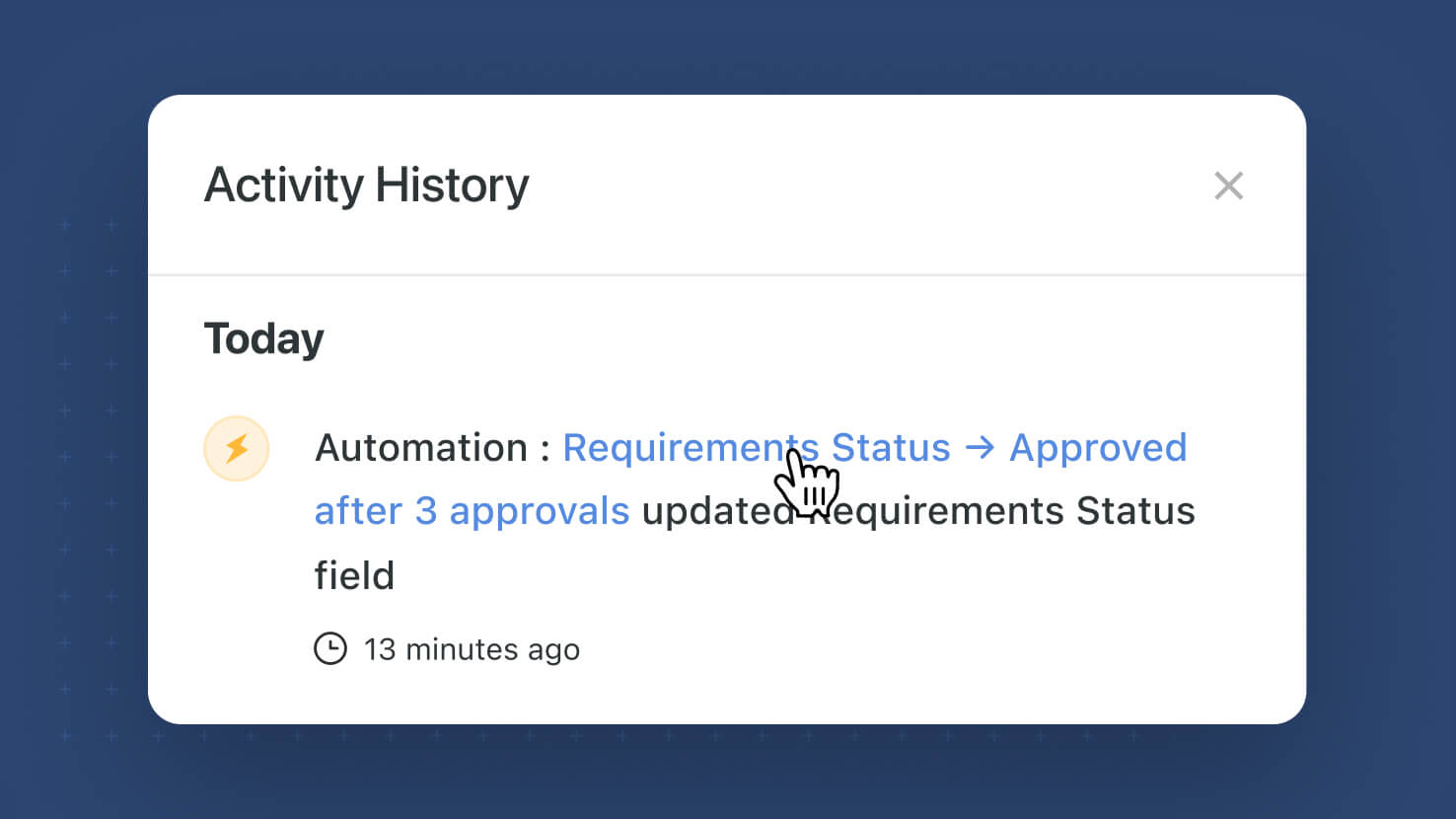
Every automation-driven change on a record now includes a direct link to the specific automation run that made it, embedded in the record's Activity History. Change managers investigating an unexpected update, GRC auditors tracing per-record data changes to their source, and anyone debugging an automation outcome can now hop straight from the affected record to the run that touched it, instead of scrolling through the automation's run history one-by-one.
Key Highlights
- Embedded Run Links in Activity History: Every automation-driven change on a record now includes a clickable link on that record's Activity History entry, pointing directly to the run in the automation's own History that made the change.
- Bulk-Trigger Friendly: When a bulk trigger updates dozens or hundreds of records in a single run, the record-side link jumps to the specific run/record combination, so investigating a single unexpected outcome doesn't require a needle-in-haystack hunt through the run list.
- Preserves Full Run Context: Following the link opens the automation run's details view with the trigger, input data, every step's outcome, error messages, and downstream side effects visible for review.
- Applies to Every Change Type: Field updates, linked-record modifications, status changes, comment creation, any record-modifying automation step gets the same traceability.
- Standard Permissions Apply: The run link respects the same automation-viewer permissions on the containing solution; it doesn't grant visibility to anyone who couldn't reach the run through normal navigation.
How It Works
- Open the affected record and switch to its Activity History.
- Find the entry for the automation-driven change you want to investigate (each entry shows the automation name, the change made, and the timestamp).
- Click the run link on that Activity History entry; you land on that specific run's details view inside the automation's own History.
- Review the trigger record, input data, and every step's outcome to understand exactly what the automation did on this execution.
- Use this to diagnose an unexpected outcome on one specific record without having to walk through every run of a bulk-triggered automation.
Use this whenever a record ends up in an unexpected state and you need to trace exactly which automation execution caused it.
Linked Records: Record Selector Dropdown Mode
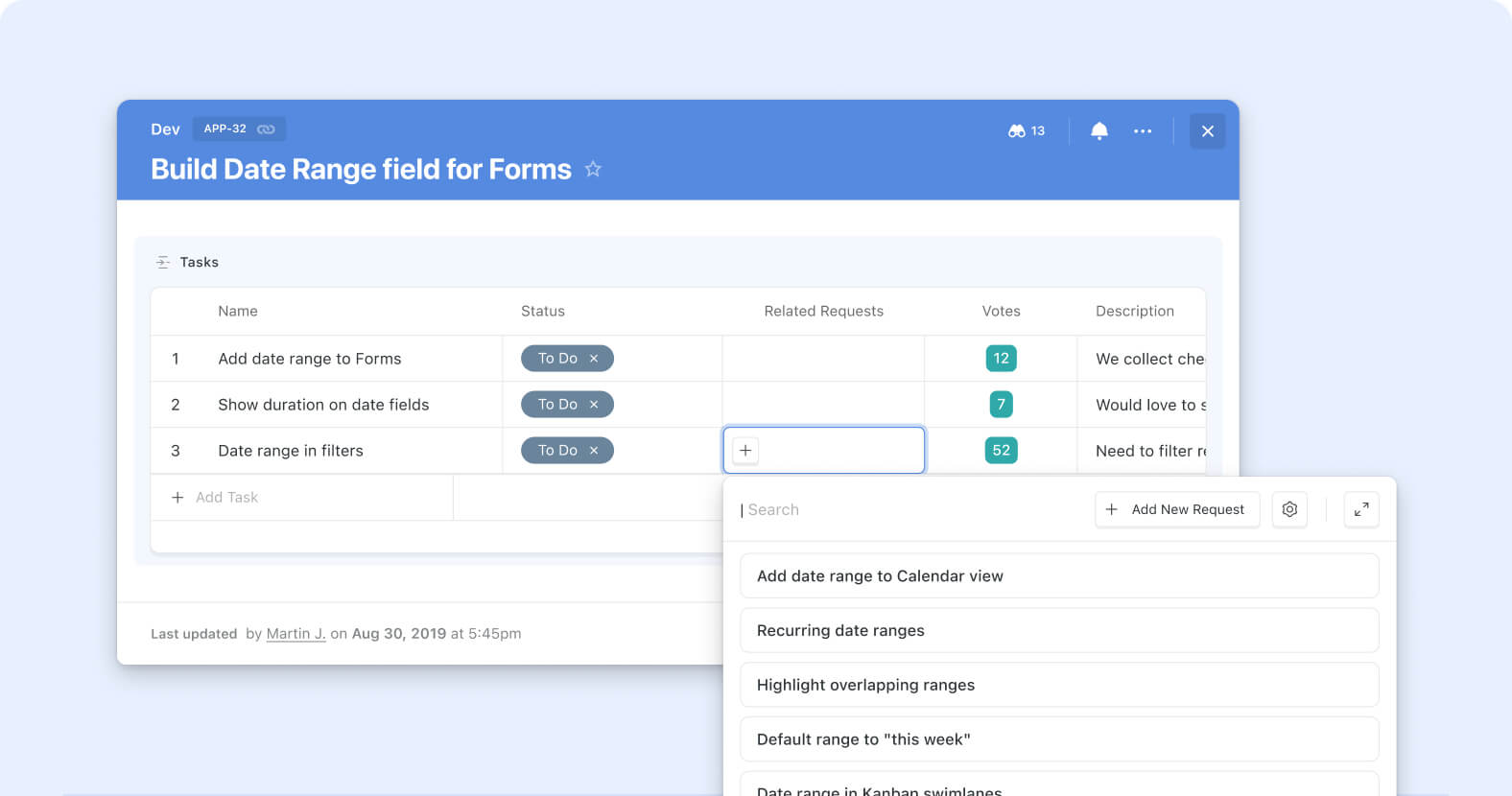
The Record Selector on Linked Records now opens as an inline dropdown by default instead of a full modal. Picking from a short list of existing records to link takes one click and no modal round-trip; the modal experience is still available for longer lists and advanced browsing. Service desks assigning a ticket to one of a small set of Change Requests, sales teams linking a deal to an Account from a short recent-account list, GRC compliance teams connecting a control test to a filtered short-list, and PMO leads connecting a task to a Sprint from a handful of active options all get quicker linking on the common case.
Key Highlights
- Dropdown by Default: The Record Selector now opens as an inline dropdown when users click into a Linked Record cell, cutting the full-modal round-trip out of the common single-click pick.
- Same Records, Same Configuration: The dropdown surfaces the same records the modal would show — same Solution-Manager-configured static and dynamic filters, same sort order, same Fields configuration, same Grouping (from the Jul 27 Grouping for Record Selector release).
- Modal Still Available: When users need the richer browsing experience — grouped views, filter panels, advanced controls that don't fit inline — the modal is one click away as an expansion from the dropdown.
- Inline Search: Users can type in the dropdown to filter the visible records, the same way they would inside the modal.
- No Configuration Migration: Existing Linked Record fields inherit the dropdown default automatically; no Solution Manager action required, no data changes, no configuration migration.
How It Works
- Open a record and click into any Linked Record cell to open the Record Selector. The Selector opens inline as a dropdown by default.
- Scroll through the visible records or type to search within the list; click a record to link it. No modal opens.
- When the dropdown isn't enough (long list needing filter panels, grouped browsing, or other advanced controls), click the expand affordance to open the full modal instead — same records, same configuration, richer surface.
Third refinement in the Linked Records 2.0 arc, following the Sticky Add New button and Grouping for Record Selector from Jul 27. Pure UX change — no new business logic, no configuration to migrate. Available on all plans.
Files and Images Field: Attachments limit
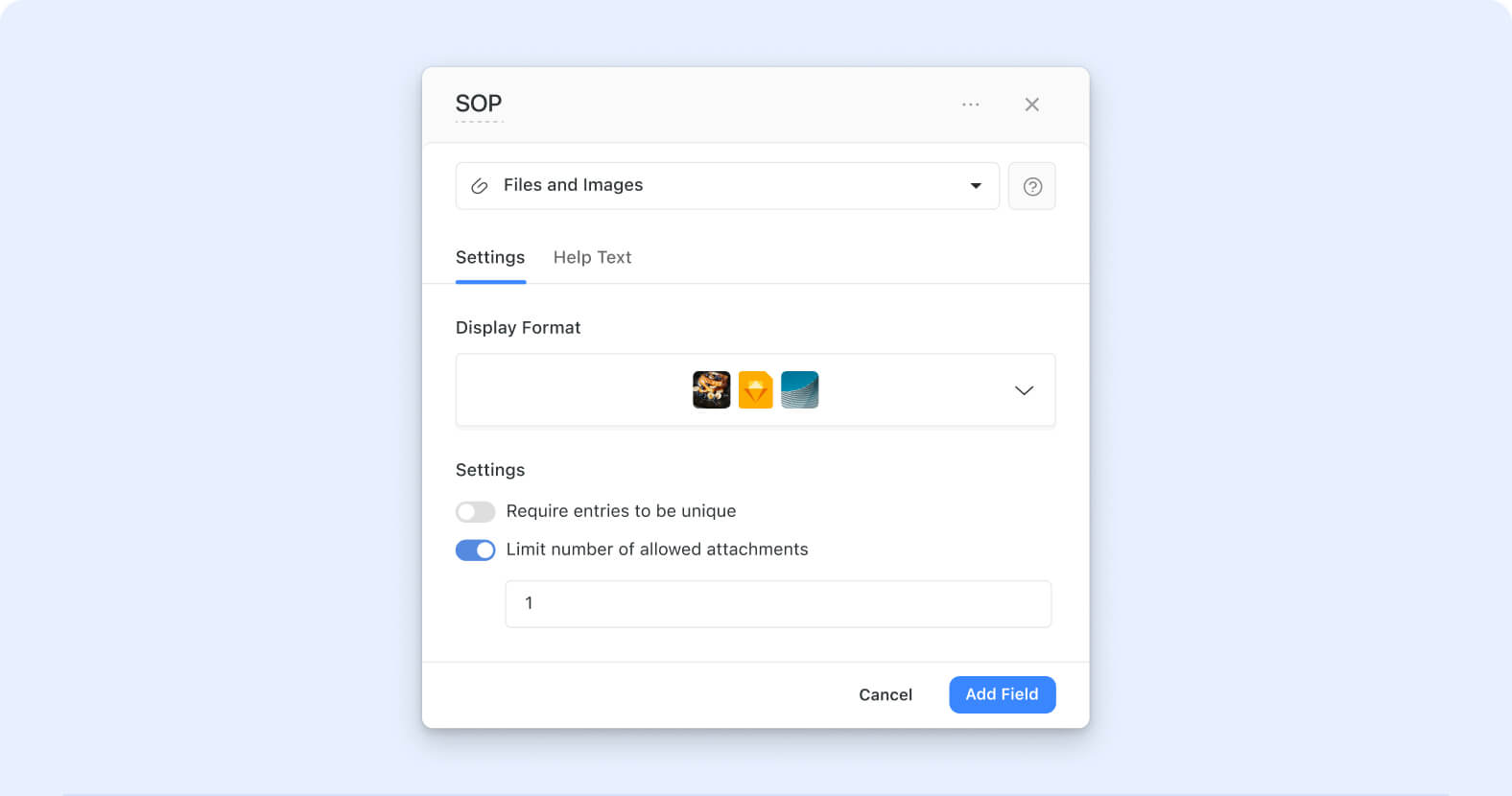
The Files and Images field can now cap how many attachments a single field instance will accept. Solution admins turn on "Limit the number of allowed attachments" in field settings and set the maximum — the field then refuses uploads beyond that count. Contract tables enforcing exactly one signed PDF per record, product catalogs capping reference images at a fixed number, HR employee profiles allowing only one headshot, and any workflow where the attachment count is a first-class part of the data model get field-level enforcement.
Key Highlights
- New Field-Level Setting: "Limit the number of allowed attachments" appears in the Files and Images field's configuration modal. Off by default; existing fields keep their current unlimited behavior until an admin explicitly turns the limit on.
- Whole-Number Maximum: When enabled, a numeric input accepts a whole-number maximum (default 1). Decimals, zero, and values above the system maximum are silently ignored — the input reverts to the last valid value, keeping the setting model predictable.
- Enforcement at Upload Time: The constraint is enforced at the record edit surface — uploads beyond the configured count are refused, so the invariant holds when the value is entered rather than surfaced as a validation error after save.
- Backward Compatible: Existing Files and Images fields are unaffected unless a solution admin opts into the limit. No migration; no accidental data loss on records already exceeding a newly-configured limit.
- Same Governance Model as Other Fields: The setting sits with the rest of the Files and Images field configuration, exposed to Solution Managers and Workspace Admins per the standard field-configuration permission model.
How It Works
- Open the field settings on a Files and Images field (or create a new one).
- Toggle on "Limit the number of allowed attachments." A numeric input appears with a default value of 1.
- Enter the maximum attachment count (whole numbers only). Save the field.
- On the record edit surface, the field now refuses uploads beyond the configured count. Users see the constraint at the point of upload rather than after save.
Available on all plans; existing Files and Images fields keep their prior unlimited behavior until an admin explicitly opts into the limit.
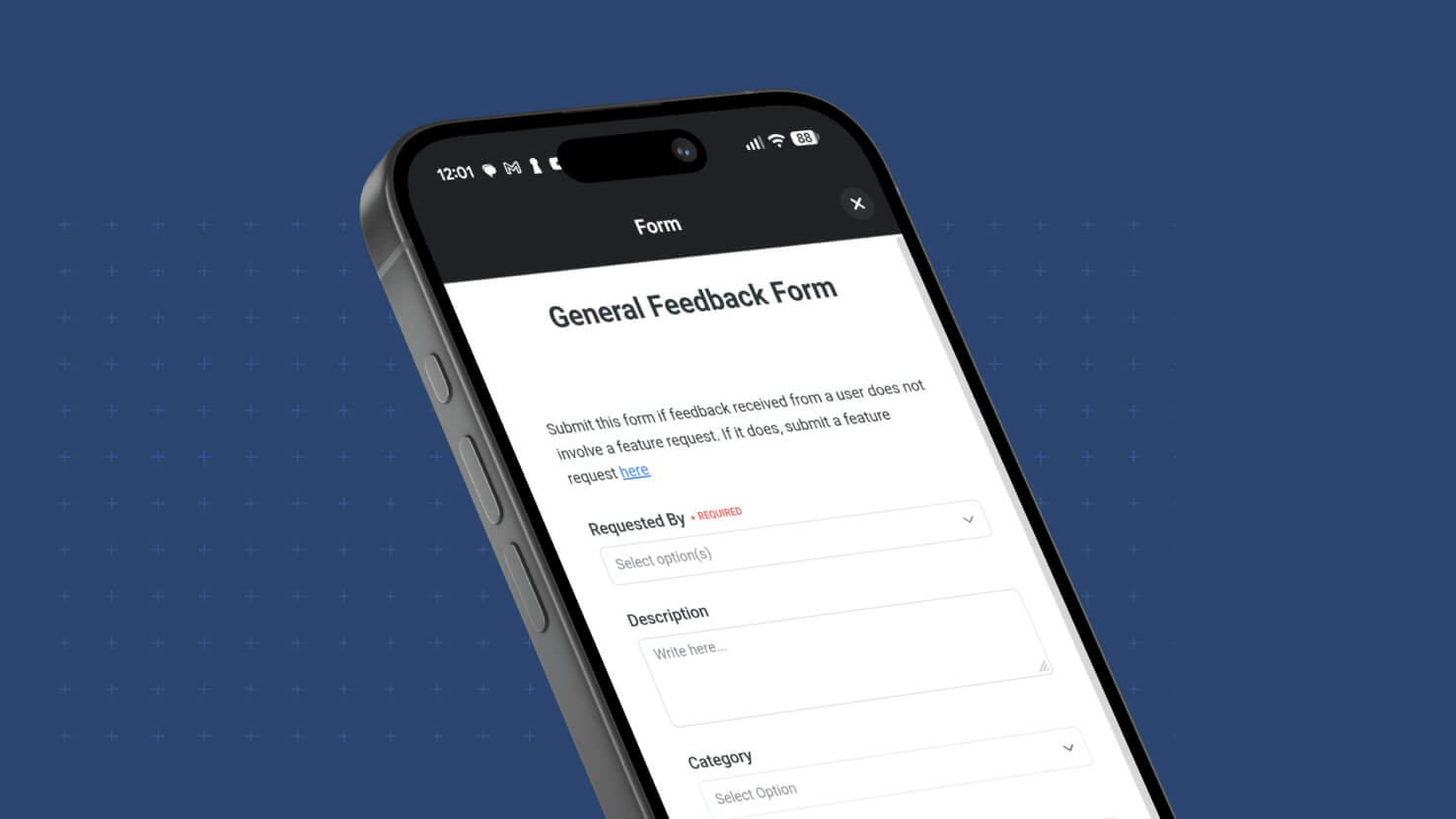
Mobile: Shared Forms Support
Shared Forms — public-link forms that any recipient can fill out without a SmartSuite login — now open natively inside the SmartSuite mobile app on iOS and Android instead of the mobile browser. Recipients tapping a shared form link on a phone or tablet with the SmartSuite app installed land in the app itself, keeping form submissions in one place alongside the rest of their SmartSuite work. Event teams collecting attendee registrations, HR teams running employee satisfaction surveys, and customer success teams gathering feedback from mobile-heavy audiences all benefit from the tighter mobile experience.
Key Highlights
- Native App Handoff: When a recipient taps a public form link on a device that has the SmartSuite mobile app installed, the form opens in the app instead of the mobile browser. Matches the native experience the app already provides for Grid, Calendar, Card View, Chart View, and Internal Forms.
- Same Submission Behavior: Public-link submissions still don't require a SmartSuite login, still track SmartSuite Form as the Created By value (matching Shared Form semantics on desktop), and still respect any form field / submission logic configured on the underlying Form View.
- Completes the Mobile Forms Story: Shipping alongside Mobile: Internal Forms Support — together, Internal Forms (logged-in members, permission-aware) and Shared Forms (public link, browser-independent) now both work natively on the mobile app.
- No New Configuration: Form authors don't need to enable a mobile mode. Any Shared Form with a public link automatically routes to the native app when the recipient has it installed.
How It Works
- Publish a Form View with the Shareable Link option — same setup as before.
- Distribute the link (email, chat, embed on a website, share in-app) as you normally would.
- When a recipient taps the link on a phone or tablet with the SmartSuite mobile app installed, the form opens in the app.
- The recipient fills in the form and submits. The submission is recorded exactly as before — SmartSuite Form remains the Created By value, form-submission automations fire, and the underlying Form View permissions apply.
With Shared Forms on mobile complementing this release's Internal Forms mobile support, SmartSuite's mobile Forms coverage closes — both form modes work natively on phone and tablet, and the recipient experience matches the tighter native handling the app already provides across other view types.
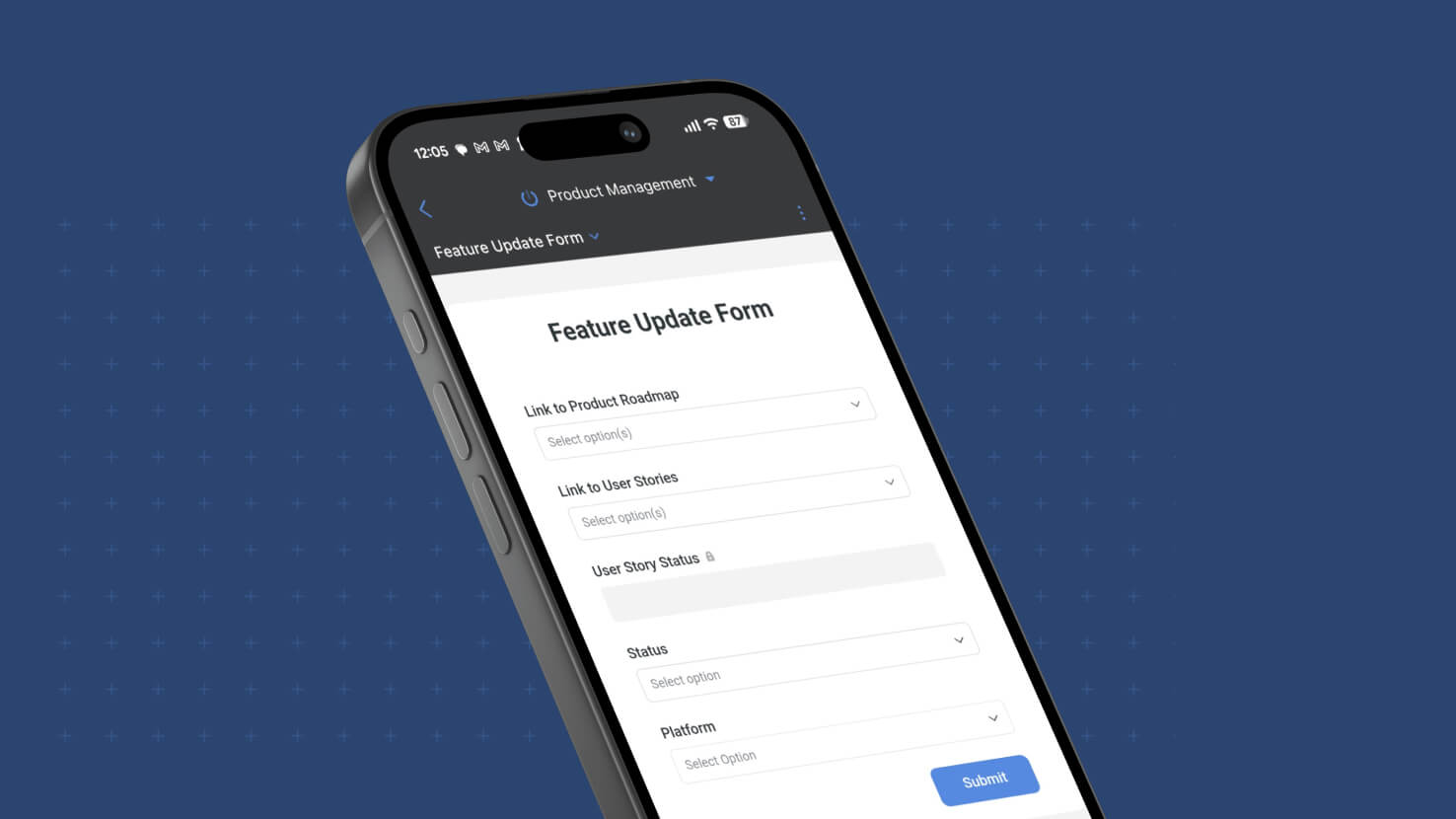
Mobile: Internal Forms Support
Internal Forms — the logged-in-member form mode that respects field and record permissions and captures the submitting member as Created By — now work natively on SmartSuite Mobile. Previously desktop-only; this release brings the full Internal Form experience to iOS and Android with no separate configuration required. Field service techs submitting inspection forms from the job site, HR managers filing employee change requests on the road, and ITSM operators opening tickets from a phone all get the same permissioned form experience on mobile they already had on desktop.
Key Highlights
- Full Internal Form Behavior on Mobile: Same field permissions (hidden fields removed, view-only fields read-only, editable fields fillable), same record permissions (creation gated by the member's permission on the target table, dynamic record permissions honored), same Created By attribution (the submitting logged-in member, not "SmartSuite Form") as on desktop.
- Two Entry Points Preserved: Members open Internal Forms on mobile from either a Button field configured with the Open a Form action, or from a Form View in the mobile app — matching the desktop entry-point model.
- Automatic Availability: An Internal Form is available for mobile use as soon as it's created. No separate mobile toggle or mobile-only configuration to manage — the same form that works internally on desktop works internally on mobile.
- Login-Required URLs: If someone opens an Internal Form URL and isn't logged in, SmartSuite requires them to log in first — same behavior as on desktop, preserving the member-attribution guarantee that distinguishes Internal Forms from Shared Forms.
- Independent from Shared Form Sharing: A form can be used internally on mobile even when its public sharing toggle is off. The two form modes stay independent — no need to expose an internal-only form to the public just to make it mobile-accessible.
How It Works
- Update to the latest SmartSuite mobile app on iOS or Android.
- Open a Dashboard, Record Page, or Form View in the mobile app that contains a Button configured with Open a Form, or navigate directly to a Form View for a form you have permission to fill out.
- Tap the Button or open the Form View. The Internal Form loads with the member's field permissions applied, dynamic record permissions evaluated, and standard form fields presented as configured.
- Fill in the form and submit. The record is created with the submitting member as Created By, source details captured (Form title, submission date, submission source), and any downstream "When a form is submitted" automations fire the same way they would for a desktop submission.
With Internal Forms working natively on mobile, the last major gap between mobile and desktop form workflows closes — permissioned form submission with member attribution now works wherever the submitter is.
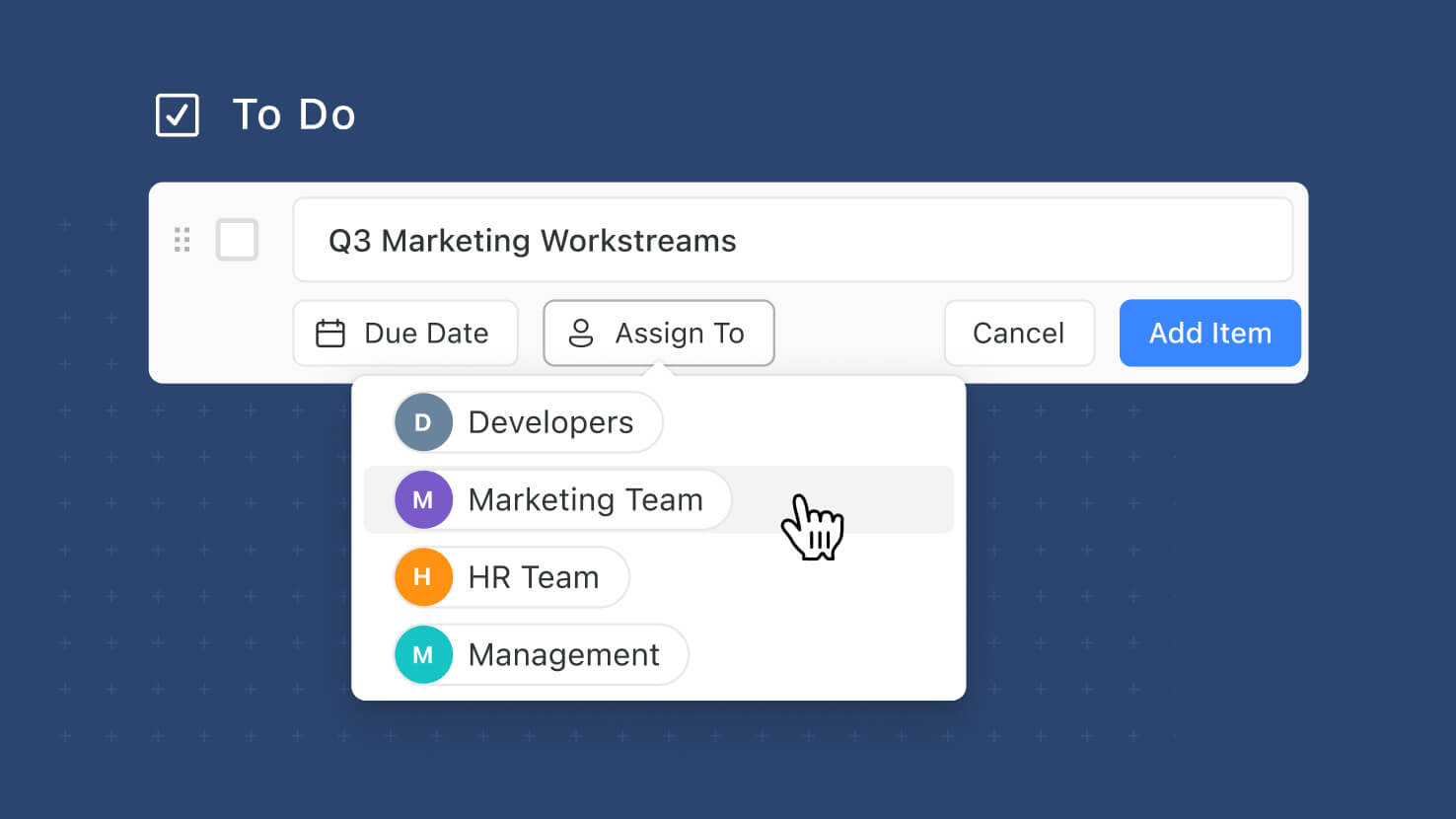
Assign and @-Mention Teams in Comments and Checklists
Comments and Checklist Items now support Team assignments and Team @-mentions, extending the Teams Field infrastructure from field-level assignments into the two most conversational surfaces in SmartSuite. Assign a Team to a comment or checklist item instead of picking a specific member, or @-mention a Team inline; every Team member gets an in-app notification and (if a Team Email is configured at the workspace level) one email goes to that address instead of individual member emails. ITSM service desks routing tickets to on-call teams, GRC compliance teams assigning control-review checklists to review committees, PMO leads @-mentioning cross-functional teams in project discussions, and HR teams distributing onboarding checklists across a Team all get first-class Team routing.
Key Highlights
- Team Assignments on Comments and Checklists: Assign a Team to a comment or checklist item exactly the way you'd assign a member. Every Team member receives an in-app notification; email routing follows the workspace-level Team Email setting (single address if configured, individual members if not).
- Team @-Mentions on Comments and Checklists: Type @ followed by a Team name in a comment or checklist item; the mention resolves to the whole Team with matching notifications. Notification wording distinguishes mentions from assignments ("mentioned {Team} team" vs "assigned {Team} team").
- Same Governance as the Teams Field: Only active, non-deleted Teams that currently have Contributor or Assignee access to the record appear in the picker or @-mention list. Deleted or Inactive Teams are filtered out; the "Everyone" pseudo-team is never available.
- Team Email Deduplication: If a Team has a Team Email configured at the workspace level, that single address gets the email — no individual member emails. Multi-team memberships deduplicate cleanly so users aren't double-emailed when a Team Email address is in play.
- Full Audit Trail: Team assignments and mentions log in the record's activity history the same way Member assignments and mentions do — preserving traceability for compliance, incident post-mortems, and audit reviews.
How It Works
- Open a record and go to the Comments panel (or open a Checklist field and target a checklist item).
- Type @ followed by a Team name in the comment field. The picker shows Teams that are active, non-deleted, and currently have Contributor or Assignee access to the record.
- Optionally check "Assign Comment" (or the equivalent on a checklist item) if you want the mention to be an assignment as well as a mention.
- Send the comment / save the checklist item. In-app notifications go to every Team member; email routes to the Team Email if configured, else to individual members (capped at 50 recipients).
- Resolve/reopen a Team-assigned comment the same way you'd resolve a member-assigned one. Team members see the resolution notification.
With Team assignments and @-mentions on comments and checklists, SmartSuite closes the gap between record-level Team routing (already available on the Teams Field) and conversation-level Team routing — the right responder can now be "whoever on this Team picks it up first" across every collaboration surface.
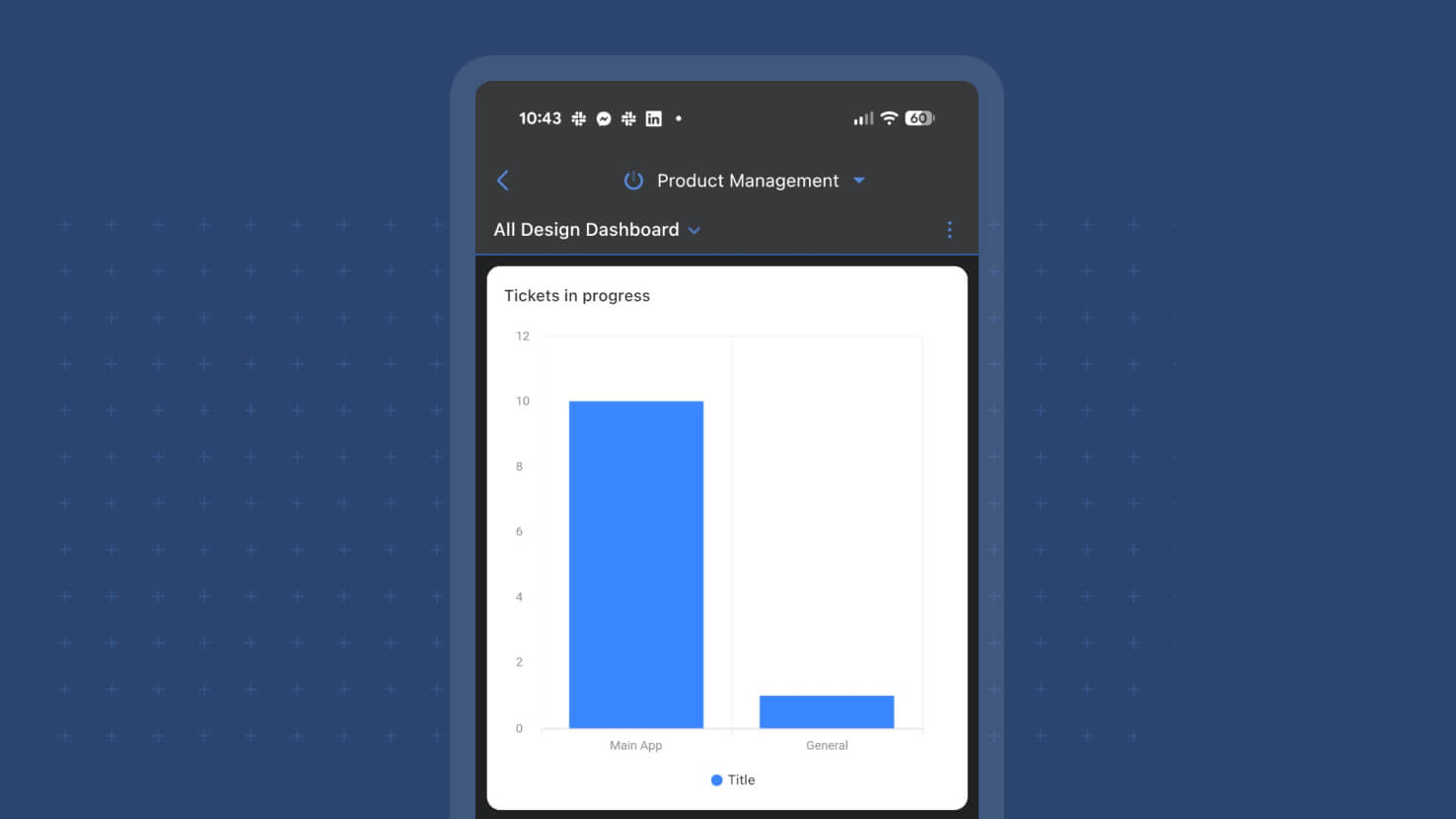
Mobile: Chart Widget Support
The Chart View widget now renders on SmartSuite Mobile with full desktop feature parity — grouping, sorting, filters, benchmark lines, and chart totals — across every chart type the widget already supports (Bar, Column, Line, Area including Stacked variants, Pie, Donut, Bubble, Scatter, Heatmap). Regional sales managers reviewing performance against benchmarks while traveling, executives checking KPI dashboards before meetings, and field supervisors monitoring grouped inspection data from job sites all get the full charting toolkit on phone and tablet.
Key Highlights
- Full Chart-Type Coverage on Mobile: Bar, Column, Line, Area (including Stacked and 100% Stacked), Pie, Donut, Bubble, Scatter, and Heatmap all render natively on iOS and Android. No more falling back to Grid View when a chart is the right visualization for the audience.
- Desktop Configuration Carries Over: Grouping, sorting, filtering, benchmark lines, and chart totals configured on the Saved View on Web all apply automatically on mobile. Dashboard builders don't design a separate mobile chart.
- Chart Totals on Mobile: Up to three configured totals render consistent with the desktop treatment — useful for KPI displays where the total or comparison number is the actual headline.
- Filter Widget Support: Attached Filter widgets on the dashboard narrow the chart view on mobile just like they do on desktop, so viewers can slice data on the go.
- Interaction Preserved: Tap data points or bars to surface values, swipe between widgets across the dashboard, and use grouping expansions where the chart type supports them.
How It Works
- Update to mobile app version 3.12 (MOB 166) or later on iOS or Android.
- Open a Dashboard that already has a Chart View widget configured on desktop (the widget's Saved View, chart type, groupings, sorts, filters, benchmark lines, and totals are all read from the existing configuration — nothing separate to set up for mobile).
- Chart renders natively on the mobile Dashboard with the desktop configuration applied.
- Tap chart data points or bars for values; use any attached Filter widgets on the dashboard to narrow the view; swipe to move between widgets on multi-widget dashboards.
With Chart View joining the mobile-supported widget set — and following the July 20 addition of Calendar View and Card View, SmartSuite Dashboards are closer than ever to full mobile-desktop parity.
AI Field Agent: Date Field Support
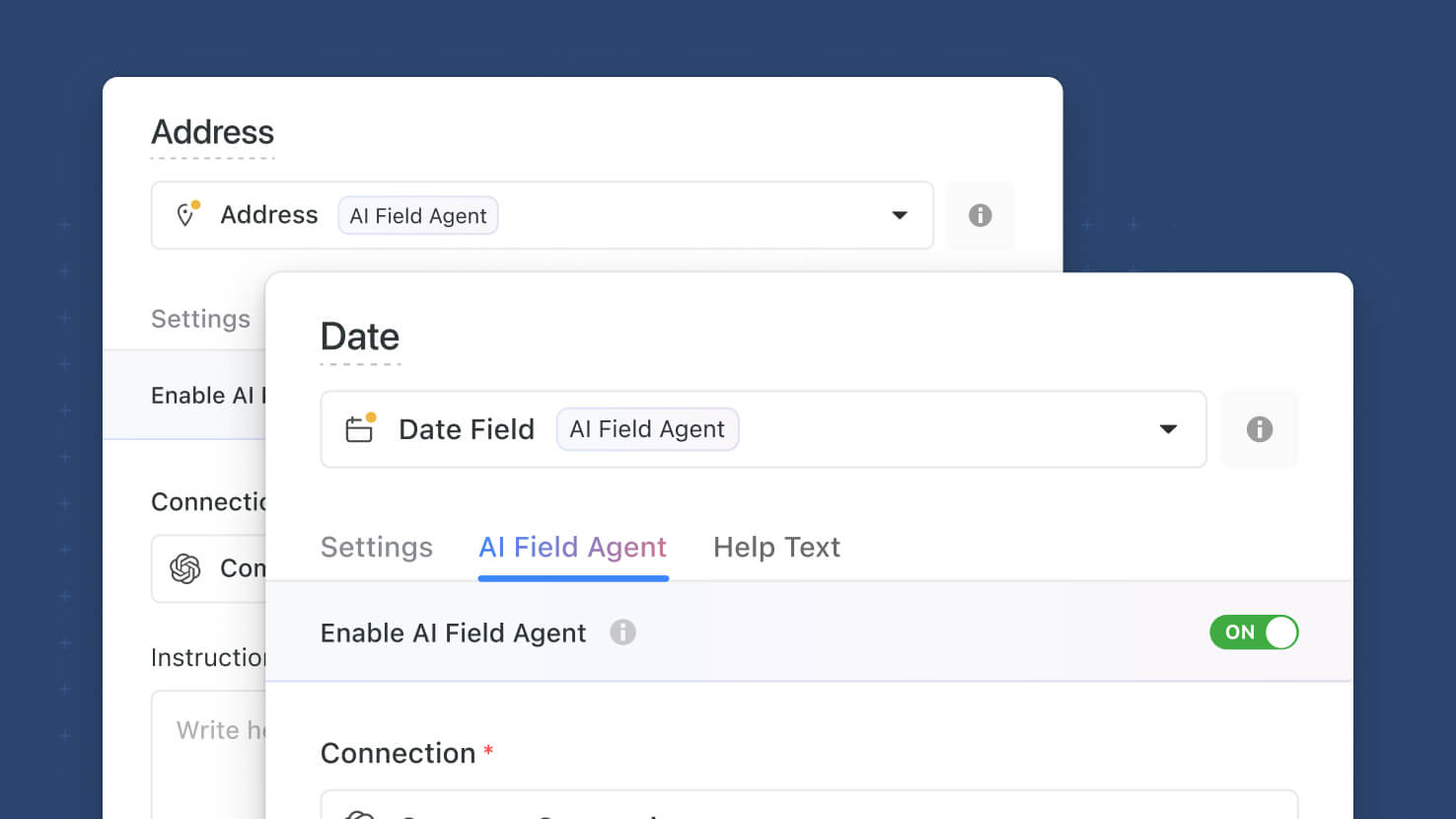
AI Field Agents now support the Date field as a target output. The agent generates a structured date value from record context — inferring project completion dates from status updates, SLA target dates from priority levels, or control review deadlines from Framework context — with the same governance, Manual/Automatic run controls, and audit-trail logging as the existing Text and Single Select Field Agents. PMO leads inferring project phase completion dates, ITSM service desks generating SLA target dates, GRC compliance teams computing control review deadlines, HR onboarding workflows setting 30-60-90 review dates, and any workflow where the date is derivable from other record context all get a first-class AI target for structured time data.
Key Highlights
- New Field Type Coverage: Date joins Title, Text, Number, SmartDoc, Text Area, Single Select, Multiple Select, Status, and Link as a supported target for AI Field Agents. Same prompt-builder UI, same governance model, same audit trail — new output type.
- Structured Output With Time Support: The agent generates a properly-structured date value that populates the Date field's native storage model. If the underlying Date field has time enabled, the AI generates both date and time components. Timeline View, calendar widgets, and date-based filters and formulas work against AI-generated dates exactly as they do against typed ones.
- Manual and Automatic Runs: Configure Automatic runs to re-evaluate the date whenever a triggering field changes (SLA target dates recompute when Priority updates), or leave Automatic off for user-initiated runs from Grid view, the Record Page, or a Record Details widget.
- Full Audit Trail: Every AI-populated date logs as AI-driven activity in the record's audit history. Manual overrides re-attribute cleanly to the user who made the edit, preserving traceability.
- Same Workspace Governance: Requires the workspace-level AI Field Agents toggle. Inherits the workspace's Internet Search setting when relevant. Uses the connection registry from the July 14 Managed Connections release for provider/model routing.
How It Works
- Open a Date field's Field Settings and switch to the AI Field Agent tab.
- Toggle Enable AI Field Agent. Compose the prompt referencing other fields on the record with the field-variable selector.
- Pick a Connection from the dropdown of admin-enabled connections for AI Field Agent on the current solution.
- Optionally enable Automatic runs so the date re-generates when the triggering fields change; leave off for manual-only runs.
- Save. On the Record Page or Grid view, run the agent manually or watch it populate automatically as record context evolves. The generated date appears in the Date field and the activity log flags the change as AI-generated.
Requires the workspace-level AI Field Agents toggle in Workspace Administration → AI Control Center → AI Field Agents. Available on all plans.
AI Field Agent: Address Field Support
AI Field Agents now support the Address field as a target output. The agent generates a structured address from record context — populating dispatch locations from incident descriptions, shipping addresses from lead notes, or project sites from proposal text — with the same governance, Manual/Automatic run controls, and audit-trail logging as the existing Text and Single Select Field Agents. ITSM service desks generating dispatch locations, sales teams parsing prospect leads into shipping addresses, PMO leads inferring site locations from proposals, and any workflow where the address is knowable-from-context rather than typed by hand get a first-class AI target for structured location data.
Key Highlights
- New Field Type Coverage: Address joins Title, Text, Number, SmartDoc, Text Area, Single Select, Multiple Select, Status, and Link as a supported target for AI Field Agents. Same prompt-builder UI, same governance model, same audit trail — new output type.
- Structured Output, Not Just Text: The agent generates a properly-structured address (street, city, state, postal code, country) that populates the Address field's native storage model. Search, geocoding, and mapping integrations work against AI-generated addresses exactly as they do against typed ones.
- Manual and Automatic Runs: Configure Automatic runs to re-evaluate the address whenever a triggering field changes, or leave Automatic off for user-initiated runs from Grid view, the Record Page, or a Record Details widget.
- Full Audit Trail: Every AI-populated address logs as AI-driven activity in the record's audit history. Manual overrides re-attribute cleanly to the user who made the edit, preserving traceability.
- Same Workspace Governance: Requires the workspace-level AI Field Agents toggle. Inherits the workspace's Internet Search setting when relevant. Uses the connection registry from the July 14 Managed Connections release for provider/model routing.
How It Works
- Open an Address field's Field Settings and switch to the AI Field Agent tab.
- Toggle Enable AI Field Agent. Compose the prompt referencing other fields on the record with the field-variable selector.
- Pick a Connection from the dropdown of admin-enabled connections for AI Field Agent on the current solution.
- Optionally enable Automatic runs so the address re-generates when the triggering fields change; leave off for manual-only runs.
- Save. On the Record Page or Grid view, run the agent manually or watch it populate automatically as record context evolves. The generated address appears in the Address field and the activity log flags the change as AI-generated.
Requires the workspace-level AI Field Agents toggle in Workspace Administration → AI Control Center → AI Field Agents. Available on all plans.
Linked Records: Grouping for Record Selector
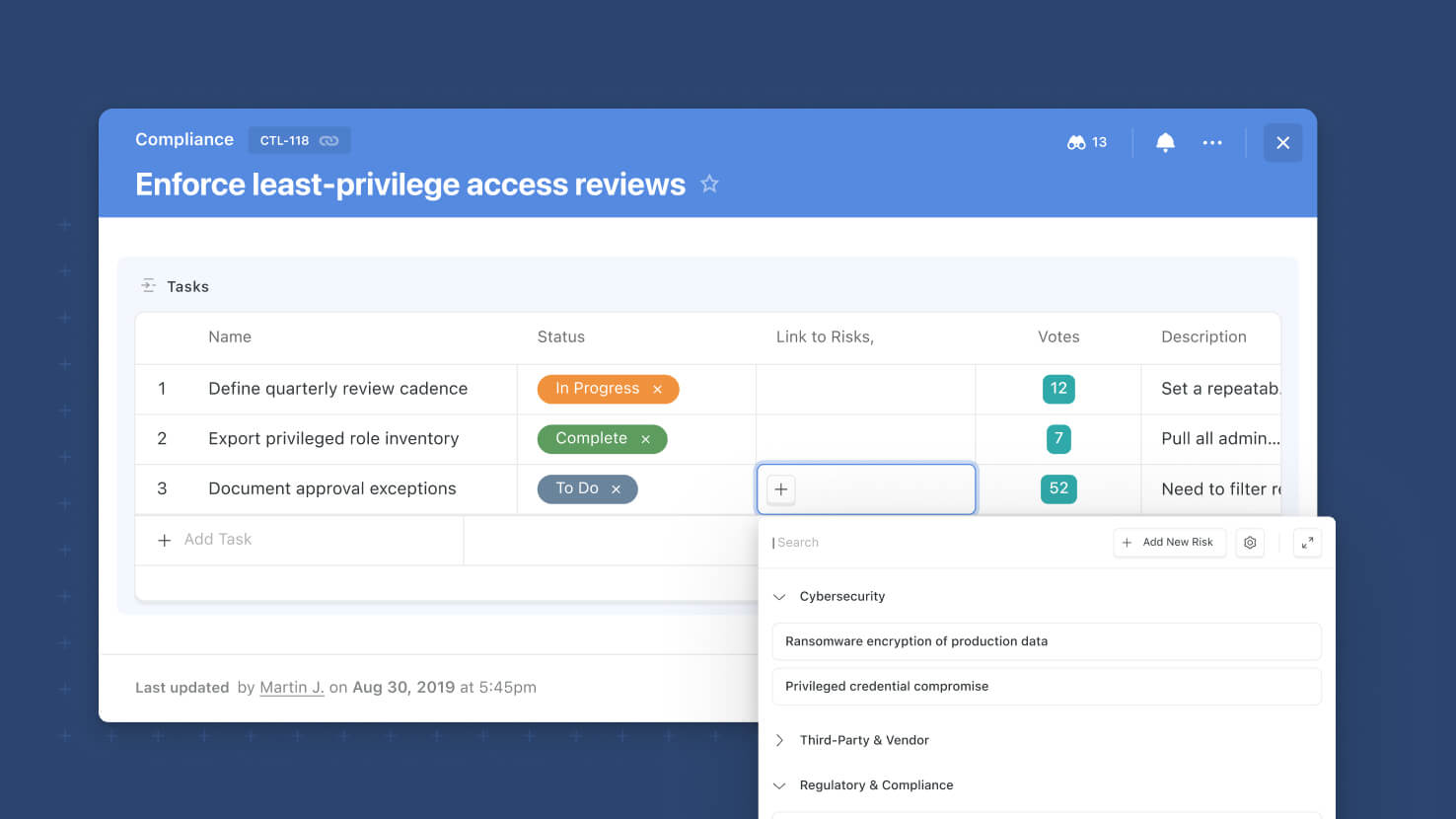
The Record Selector on Linked Records now supports Grouping alongside the existing Fields, Sort, and Filter controls. Solution Managers configure which field records get grouped by, group ordering, and whether groups default to collapsed or expanded — regular users see a grouped selector with search that auto-expands matching groups. Service desks grouping ticket links by Priority, GRC teams grouping controls by Framework, and PMO leads grouping sprint records by Owner all get a more navigable Record Selector.
Key Highlights
- Grouping as a First-Class Selector Control: Solution Managers can now configure Group By on the Record Selector alongside Fields, Sort, and Filter — a full set of view controls on the record-picking surface, not just the field-display surface.
- Multiple Levels of Grouping: The Record Selector supports multiple grouping levels, each with its own sort order, defaulting to whichever collapsed-or-expanded state the Solution Manager configures.
- Search Plays Nicely With Groups: When users search inside the Record Selector, matching results render within their groups and any collapsed groups containing matches auto-expand — no need to browse the tree by hand.
- Solution Manager Configuration, User Consumption: Only Solution Managers can set the grouping configuration; regular users see the configured selector and pick records without needing to understand or reconfigure anything.
- Independent From Field-Display Grouping: The Record Selector's grouping is separate from Group By on the Linked Record's display grid — Solution Managers can group the selector one way and the display grid another, or use both.
How It Works
- Open a Linked Record field's settings as a Solution Manager. Under the Record Selector configuration, find the new Group By control.
- Pick the field to group by, the sort order for the groups (or per level, if using multiple levels), and whether groups default to collapsed or expanded.
- Save the field settings. Every user working with the Record Selector for this Linked Record field now sees the grouped view.
- As a regular user, click into a Linked Record cell to open the Record Selector. Records appear grouped as the Solution Manager configured them.
- Type in the search input to narrow the list. Matching records render inside their groups, and any collapsed groups containing matches auto-expand so nothing gets missed.
Adding Group By to the Record Selector rounds out its view-control set — Fields, Sort, Filter, and now Group — so large linked-record pools stay navigable no matter how many records they hold.
Linked Records: Sticky Add New Button
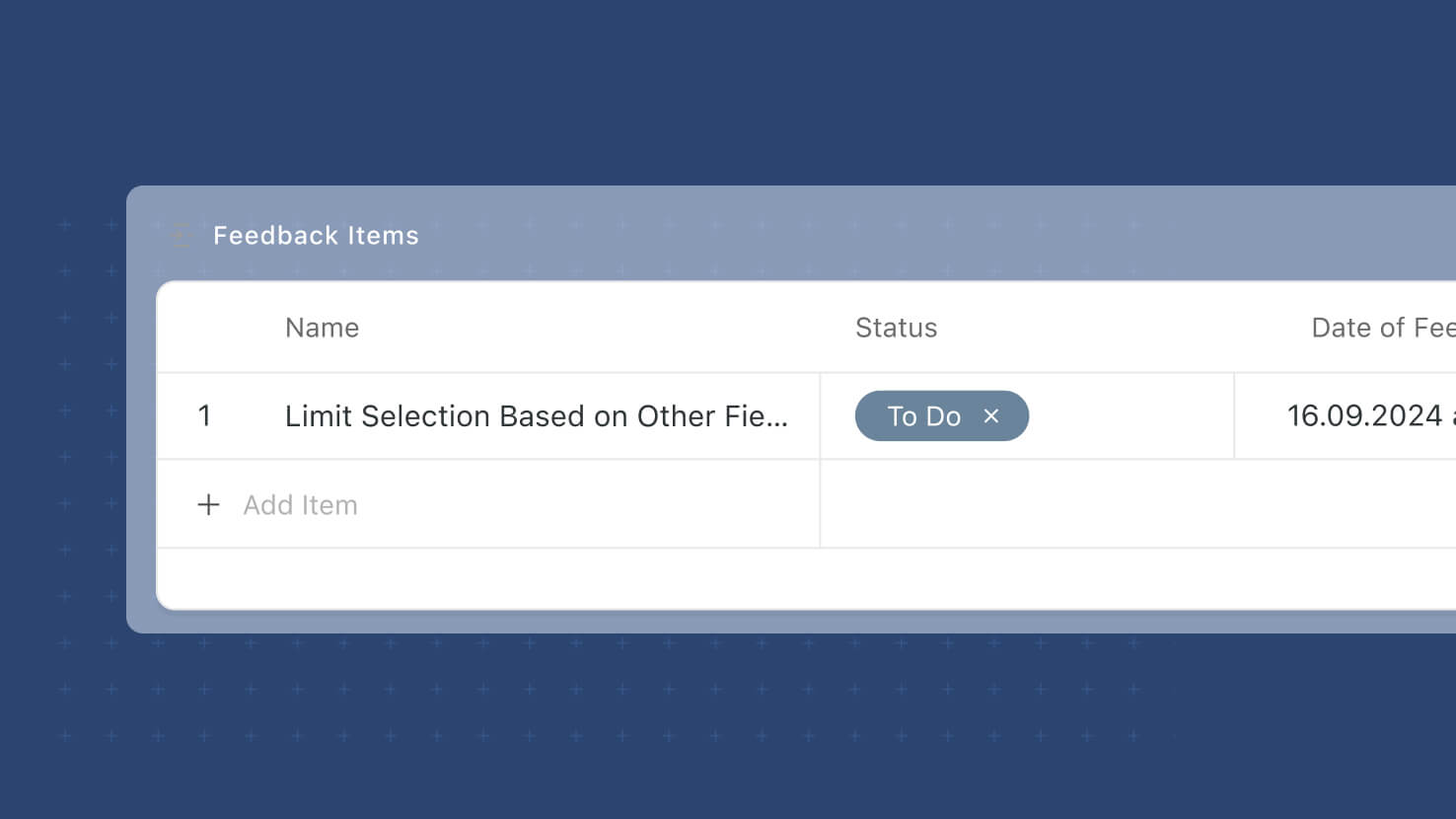
The Add New button in inline-editable Linked Records grids is now sticky to the grid's footer, so it stays visible no matter how long the linked-record list gets or how the grid is grouped. Service desks adding tickets to a Change Request's linked grid, PMO leads adding deliverables to a Sprint's linked grid, and any workflow using inline Linked Record editing on the Record Page all get a more reliable path to Add New.
Key Highlights
- Always-Visible Add New Button: The + Add New button now anchors to the bottom of the Linked Records grid, staying visible while users scroll through the linked-record list. No more scrolling to the bottom of a long grid to add another record.
- Fixes Group By Blind Spots: When Group By is enabled with a non-editable grouping field, users can now add new records via the sticky footer. Previously this scenario blocked new-record creation entirely.
- Two Ways to Add When Group By Is Editable: When grouping is by an editable field, users choose between adding a new record within a specific group (via the group-scoped add control) or at the outer level (via the sticky footer). Both surfaces coexist cleanly.
- Applies to Record Page and Record Details Widget: The sticky footer renders on both the main Record Page inline-editing surface and inside the Record Details Widget, matching wherever inline editing is enabled.
- Grid Display Format Only: The sticky footer is scoped to Linked Records using the Grid display format with Allow creating new records inline set to True. Non-Grid display formats and read-only Linked Record grids are unchanged.
How It Works
- Open a Linked Record field's settings and confirm Grid display format is selected, with Allow editing records inline and Allow creating new records inline both enabled.
- Open a Record Page (or a Record Details Widget) where that Linked Record renders as a Grid.
- Scroll through the linked-record list. The + Add New button stays fixed at the bottom of the grid regardless of scroll position.
- Click Add New. If the grid is grouped by an editable field, the new record is added at the outer level; you can also use the group-scoped add control to add inside a specific group. If the grid is grouped by a non-editable field, the sticky footer is the only add-new surface, but it works.
- Fill in the row values inline. Changes save immediately without needing to save the parent record.
With the sticky footer, inline editing on Linked Records grids behaves the same across every grid state, giving teams a dependable path to Add New whether the grid is short, long, or grouped in any configuration.
Forms: Support for Date Range Field
Forms now support the Date Range field. Respondents can submit both a start date and end date in a single form field, using whichever Display Format (Compact, Standard, Long, or Pill) the underlying field is configured with. Event teams collecting session times, PMO leads gathering project phase start and end dates, and HR teams scheduling interview windows all get a native single-field control instead of composing two separate date fields.
Key Highlights
- First-Class Form Input: Date Range fields now appear alongside every other supported field type when building a Form, with no extra configuration needed beyond adding the field to the underlying table.
- Display Format Honored: The form field renders using whichever Display Format (Compact, Standard, Long, or Pill) is set on the underlying Date Range field. No separate form-only styling to configure.
- Time Entry Support: If the underlying Date Range field has time enabled, respondents can enter both date and time components — otherwise it's date-only.
- Works in Read-Only Forms: Date Range fields display correctly in read-only form contexts, so confirmation and review flows work as expected.
- Same Auto-Fill Invariant: If a respondent enters only a start or only an end value, the missing side auto-fills to the same value, preserving the invariant that Date Range fields always carry both endpoints.
How It Works
- Add or open a Date Range field on the source table (from Grid View column menu, or Record View add-field control).
- Open the Form Builder for that table and drag the Date Range field into the form layout, or turn it on via the field toggle if you're editing an existing form.
- Save the form. Respondents see a Date Range control on the live form, matching the Display Format configured on the underlying field.
- Submitted responses populate the Date Range field on the record as expected, including in Timeline View, which relies on Date Range values.
With Date Range as a native form input, SmartSuite's Form Builder now covers the full span of scheduling, phase-capture, and window-based workflows in a single field.
Mobile Dashboards: Calendar and Card View Widgets
Calendar View and Card View widgets are now supported on mobile Dashboards. Field service techs checking today's assigned work on a mobile Calendar widget, sales reps scrolling through a Card View of open opportunities between meetings, and PMO leads sharing status dashboards that work across every device all get two more layouts that render properly on phone and tablet.
Key Highlights
- Calendar View on Mobile: The Calendar View widget now renders on SmartSuite Mobile with the same date-field configuration as the desktop version. Scheduled records appear against a calendar grid that scrolls and taps cleanly on phone and tablet.
- Card View on Mobile: The Card View widget now renders on SmartSuite Mobile as an image-and-text card list that scrolls naturally on a small screen — no more falling back to Grid View when a gallery-style layout is the right presentation.
- Broader Mobile Coverage: These two widget types join Grid View, Timeline View, all chart widgets (Bar, Column, Line, Area, Pie, Donut, Bubble, Scatter, Heatmap), Summary Card, Progress Metric, Comparison Metric, Filter Widget, Countdown, World Clock, and the full set of embed widgets. The mobile dashboard toolbox is now closer to feature parity with the desktop experience.
- Same Configuration Model: No new configuration to learn — Calendar and Card View widgets configured on desktop render as expected on mobile with their existing settings, filters, and sort order. Dashboard builders don't have to design a separate mobile version.
How It Works
- Open any dashboard in the Web app you'd like to make mobile-friendly, and add or edit a Calendar View or Card View widget as you normally would.
- Configure the widget with the date field, sort order, filter conditions, and visible fields you want — same controls as any other widget on the dashboard.
- Save the dashboard. Open the SmartSuite Mobile app, navigate to the dashboard, and see the Calendar or Card View widget rendered natively.
- The widget honors the same filters and permissions on mobile as it does on desktop — no separate mobile configuration needed.
With Calendar and Card View joining the mobile-supported set, SmartSuite Dashboards keep closing the gap on full mobile-desktop parity, giving builders a growing library of layouts that work wherever their teams do.
Manage Members: Access Level Overview
The Manage Members page adds a new Solution Access modal that gives Workspace Admins a full access map for any user in the workspace. Open a member's three-dot menu, pick Solution Access, and see every Solution they can reach with the highest combined personal-and-team permission for each — drill into a Solution to see its Tables, filter, search, and export to CSV. ITSM operators reviewing who can access the Incident Management solution, GRC compliance teams verifying auditor scope before a SOC 2 review, and Workspace Admins running quarterly access reviews all get member-level visibility from a single pane.
Key Highlights
- Solution Access Modal from Manage Members: A new option under each member's three-dot menu opens a modal showing every Solution the user can reach with the highest combined (personal + team) permission — no more reconstructing effective access by hand.
- Two Modes, One Modal: Solutions listing is the default; click a Solution to switch to Tables listing for that Solution, complete with breadcrumbs showing the selected User and Solution.
- Personal-vs-Team Source Indicator: Every permission value shows whether it was granted directly at the personal level or inherited through a Team, so admins know exactly where to go to change it.
- Filter, Search, and Switch Users In-Place: User Selector to jump between users without closing the modal, Permission Selector to narrow to a specific access level, name search across the current listing, all working together.
- Click-Through to Permissions Editors and CSV Export: Click any permission value to open the corresponding Solution Permissions or Table Permissions modal and edit access in place; the listing refreshes immediately when the editor closes. Export the current filtered listing to CSV for evidence or offline review.
How It Works
- Open Workspace Administration → Manage Members. Find the user you want to audit and open their three-dot menu; pick Solution Access.
- The Solution Access modal opens in Solutions listing mode: every Solution the user can reach, sorted A-Z, with the highest combined permission and an icon showing whether that permission came from a personal grant or a Team grant.
- Filter the listing with the Permission Selector (defaults to All Permissions), search by Solution name, or switch to a different user via the User Selector without closing the modal.
- Click a Solution to drill into Tables listing mode for that Solution: same layout, same filters, breadcrumbs indicating the selected User and Solution.
- Click any permission value to open the Solution Permissions or Table Permissions modal. Adjust the permission; when the modal closes, the listing refreshes to reflect the new effective access immediately.
- Export the current listing to CSV via the Export control for offline record-keeping or audit-evidence attachment.
Record Page: Conditional Required Fields
The Record Page now supports Conditional Required Fields. Solution admins define per-field rules on the Display Logic tab that make a field mandatory when other field values dictate it, and the rule fires immediately as users edit the record — no save-time surprise. ITSM incident forms requiring a resolution note only when Status equals Resolved, GRC attestation records requiring an evidence link only when Result equals Pass, and PMO project intakes requiring an executive sponsor only when Priority equals Critical all get conditional validation at the right moment.
Key Highlights
- New Required Fields Section on Display Logic: A dedicated Required Fields area on the Display Logic tab lets solution admins define rules that make a field required when another field's value matches a condition. Same UI pattern as the existing Sections, Tabs, and Fields rule types.
- Immediate Enforcement, Not Just On Save: Rules become effective as soon as the triggering field value changes on an open record, before the record is saved. Users see the required-state indicator update in real time and can complete the record before submission.
- Visibility Wins: If a field is hidden by a Display Logic rule (whether directly or because its tab or section is hidden), the conditional-required rule doesn't fire against it. Hidden fields are never treated as required, no matter what the require rule says.
- One Rule Per Field: Every field can have at most one conditional-required rule. System fields (Record ID, First Created, Followed By, and so on), calculated fields (Formula, Lookup, Rollup, Count, Autogenerated Title), and fields already marked as required in the field settings are excluded from the rule builder.
- Same Tab-Level Validation UX: When a save action generates multiple required-field errors, the Record Page shows the count of empty required fields per tab, exactly matching the existing required-field validation model. No new failure UI to learn.
How It Works
- Open a table's field settings and go to the Display Logic tab. The new Required Fields section sits alongside the existing Sections, Tabs, and Fields rule categories.
- Click Add Rule, pick the field that should become required, define the condition against another field's value (Status equals Resolved, Priority equals Critical, Result equals Pass), and save the rule.
- The rule-indicator icon appears on the field in the Fields tab so admins can see at a glance which fields have a conditional-required rule attached.
- On the Record Page, as users edit a record and change the triggering field's value, the conditionally-required field shifts to a required state immediately. If they try to save without providing a value, validation errors surface per tab.
- Pair conditional-required rules with existing conditional-display rules for the full picture: hide a field until it's relevant, then require it once it is.
Available on Enterprise and Signature plans.
SmartSuite AI: Managed Connections
SmartSuite AI now centralizes LLM provider connections in a new AI Control Center under Workspace Administration. Workspace admins configure a provider key once, scope it to specific solutions and features, and reuse it across AI Workflow Agent actions and AI Field Agents. Existing configurations migrate automatically; new workspaces get a pre-configured Trial Connection with 100 free requests. Compliance-conscious ITSM teams, GRC programs enforcing model governance, and any organization scaling AI across multiple solutions get the configuration surface that production AI use warrants.
Key Highlights
- Centralized Connection Registry: A new Providers and Models section under Workspace Administration → AI Control Center lets admins add, edit, test, disable, and delete AI provider connections in one place. API keys are encrypted at rest and only visible to workspace admins.
- Solution and Feature Scoping: Every connection is scoped to all solutions or a specific list, and to AI Workflow Agent Action, AI Field Agent, or both. Governance-restricted solutions can be limited to specific approved connections without the risk of stray keys leaking across projects.
- Test Before Saving: Every new or edited connection runs through a live test-connection step (system prompt sent to the provider, response displayed) before the connection saves. A failed test blocks the save; a successful one gates the Next button.
- Usage and Activity Log: Each connection has a Used-In tab showing every automation and Field Agent consuming it, plus an Activity History tab with every API call's status (success or error), filterable and sortable. Three-year retention on activity records.
- Trial Connection Built In: New workspaces get a pre-configured SmartSuite Trial Connection (OpenAI GPT 5.1, 100 free requests) so evaluators and new customers can experience the full AI feature set without configuring their own key first.
How It Works
- A workspace admin opens Workspace Administration and finds the new AI Control Center section with Providers and Models inside.
- Click Edit to open the Providers and Models modal; click Add Connection to start the setup wizard. Pick a provider, enter the required credentials, name the connection, optionally add a description, and set Enable Internet Access for models that support web browsing.
- Click Test Connection. The system sends a test system prompt to the provider and shows the response; a successful test unlocks the Next button.
- Pick a scope of solutions (All Solutions by default, or Only Selected with a solution picker) and pick which features can use this connection (AI Workflow Agent Action, AI Field Agent, or both).
- Save. Automation builders and Field Agent authors now see the connection in their Select Connection dropdown wherever it matches the solution and feature filter, no key re-entry required.
Existing AI Field Agent and AI Workflow Agent Action configurations migrate automatically. Workspaces without a previously-configured key get automatically pointed at the SmartSuite Trial Connection so no automation or agent breaks.
Forms: Configurable Footer
Forms now support a configurable Footer on the Style tab, giving form builders visual control at the bottom of the form to match what the Layout and Appearance sections provided at the top. Service desk intake forms with contact info and SLA reminders, GRC attestation forms with compliance boilerplate, and customer-facing forms with company brand messaging all now have a proper footer surface without leaving the form designer.
Key Highlights
- New Footer Section: A dedicated Footer section on the Style tab exposes a toggle (default off), a rich-text Content editor, a Background Color picker, and a SmartSuite Branding toggle.
- Rich-Text Content: Compose the footer content in a rich-text editor from the left side panel; formatting options include the standard font styles, links, and text emphasis available in the rest of the form designer.
- Background Color from the Standard Palette: Match the footer to your form's Appearance or your brand's palette, with a custom-color picker available for exact matches. Default is White.
- Display SmartSuite Branding Toggle: The small 'Powered by SmartSuite' line stays visible by default (on for most form owners), but can be toggled off when a fully-white-labeled experience is required for a customer-facing form.
- Applies to Publicly-Shared and Full-Page Variants: Matches the rest of the Style tab's behavior, internal forms opened as a side panel continue to use the Classic layout without a footer, so the new setting only kicks in where it makes visual sense.
How It Works
- Open the Style tab on any form in the designer and find the new Footer section in the left side panel.
- Toggle Footer on. Two controls appear: Footer Content (rich-text editor) and Background Color (palette plus custom picker).
- Compose the footer copy in the Content editor; use formatting for links, emphasis, and structure as needed. Pick a Background Color that complements your form's Appearance treatment.
- Use the Display SmartSuite Branding toggle to keep or hide the 'Powered by SmartSuite' line at the very bottom of the form.
- Save the form. The Footer renders on publicly-shared and full-page variants; internal side-panel forms continue to display without a footer.
Pair this with Forms: Layout and Appearance (Jun 22 release) and the rest of the Forms 2.0 work shipping this year for a full end-to-end style pass on any customer-facing or publicly-shared form.
Filter Widget: Support for Lookup Fields
Dynamic Filter Widgets on dashboards can now filter by Lookup fields. ITSM service desks filtering a Tickets widget by the linked Change Request's Priority, GRC dashboards filtering a Findings widget by the linked Control's Status, and PMO dashboards filtering a Tasks widget by the linked Sprint's Owner all get filter behavior that reaches through the relationship instead of only working with the direct record's own fields.
Key Highlights
- New Filter Source: Lookup fields join Status, Single Select, Multiple Select, Yes/No, Assigned To, Linked Record, and Date-based fields as choices in the Dynamic Filter's field-to-filter-by dropdown.
- Full Target-Type Support: Lookups that resolve to Status, Single Select, Multiple Select, Yes/No, Assigned To (single or multiple), Linked Record (single or multiple), or any Date-based field all render as filter options with the right control for their type.
- Same Configuration Surface: Selections (choices shown), Default Value, Default Condition, and Sort Values controls work exactly the same as they do for direct-field filters. No new configuration model to learn.
- Reach Through the Relationship: Filter dashboard widgets by attributes of related records (the linked Change Request's Priority, the linked Control's Status) even when those attributes aren't fields on the source table directly.
- Connected Widget Behavior Unchanged: The Lookup filter combines with the underlying widget's own filters using AND, matching the existing Filter Widget behavior, the filter narrows visible records, it never grants access beyond the widget's own scope.
How It Works
- Open a dashboard you manage and add a Filter Widget, or edit an existing one; keep the Filter Type at Dynamic on the Filters tab.
- Click Add Filter to add a new dynamic filter; the field-to-filter-by dropdown now shows Lookup fields alongside the other supported types.
- Pick a Lookup field. The Filter Settings modal opens; the controls (Selections, Default Value, Default Condition, Sort Values) render based on the field type the Lookup resolves to, matching the direct-field filter experience.
- Save the Filter Widget. Viewers see a filter tile with the Lookup's field label, and applying the filter narrows the connected widgets by the value the Lookup returns.
- Use this whenever the filter criterion your team cares about lives on a linked record, reach for a Lookup field on the source table, then filter on that Lookup in the widget.
Pair this with the Static Filters mode released in the June 22 cohort for dashboards where the filter combinations are stable enough to expose as tabs.
AI Center: Support for new models
The AI Center now supports the latest flagship models from Anthropic, OpenAI, and Google Gemini, organizes every model into four clear price tiers, and retires deprecated model IDs. Cost-optimizing existing automations and upgrading to flagship reasoning for complex work both get a lot easier.
Key Highlights
- Latest Flagship Models: Claude Opus 4.8, GPT 5.5, and Gemini 3.1 Pro (2M-token context) are available for the most demanding reasoning, extraction, and analysis tasks across the full Anthropic, OpenAI, and Gemini catalogs.
- Four-Tier Pricing Structure: Every model is classified as Budget (up to two dollars per MTok output), Standard (two to six dollars), Premium (six to twenty dollars), or Flagship (over twenty dollars), so picking the right model for a workflow no longer requires researching each provider's pricing page separately.
- Retired Models Removed: Anthropic's Sonnet 4, Opus 4, Sonnet 3.7, Sonnet 3.5, Claude 3 Haiku, and Claude 3 Opus are no longer callable on the API and have been removed from the catalog. Gemini 2.0 Flash and Flash-Lite are also removed.
- Tier Revisions on Kept Models: Several models have moved between tiers to match current provider pricing (Sonnet 4.5 up from Standard to Premium; GPT 5.1 and GPT 5 down from Flagship to Premium; GPT 5 Mini and GPT 4o Mini down to Budget). Existing configurations continue to work; the tier badge is what changed.
How It Works
- Open the AI Center in Workspace Administration and browse the refreshed catalog; models are grouped by provider (Anthropic, OpenAI, Gemini) and labeled with tier badges.
- Pick the right model for a workflow based on tier: Budget for tagging and lightweight extraction, Standard for everyday summaries and structured output, Premium for content generation and analysis, Flagship for the hardest multi-step reasoning.
- Configure the model on any AI Field Agent, AI Assist prompt, or automation-driven AI action; existing configurations continue to work unless they reference a removed model ID (in which case update to the recommended replacement).
- Use the tier badges to spot cost-optimization opportunities: high-volume automation runs using a Premium model for a task that a Standard or Budget model could handle just as well are the easiest wins.
Applies to every AI-powered surface in SmartSuite: AI Field Agents, AI Assist, and automation-triggered AI actions.
Linked Record: Default Value Support
Linked Record fields now support default values on the field, on Create-a-Record button actions, and on forms. Pre-populate the most common relationship so new records start with the right connections in place; multi-link fields can carry multiple defaults. Service desks routing new tickets to a default queue, GRC programs attaching new findings to a default control area, and PMO templates pre-populating a linked Sprint all benefit.
Key Highlights
- Default Values on Linked Record: Pick one or more existing records (by Title) as the pre-selected value for any Linked Record field. Multi-link fields support multiple defaults; single-link supports one.
- Three Places of Application: Set defaults on the field itself, on a Create-a-Record button action, or per-form. Form-level defaults override field-level defaults inside their form, matching the pattern from other Default Values work this year.
- Search-and-Pick UI: The default picker reuses the existing Filter control for selecting records, with lazy loading for long tables and a search filter that kicks in once the choice list exceeds five records.
- Graceful Deletion Handling: If a record used as a default is later deleted from the linked table, the default-value control voids automatically and falls back to a no-default state instead of erroring out.
- No Retroactive Changes: The default applies only to new records created after the default is configured; existing records with an empty or different Linked Record value stay as they were.
How It Works
- Open a Linked Record field's settings on any table where you have edit access, and enable the Default Value toggle.
- Pick one record (single-link) or multiple records (multi-link) from the picker; use the search input to filter long lists.
- Save the field settings. Every new record created in that table will pre-populate the Linked Record field with the selected record(s).
- On a Create-a-Record button action, configure the same default-value control in the button's settings; the button's default applies when a user clicks it to create a record.
- On a form, use the field-in-form default control to override the field-level default for that specific form; the form's default value takes priority when a submitter opens the form.
Pair this with the rest of the Default Values rollout this year, including Yes/No default values from last week and the broader Default Values framework in the form designer.
Automations: Run Links in Activity History
Every automation-driven change on a record now includes a direct link to the specific automation run that made it, embedded in the record's Activity History. Change managers investigating an unexpected update, GRC auditors tracing per-record data changes to their source, and anyone debugging an automation outcome can now hop straight from the affected record to the run that touched it, instead of scrolling through the automation's run history one-by-one.
Key Highlights
- Embedded Run Links in Activity History: Every automation-driven change on a record now includes a clickable link on that record's Activity History entry, pointing directly to the run in the automation's own History that made the change.
- Bulk-Trigger Friendly: When a bulk trigger updates dozens or hundreds of records in a single run, the record-side link jumps to the specific run/record combination, so investigating a single unexpected outcome doesn't require a needle-in-haystack hunt through the run list.
- Preserves Full Run Context: Following the link opens the automation run's details view with the trigger, input data, every step's outcome, error messages, and downstream side effects visible for review.
- Applies to Every Change Type: Field updates, linked-record modifications, status changes, comment creation, any record-modifying automation step gets the same traceability.
- Standard Permissions Apply: The run link respects the same automation-viewer permissions on the containing solution; it doesn't grant visibility to anyone who couldn't reach the run through normal navigation.
How It Works
- Open the affected record and switch to its Activity History.
- Find the entry for the automation-driven change you want to investigate (each entry shows the automation name, the change made, and the timestamp).
- Click the run link on that Activity History entry; you land on that specific run's details view inside the automation's own History.
- Review the trigger record, input data, and every step's outcome to understand exactly what the automation did on this execution.
- Use this to diagnose an unexpected outcome on one specific record without having to walk through every run of a bulk-triggered automation.
Use this whenever a record ends up in an unexpected state and you need to trace exactly which automation execution caused it.
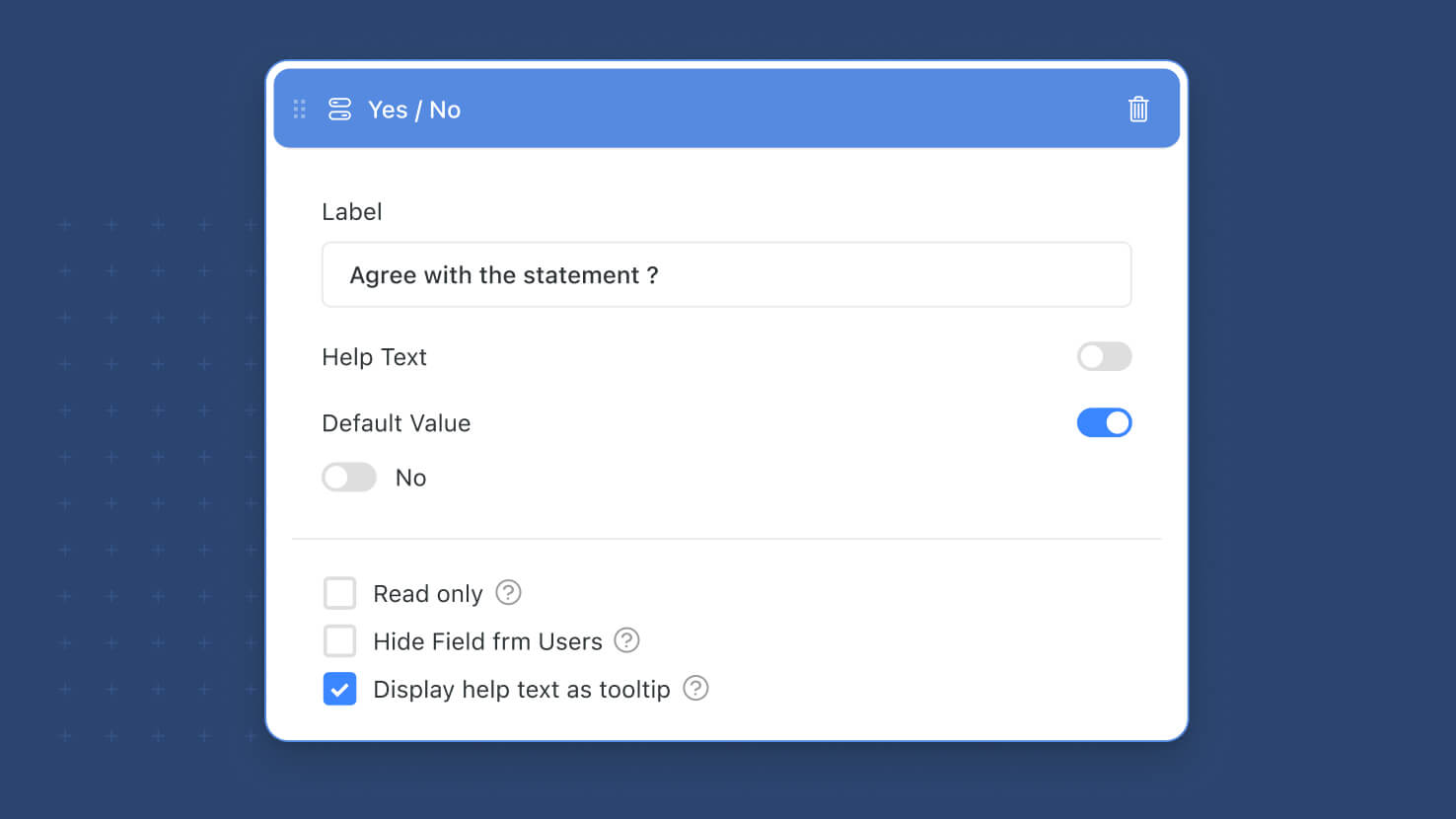
Forms: Yes/No Default Value Support
Yes/No fields can now have form-level default values, joining the growing list of field types that support form-specific defaults. Set the starting state (Yes, No, or empty) per-form, so risk acknowledgment toggles default to No, opt-in checkboxes default to Yes when appropriate, and any boolean question comes pre-set to fit the form's audience.
Key Highlights
- Yes/No Defaults on Forms: Configure a default value (Yes, No, or empty) for any Yes/No field on a form. Until this release, Yes/No fields on forms loaded blank.
- Per-Field Per-Form Configuration: The same Yes/No field on the underlying record can default to Yes on one form and No on another, with no change to the field's underlying definition.
- Form Defaults Override Field Defaults: A default value set at the form level takes priority over the default defined in the underlying field's settings, so each form expresses its own intent.
- URL Parameter Priority Preserved: For publicly-shared forms, pre-filled URL parameters continue to take priority over form-level defaults, so query-string overrides still work as before.
- Joins a Growing Default Values List: Adds to the field types already supporting form-level defaults including text, numeric, select-based, Linked Record, Assigned To, and date fields.
How It Works
- Open a form in the designer and click any Yes/No field to enter its edit mode.
- Find the Default Value toggle and switch it on; pick Yes or No (or leave the field blank for no default).
- The canvas updates in real time to show how the field will render to submitters with the chosen default selected.
- Save the form. Submitters see the configured default as the pre-selected state when they open the form.
- On publicly-shared forms, URL parameters still override the form-level default when present, so existing query-string workflows continue to work.
Pair this with the rest of the Default Values rollout this year, including Linked Record default values and the broader Default Values framework documented in the form designer.
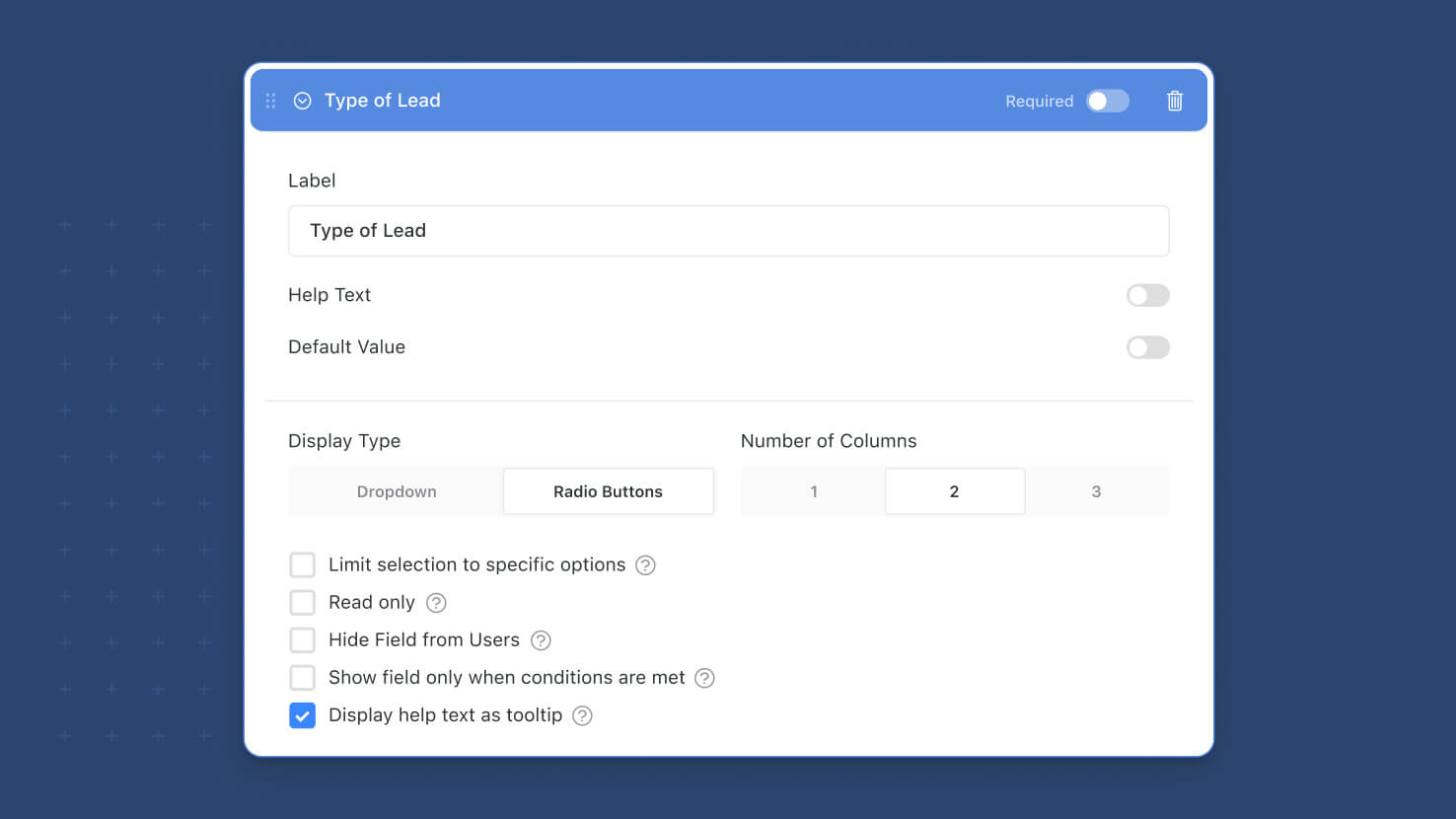
Forms: Select Field Display Types
Single Select, Multiple Select, and Status fields can now render on forms as Radio Buttons or Checkboxes instead of the dropdown default, with a configurable 1, 2, or 3-column layout. Service desk forms exposing all priority options at once, GRC attestation forms showing every compliance answer side by side, and HR forms surfacing role choices without a dropdown click all benefit from a more scannable submission experience.
Key Highlights
- New Display Format: Single Select and Status fields can render as Radio Buttons; Multiple Select fields can render as Checkboxes. Dropdown remains the default.
- Column Layout Control: When the new format is selected, choose 1, 2 (default), or 3 columns. Choices flow left-to-right, top-to-bottom across the selected number of columns.
- Per-Form Configuration: The display format is set per-field per-form, so the same Single Select field can be Dropdown on one form and Radio Buttons on another without changing the underlying field definition.
- Unselectable Radio for Non-Required Fields: If a Single Select Radio Button group is not marked as required, clicking the currently-selected option unselects it, leaving the field unanswered. Matches the standard radio button affordance on web forms.
- Status Field Supported: The new format applies to Status fields in addition to Single Select and Multiple Select, so workflow-stage selections (Open, In Progress, Resolved, etc.) can also render fully exposed on the form.
How It Works
- Open a form in the designer and click any Single Select, Multiple Select, or Status field to enter its edit mode.
- Find the Display Format toggle in the field's edit controls and switch from Dropdown to Radio Buttons (for Single Select / Status) or Checkboxes (for Multiple Select).
- Pick a Number of Columns: 1 for stacked, 2 for a two-column layout (default), or 3 for a denser three-column layout.
- The canvas updates in real time to show how submitters will see the field.
- Save the form. Submitters see the new layout on the live form; the underlying field definition is unchanged, so the same field on another form can keep using Dropdown.
Pair this with the rest of the Forms 2.0 work shipping this year, especially the new Layout and Appearance options and the Enhanced Submission Page.
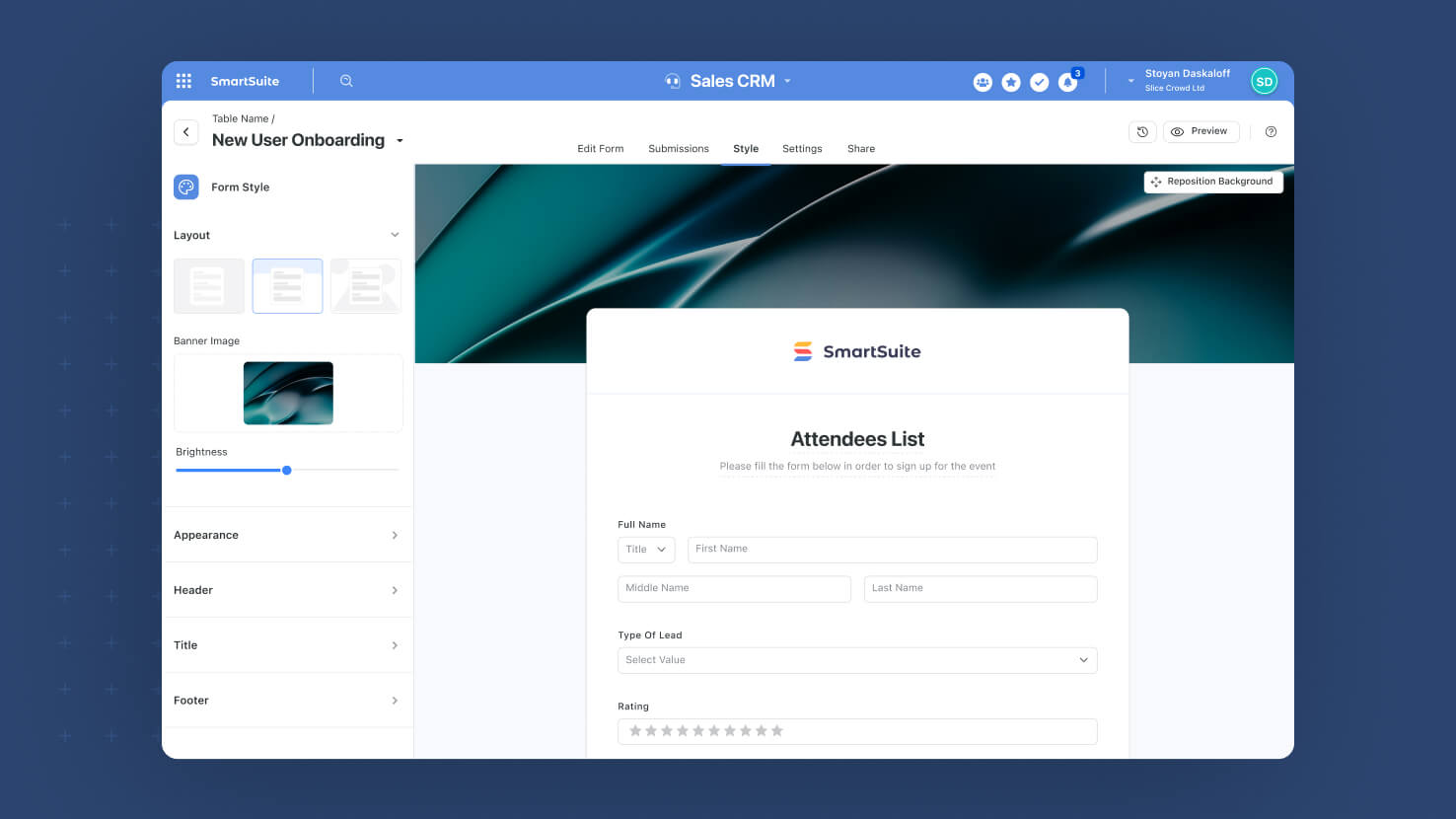
Forms: Layout and Appearance
The form designer's Style tab now exposes a Layout section with Classic, Banner, and Full options, plus a new Appearance section for background color and button styling. Service desk intake forms can wear corporate branding, GRC attestation forms can use full-bleed hero imagery, and HR onboarding forms can match team-specific color treatments without leaving the form designer.
Key Highlights
- Three Layout Options: Classic (form on a colored background, default), Banner (configurable banner image above the form with brightness and reposition), Full (edge-to-edge banner imagery, no reposition).
- Banner Image Controls: Standard Assets Library for image selection, 0 to 100 percent brightness slider (default 50 percent), and real-time canvas preview. Banner layout also supports image repositioning within the banner area.
- Background Color Control: New Appearance setting controls the form's background color from the standard SmartSuite palette or a custom value. Defaults to the Solution color. Rendered only when Layout is not Full.
- Button Color Control: Same palette plus custom picker controls the Submit and Next button color. Defaults to the Solution color for consistent solution-level brand inheritance.
- Internal Form Defaults: Classic layout is always applied to internal forms opened as a side panel, so Banner and Full are reserved for publicly-shared and full-page variants where hero imagery makes sense.
How It Works
- Open the Style tab on any form in the designer and find the new Layout section in the left side panel.
- Pick Classic, Banner, or Full. The form canvas updates in real time to show the selected layout.
- For Banner or Full, click the banner area to open the Assets Library modal; pick an image, adjust the brightness slider, and (Banner only) drag the image within the banner area to reposition.
- Open the Appearance section to set Background Color (palette plus custom picker) and Button color; both default to your Solution color.
- Save the form. The selected Layout and Appearance treatments apply to the publicly-shared and full-page variants; internal side-panel forms continue to use Classic.
Pair this with the rest of the Forms 2.0 work shipping this year, including Multi-Page Forms, Progress Bar, Enhanced Submission Page, and the New Forms Page.
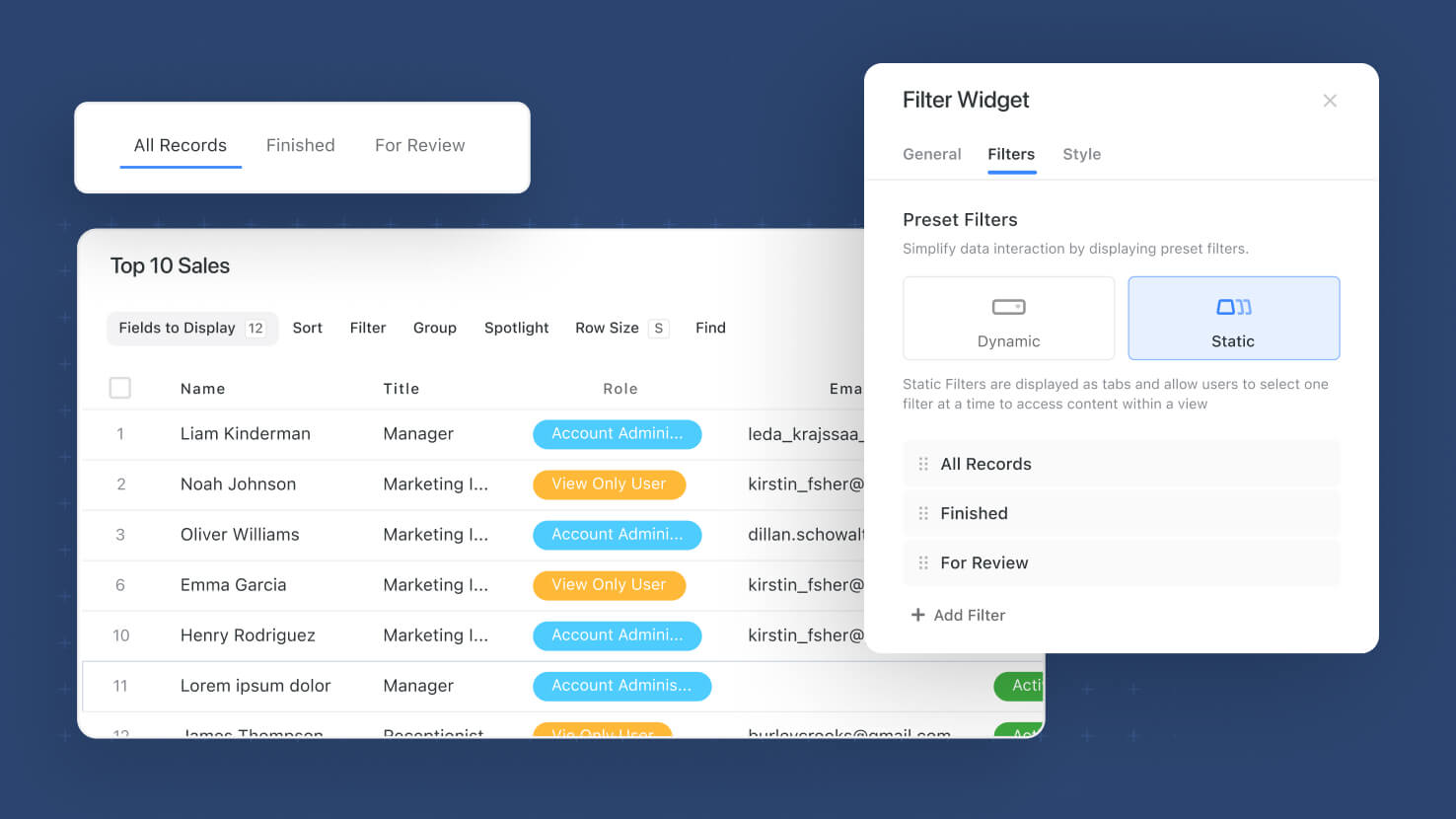
Filter Widget: Static Filters
The Filter Widget on SmartSuite dashboards now supports Static Filter mode. Solution Managers pre-configure named filter sets, the widget renders them as tabs across the top, and connected dashboard widgets re-load their data when a viewer clicks a different tab. Service desks toggling between ticket cohorts, GRC dashboards switching between audit areas, and PMO sprint dashboards flipping between sprint stages all get a viewer-facing filter surface that is consistent across the team.
Key Highlights
- Static Filter Mode: Configure named, pre-baked filter sets on a Filter Widget instead of exposing fields for viewers to fill in. Each filter set supports multiple conditions and condition groups, just like Filter on a table view.
- Tab-Based Viewer Experience: Configured static filters render as tabs across the top of the widget. Only one tab is active at a time, and any connected widgets re-load their data against the active filter set.
- Up to 20 Per Widget: Add, edit, delete, and reposition up to twenty static filters per Filter Widget during configuration, with full drag-and-drop ordering.
- Combines with Widget-Level Filters: Static filter conditions combine with the underlying widget's own filters using AND, so the Filter Widget never grants access to records that the widget would not show on its own.
- Mode Switching with Preserved Config: Switch a Filter Widget between Static and Dynamic modes during configuration without losing the other mode's settings. End users cannot toggle between modes on the canvas.
How It Works
- Open a dashboard you manage and add a Filter Widget, or edit an existing one; set the Filter Type to Static on the Filters tab.
- Click Add Filter to add a new static filter; give it a name and compose its conditions using the standard Filter control (multiple conditions, condition groups, all supported operators).
- Repeat for up to twenty filter sets per widget; drag the tiles in the configuration UI to reorder how the tabs appear on the rendered widget.
- Use Connected Widgets on the General tab to specify which widgets on the dashboard should react to the Filter Widget; only widgets pulling data from the same table on the same tab are selectable.
- Save the widget. Viewers see the static filter tabs across the top of the widget; clicking a tab activates that filter set and refreshes the connected widgets.
Use this when the dashboard's filter combinations are stable and curated by a manager, and you want viewers to switch between them with a single click instead of building filters themselves.

Internal Form View
The Form View has been redefined. It is now a view type linked to an underlying source form, rendered in ready-to-fill state for any table member with view access. Service desks placing an intake form in every team's view panel, HR teams attaching onboarding forms to people tables, and GRC programs putting attestation forms next to control records all get a one-click submission surface inside the work they already do.
Key Highlights
- Submittable, Not Just Editable: The Form View now displays the linked form in a ready-to-fill state for every table member with view access, not just Solution Managers.
- Linked to a Source Form: Pick any internally-shared form from any solution you manage as the view's source. The view stays in sync with edits to that source form.
- Solution Switcher and Search: The Select Form modal shows forms across every solution you manage, grouped by table, searchable, with inline new-form creation.
- Manager Controls: Solution Managers can rename, swap to a different source form, edit the underlying form, or delete the view from the view properties.
- Migration Handled: Existing legacy Form Views are removed from the views panel; Solution Managers should use the new Forms page to edit forms, and create a new Form View only when they want the form exposed for internal submission.
How It Works
- Add a Form View to a table; the Select Form modal appears with internally-shared forms grouped by table across every solution you manage.
- Pick a form (or create a new one inline) and the view links to that source. The view name inherits from the source form by default.
- Any member of the table with view access opens the Form View and submits the form, subject to record-create permissions on the target table.
- A Solution Manager can change the linked form, edit the form's fields via the designer, rename the view, or delete it; only Solution Managers see these controls.
- If the source form is deleted in the Forms page, every Form View that referenced it is removed automatically.
Use this when a form needs to be available inside the team's existing workspace rather than as a public link, especially for high-volume internal submissions like ticket intake, attestation, or onboarding requests.

Forms: The New Forms Page
Solutions now have a dedicated Forms page in the Solution menu that shows every form in the solution as a tile, grouped by its target table. Service desks running multiple intake forms, GRC teams maintaining attestation forms across control areas, and HR programs juggling onboarding, leave, and exit forms can all manage their forms from a single operational hub instead of hunting through individual tables.
Key Highlights
- Tile-Based Layout Grouped by Table: Every form in the solution renders as a tile showing title, target table, shared status, and a preview of the first page. Tiles are grouped alphabetically by table, with a sidebar of tables for quick navigation.
- Shared and Draft Badges: A Shared icon flags forms exposed internally or externally. A Draft badge calls out forms that have never been shared, signaling they are not yet usable as a Form View or via a Button action.
- Three-Dots Menu Per Tile: Hover any form to surface Copy Internal URL, Copy Shared Link, Edit, Duplicate, and Delete, exactly the actions builders reach for most often.
- Search and Empty State: A top-right search field filters by form title while preserving the table grouping, with a clear No Results message. Solutions with no forms see a Welcome to SmartSuite Forms onboarding state with one-click new-form creation.
- New Form Dialog: Create Form opens a focused dialog with required Title (validated for uniqueness with a live preview) and required Table (dropdown of every table in the solution); Create Form drops the user straight into the Edit Form screen.
How It Works
- Open any solution where you have Solution Manager permissions and click the new Forms item in the Solution menu.
- Browse forms grouped by their target table, or jump to a specific table by clicking its name in the sidebar.
- Hover a tile and use the three-dots menu to Copy Internal URL, Copy Shared Link, Edit the form, Duplicate it (appends 'Copy' to the title), or Delete it.
- Use the search input in the top right to filter by form title; results stay grouped by table.
- Click New Form to open the Add New Form dialog, enter a unique Title and pick a Table, and click Create Form to save and jump into the Edit Form screen.
Pairs naturally with the rest of the Forms 2.0 work this year, including Multi-Page Forms, Progress Bar, Enhanced Submission Page, and the Submittable Form View shipping the same week.
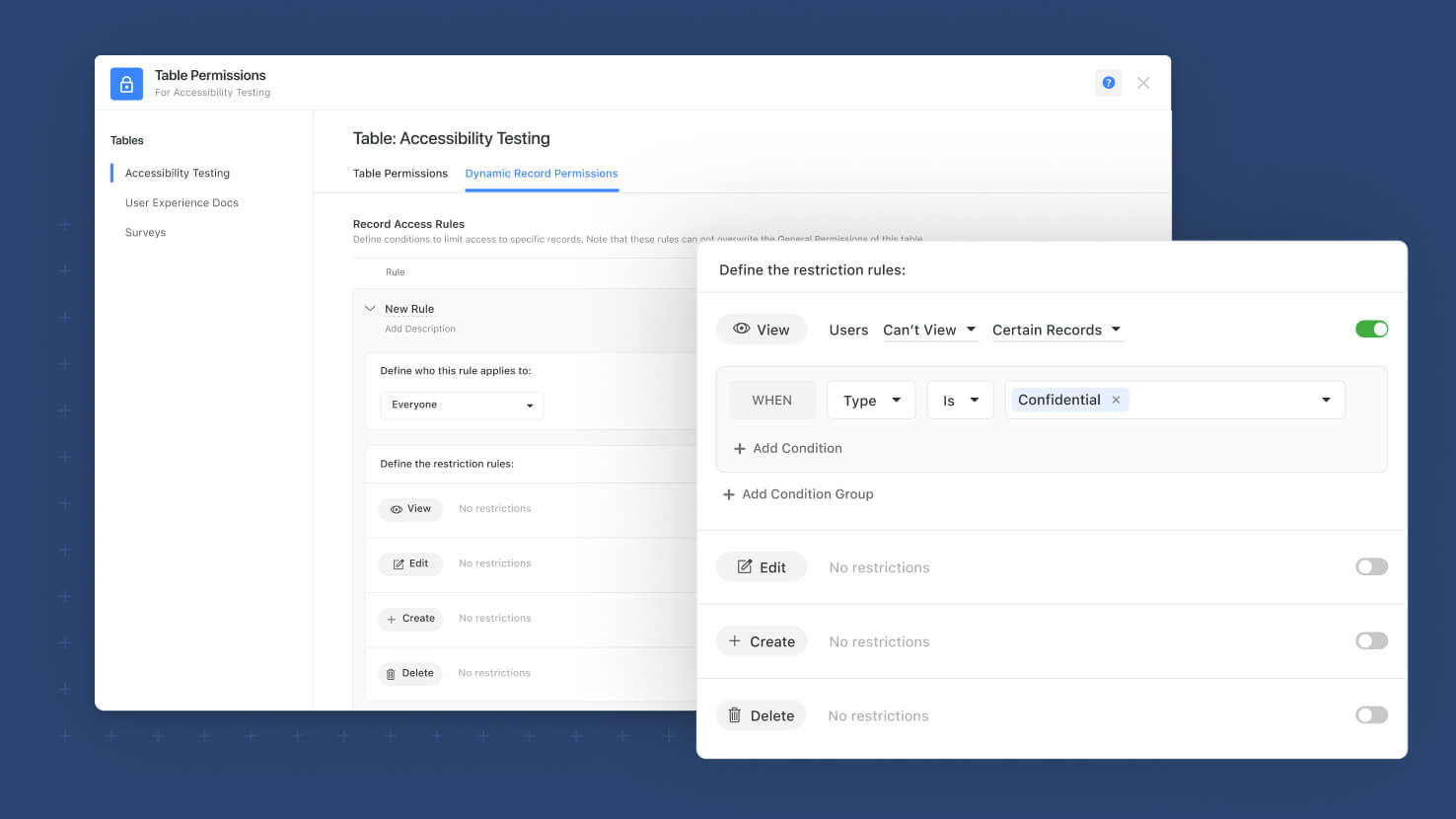
Dynamic Record Permissions
Dynamic Record Permissions is now generally available. Solution Managers can build table-level rules that restrict who can View, Edit, Create, or Delete records, with scope down to individual tabs and sections and conditions tied to field values. GRC programs locking completed policies, audit programs making engagements read-only on completion, and security teams walling off sensitive records all now have a control surface that matches how their governance actually works.
Key Highlights
- Cohort-Based Targeting: Pick Everyone, Only Selected, or Everyone Except as the audience, with a mix of teams, individual members, and permission types as the picker options. One rule can target a Team plus a permission type plus a named user in a single audience.
- Four Restriction Types, Scoped Three Ways: View, Edit, Create, and Delete restrictions, each scoped to the whole Record, to selected Tabs, or to selected Sections, with optional conditions tied to Status, Single Select, Multiple Select, or Yes/No fields.
- Sentence-Builder Rule Authoring: Build rules in plain language ('Sales Team can't edit records when Status = Completed') instead of writing logic by hand. Each rule has a title, description, audience, and one or more restrictions.
- Layered Conflict Resolution: Multiple rules for the same cohort apply the strictest rule (least privilege). When a person belongs to multiple cohorts with conflicting rules, the least strict rule wins (optimistic) so collaboration is preserved. Record-scope rules take priority over Tab, then Section.
- View As, Validation, and Safe Deletion: Test any rule with View As as the selected user. Invalid rules (missing audience, deleted tab, broken condition) auto-mark themselves invalid and stop applying. Tabs and Sections that a rule depends on cannot be deleted without first cleaning up the rule.
How It Works
- Open a table you manage and go to the new Permissions section in table settings; this is where Record Level Permission rules live alongside the existing table-level permissions.
- Click Add Rule, give it a Title (unique within the table) and an optional Description, then specify Who this rule applies to (Everyone, Only Selected, Everyone Except) and pick teams, members, or permission types.
- Add one or more restrictions per rule: pick the action (View, Edit, Create, Delete), pick the scope (Record, Tab, Section), and choose Always or When conditions are true. Use the sentence-builder control to compose the condition.
- Save the rule and it becomes effective immediately. There is no draft/publish state. Use View As on any rule's audience to verify the experience the restricted user will see.
- Edit, duplicate, or delete rules from the Rules Overview page; conflicting rules resolve automatically per the documented priority order.
A note on the upgrade path: customers who used Dynamic Record Permissions in the early access period get the GA experience with no migration work.

Email Layouts
SmartSuite emails can now carry a configurable header and footer designed by your Workspace Admin. ITSM service desk notifications wearing corporate branding, GRC compliance emails with consistent legal footers, and Communication Center messages with on-brand design all become trivial to standardize from a single setting in Workspace Administration.
Key Highlights
- Email Layouts Section: A new section under Workspace Administration / Email Settings lets admins create named layouts with header and footer designs that apply globally to outgoing emails.
- Header and Footer Controls: Each layout supports a logo image (5 sizing options), rich-text content (font size, bold/italic/underline, color, URL), background color from the SmartSuite palette or a custom value, and Left or Center alignment.
- Multiple Layouts: Save any number of layouts and mark one as default. The default cannot be deleted but can be reassigned at any time.
- Automation and Communication Center Aware: Existing Send Email actions and Communication Center messages pick up a new Email Layout control automatically when the feature is enabled, with a dropdown when multiple layouts exist.
- Safe Defaults on Downgrade: If a workspace downgrades below Pro, existing layouts are preserved but stop applying to outgoing email. Upgrade re-applies them automatically.
How It Works
- An admin opens Workspace Administration, navigates to Email Settings, finds the new Email Layouts section, and clicks Edit.
- In the Email Layouts modal, the admin toggles the feature on and configures one or more layouts: header, footer, logo, content, background, alignment.
- Each layout gets a name; one layout is marked as the default. A pre-filled default footer ("Powered by SmartSuite" on light grey) seeds the first layout if needed.
- Automation builders configuring a Send Email action see the new Email Layout control, with the default pre-selected when only one exists or a dropdown when multiple do.
- The same applies to Communication Center emails sent from records; the layout wraps the message content automatically.
Available on Pro Plan and above. Pair this with automation-driven service desk workflows, GRC notification routines, and customer-facing record communications for consistent brand presentation across every email SmartSuite sends.
SmartSuite Local MCP Server (Open Source)
SmartSuite Foundry has shipped an open-source Model Context Protocol (MCP) server that runs locally and exposes SmartSuite data to MCP-compatible AI clients. Builders, integrators, and Foundry community members can install it today via npm, Docker, or a packaged Claude Desktop extension and start scripting SmartSuite from the AI tools they already use.
Key Highlights
- Open Source on GitHub: The server is published under the SmartSuiteFoundry organization on GitHub, including README, issue tracker, and tool documentation. Forking and contributions welcome.
- Local stdio Architecture: The server runs as a local stdio process on the builder's machine and authenticates to SmartSuite with the user's own API token. No SmartSuite-hosted intermediary is involved.
- Two Install Paths: Manual install via npm or Docker, with explicit MCP client configuration. Packaged install as a Claude Desktop extension, which bundles the server and handles registration automatically.
- Works with Any MCP Client: Use the server from Claude Desktop, Claude Code, Cursor, or any MCP-compatible coding agent or desktop assistant.
- Tool Coverage: The initial release covers reading records, writing records, exploring schema, and managing files, with more tools planned and a clear path for community contributions.
How It Works
- Visit github.com/SmartSuiteFoundry/smartsuite-mcp-server and follow the README for the install path that matches your tooling.
- Provide your SmartSuite API token and workspace identifier through your MCP client's configuration (or via the Claude Desktop extension's first-run setup).
- Start a session in your MCP client and call SmartSuite tools by name: list applications, read records, write updates, fetch files.
- Extend the server by adding tools in the repository's tools/ directory or by forking and customizing; open a pull request to contribute changes back.
- Report issues, request tools, and discuss extensions in the GitHub repository's issue tracker.
This release is a Foundry prototype. Expect rapid iteration, breaking changes between versions, and a community-shaped roadmap. Production-grade hosted MCP capabilities will follow in a separate, governed track.
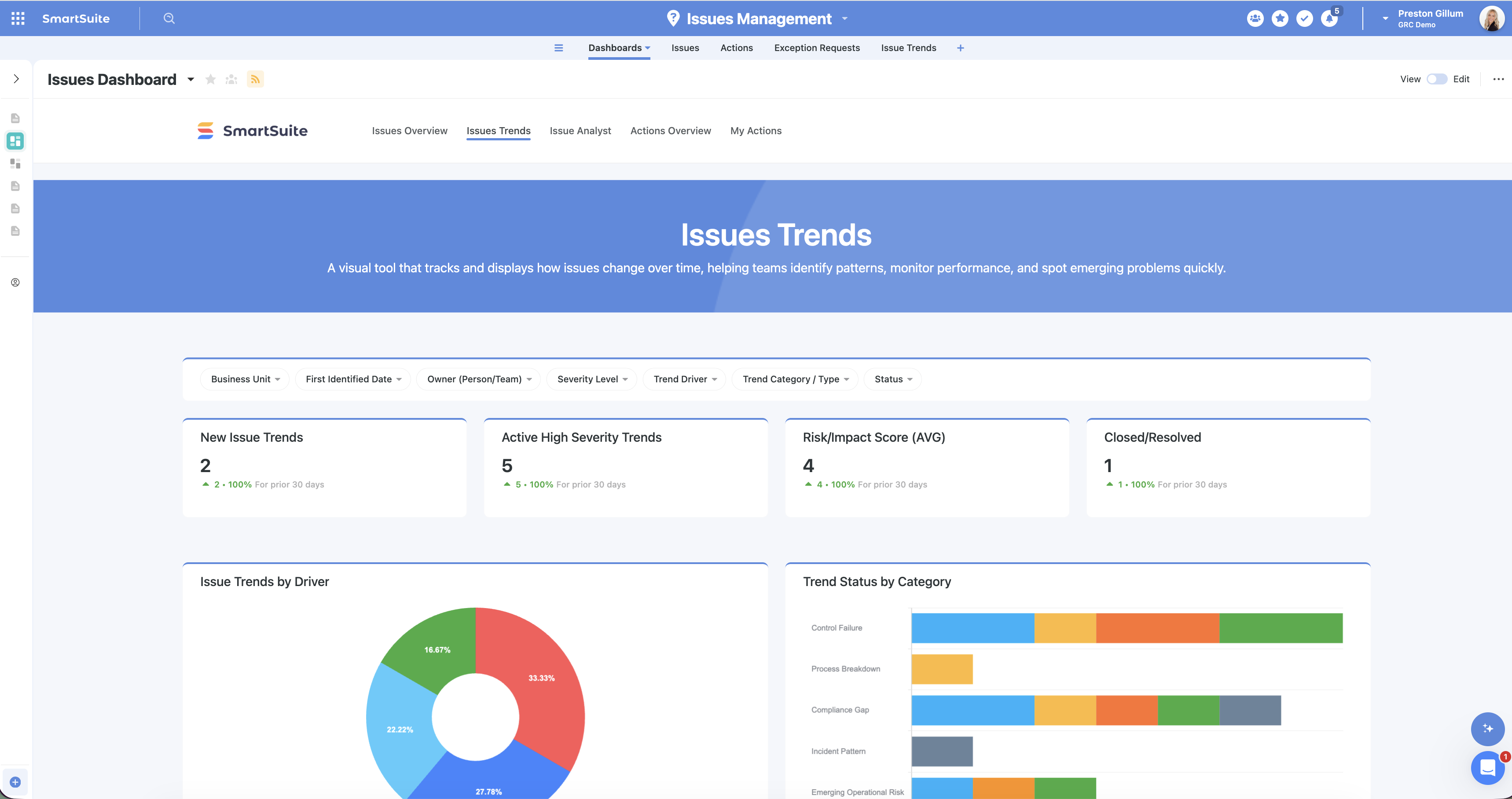
Issues Management: AI-Powered Trend Analysis
Issues Management now includes AI-powered trend analysis that scans your entire active issues library — across every type, source, and business unit — and surfaces meaningful trends automatically.
Key Highlights
- Automated Trend Detection: An AI trend analysis automation reviews every active issue across all types, sources, and business units, then writes a structured trend record for each meaningful pattern it finds — not isolated one-offs.
- Auto-Populated Trend Records: Each trend comes back with a severity level, category/type, root-cause driver, summary, predicted impact, recommended actions, and links to the supporting issues and business units, all filled in by the AI.
- Trends Dashboard: A one-stop dashboard rolls everything up into top-line metrics (new trends, active high-severity, average risk/impact score, closed/resolved) plus breakdowns by driver, status and category, and business unit.
- Interactive Filtering: A filter widget slices the entire dashboard live by business unit, severity, or driver, so a single rolled-up report answers many questions and can be shared for board reporting without rebuilding views.
- Bring Your Own AI Model: The analysis runs on your own authenticated model, whether a frontier model or a custom LLM, with no SmartSuite model trained on your data.
How It Works
- Add the Issues Trends table: Add the Issues Trends table to your Issues Management solution, alongside your existing issues and remediation tables.
- Configure the AI Trend Analysis automation: Set the trigger to run on a schedule (daily, several times a day, weekly), continuously, or on a button click, and point it at your active issues.
- Data fed to the model: The automation feeds each issue's name, description, root cause, source, impact, status, and business-unit links into your chosen model using a prompt you can tailor.
- Review and drill-down: Review the generated trends on the dashboard and drill from any metric into the trends, then into the individual issues driving them.
- Assign actions and owners: Assign target resolution dates, recommended actions, reviewers, and escalation levels to move from insight to response.
- Replicate across GRC: Apply the same prompt-and-dashboard pattern across compliance gaps, risk areas, or incidents to bring AI trend analysis anywhere in your GRC workflows.
- Board reporting and security: Share the dashboard behind SSO for view-only board reporting, with all filtering intact.

Mobile: Kanban View
Kanban views now render on the SmartSuite mobile app with the same layout, controls, and drag-and-drop behavior as the desktop version. Field service technicians clearing tickets between site visits, change managers approving on the move, and PMOs ticking sprint work from anywhere can pick up cards and advance them through their lifecycle without opening a laptop.
Key Highlights
- Mobile Kanban Parity: Open any Kanban view or Kanban dashboard widget on the mobile app and see the same columns, swimlanes, cards, and configuration.
- Drag-and-Drop on Touch: Drag cards horizontally between columns to update the underlying record, with permission checks running through the same record-level model used on the web.
- Honors All View Controls: Sort, Filter, Fields to Display, Group By, swimlane settings, and the Show All density rule all apply on mobile exactly as they do on desktop.
- Tap to Open: Tap a card to open the record details view, including fields, comments, history, and the rest of the standard record surface.
- Service Desk Ready: ITSM technicians clearing a queue between site visits, change managers approving from the field, and GRC reviewers acknowledging controls on the go all get a board view that travels with them.
How It Works
- Open the SmartSuite mobile app and navigate to any table that has a Kanban view configured, or to a dashboard that includes a Kanban widget.
- The Kanban renders with columns left-to-right and swimlanes top-to-bottom, matching the desktop configuration exactly.
- Tap and hold a card to start a drag; drag horizontally to a different column to move the record forward.
- Tap a card to open the full record view, with fields, comments, and history available for review or edit.
- Apply view controls (Sort, Filter, Group By, Fields to Display, density toggles) through the standard mobile controls; changes apply live to the rendered board.
Use this when your team's Kanban board is part of how they actually move work, and they need it in their pocket as much as on a screen at the desk.
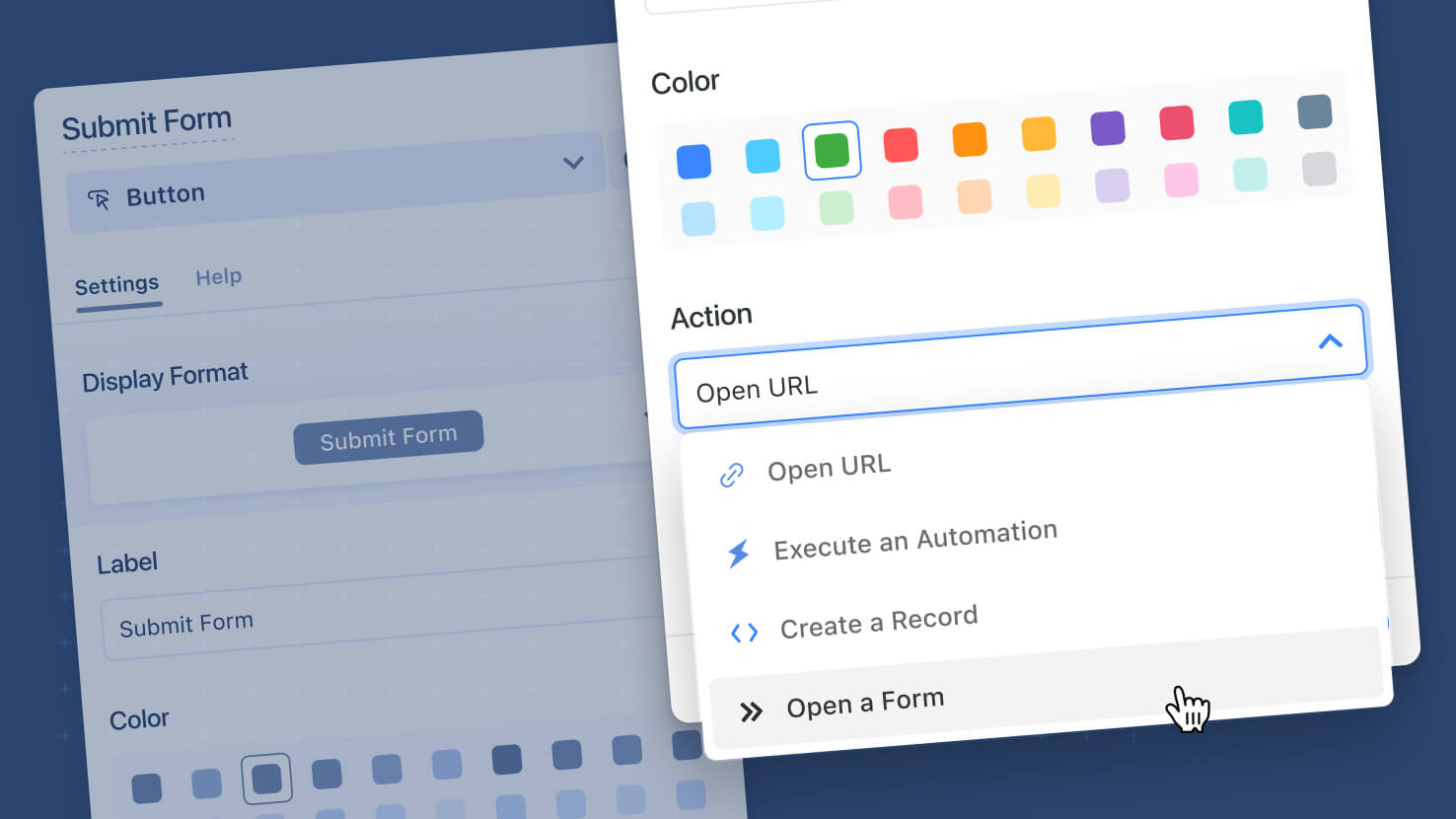
Button Field: Create Record and Open Form Actions
The Button field on a record now supports Create a Record and Open a Form actions, matching what Button widgets on dashboards have offered. Service desks placing a 'Create Follow-Up Ticket' button on every incident, change boards launching a CAB approval form from a record, and GRC programs offering one-click attestation submissions can now wire the action directly onto a record without leaving it.
Key Highlights
- Create a Record Action: Open the standard record creation page in any Solution and Table, with default values pre-applied to specific fields, all configured directly in the button's settings.
- Open a Form Action: Launch any form from any table in Popup (default), Slider, Fullscreen, or New Tab mode, keeping the user's session and pre-loading the form ready for input.
- Default Values: Most input field types are supported (text, number, date, select-based, etc.). The button overrides field-level default values when both exist, so the button's value wins for that launch.
- Broken Config Handling: If the target Solution, Table, or referenced Field is deleted or migrated, the button surfaces a clean error toast and recovers automatically when the resource is restored from the Recycle Bin.
- Action Parity Across Surfaces: The Button field, Button Row widget, Simple Banner widget, Hero widget, dashboard tabs, and view-based widgets all now share the same action set.
How It Works
- Open a record's field configuration and add a Button field; pick a Display Format (Colored Pill or Text Only), Label (default 'Click me'), and Color.
- Under Actions, choose Create a Record or Open a Form (Open URL and Run an Automation remain available).
- For Create a Record, pick the target Solution and Table, optionally select a Record Template, and configure Default Values for specific fields by adding them one at a time.
- For Open a Form, pick the target Solution and Table, choose the Form from a dropdown of available forms in that table, and pick the rendering mode (Popup, Slider, Fullscreen, New Tab).
- Save and the button appears on the record in your selected display format; clicking it executes the configured action with the user's session and permissions.
Use this when a record needs a one-click follow-up that produces a related record or opens a structured form, without forcing users to navigate to a different surface first.

Forms: Enhanced Submission Page
Publicly shared SmartSuite forms now have a fully configurable Submission Page. Service desk intake forms, GRC attestation flows, and any customer-facing form can show a polished Thank You message or redirect submitters directly to a follow-up URL of your choosing.
Key Highlights
- Two Configurations: Pick Message mode for an inline Thank You page, or Redirect mode to send submitters to a URL of your choice.
- Custom Thank You Page: Configure a toggleable icon, a Title (default "Thank you!"), and a rich-text Description, all editable with the same controls used elsewhere in the form designer.
- Redirect Handling: Specify a URL with inline validation; submitters land there automatically after clicking Submit.
- Public-Only Behavior: The Submission Page applies to publicly shared forms only; internal forms continue to close their dialog on submit, so existing internal workflows are untouched.
- Always Present: The Submission step cannot be removed from a form's setup, so every public form has a defined post-submit experience without builders having to remember to configure it.
How It Works
- Open the Pages control on any form and select the Submission Page; it is always present at the end of the form's page list and cannot be deleted.
- Choose Message (default) or Redirect for the page mode.
- For Message mode, set whether the icon shows, write a custom Title, and compose a rich-text Description; the defaults work fine if you want a generic confirmation.
- For Redirect mode, enter a destination URL; standard inline validation flags any malformed input before you save.
- Publicly share the form and submitters experience the page you configured on submit; internal users continue to see the dialog close as before.
Pair this with Multi-Page Forms and the Progress Bar shipped earlier in May to give long public forms a polished start-to-finish experience.

Dashboards: Kanban Widget
Kanban now works as a widget on any SmartSuite dashboard. Service desks rendering a ticket board inside a wider operations dashboard, PMOs visualizing sprint work next to their burndown chart, and GRC programs tracking control status alongside KPI tiles can all drop a Kanban directly onto the canvas, no separate view required.
Key Highlights
- Kanban as a Widget: Place a configurable Kanban widget on any dashboard, with columns driven by a Status, Single Select, or single-value field on the source records.
- Swimlane Grouping: Group cards into rows using another single-value field, including Lookups that target single-value Linked Records, for a two-dimensional view.
- Drag-and-Drop Editing: Drag cards between columns to update the underlying record live, with permissions controlled by record-level access rather than dashboard permissions.
- Performance-First Defaults: Show All button appears on any column with more than six cards, hide empty columns and rows for cleaner boards, collapse all swimlanes for high-density views, and a 3,000-card cap keeps the widget fast.
- Full View Controls: Sort, Filter, Find, Group By, Spotlight, Card Size, and Fields to Display all work in-widget just like they do on a regular Kanban view.
How It Works
- Open a dashboard you can edit and add a new widget; select Kanban View from the widget library under Views.
- Pick the Solution and Application the widget should pull records from; configure View Controls (sort, filter, group by, fields to display) and decide whether users can drag cards.
- Choose a column field (Status, Single Select, or any single-value field) and optionally a swimlane field for two-dimensional grouping.
- End users see the Kanban inline with the rest of the dashboard, can drag cards between columns if their record permissions allow it, and can click any card to open the record.
- Use Hide Empty Columns, Hide Empty Rows, and Collapse All to control density on busy boards; the Show All button surfaces when a column has more than six cards.
Use this when you want a visual board view alongside other dashboard widgets instead of jumping between a Kanban view and the rest of your reports.
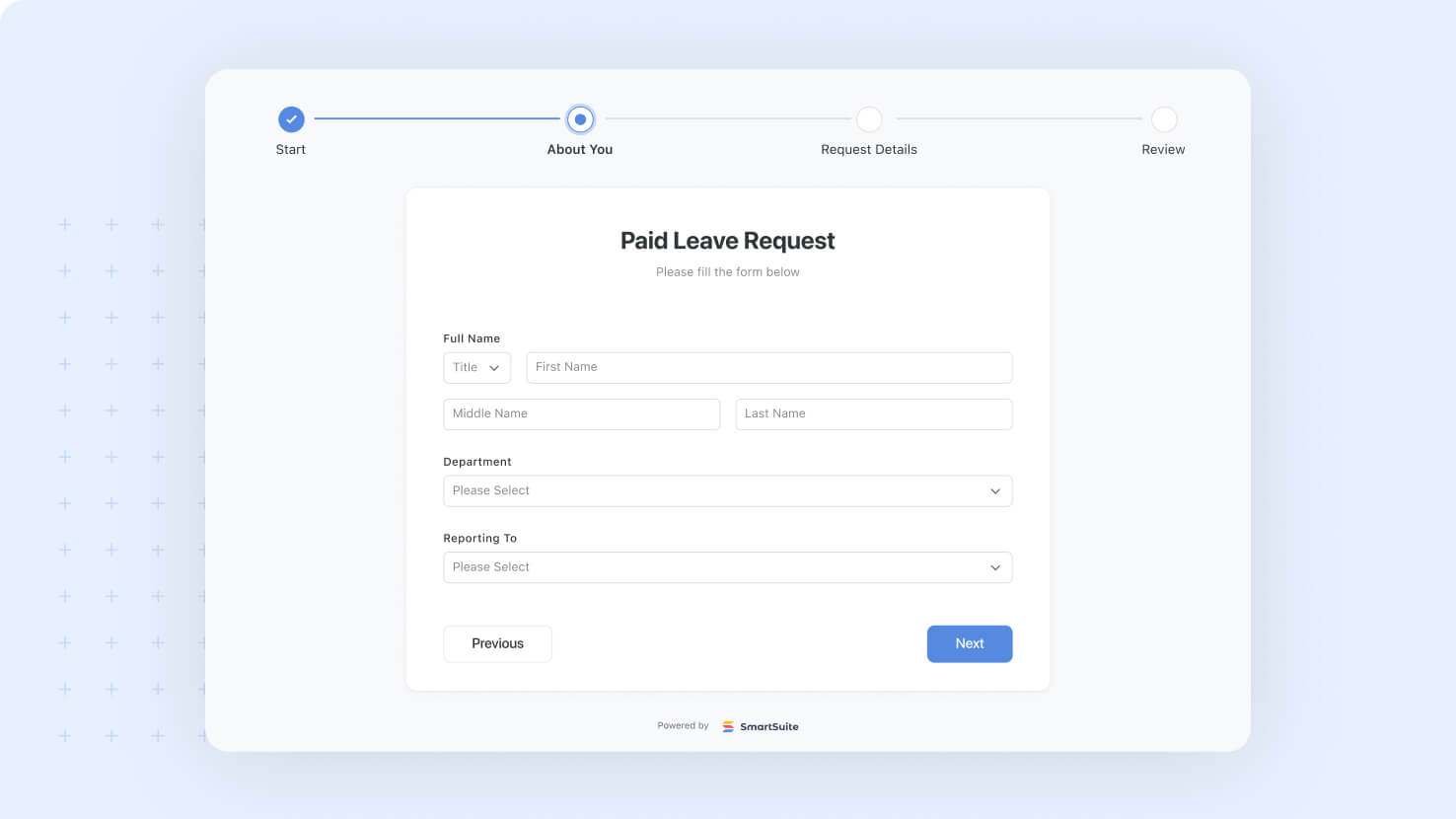
Forms: Progress Bar
Multi-page forms now support a configurable Progress Bar at the top. Service desk intake forms, GRC attestation flows, and any structured multi-page submission can show users where they are in the form, complete with one-click backward navigation to any previous page.
Key Highlights
- New Progress Bar Option: Toggle a Progress Bar on any form with two or more pages from the Style Tab.
- Two Visual Styles: Choose Dot or Numbers to match the form's design language.
- Page Name Display: Optionally show the name of each page next to its progress indicator, or hide names for a cleaner look.
- Backward Navigation: Completed pages are clickable, so submitters can jump back to fix an earlier answer without losing form state.
- Safe Default Behavior: The feature is off by default, requires at least two pages to enable, and auto-disables if page count drops below two.
How It Works
- Open the Style Tab on a multi-page form and find the Progress Bar section near the bottom of the panel.
- Toggle the Progress Bar on (only available when the form has two or more pages, not counting the Submission step).
- Pick a Style (Dot or Numbers) and decide whether to Show or Hide page names alongside the indicator.
- Submitters see the bar at the top of each page, with their current page highlighted, completed pages shown as clickable history, and upcoming pages shown but not yet navigable.
- If a builder removes a Page Break and the form drops to a single page, the Progress Bar disables automatically and no half-configured bar appears on the live form.
Pair this with Multi-Page Forms (released last week) to give long forms the pacing cues submitters need to push through.

Microsoft Teams Automations v2: Actionable Notifications
Microsoft Teams Automations v2 turns one-way notifications into two-way workflows. Service desks running approval flows, change-management boards routing requests through Teams, and any GRC workflow that needs a recipient to take a documented action in Teams can now do it with a single click, attributed back to SmartSuite with a full audit trail.
Key Highlights
- Actionable Notifications: Send a Teams message with up to three clickable buttons mapped to values in a Status, Single Select, Multiple Select, or Yes/No field. Clicking a button updates the target record directly.
- Personal and Team Messaging: Target an individual (static or dynamic mapping from Assigned To, Email, Text, Lookup, Formula, or Single Select fields) or post into a specific Team and Channel.
- Dynamic Record Targeting: Drive notifications from a Trigger output, a Single Find output, or the Current Item inside a Loop, without hardcoding records.
- Dynamic Links in SmartDoc: Build hyperlink URLs inside the message body by mixing static text with dynamic field values, so Open Record buttons always point to the right record.
- Built-In Run History and Error Capture: Failed executions are recorded as comments on the target record with human-friendly reasons (Not enough permissions, Record not found) and a link back to the originating automation.
How It Works
- Admins configure the O365 integration once in Workspace Administration by registering an Azure application and granting the delegated Microsoft Graph permissions.
- Automation builders add the new 'Send an actionable notification' action under Integrations, Microsoft Teams, pick a target record source, choose Personal or Team message, write the title and body with dynamic values, and map a field to buttons.
- When the notification lands in Teams, the recipient clicks a button. SmartSuite validates their record-edit permissions, applies the update, and attributes the change to the person who clicked via the automation.
- Anything that goes wrong (a permission issue, a missing record, a timeout) surfaces as a comment on the record with a clear reason, so automation owners can resolve it quickly.
- Available on Enterprise and Signature plans. Existing legacy Teams actions remain operational.
Upgrade your connection to take advantage of Actionable Notifications and the faster O365 configuration.

Automations: Loop Over Field Values
Loop actions in automations can now loop over the values in a list-style field on a single record. Service desks fanning a request to multiple owners, GRC workflows looping over a list of related controls, and PMO automations splitting per-member work all get a more direct path than chaining multiple Find Records steps.
Key Highlights
- New Loop Source: Loop over the values in a list-style field (Linked Record, Assigned To, Team, Multiple Select, Tags, Email, Phone, URL, IP Address, or any Lookup to those types) on a single record.
- Per-Value Cycle: Each cycle exposes Current Item with both the current value and the source record's context, so downstream actions can reference either freely.
- ITSM Service Desk Ready: Route a single request to every member in its Assigned To list with one action per member, no chained Find Records required.
- Team Member Loop: For Team fields, choose to loop over the teams themselves or over the deduplicated union of all team members.
- Backward Compatible: Existing loops over record lists work unchanged; this is an additive option.
How It Works
- In a Loop action, choose 'a list field on a single record' as the source instead of the default 'list of records'.
- Pick the source record (Trigger output or Single Find output) and the specific list field on that record to loop over.
- The loop runs once per value in that field; Current Item exposes the value and the record context.
- For Team fields, an additional choice lets you loop over the team names or the unique list of members across all selected teams (with deduplication for members who belong to multiple teams).
- Each cycle's actions reference Current Item just like any other loop step, including Find, Update, Create, and Send Email actions.
Use this when you need to fan one request out to a list of owners, send an email per item in a Multiple Select field, or process every value in a list-bearing field without writing extra Find steps.
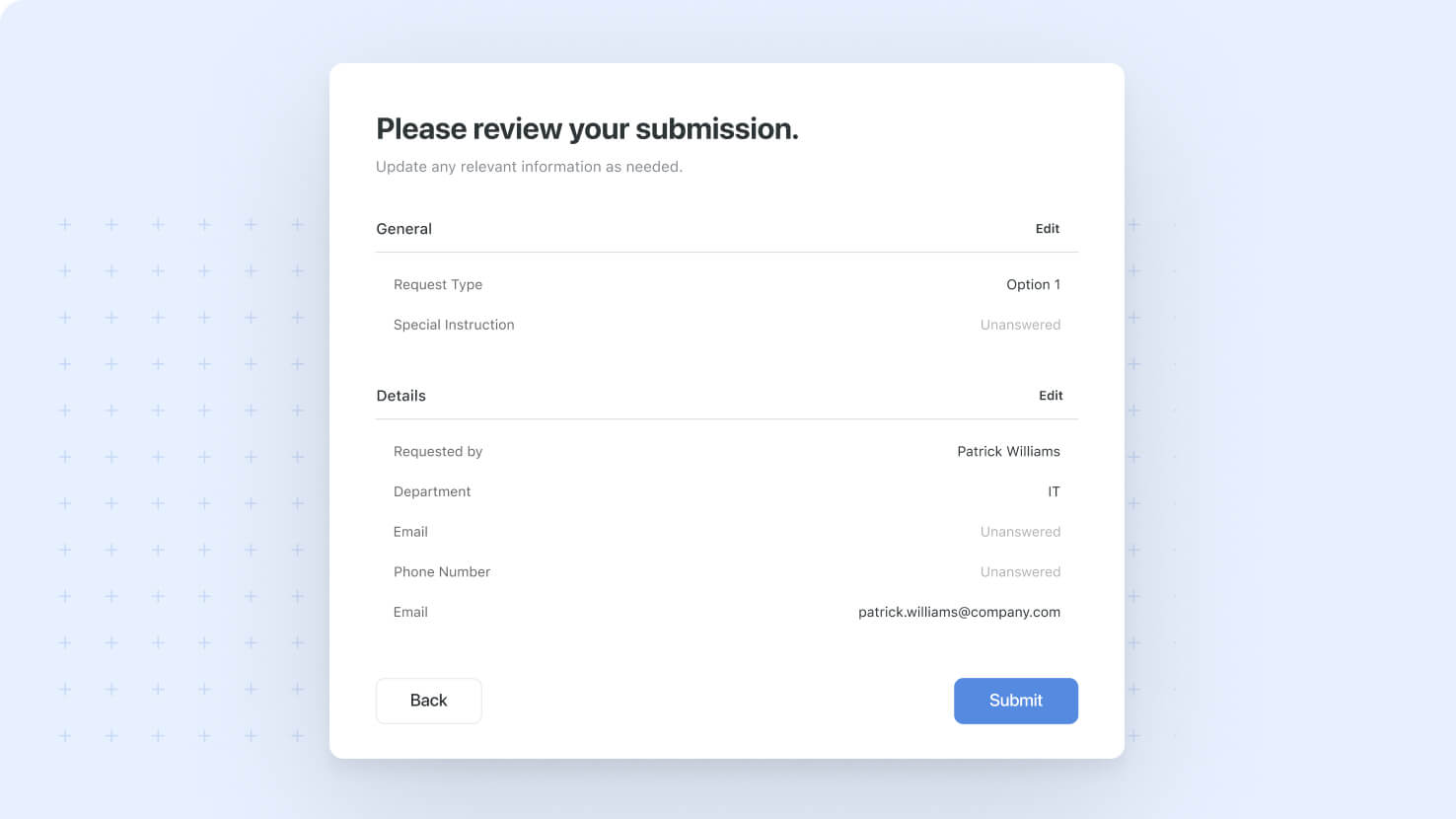
Forms: Review Page
Multi-page forms now support an optional Review Page that lets users confirm their answers before submitting, with one-click edits back to any page. Service desk intake, compliance attestations, and any form with consequential downstream effects gets a built-in safety check at the end.
Key Highlights
- Built-In Review Step: Add a single Review Page to any form to give users one last look at their answers before submission.
- Page-Grouped Answers: Fields display grouped by the page they live on, with the page name as a heading and an Edit button to jump back.
- Configurable Title and Description: Set custom copy for the review header, or use the defaults ('Please review your submissions' and 'Update any relevant information as needed.').
- Per-Field Selection: Choose which fields appear on the Review Page; by default all form fields are pre-selected, including conditionally visible ones.
- Smart Empty States: Unanswered fields show as 'Unanswered', Yes/No fields default to 'No', and fields with configured default values show their default rather than appearing empty.
How It Works
- Add a Review Page from the Pages control at the bottom of the form canvas; one Review Page is allowed per form, and it always sits in a fixed position before the Submission Page.
- Configure the Title and Description for the review header, both with translation support for the default values.
- In the Fields to Review setting, deselect any fields you do not want users to confirm; everything else appears as a Label-Value pair grouped by source page.
- When a user reaches the Review Page, they see all their answers and can click Edit next to any page name to navigate back, make changes, and return.
- The Submit button only appears on the Review Page (or the last Form Page if no Review Page is configured), so users always know they are at the final step.
Use the Review Page wherever a submitter benefits from a confidence check before their answers commit, especially in service desk intake, compliance attestation, and structured onboarding flows.

Forms: Support for Multiple Pages
SmartSuite Forms now support multiple pages with a built-in Review step and a configurable post-submit experience. Service desks running long intake forms, GRC teams gathering attestations across multiple control areas, and HR teams onboarding new hires can pace longer forms cleanly instead of presenting one wall of fields.
Key Highlights
- Multiple Form Pages: Group related fields into pages, with up to 10 pages per form including an optional Review page.
- Three Page Types: Form Pages hold the fields, the optional Review Page lets users confirm answers before submitting, and the Submission Page handles the post-submit message or redirect.
- Automatic Navigation Buttons: The system shows Next, Back, and Submit buttons in the right places based on which page the user is on, with no manual configuration.
- Page-Level Field Moves: Any field can be moved between pages from its three-dot menu, keeping a form organized as it grows.
- Progress Bar Pairing: Form Pages work hand-in-hand with the new Progress Bar option on the Style Tab to show users their position in a multi-step form.
How It Works
- Open a form's Pages control at the bottom of the canvas to add, rename, reorder, or delete pages.
- Add a Review Page (one per form, optional) to show users their answers grouped by page, with an Edit button next to each page name for jumping back to make changes.
- Configure the Submission Page to either display a thank-you message (with a customizable title, description, and optional icon) or redirect submitters to a URL.
- The form's Title and Header display on every page, so the form's identity stays clear no matter which page the user is on.
- The Submit button only shows on the last Form-type page; Back and Next buttons appear automatically on the right pages.
Use this to break long forms apart into manageable steps, especially for service desk intake, compliance attestation, structured HR onboarding, and any workflow where the form would otherwise feel overwhelming.
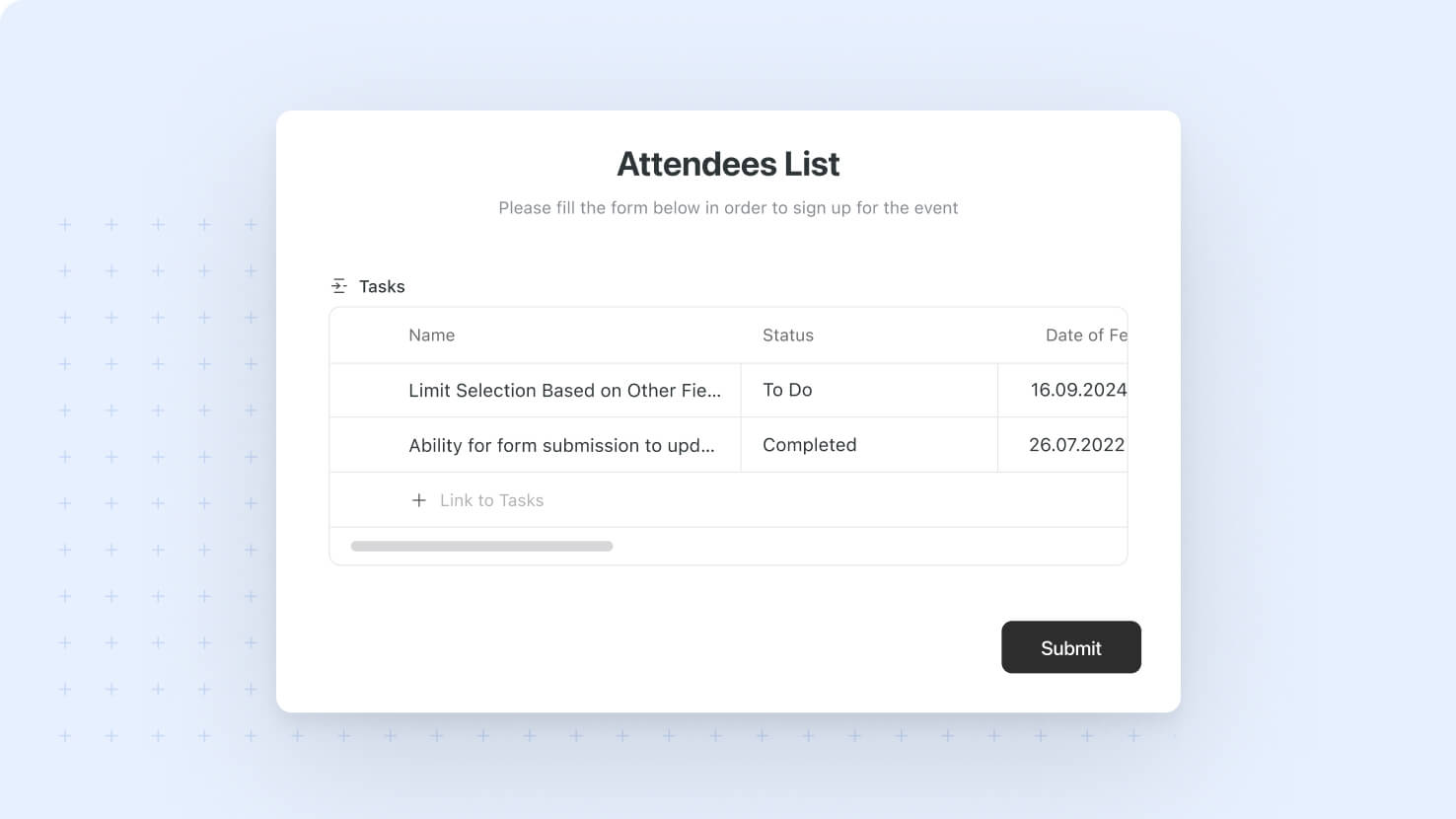
Forms: Linked Record Table Display
Linked Record fields on forms can now display as a table with configurable columns from the linked record's table. ITSM service desks linking to existing tickets, GRC teams linking evidence to controls, and PMO intake linking to active initiatives can give submitters far more context inline than the previous title-only display.
Key Highlights
- New Table Display Format: Pick Table from a Linked Record field's display options to render linked records as rows in an inline table.
- Configurable Columns: Use the Fields to Display control to pick which fields from the linked record's table show as columns; the Title field is pre-selected by default.
- Inline Context for Submitters: Show ticket priority, control status, project sprint, or any other field inline next to the linked record, so submitters do not have to guess what they are linking.
- Familiar Record Selection: Submitters click '+ Link to {Table}' to open the standard record-picker modal, then remove rows with a single X click.
- Backward Compatible: The Standard format (text or pills) is unchanged and remains the default, so existing forms are not affected.
How It Works
- Open a Linked Record field's settings on a form and pick Table as the display format.
- The Fields to Display control appears; pick the fields from the linked record's table that should show as columns. Title is selected by default.
- The Record Selector setting is hidden when Table is chosen, since the modal picker is the default selection method.
- Submitters see the table inline and use the Link button to add records or the X button on a row to remove one without a confirmation prompt.
- Each linked record's field values render as plain text in the table columns; column ordering follows the order you selected fields in the configuration.
Use Table Display anywhere submitters need to see what they are linking to, especially in service desk intake forms (priority and owner inline), GRC evidence forms (control status), and project intake (sprint and dependencies).

Restore Solutions from Recycle Bin
Solutions deleted in error can now be restored from the Recycle Bin, complete with every child object and even the Linked Record relationships to other Solutions. Solution Managers running short-lived Solutions for projects, audits, or pilots gain a safety net that previously required IT-level intervention or a from-scratch rebuild.
Key Highlights
- Solution-Level Restore: Solution Managers and Account Admins can restore a deleted Solution from the User Profile Recycle Bin in a single click.
- Full Child Recovery: Restoring a Solution brings back all its applications, automations, reports, records and comments, fields, My Work items, and dashboard widgets.
- Cross-Solution Link Repair: Linked Records pointing from other Solutions get reconnected automatically when both Solutions are present, with Mirrored Links and dependent Lookups restored end-to-end.
- Disambiguating Names: Restored Solutions get a '(Restored)' suffix, with a number appended if multiple restores happen for the same name.
- Safe Bin Behavior: Child elements that were already in the bin before the Solution was deleted return to the bin on restore and continue counting their original deletion timer rather than resetting.
How It Works
- Solution Managers and Account Admins access the Recycle Bin from their User Profile to see deleted Solutions alongside other deleted items.
- Click Restore on a deleted Solution to begin the restore; the system walks the Solution's child objects and Linked Record relationships before completing.
- For Linked Records pointing to other Solutions, the system checks whether the target is still available: if yes, the link is restored along with the Mirrored Link and dependent Lookups; if no, the Linked Record remains in text mode until the target is restored.
- Permanent deletion is also available from the bin for Solutions that should be cleaned up rather than restored.
Use this to recover from accidental deletions without rebuilding from a backup, especially in environments where Solution Managers create short-lived Solutions for project planning, compliance audits, or feature pilots.

AI Field Agent: Manual Stop
AI Field Agents in the middle of generating can now be stopped manually. When generation runs long or gets stuck in a perpetual loading state, click Stop Agent next to the field to immediately return it to its regular state and discard the in-flight LLM response.
Key Highlights
- Stop Agent Button: A new Stop Agent button appears on every AI Field Agent currently in the generating state, with a 'Stop agent' tooltip on hover.
- Immediate Return: Clicking Stop returns the field to its regular state without waiting for the LLM response, so the user can continue working.
- Discarded Response: Any LLM response that arrives after a stop is discarded and does not write to the record, so the field stays in the state the user left it in.
- Configuration Preserved: Stopping an agent does not change its configuration; the prompt, the model, and any toggles stay in place for the next run.
- Free Runs Counted: Cancelled executions still count against the workspace's Free Runs pool, since the LLM call has already been issued at the point of cancellation.
How It Works
- When an AI Field Agent enters the generating state, a Stop Agent button appears next to the field.
- The button is available wherever the agent renders: inline editing in Grid View, the Record Page, and the Record Details Widget.
- On click, the field reverts to its regular state immediately, abandoning the in-flight LLM call from the user's perspective.
- The system listens for the LLM response in the background and discards it on arrival; the record value is never updated by a cancelled run.
- The agent's configuration is untouched, so the next manual run or automatic trigger executes normally without reconfiguration.
Use this when an AI Field Agent is taking too long, when a slow model is blocking inline editing, or when an agent appears stuck and you need to recover the field without disabling the agent.

Internal Forms
Forms now support an Internal mode designed for authenticated, in-app submissions. ITSM service desk teams, GRC compliance leads, and any builder running an internal intake workflow can collect data with full awareness of the signed-in user, complete with field-level permission enforcement and submitter attribution captured on the record.
Key Highlights
- Two Operational Modes: Every form can run as Internal (in-app, authenticated) or Shared (public link), independent of one another, with both modes available on the same form simultaneously.
- Authenticated Submissions: Internal forms know which SmartSuite user is filling them out, opening the door to user-aware logic, permission enforcement, and per-user defaults.
- Permission-Aware Fields: Field-level view and edit restrictions apply to internal forms; fields a user cannot view are hidden, and fields they cannot edit are read-only.
- Service Desk Intake: ITSM teams can build authenticated intake forms that capture the requester's identity automatically, with no manual entry of who submitted.
- Submitter Attribution: An extended Created By model captures the submitter, the form title, and the source type, displayed as 'Created by [Member] via [Form Title] Form' in the activity history and on the record page.
How It Works
- Open any form's configuration; Internal mode is automatically available without any toggle, and the Shared (public link) state remains independent.
- Internal forms can be opened from a Form View inside the app or launched from the new Open a Form button action on dashboards.
- When a user opens an internal form, the system loads it inside the SmartSuite app context, applies their permissions, and pre-resolves any user-aware defaults.
- On submission, the record is created with the submitter as Created By, plus a Source Type (Form) and Source Title (the form's name) for full traceability.
- Automation triggers that listen for 'When a form is submitted' fire for both internal and shared submissions, so existing automations work unchanged.
This release is the foundation for richer in-app form workflows, underpins the new Open a Form button action shipping alongside it, and the Created By extension carries forward to upcoming workflow actions like MS Teams Actionable Notifications.

Automations: Dynamic values in URLs
The Rich Text URL control now accepts dynamic field values, so URLs across SmartDoc, automation messages, and embedded rich-text content can resolve to the right record at runtime instead of pointing to a single hardcoded destination. ITSM teams sending MS Teams Actionable Notifications, GRC teams linking evidence pages to source records, and any builder embedding contextual links in rich text get a foundational upgrade.
Key Highlights
- Dynamic URL Composition: Highlight text in any rich-text field, click the URL control, and insert a field placeholder using the same picker that powers automation message bodies.
- ITSM Notification Foundation: The Open Record button on the upcoming MS Teams Actionable Notification action uses this capability to link straight to the relevant ticket or change request.
- SmartDoc Live Links: Rich-text URLs in SmartDoc fields can now resolve to the correct record on every view, no manual editing per record required.
- Single Underlying Control: The same dynamic URL control works everywhere the Rich Text component is used, so a builder learns the pattern once and applies it across surfaces.
- Backward Compatible: Existing static URLs continue to function unchanged, so no automation or SmartDoc content needs to be migrated.
How It Works
- Highlight the text you want to link in any rich-text field, click the URL control, and the URL input now supports the standard field picker.
- Use the field picker to insert placeholders that the system resolves to the live value at runtime when the automation runs or the SmartDoc renders for a record.
- Static URLs remain valid input; you can mix static and dynamic segments in the same URL when the destination needs both.
- The change applies wherever the Rich Text URL control appears, giving consistent behavior across automation messages, SmartDoc fields, and any embedded rich-text input.
Pair this with the upcoming MS Teams Actionable Notification action to send approval requests that land recipients on the exact record that triggered the workflow.

Calendar View: Support for Cross-Solution Calendars
The Calendar View can now combine public calendars from multiple Solutions into a single primary calendar. PMO leaders coordinating across teams, operations leads building unified availability views, and anyone who has been maintaining duplicate calendars to bridge Solutions can consolidate to one rolled-up view.
Key Highlights
- Cross-Solution Roll-Up: Pull public calendar views from any Solution you have access to into a single primary calendar, instead of being limited to one Solution at a time.
- PMO Portfolio View: Combine engineering release schedules, marketing campaigns, and product launches in one calendar to coordinate across functions.
- Operations Visibility: One calendar can render team availability across HR, customer success, field service, and any other Solution holding scheduled work.
- Permission Aware: Each rolled-up calendar respects the source Solution's permissions, so users only see events from Solutions they have access to.
- Source-Of-Truth Editing: Drag, drop, resize, and inline edits flow back to the original Solution rather than creating cross-Solution copies, keeping each calendar's source clear.
How It Works
- In Calendar View configuration, the calendar source picker now shows public calendar views from all Solutions you have access to, not just the current Solution.
- Pick any combination of public calendars and the resulting Calendar View renders them together with the existing scale, drag-and-drop, and event-editing behavior.
- Events keep the visual identity of their source calendar (color, icon) so the rolled-up view stays scannable even with many sources.
- Permission checks happen per source calendar at render time, so a user without access to one of the source Solutions sees the rest of the calendar normally.
- Existing single-Solution Calendar Views continue to work unchanged; cross-Solution support is additive.
Use this to consolidate scheduling visibility across teams and Solutions, especially in PMO portfolio coordination, operations planning, and any role that has to look across multiple Solutions to plan their day.

Automations: Support for Team Field
The new Team field works end-to-end in automations: triggers, actions, loops, and notification routing. Service desks running approval workflows, GRC teams notifying ownership groups of compliance events, and any automation that previously had to fan out to individual members one at a time gets a more direct path.
Key Highlights
- Team as Action Input: Set a Team field's value from a static team name, a lookup, a formula, or any text source the field picker accepts.
- Team-to-User Mapping: Setting an Assigned To field from a Team field writes all team members to the destination, with the first member used when the destination is single-value.
- Smart Email Routing: Send Email actions go to the Team Email when set, or fall back to deduplicated individual member emails when targeting multiple teams.
- Notification Fan-Out: Send Notification actions reach every team member directly without per-member configuration, mirroring how individual assignment notifications work today.
- Loop Support: Use a Team field in a Loop step to iterate over team members and run per-member follow-up actions like creating tasks, sending personal updates, or generating reports.
How It Works
- In any automation action that targets a Team field, use the standard text input control to map the value, with field picker support for dynamic resolution.
- The Send Email action checks each target team for a Team Email, with the team email handling distribution when present and individual member emails sent (with deduplication across multiple selected teams) when not.
- Inactive or deleted teams encountered at runtime are skipped silently, consistent with how Assigned To handles deactivated members, so workflows stay running rather than failing on stale references.
- Validation respects table permissions: a team without explicit access to the target table is skipped at runtime rather than written, with the skip recorded in run history.
- Triggers fire when a Team field value changes, the same way they do for any other tracked field.
This release closes the loop on the Team field type: configure it once on the table, and every automation surface treats it as a first-class assignment source.

Introducing the Team Field
A new Team field type joins Assigned To as a first-class way to allocate work in SmartSuite. Service desks routing tickets to a service team, change-approval boards routing to an oversight team, and PMO leaders splitting work across squads can now treat teams as the unit of assignment, with full permission inheritance.
Key Highlights
- New Team Field: Pick Team from the Project Essentials field category, with single or multi-value selection and the same display options as Assigned To.
- Permission Inheritance: Team members get Contributor, Assignee, or Assignee+ access to records based on their team's table permission, exactly mirroring how individual assignment works today.
- ITSM Service Desks: Route a ticket to its target service team and every member of that team gains the right access automatically, with no per-user grant management.
- Team Email Routing: A new optional Team Email property handles notifications cleanly, sending to one address with the team's distribution list handling delivery, falling back to individual member emails when no team email is set.
- 'My Team' Filter: Build views scoped to 'Where Responsible Team is My Team' once and every user sees the records assigned to their own teams without per-user filter duplication.
How It Works
- When configuring a field, choose Team under Project Essentials, set single or multi-value, and pick from the list of teams with access to the table.
- Notifications honor the Team Email when set, or send to individual members with deduplication when the same person belongs to multiple selected teams.
- An Assigned To field can optionally link to a Team field as its Parent Team, narrowing the Assigned To picker to members of the currently selected team.
- Filter operators match Assigned To, including a new 'My Team' comparison value that resolves to the current user's team memberships at view time.
- Supported across Grid, Kanban, Form, Calendar, Timeline, Gantt, Map, and Charts, plus bulk update, import, public API, Document Designer, and formulas (as text for single-value, list for multi-value).
Use the Team field to clean up workflows that previously hacked around assignment via tags or duplicate Assigned To fields, especially in service desk intake, change management, and compliance ownership tracking.
What's New in SmartSuite: April 2026
April’s announcements focus on making SmartSuite more intelligent and action-oriented, with major enhancements to AI Field Agents, forms, and dashboard-driven workflows—enabling faster, more structured data capture and more intuitive user experiences across the platform.

View Based Widgets: Support for Custom Buttons
The hardcoded Add New Record button on every view-based widget has been replaced with a configurable button bar that supports up to ten custom buttons. Service desks, compliance boards, and project dashboards built on Grid, Card, Calendar, Timeline, Chart, or Gantt widgets get full button configurability without rebuilding anything.
Key Highlights
- Configurable Button Bar: View-based widgets share the same button component used in Button Row widgets, replacing the old hardcoded button.
- Up to Ten Buttons: Configure as many as ten buttons per widget, with the first two visible and the rest under a '...' overflow.
- Broad Widget Support: Grid, Card, Calendar, Timeline, Chart, and Gantt widgets all pick up the change in the same release.
- Service Desk Friendly: ITSM teams can place Create Ticket, Open Form, Open URL, and Run Script buttons side by side on a single widget.
- Safe Migration: Existing widgets with Allow Inline Edit or Allow Edit enabled get an automatic Create-a-Record button preserving the previous label, color, and target table, so no flows break.
How It Works
- Open a view-based widget's configuration to access the new Buttons section, where you can add, remove, reorder, and configure each button.
- Each button supports the standard properties: Label, Icon, Color, Tooltip or Description, Ask for Confirmation, and Action.
- Supported actions include Open URL, Create a Record (with default values), Open a Form, and Run a Script, identical to Button Row buttons.
- During the upgrade, the system migrates existing buttons automatically: Allow Inline Edit and Allow Edit settings keep their other behaviors but no longer control the Add Record button.
- Chart Widgets do not get a migration button by default, since they did not previously expose Add Record.
Combine this with Open a Form to build dashboards where every common workflow is one click away from the right view.

Mobile: Timeline Widget
Timeline Widgets embedded in dashboards now render natively on the SmartSuite mobile app, with the same layout, scale options, and filter behavior as desktop. PMO leaders, portfolio managers, and operations teams keep one dashboard for everyone and trust that the experience matches across devices.
Key Highlights
- Full Mobile Rendering: Timeline Widgets show the complete timeline layout on phones and tablets.
- Dashboard Filter Support: Existing Filter Widget links to a Timeline Widget continue to work, narrowing the timeline by team, status, or release window the same way they do on desktop.
- PPM-Ready: Portfolio dashboards, sprint trackers, and operations coordinators get a consistent experience across devices.
- Touch Controls: Pinch to zoom, drag to pan, and tap a record bar to open the record detail in mobile context.
- Permission Aware: Dashboard edit permissions and record-level permissions apply on mobile the same way they apply on desktop.
How It Works
- Open any dashboard that contains a Timeline Widget on the mobile app to see the new rendering.
- Existing widget configuration carries over, including the Default Scale, Allow Inline Edit, Display Toolbar, and Display Records Listing settings.
- The Scale control collapses into a dropdown when the widget renders in a narrow column, mirroring the desktop responsive behavior.
- Tap any record bar to open the record detail panel for inline edits when dashboard and record permissions allow.
- Dashboard owners' settings changes flow to the backend the same way they do on desktop; non-owner viewers see the configured state without persisting their own changes.
Update the SmartSuite mobile app to the latest version to see Timeline Widgets render in full.

Mobile: Timeline View
Timeline View now runs natively in the SmartSuite mobile app, with the same layout, scale options, and inline edit behavior as the desktop client. Project managers, PMO leads, and any team running a Timeline View can review schedules and milestone progress from a phone or tablet without losing fidelity.
Key Highlights
- Full Mobile Parity: Open any Timeline View directly from the mobile app, with the same fields, dependencies, and color coding as on desktop.
- PPM Ready: Portfolio reviews, release planning, and milestone tracking work the same way on a phone as they do on a laptop.
- Configurable Scale: Switch between Hours, Days, Weeks, and Months from the mobile view's scale control, defaulting to Days.
- Touch-Optimized: Pinch to zoom across time, drag to pan, and tap any record bar to open the record detail in mobile context.
- Permission Aware: Field-level and record-level permissions apply the same way on mobile as they do on desktop.
How It Works
- Open a solution that has a Timeline View configured and tap the view selector to switch to it.
- The view renders a touch-friendly timeline layout, automatically adapting controls for narrower screens.
- Pinch and drag gestures replace the desktop scrollbar and zoom controls; the toolbar collapses into a dropdown when space is tight.
- Tap a record bar to open the record detail panel for inline edits when permissions allow.
- All changes flow back to the underlying table the same way they do on desktop, so the team sees updates immediately.
Update the SmartSuite mobile app to the latest version to access Timeline View on the go.
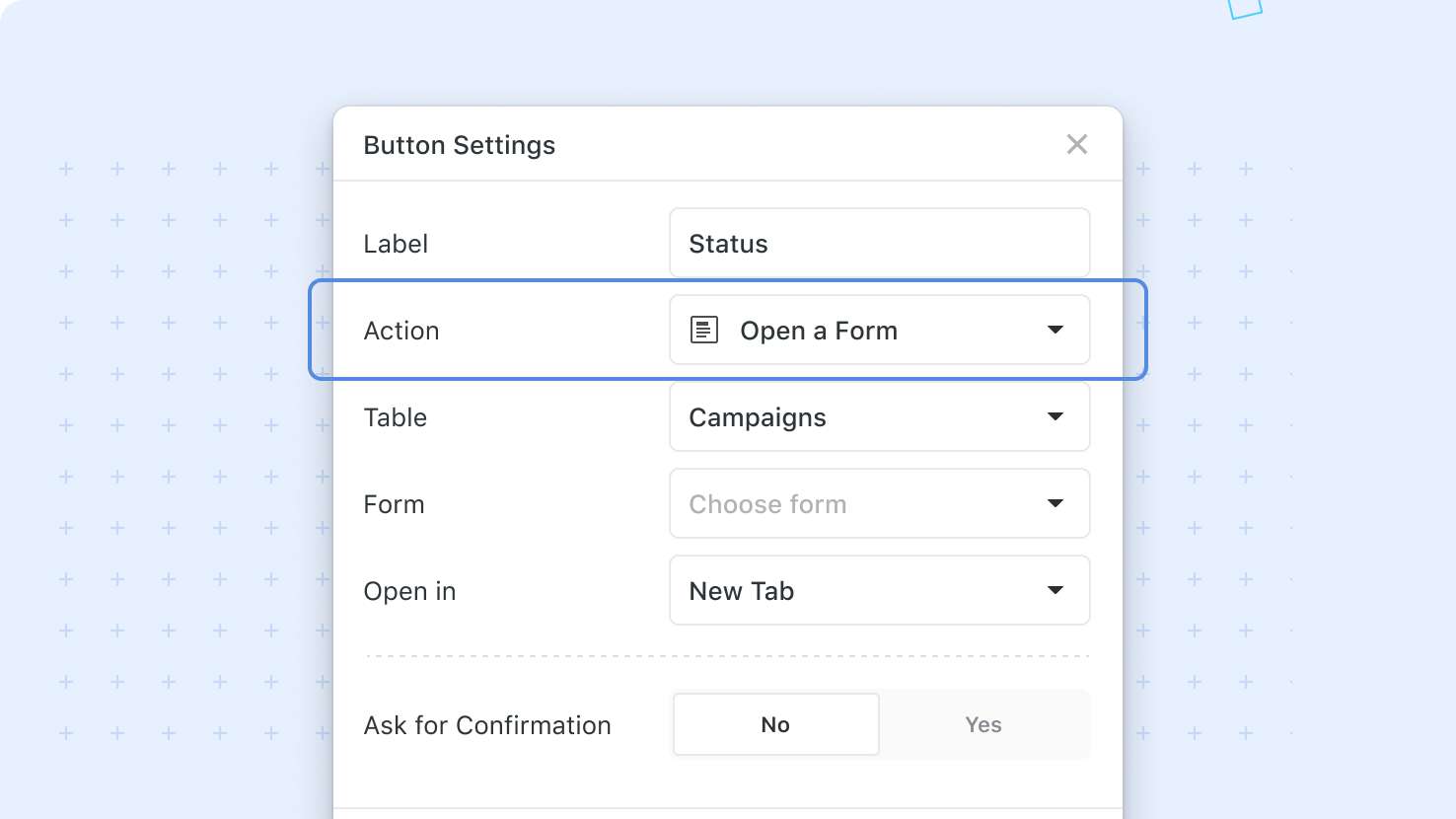
Button Action: Open a Form
Dashboard buttons can now launch SmartSuite forms directly, opening them in an authenticated session inside the app. ITSM teams running service catalogs, GRC teams capturing attestations, and any builder who wants a one-click jump from action to data entry get a faster, in-context way to open the right form.
Key Highlights
- Open a Form Action: A button can launch any internal SmartSuite form, picked by Solution, Table, and Form name.
- Service Catalog Ready: ITSM service desks can wire each request type to its intake form for one-click submission from a dashboard.
- GRC Attestation Friendly: Compliance review boards can put control-attestation forms one click away from the underlying record.
- Flexible Display: Choose Popup (default), Slider, Fullscreen, or New Tab to control how the form appears on click.
- Authenticated Context: The form opens in internal mode, with the current user known, so field and record permissions apply automatically.
How It Works
- When configuring a button, choose Open a Form, then select a Solution and Table using the standard picker.
- The Form dropdown lists every form in the selected table in A-to-Z order; pick one to wire the action.
- The Open In setting controls whether the form appears as a Popup, Slider, Fullscreen, or in a New Tab on click.
- The form launches inside the SmartSuite app in a ready-to-fill state, so the current user submits as themselves with full attribution captured in the record's Created By.
- The action is supported across Button Row widgets, dashboard tabs, and view-based widgets, giving consistent behavior wherever buttons appear.
Pair this with Internal Forms to streamline service desks, compliance intake, and any workflow where the next step is filling out a form.
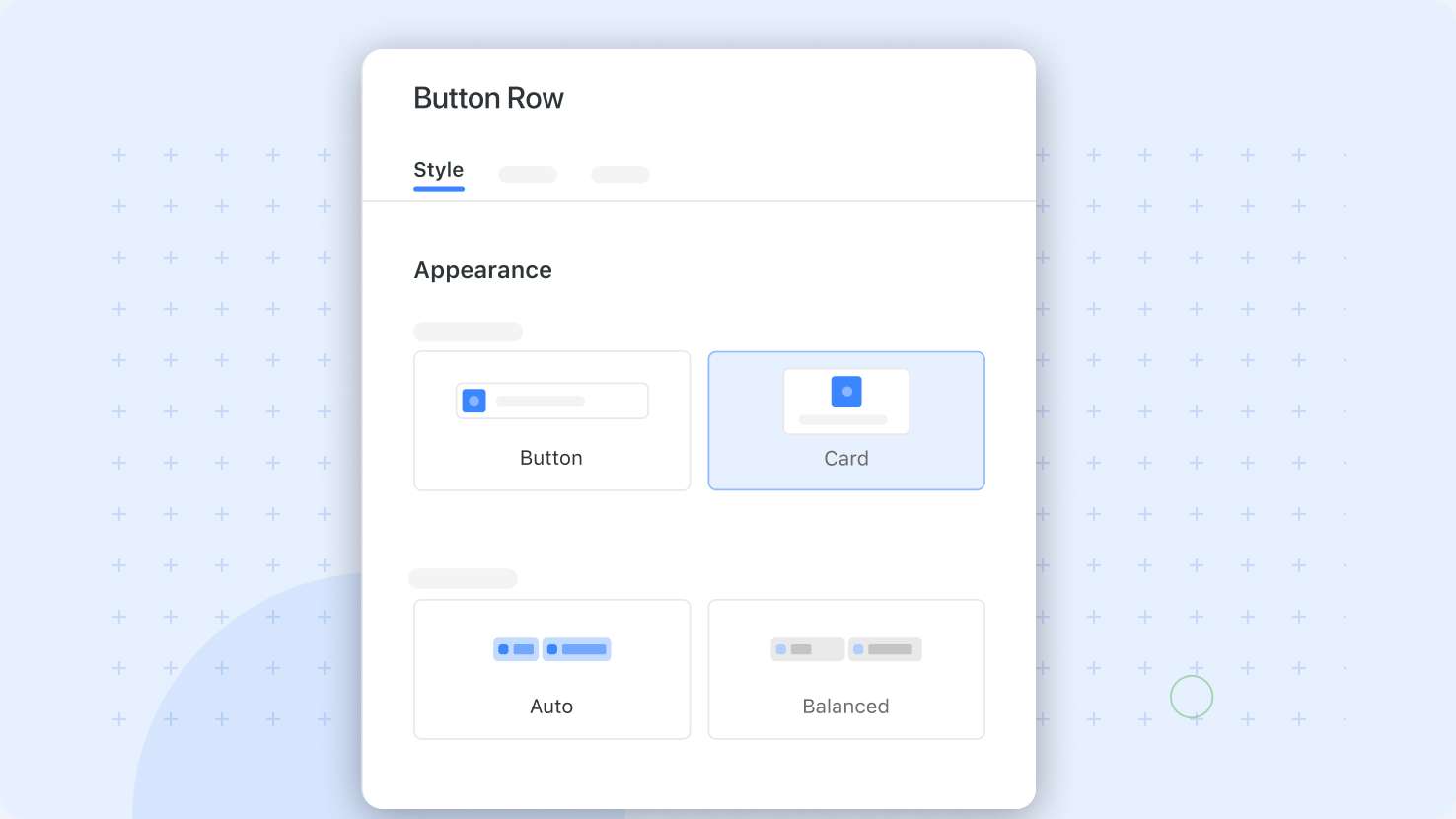
Button Row Widget: Card Display
The Button Row widget now offers a Card display style alongside the standard Button style. Service desks running request-routing dashboards, GRC teams running control attestations, and PMO leaders running portfolio panels get a more readable layout when each action needs a label, icon, color, and a description.
Key Highlights
- New Card Style: Pick Card under the Style Tab to render each button as a full card with rich-text description support up to 200 characters.
- Service Desk Ready: ITSM dashboards can pair each card with a description that explains what the action does, ideal for self-service intake.
- Up to Seven Per Row: Choose Auto or any value from 1 to 7 for cards per row, mirroring the Button-style configuration.
- Same Action Set: Card buttons support the same actions as standard buttons, including Open URL, Create a Record, Open a Form, and Run a Script.
- Enterprise Color Palette: A new palette of enterprise colors is available across both Button and Card styles for consistent branding.
How It Works
- Open a Button Row widget's settings and switch to the Style Tab to choose between Button (default) and Card.
- For each button, configure the Label, Icon, Color, Action, and a Tooltip (Button style) or Description (Card style) using the standard rich-text component.
- The Buttons-Per-Row dropdown controls how many cards display per row, with Auto sizing based on widget width.
- Existing Button Row widgets keep their current Button style on first load, so no dashboard breaks during the upgrade.
This is the first of several display refinements coming to dashboard widgets. Use Card style to give action-heavy boards the breathing room their actions deserve.
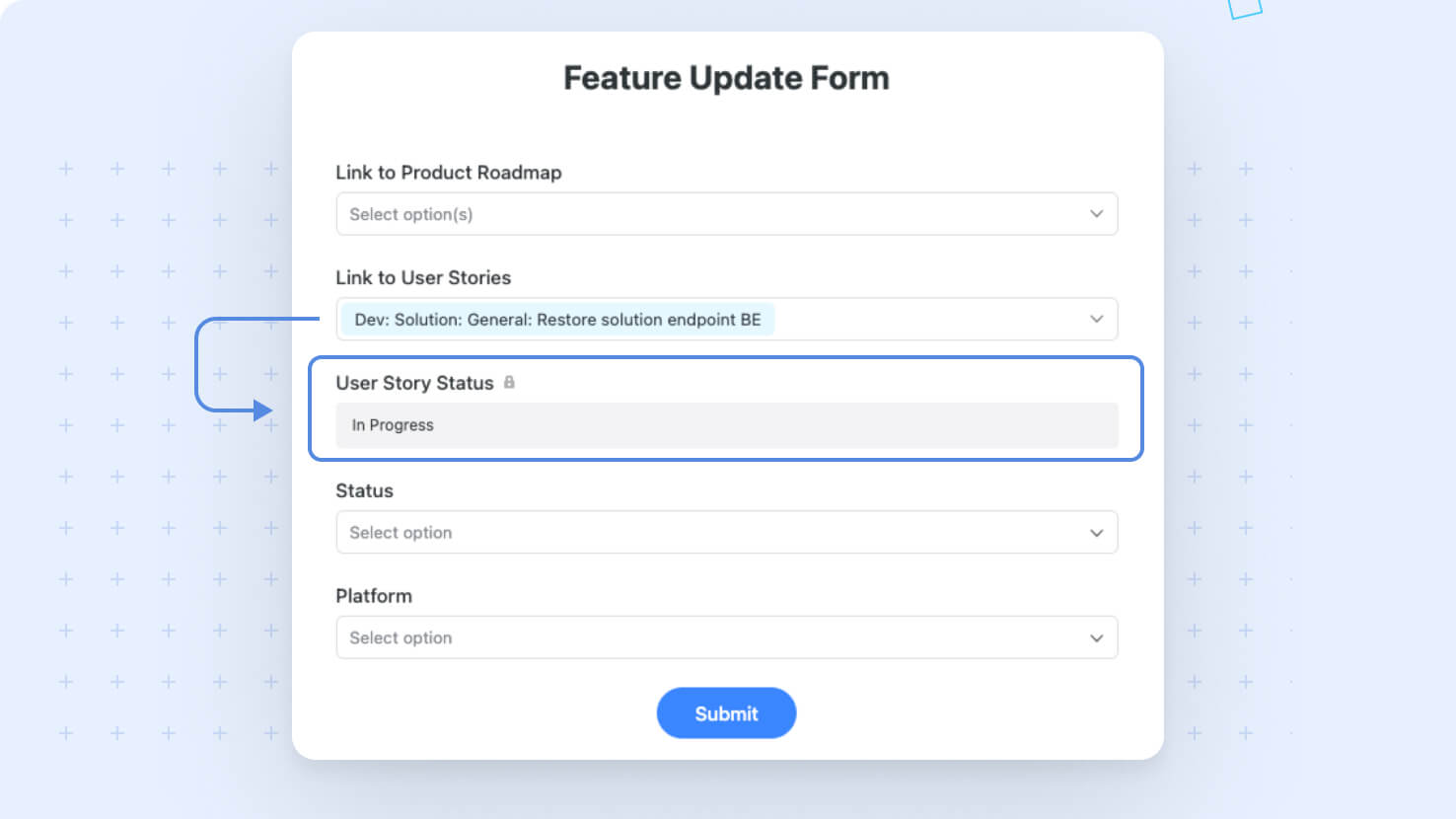
Form View: Support for Lookup Fields
We've enhanced our Forms experience by introducing support for Lookup fields. This update makes it easier for you to display related information from linked records right within your forms, ensuring data is clearly presented without the need to save the record.
Key Highlights
- Lookup Field Integration: Form creators can now include Lookup fields to automatically pull in related record details, offering richer context for form respondents.
- Automatic Update: Lookup field values populate as soon as their dependent Linked Record's value is updated, providing you with information about the related field even before the record is saved.
- Streamlined User Experience: The new setup prevents hidden Lookup fields from interfering with form submissions and keeps the form clean and functional across different stages of deployment.
How It Works
- Lookup fields now appear in the Form Editor, allowing you to select them and place them on your form canvas.
- The implementation guarantees that hidden fields won’t block form submissions, maintaining a smooth user experience throughout.
With this update you now have immediate access to details from selected Linked Records while you edit the form, improving visibility and enhancing the user experience.
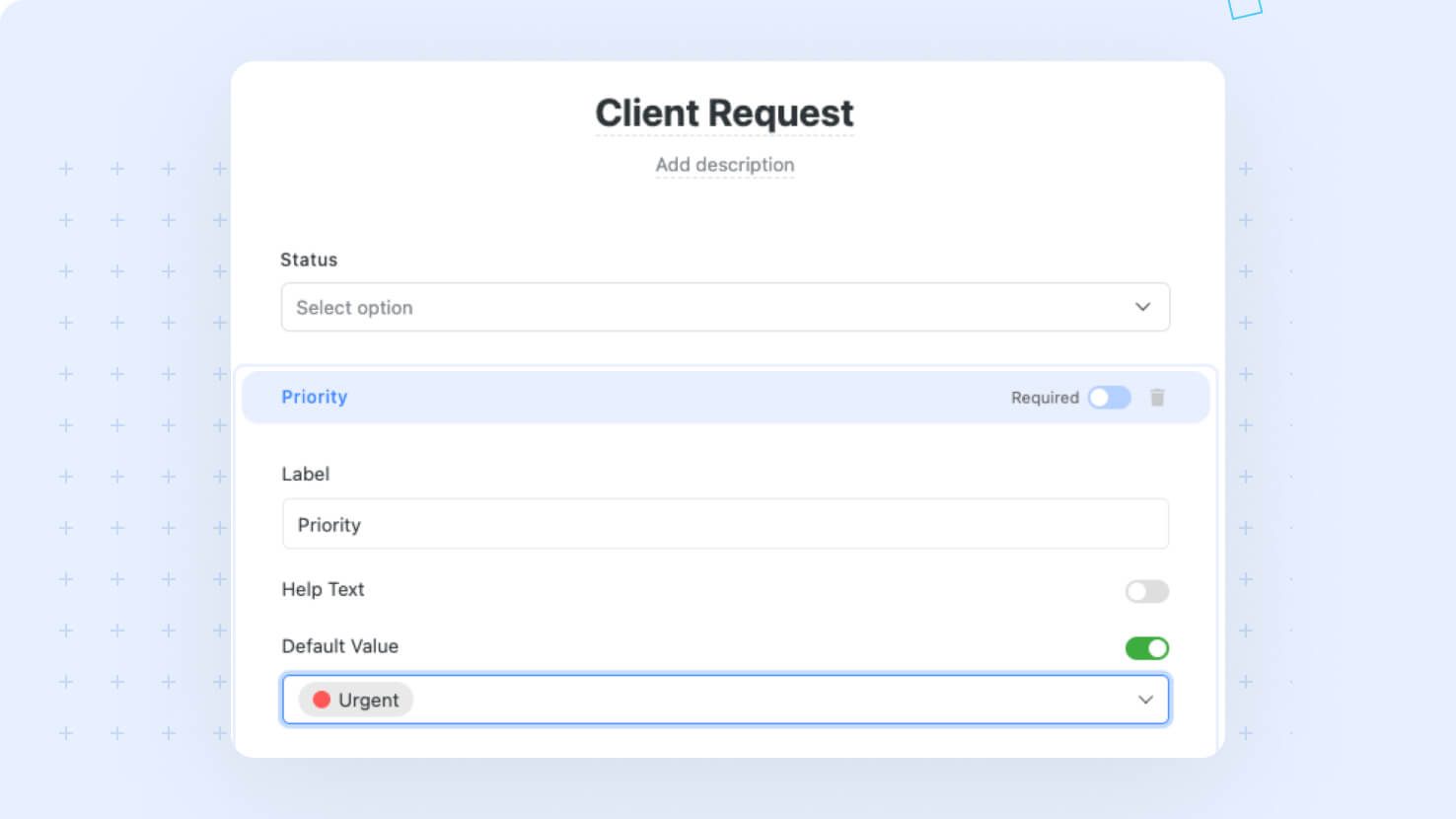
Form View: Default Values
We've enhanced our Forms experience to simplify setting up default values for your fields. With this update, you can now choose to set default values for specific fields. This ensures that you always have the flexibility to enable or disable the default value functionality without losing any previously configured settings.
Key Highlights
- Broad Field Support: Default values can be configured for Text, Text Area, numeric, and select fields, as well as special fields such as Assigned To, Date, and Due Date (for internal forms).
- Transparent UI Behavior: When the flag is activated, a dedicated field picker component appears, offering you a choice between field values and system values (details about the current user and environment) ensuring that you can easily pick from any available options, including predefined user and date/time values.
- Override field-level defaults: Specifying a form-level default value will override the field's own default value, allowing you to tune the user experience for specific workflows.
How It Works
- Upon activation, users will see the field picker component, making it simple to select default values based on the specific field type.
- Even if the flag is later disabled, any default values that have been set remain intact and can be restored simply by re-enabling the feature.
- The entire update is built to seamlessly integrate into your form creation process, with clear guidance provided via our design and requirements documentation.
This update is designed to give you greater control over your Forms experience, making it easier and more intuitive to manage default data inputs. Enjoy a more streamlined and customizable form setup with SmartSuite!
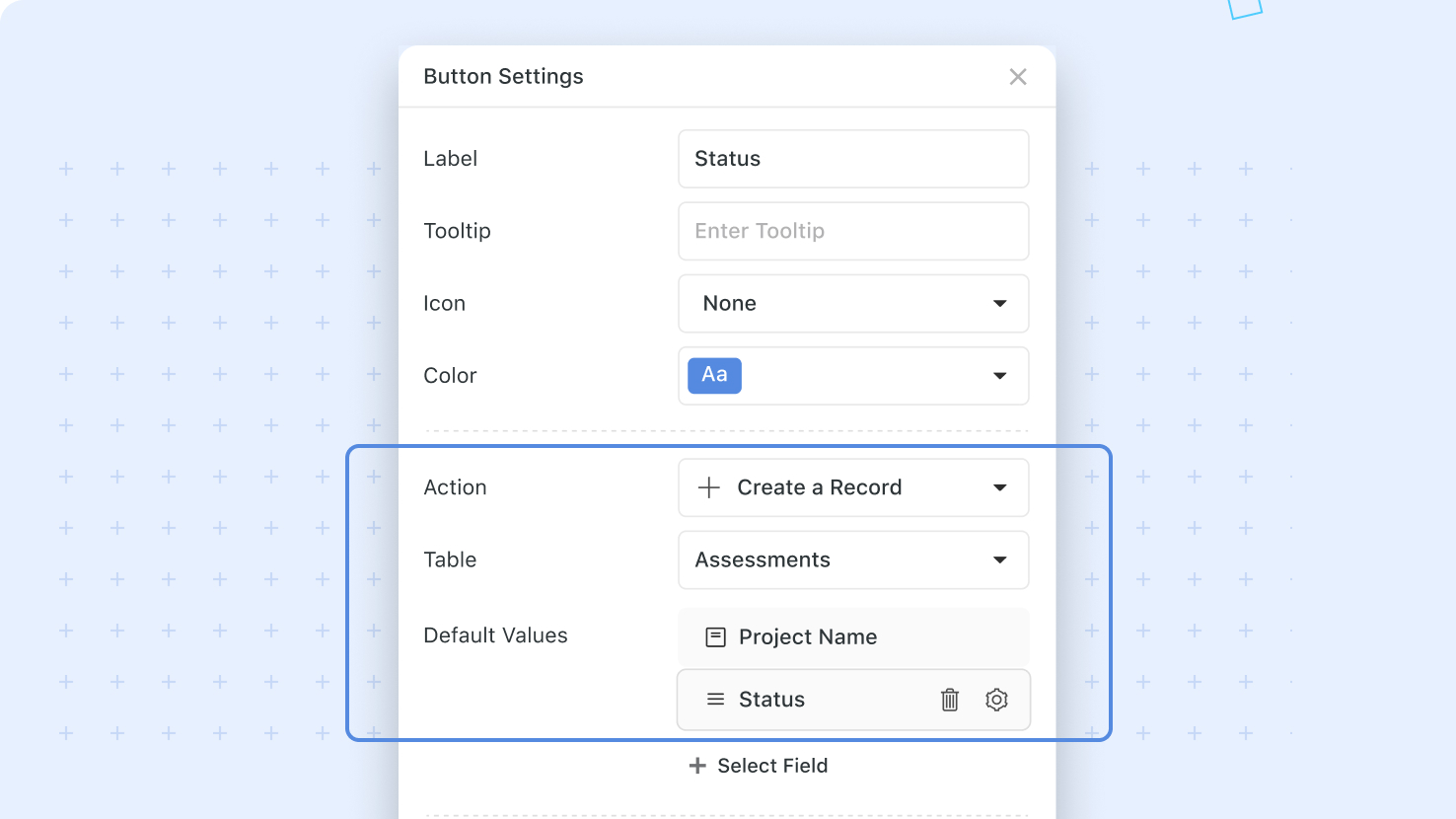
Button Action: Create a Record
We’re excited to roll out a new button action that streamlines record creation across dashboards and widgets. This feature lets you open a Record Page pre-populated with static default values, ensuring a smoother and more structured workflow.
Key Highlights
- New “Create a Record” action: Quickly launch a new record directly from dashboards or view widgets.
- Predefined default values: Set static values that override field-level defaults for consistent data entry.
- Enhanced enterprise workflows: Ideal for self-service request portals and multi-entry dashboards, keeping record creation simple and controlled.
- Broad support across interfaces: Now available in Dashboard tabs, Button Rows, Hero sections, and Simple Banners.
How It Works
- In button configuration, selecting the Create a Record action type will prompt you to select the table you want to create a record in.
- You can optionally define default values for the new record, which will override any field-level default values.
- Once configured, clicking the “Create a Record” button will open a new record in the selected table, with any configured default values applied.
This enhancement is designed to support a controlled intake workflow while preserving consistency with existing record template logic. Enjoy a more direct and efficient way to create records in SmartSuite!
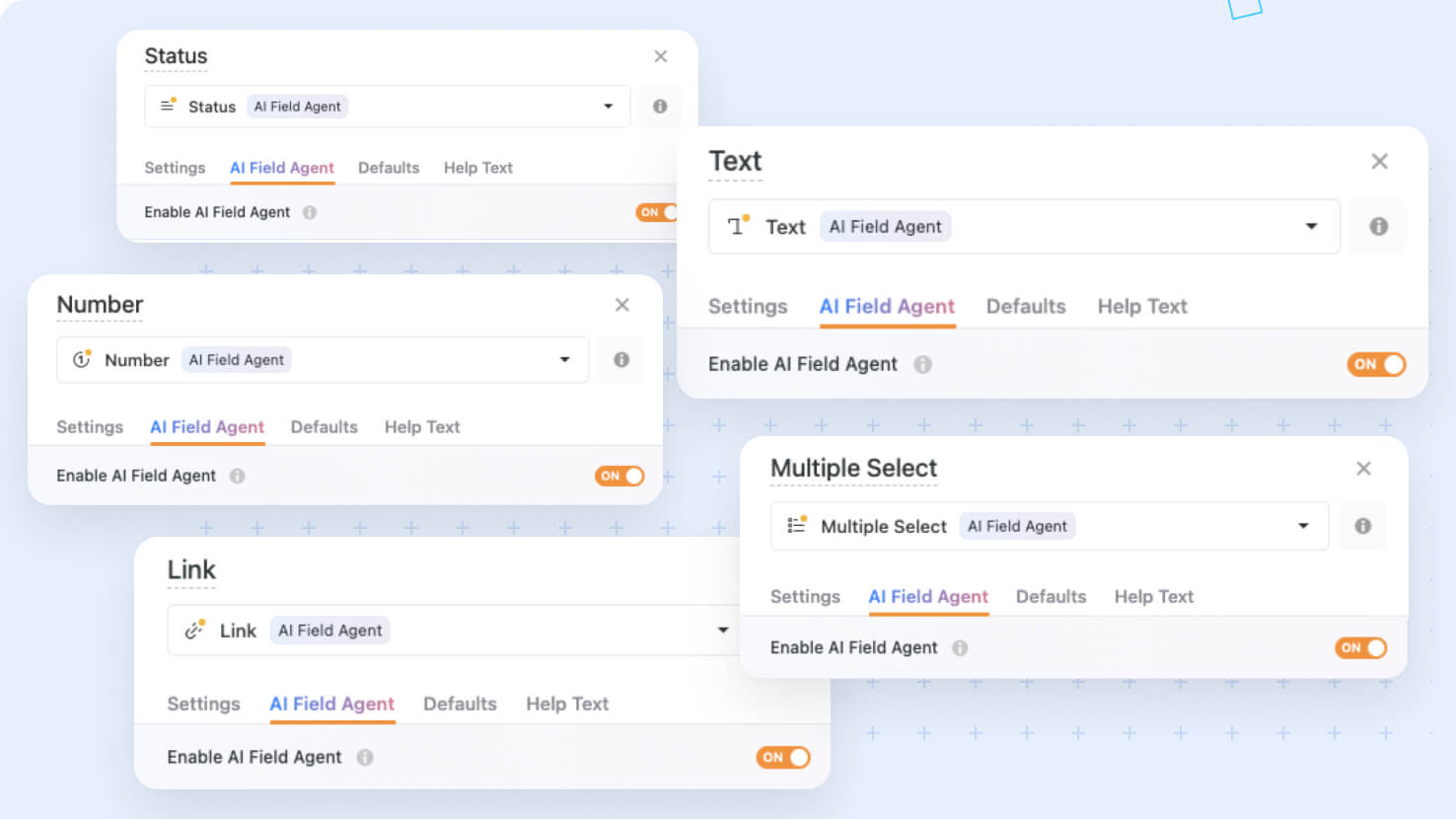
AI Field Agent: Expanded Field Support
We've enhanced our platform by extending AI Field Agent support to a broader range of field types. Now, you can leverage AI Field Agent capabilities on Title (manual), Text, Number, Status, Multiple Select, and Link fields to streamline your record creation and data management processes.
Key Highlights
- Expanded Field Support: AI Field Agent now works with Title (manual), Text, Number, Status, Multiple Select, and Link fields.
- Updated Prompt Data: Improved prompt handling for Single/Multiple Select and Status fields now include choices, descriptions, and numeric values (when applicable) when sending field data, providing clearer context for AI processing.
- Backend & Frontend Updates: Both the underlying services and user-facing components have been refreshed to support these additional fields.
How It Works
- All supported field types now include an AI Field Agent configuration section in field settings.
- AI Field Agent outputs for list-type fields (Single/Multi Select, Status) are automatically constrained to their configured values.
- The system automatically passes additional field settings (choice descriptions and numeric values) as part of the API request, eliminating extra configuration steps.
This update is available to all users across all plans. Enjoy a smarter, more efficient way to interact with your data!
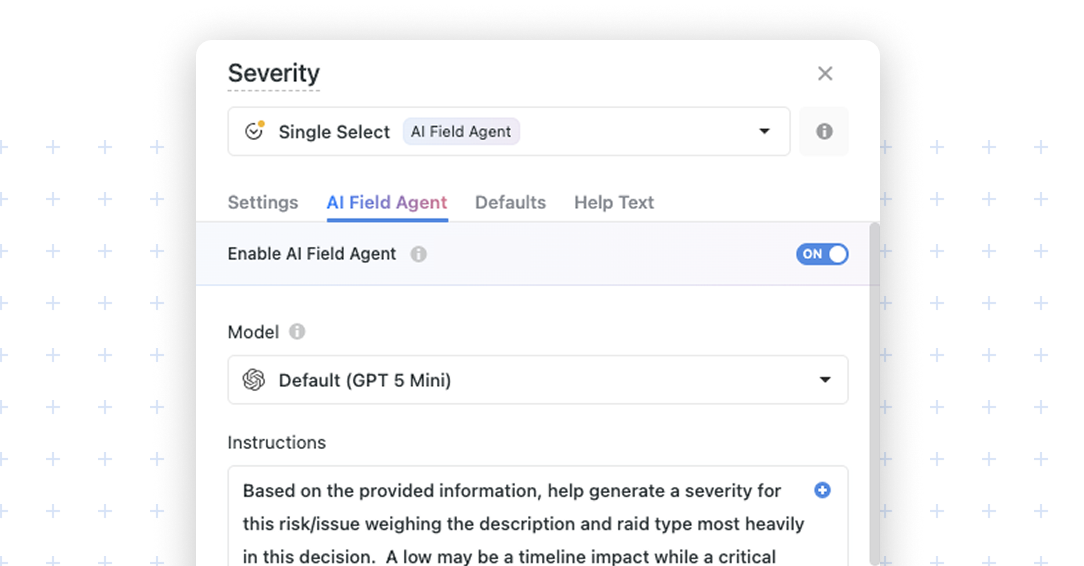
AI Field Agent: SmartDoc Prompt Experience
We’re excited to introduce an improved prompt-writing experience for AI Field Agent. Prompt input now uses a SmartDoc-powered editor, giving teams a more flexible and intuitive way to write, organize, and refine instructions. This enhancement makes it easier to create clearer prompts, include field references, and work with rich formatting when configuring AI-driven fields.
Key Highlights
- Better prompt writing: Create more structured, readable prompts with a richer editing experience.
- Improved clarity: Use formatting tools to organize instructions so prompts are easier to review and maintain.
- Familiar editing experience: Work in a SmartDoc-style input that feels consistent with the rest of SmartSuite.
- Easier context insertion: Add field references directly into the prompt so the AI can use record data in its response.
How It Works
- Open the AI Field Agent settings for your field.
- In the Instructions area, write your prompt using the SmartDoc-powered editor.
- Use the toolbar to format your instructions with options such as bold, italic, underline, strikethrough, text color, quotes, bullet lists, numbered lists, links, and clear formatting.
- Insert field references directly into the prompt, such as related fields like Project Tasks, Stage, and Due Date, to give the AI the right business context.
- Combine written instructions and field references to guide how the AI should generate, classify, summarize, or evaluate content.
This updated experience is especially useful when prompts need more structure, such as step-by-step guidance, clearly defined expectations, or dynamic context pulled from record fields.
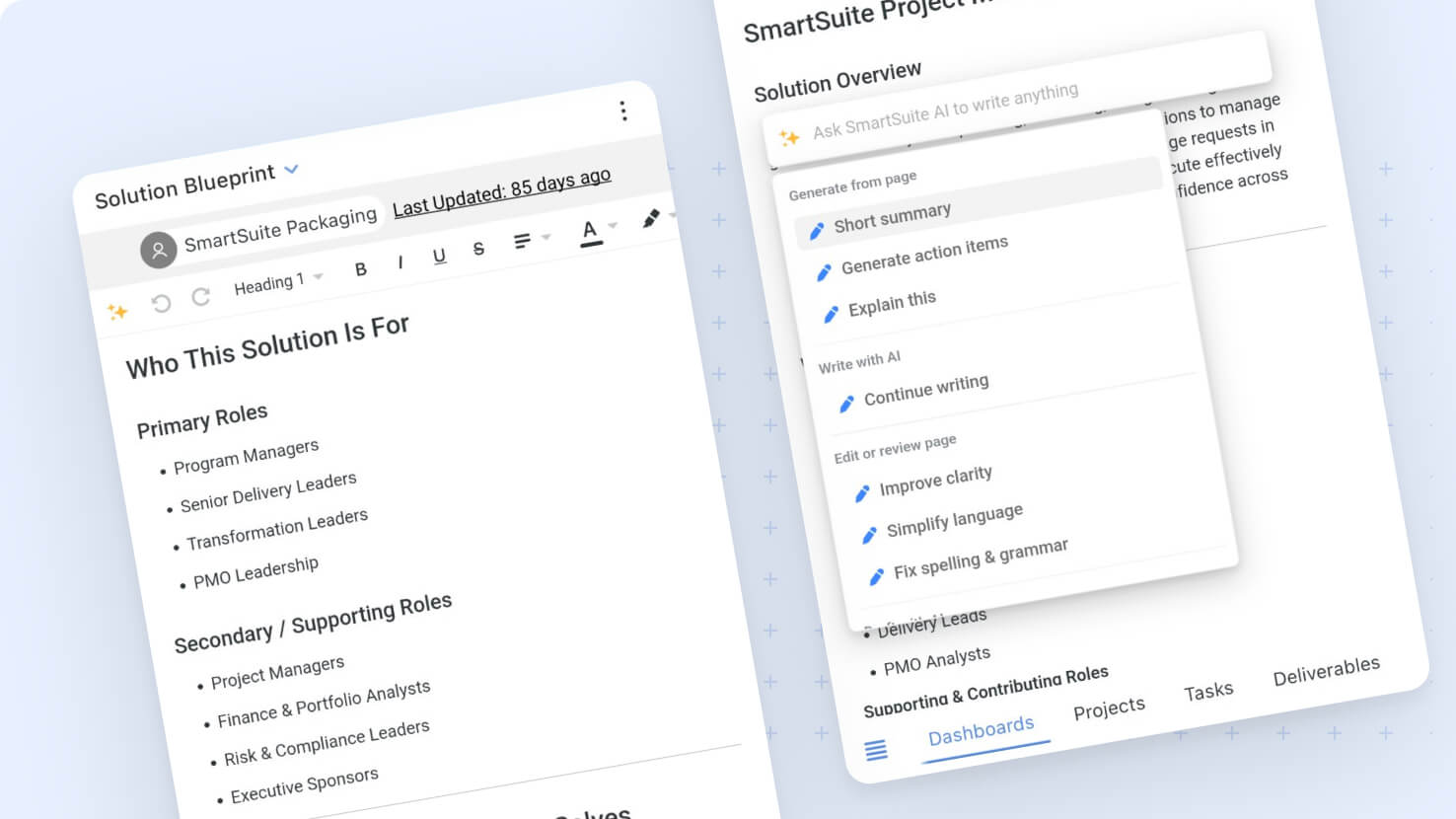
Mobile: Document View
We've improved our mobile experience with new support for Document Views. This update brings a range of mobile-friendly enhancements designed to make working with your documents smoother and more efficient.
Key Highlights
- AI Assistance: Use the "Ask AI" option to leverage SmartDoc’s AI features while working on your documents.
- Custom Document Views: Easily create document views tailored to your workflow.
- Clear Document Details: Depending on your settings, the mobile app will now display the Document Title, Created By, and Last Updated fields.
- Seamless Editing: Enjoy inline editing with auto-save functionality and support for undoing or redoing your changes.
- Rich Content Insertion: Quickly add images, videos, and attachments using the file upload modal.
- Optimized Layout: Mobile screens automatically adopt a wide page view for maximum usability, while tablets provide options between Default and Wide.
- Permission Controls: The mobile experience will honor your existing permissions settings.
- Enhanced Integration: Benefit from the updated Smartdoc Embed Widget built with the latest features.
How It Works
- Open the mobile app to find the new Document View support, which integrates multiple enhancements to simplify your document management.
- To take advantage of AI assistance, select “Ask AI” from the designated menu.
- Create and customize document views with straightforward controls, then adjust which document details are displayed based on your preferences.
- Enjoy hassle-free inline editing that auto-saves your work, complete with undo/redo options for improved control.
- Insert images, videos, or attachments easily via the in-app upload interface.
- The app automatically sets mobile devices to a wide layout for easier viewing, while tablets allow a choice between default and wide page widths.
- All changes made within the mobile app respect your current permissions and prompt a smooth, integrated experience.
Enjoy exploring Document View support on your mobile device!
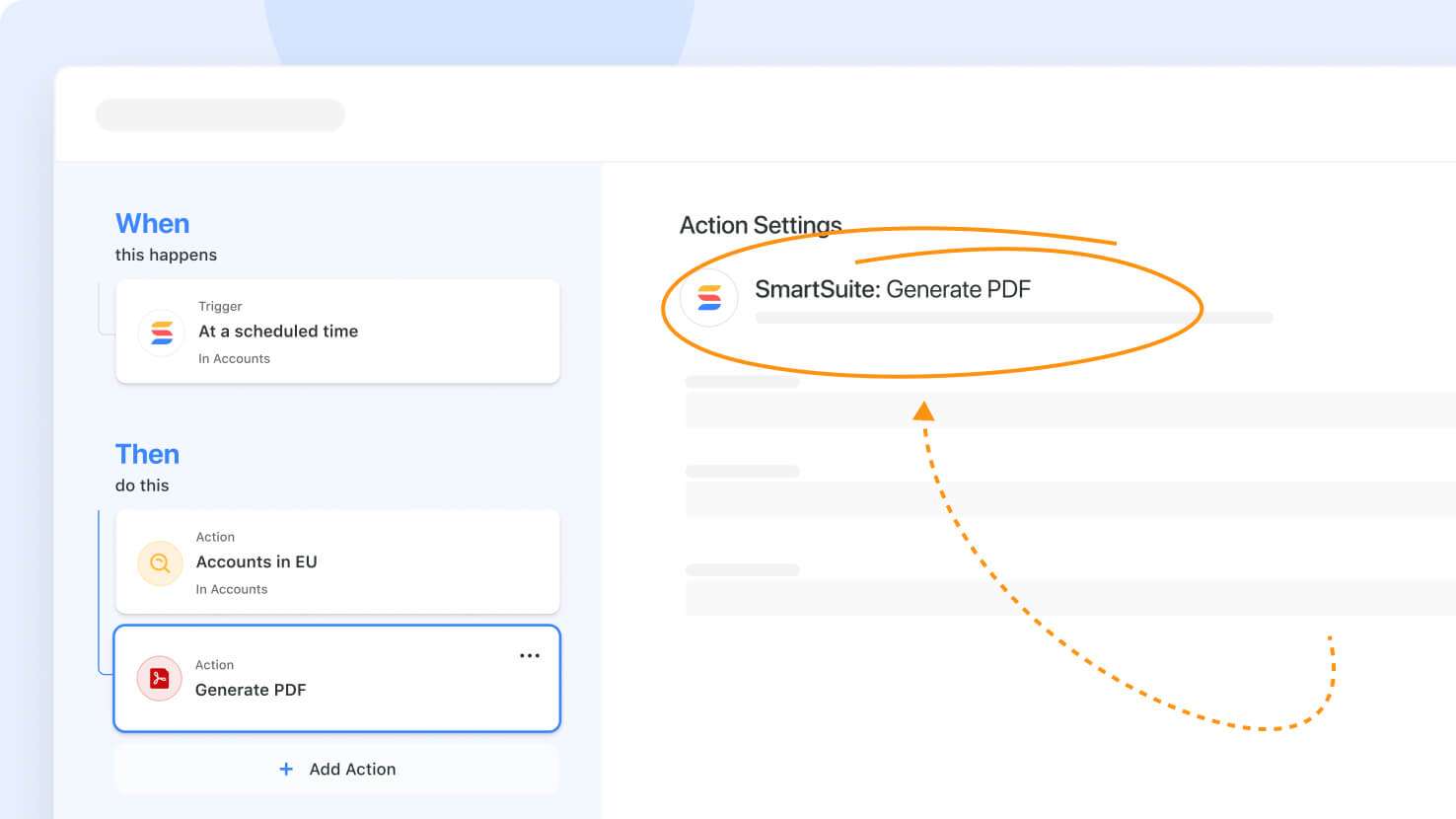
Generate PDF: Disable Public PDF Link
Introducing Generate PDF: Disable Public PDF Link – a new update that puts you in control of how your generated PDFs are shared. With this configurable option, you can prevent sensitive PDF links from being exposed while keeping your document generation intact.
Key Highlights
- Disable Public Link: A new toggle on the Generate PDF action lets you stop the generation of a public, clickable PDF link.
- Secured Run History: When enabled, the PDF title in Run History is displayed as plain text, removing the clickable link.
- Downstream Action Safety: Downstream outputs will no longer show the Document link, mitigating the risk of exposing sensitive data inadvertently.
- Consistent Output: Even with link exposure disabled, the PDF is still generated successfully and remains available as a file output.
- Validation for Existing Configurations: If existing downstream actions reference the PDF link, enabling this setting will mark those references as invalid until they are updated.
How It Works
- Simply toggle the new “Disable public PDF link” setting in any Generate PDF automation action. When turned on, the automation will no longer display clickable links in Run History or allow the Document link to be selected in downstream actions.
- The generated PDF remains fully available as Exported PDF, and the Document title is still provided as text output.
- For automations that already reference the Document link, the system will flag these as invalid configurations until you update or remove the outdated references.
- Existing automations will continue to work without interruption, as they default with the new setting turned off. New automations also start with this option off, ensuring a smooth transition.
By adding this feature, we’re giving you greater control and security over your PDF outputs, ensuring sensitive documents remain protected while still delivering the functionality you rely on. Enjoy a more secure and tailored PDF generation experience with this latest SmartSuite update!
Grid View: Disable Inline Edit Toggle
We've introduced a new update to make your grid views safer and easier to manage. Now, you can quickly toggle your Grid View to a read-only state - ensuring data is only viewed and not accidentally edited.
Key Highlights
- Disable Inline Edit Option: A new checkbox in the Grid View 3-dot menu lets you disable inline editing with a single click.
- Accidental Edit Prevention: Once enabled, users can view and explore records without the risk of making unintended changes.
- Consistent Experience: This setting only affects inline editing in the grid view, leaving permissions and other editing options intact.
- Persistent Setting: The chosen setting will remain active across sessions for a consistent user experience.
How It Works
- Administrators can enable the new read-only mode by checking the Disable Inline Edit option in any grid view’s menu.
- When toggled on, inline editing is turned off: cells no longer support direct interaction for edits, though users can continue to sort, filter, group, and perform bulk actions.
- This feature acts solely as a presentation control at the view level, preserving underlying record and field permissions as well as functionality in other areas of the platform.
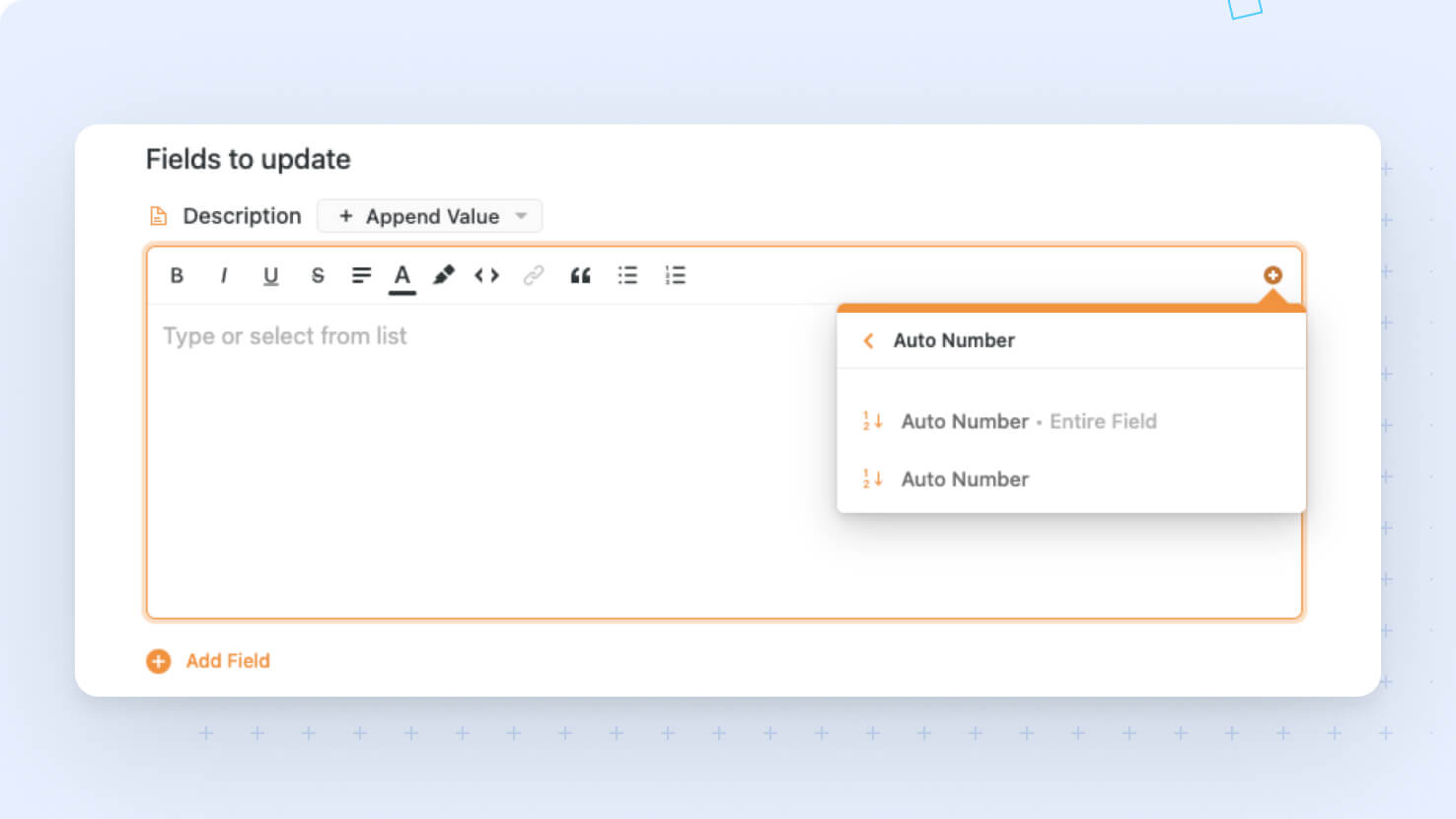
Auto Number Enhancements in Automations
We’ve introduced expanded Auto Number output options in automations, giving you more control over how Auto Number values are passed into automation steps. With this update, you can continue using the numeric Auto Number output for backward compatibility, or choose a new option that returns the full formatted field value, including prefixes, suffixes, and leading zeros.
Key Highlights
- Two Auto Number Output Options: You can now choose between Auto Number, which returns the numeric value only and preserves existing behavior, and Auto Number • Entire field, which returns the full formatted value as text, including any prefixes, suffixes, and leading zeros.
- Backward Compatibility Preserved: Existing automations continue to use the numeric Auto Number output by default, so no updates or migration are required.
- Improved Token Picker Experience: In the automation token picker, Auto Number now appears with both output options clearly available so you can select the format you need.
- Better Support for Formatted Outputs: The new Entire field option is especially useful when Auto Number values need to retain formatting in emails and other automation outputs, such as showing
001instead of1.
How It Works
- When you use an Auto Number field in an automation, you’ll now see two available outputs in the token picker: Auto Number returns the value as an integer, while Auto Number • Entire field returns the value as a formatted string. For example,
001is passed as1with the numeric option and as001with the full-field option. - Existing automations continue using the numeric version automatically, ensuring current workflows behave exactly as before.
- Numeric Auto Number values remain fully supported in conditions.
This update gives you more flexibility when working with Auto Number fields in automations while preserving the behavior of your existing setups.
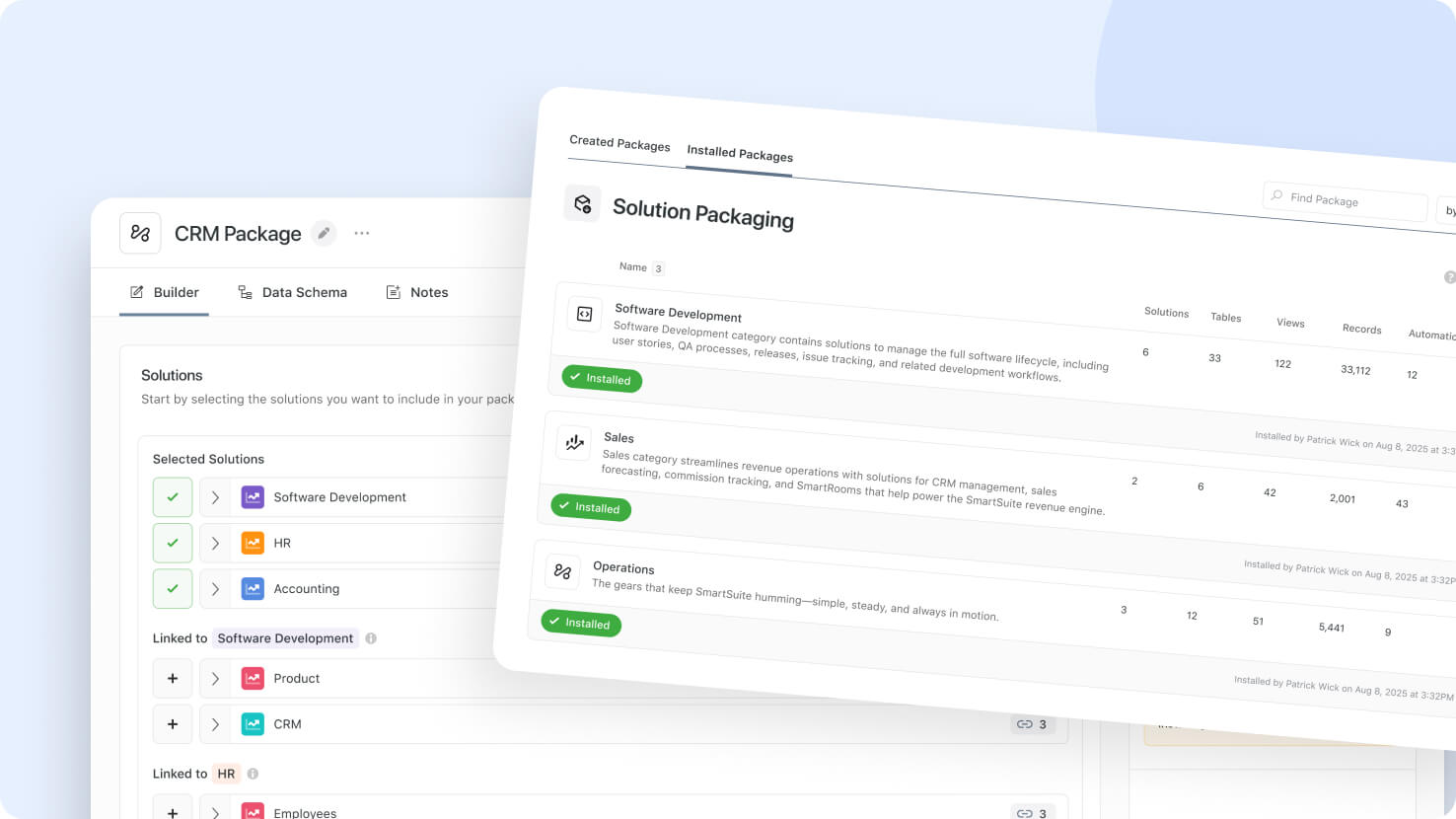
Solution Packaging: Supports All Plan Types
We’re excited to announce that Solution Packaging is now available to all users across every plan level. This update removes previous plan-based limitations so more teams can package and share solutions with ease.
Key Highlights
- Available to All Plans: Solution Packaging is now supported across all SmartSuite plan levels.
- Simplified Access: Previous account-based restrictions have been removed.
- Expanded Availability: More teams can now create and manage solution packages without needing a specific plan tier.
- Consistent Experience: Package creation now works the same way across supported accounts.
How It Works
- Users on any SmartSuite plan can now create solution packages.
- The packaging experience is now available without plan-specific limitations.
- This change ensures a more consistent experience for customers regardless of subscription level.
We’re excited to make Solution Packaging more broadly available and give every team greater flexibility in how they build, package, and share their work.

AI Field Agent: Static and Dynamic Attachment Support
We’re excited to announce an update that makes it easier than ever for Field Agents to work with both static and dynamic file attachments in their requests. This improvement gives you more flexibility when using documents and images with AI Field Agents, helping you provide richer context and get more useful results.
Key Highlights
- Static and Dynamic Attachments: Field Agents now support both files added directly in Field Settings and files pulled dynamically from Files and Images fields.
- More Flexible Inputs: You can use PDFs, CSVs, Excel files, and images to give your agent the context it needs.
- Support for Multiple Files: Add one or several files to an AI Field Agent, making it easier to work with more complete supporting materials.
- Smarter Model Experience: File attachments are only available when the selected model supports files and images, so the experience stays clear and relevant.
- Better Validation for Static Files: The system checks file size limits for static uploads and alerts you if attached files exceed the allowed total.
- Combined Attachments: You can use both static and dynamic attachments together in the same agent run for greater flexibility.
How It Works
- Open the AI Field Agent settings and attach one or more static files if you want the same files included every time the agent runs.
- Add Files and Images fields as pills in your prompt if you want files to be pulled dynamically from a record during each run.
- Choose a model that supports files and images to enable file attachment options.
- Make sure each uploaded file is under 50 MB and that the total attached content in a single request does not exceed 50 MB.
- Run the agent and your attached files will be included automatically, giving the model additional context for the task.
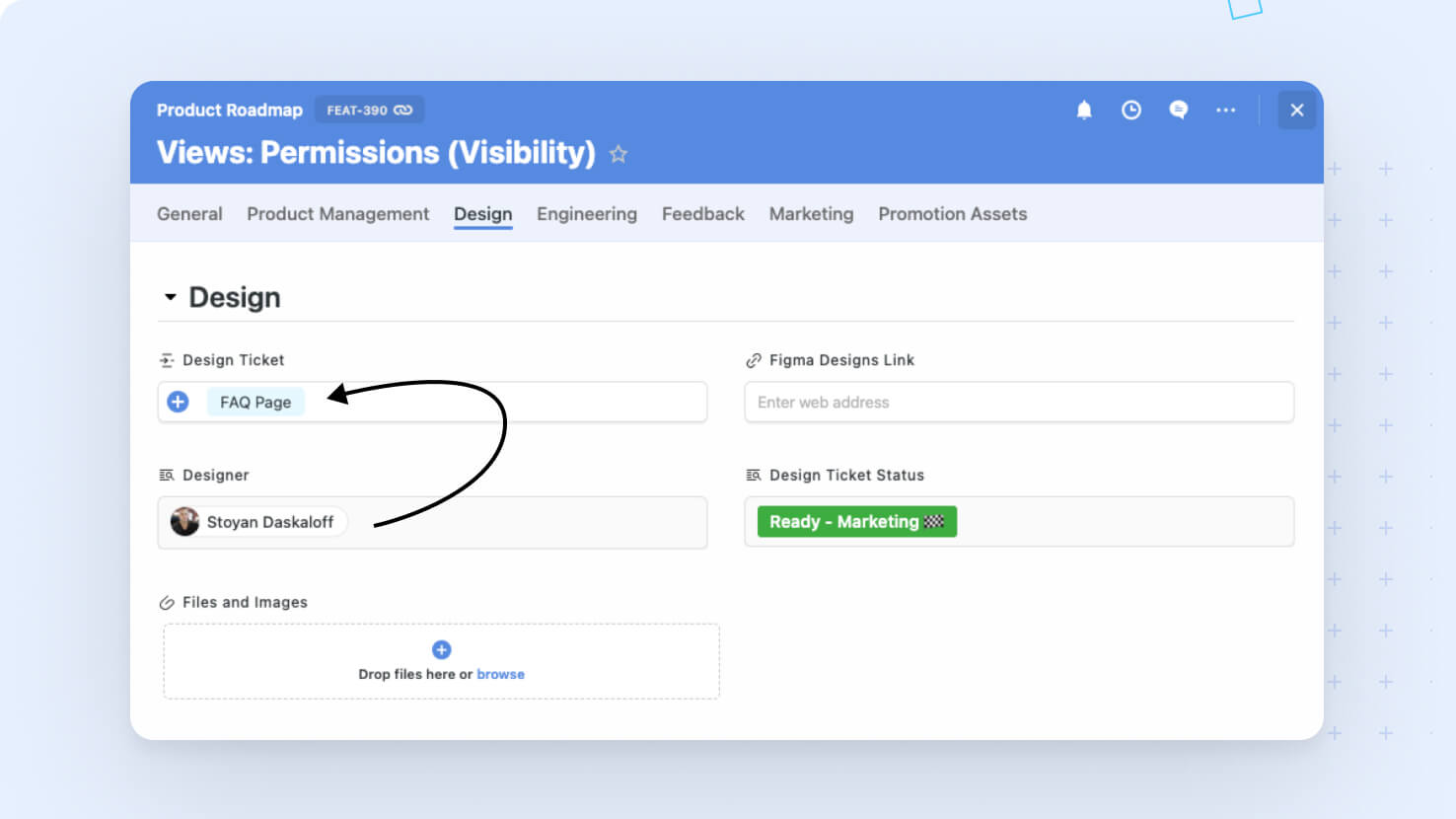
Lookup Field: Value Preview
We've rolled out a new enhancement in SmartSuite to bring real-time visibility to your Lookup fields when editing records. Now, you can immediately preview how changes to your linked records will affect calculated values - no need to wait for a record to be saved. This update is designed to streamline your workflow and reduce unnecessary saves while keeping your data accurate and secure.
Key Highlights
- Real-Time Preview: See updated Lookup field values as you select, modify, or remove linked records.
- No Unwanted Saves: The preview mechanism is read-only and doesn’t persist data or trigger background processes.
- Smart Field Dependencies: A dedicated dependency store tracks which Lookup fields relate to your changes, ensuring only relevant fields are recalculated.
- Consistent with Save Behavior: The preview mimics what will be calculated on save, so you always get an accurate view.
How It Works
- As you adjust linked records during editing, our system quickly identifies which Lookup fields depend on your changes.
- SmartSuite computes the preview value without writing to the record or triggering additional processes.
- When you save your record, the preview value becomes the official stored value, keeping your workflow smooth and intuitive.
This enhancement is now available for all users. Enjoy a faster, more informed editing experience with SmartSuite!

CRI AI RMF Product
AI adoption is moving faster than most risk programs can keep up with, especially in financial services. SmartSuite's CRI AI Risk Management Framework solution gives organizations a structured, enterprise-wide way to identify, assess, and govern AI risk across the full lifecycle of adoption, built in partnership with the Cyber Risk Institute.
Key Highlights
- Centralized AI Risk and Control Management: Operationalize the CRI AI RMF in a single system aligned to financial services standards.
- AI Adoption and Maturity Assessments: Run structured questionnaires and risk-control matrices to evaluate maturity, surface gaps, and track progress across adoption stages.
- Risk and Control Mapping: Map identified AI risks to recommended controls with detailed guidance for governance, mitigation, and oversight.
- CRI Profile Alignment: Cover the Govern, Map, Manage, and Measure domains with control coverage tracked across each function.
- Dashboards and Reporting: Get real-time insight into AI risk posture, maturity, and control effectiveness across business units and use cases.
- Audit-Ready Evidence: Compliance teams can pull connected AI risk records, assessments, and decisions for examiners and internal audit.
How It Works
- AI use cases and their associated risks are captured and organized against the CRI AI RMF across domains and functional areas.
- Teams complete AI adoption and maturity assessments using standardized questionnaires that score risk exposure and control effectiveness.
- Identified risks are mapped to recommended controls through the Risk and Control Matrix, generating clear mitigation and governance actions.
- AI risk posture is monitored continuously through dashboards and metrics, surfacing changes in maturity, coverage, and emerging risks in real time.
- Optional AI features can be configured to summarize assessments, detect anomalies, or recommend controls, with human oversight retained throughout.
Financial institutions and other regulated organizations now have a connected, framework-aligned home for AI risk management, ready to evolve as AI standards and supervisory expectations continue to mature.
SmartSuite AI: Field Agents
We’re excited to announce the general availability of AI Field Agents. AI Field Agents bring intelligence directly into your workflows by embedding AI-powered assistants into individual fields, so SmartSuite can analyze record context, generate structured results automatically, and help teams move faster on repeatable work. They can run manually when needed or automatically when relevant field values change, with results saved directly in the field and tracked in activity history.
Key Highlights
- Bring AI directly into the flow of work by embedding intelligent assistants into supported fields.
- Automate repeatable tasks such as summaries, classifications, recommendations, and other structured outputs based on record data.
- Configure agents to run automatically when trigger fields change, or launch them manually when you want more control.
- Extend AI results with optional Internet Search, giving teams access to broader context beyond the record when enabled.
- Get started quickly with included free AI requests, then continue usage with your own API key as needs grow.
- Maintain visibility and trust with AI-generated values stored in the field, logged in activity history, and supported by SmartSuite’s audit trail.
How It Works
- Enable AI Field Agents for your workspace. Workspace admins can turn on AI Field Agents, optionally add an API key for expanded usage, enable Internet Search, and view remaining free AI requests.
- Configure the agent on a supported field. Open Field Settings, select the AI Field Agent tab, and turn on Enable AI Field Agent for a SmartDoc, Text Area, or Single Select field.
- Build the prompt. Combine static instructions with values from other fields so the AI can use live record context to generate useful, structured outcomes. Prompts must include at least one field variable.
- Choose how it runs. Set the agent to run automatically when referenced field values change, or let users run it manually from Grid view, the Record page, or a Record Details widget.
- Review the result in context. The AI-generated output is written directly to the field, labeled as AI-generated, and recorded in the activity trail for traceability and governance.
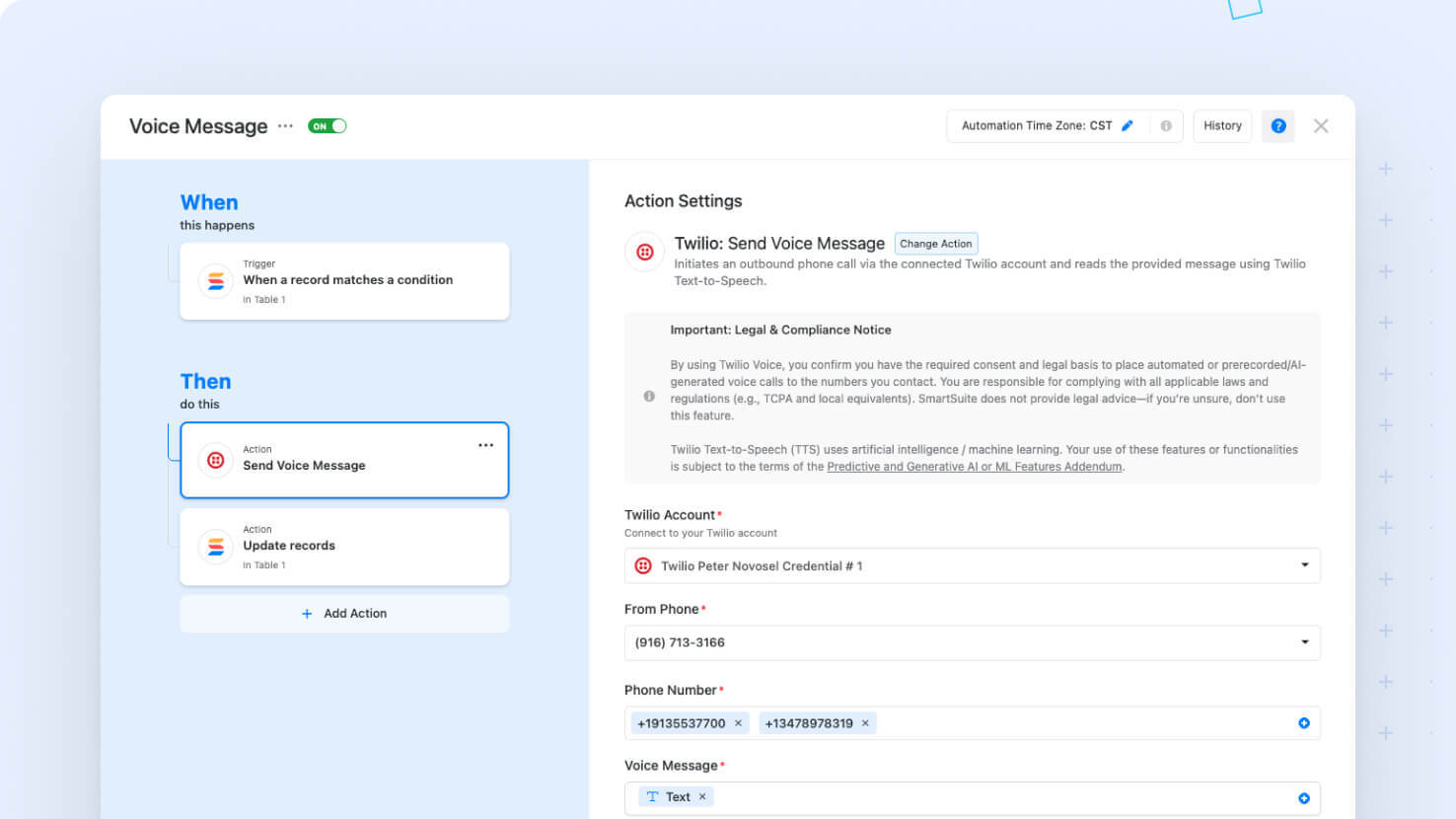
Twilio Action: Send Voice Message
We've expanded our Twilio messaging capabilities with a new Voice option, alongside our existing SMS action, giving you more options when configuring outbound notifications. With this update, you can now send voice messages using Twilio and choose both a Language and a Voice for each message, ensuring your calls are delivered in the right tone and language every time.
Key Highlights
- New Voice Capability: Twilio Voice Messaging is now available as a new capability in addition to SMS, giving you more ways to communicate through automation.
- Language Selection: A new dropdown lets you select a language, defaulting to "English (US)" for every new configuration.
- Voice Options: Once you choose a language, the Voice dropdown refreshes to show the compatible options. The list includes a default selection, either the recognized default or the first available voice option.
- User-Friendly Interface: The UI automatically updates the Voice options when you change the selected language, so the choices always match your current selection.
How It Works
- When configuring a Twilio: Send Voice Message action, you'll see a Language dropdown with "English (US)" applied by default.
- Changing the language prompts an automatic update of the Voice dropdown, ensuring you have the right voice options for that language.
- If a previously chosen voice isn’t available after switching languages, the system resets it to a default option, so your configuration never has invalid settings.
- All your selections are saved and reloaded automatically each time you access the action configuration.
This update is now available to enhance your messaging experience across both SMS and voice. Enjoy a smoother, more tailored setup that helps ensure your messages are delivered the way you intend.

Regulatory Inquiries Product
Responding to regulators usually means email chains, spreadsheet trackers, and the same questions answered three different ways. SmartSuite's Regulatory Inquiries solution centralizes the whole process so teams can capture inquiries, reuse approved responses, and produce regulator-ready outputs from a single platform.
Key Highlights
- Centralized Inquiry Management: Capture every regulatory question and response in one system of record, removing fragmented email and duplicated effort.
- Reusable Response Library: Maintain a structured repository of approved responses and supporting evidence for consistent answers across regulators and frameworks.
- Answer Once, Respond Many: Reuse validated responses across multiple inquiries to improve efficiency and keep communications consistent.
- Collaboration and Approval Workflows: Comment, review, and approve responses inside structured workflows that maintain a full audit trail without email.
- Connected Risk and Compliance Data: Pull from existing assessments, controls, and evidence so responses build on the work your team has already done.
- Dashboards and Reporting: Monitor inquiry status, workload distribution, response timelines, and quality with real-time dashboards.
How It Works
- Regulatory questions are captured, categorized, and linked to the relevant frameworks, assessments, controls, and prior responses.
- Teams can optionally use AI to match new inquiries to existing answers and evidence, with rationale provided for traceability.
- Responses move through structured review and approval workflows so the right stakeholders sign off before anything goes out.
- Final answers are packaged into regulator-ready formats for submission, keeping language and presentation consistent.
- Status, follow-ups, and additional requests are tracked, and approved responses are stored for reuse on future inquiries.
With every inquiry, response, and piece of supporting evidence in one place, organizations can respond to regulators faster, more consistently, and with a complete audit trail behind every answer.
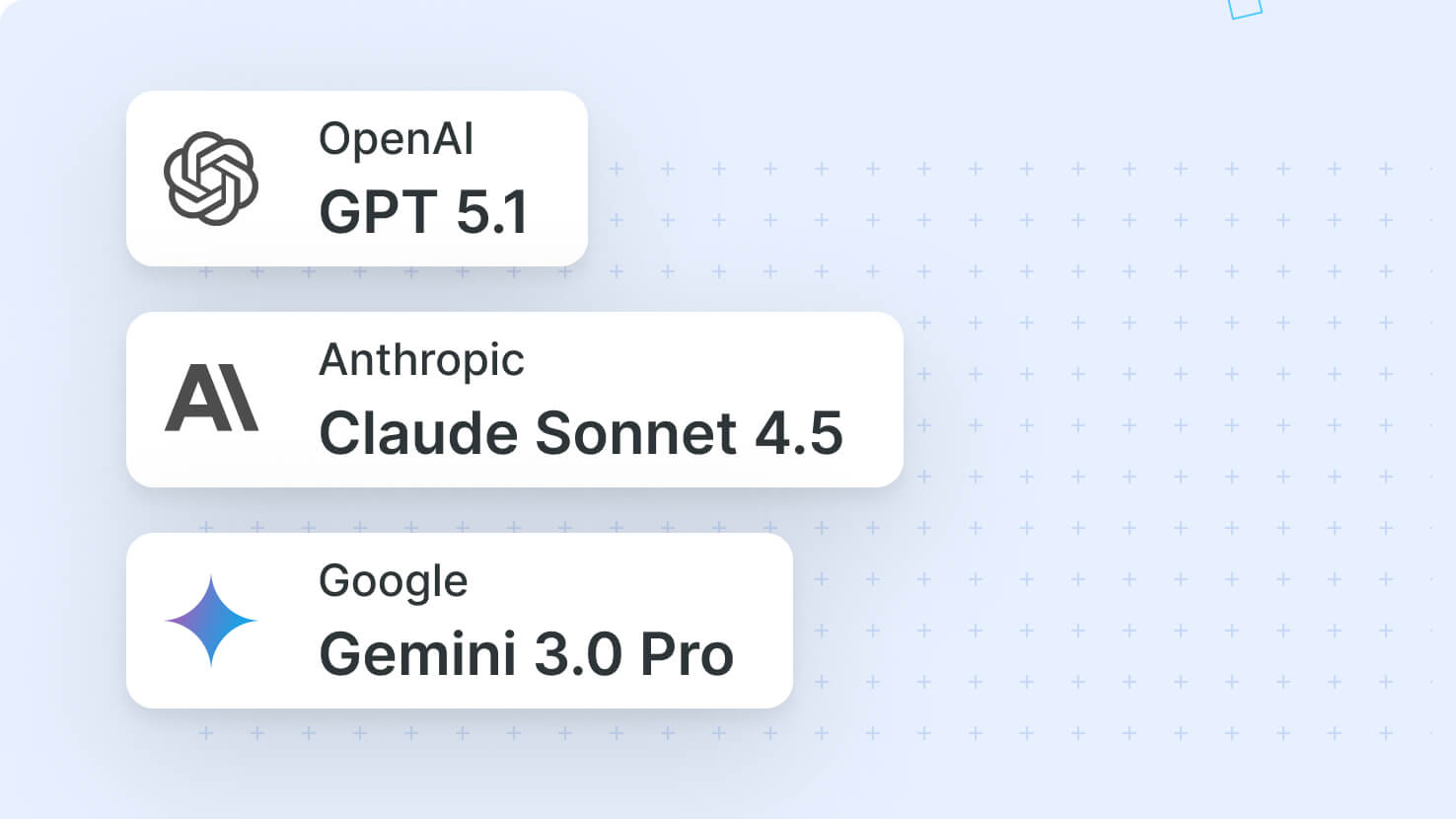
AI Workflow Agent: Support for GPT 5.1, Claude Sonnet 4.5, and Gemini 3 Pro
We’re excited to announce enhancements for AI Workflow Agent that bring new capabilities to your workflow. Building on your feedback and our commitment to delivering smart, efficient solutions, we’ve added support for advanced AI models to drive more accurate and dynamic responses.
Key Highlights
- Expanded Model Options: Now choose from GPT 5.1, Claude Sonnet 4.5, and Gemini 3 Pro directly within the AI Workflow Agent action.
- Intelligent Request Routing: Each selected model routes your requests with precision, ensuring the right processing for your needs.
- Enhanced File Compatibility Checks: For models that support them, SmartSuite will verify that images and PDFs are handled correctly.
How It Works
- Simply access the AI Workflow Agent dropdown and pick your preferred AI model from an updated list.
- Once selected, SmartSuite directs your request to the correct backend model, with built-in checks to confirm support for images and PDFs when applicable.
- Enjoy an enhanced AI experience as the system validates and returns responses generated with the advanced capabilities of GPT 5.1, Claude Sonnet 4.5, and Gemini 3 Pro.
This update applies across all plans, making it easier than ever to harness the power of our latest AI technology for your everyday tasks. Enjoy a smarter, more efficient AI in SmartSuite!
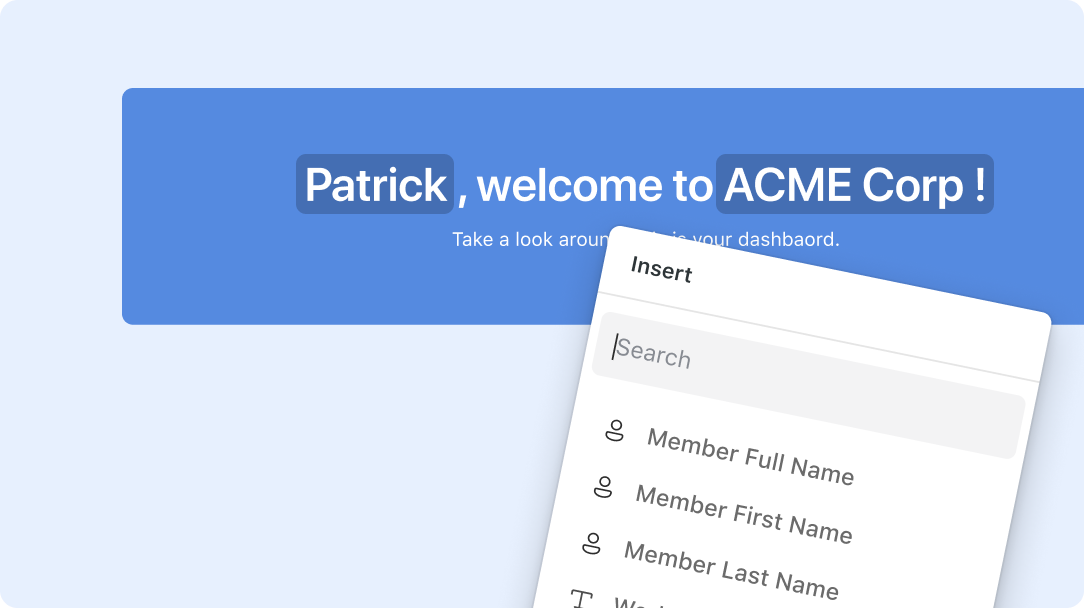
Banner Widgets: Dynamic Values
We've upgraded our Banner Widgets to include dynamic value support, making your dashboard text more flexible and data-driven. This update lets you use placeholders in your widget texts so that they update automatically with the right data.
Key Highlights
- Dynamic Placeholders: Easily incorporate dynamic values into the text for Heading, Simple Banner, and Hero widgets using the familiar
{{value}}format. - Consistency Across Widgets: The same list of supported dynamic values is used for all widgets, ensuring uniform behavior and display.
- API Enhancement: The backend now accepts and stores strings with dynamic placeholders, ready to be injected with actual data when needed.
- Visual Design Alignment: The update is designed to match the approved Figma specifications, ensuring that the final output looks clean and professional.
How It Works
- When you set up your widget text, simply add dynamic placeholders (displayed as {{value}}) where you want real-time data to appear.
- The API handles these strings by storing and later retrieving them as-is, allowing the frontend to replace the placeholders with actual dynamic data.
- Each widget (Heading, Simple Banner, and Hero) leverages the same component for dynamic values, ensuring a consistent configuration and user experience.
- This implementation is rooted in the established design and requirements, so dynamic values appear correctly in your dashboards just as intended.
We hope this enhancement makes managing your dashboard content easier and more effective. Enjoy the smarter way to display your data!
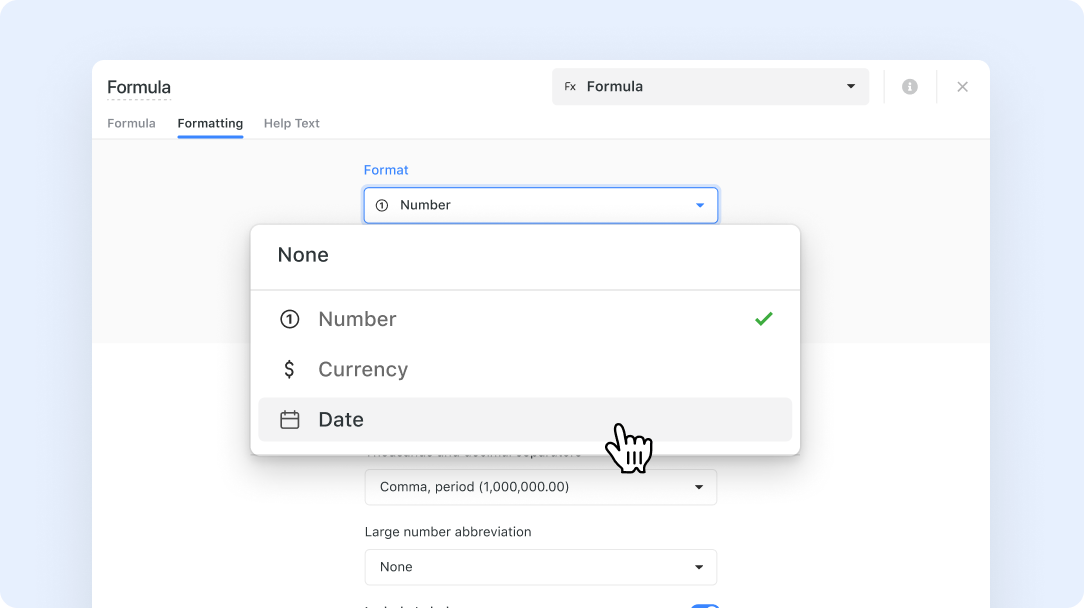
Formulas: Date Formatting
We've introduced a new update that gives you more control over how formula field date outputs are displayed. Now, when your formula produces a date value, you can apply formatting options to make sure the result appears exactly the way you want.
Key Highlights
- A new Formatting tab has been added to the advanced editor in formula fields.
- Date formatting is now available for formula fields that return a date value.
- You can choose how date results are displayed, helping create a more polished and consistent experience across your solution.
- Formatting is optional, and the default setting keeps the formula result displayed as-is.
- Your formatting settings are preserved even if the formula changes temporarily while you are editing it.
How It Works
- Open a formula field and go to the Formatting tab in the advanced editor.
- If the formula returns a date value, date formatting options will appear automatically.
- If the formula is incomplete or SmartSuite cannot yet determine the result type, you will see a message prompting you to finish configuring the formula first.
- Once the formula returns a valid date result, you can apply date formatting to control how the output is displayed.
- These formatting settings are preserved as you continue editing, so you do not need to reconfigure them if the formula temporarily becomes invalid or changes before returning to a date result.
This update makes it easier to present formula-based dates clearly and consistently throughout your workspace. Enjoy a cleaner and more customizable formula field experience!


Dashboards: Deep links for tabs
Introducing Dashboards: Deep links for tabs – a new feature designed to help you navigate your dashboards more efficiently. Now you can share or bookmark direct links that take you straight to the desired dashboard tab.
Key Highlights
- Direct Linking: Jump directly to a specific dashboard tab using URLs.
- URL Tracking: The browser’s URL updates whenever you switch tabs.
- Seamless Navigation: Enter a deep link in a new session and the dashboard opens with the designated tab.
- Reliable Routing: Tab renaming won’t disrupt existing deep links, ensuring your links remain valid.
- Sharing Made Easy: Copy and share deep links across your team or other SmartSuite features.
How It Works
- When you switch between dashboard tabs, the URL in your browser updates to reflect the active tab.
- Our ID-based routing ensures that even if a dashboard tab’s name changes, any previously generated deep link will still work.
- Simply paste a deep link into your browser, and the dashboard will open with the specified tab active.
You can now enjoy a smoother, more customizable navigation experience across your dashboards.

Post Quantum Security (PQS) Product
Quantum-capable computers are still on the horizon, but the encryption protecting today's most sensitive data is already exposed to harvest-now, decrypt-later attacks. SmartSuite's Post-Quantum Security solution gives organizations a structured, lifecycle-driven way to identify, assess, and migrate quantum-vulnerable cryptography across applications, IT assets, business processes, and vendors.
Key Highlights
- End-to-End PQS Lifecycle Management: Run cryptographic discovery, inventory, risk evaluation, and migration tracking from a single system of record.
- Comprehensive Cryptographic Inventory: Get visibility into algorithms, keys, certificates, and protocols across applications, IT assets, business processes, and vendors.
- CARAF-Aligned Risk Assessments: Score quantum vulnerability, data lifespan, exposure, and crypto agility using standardized CARAF-based scoring models.
- Third-Party and Vendor Readiness: Assess vendor PQC posture, including roadmap alignment, contractual obligations, and harvest-now-decrypt-later exposure.
- Migration Tracking and Dashboards: Monitor PQC readiness, maturity, and migration progress across business units with real-time dashboards.
- NIST-Aligned Migration Plans: Plan and execute the move to NIST-approved post-quantum algorithms inside structured workflows.
How It Works
- Cryptographic usage is discovered across applications, IT assets, and vendors, then centralized into a single inventory and system of record.
- Each cryptographic element is scored using CARAF-based models to evaluate quantum vulnerability, exposure, and urgency for migration.
- Third-party dependencies are assessed for PQC readiness and folded into the organization's overall risk posture and migration strategy.
- Teams plan and execute migrations to NIST-approved post-quantum algorithms through structured workflows that track progress from analysis to completion.
- Dashboards and analytics provide real-time visibility into risk exposure, migration status, and enterprise-wide readiness for the quantum era.
- Optional AI features can assist with cryptographic discovery, risk prioritization, and reporting, with human oversight retained throughout.
Organizations get an enterprise-wide view of their cryptographic exposure today, plus a structured path to migrate before quantum threats become a regulatory and operational reality.

AI Governance Product
AI is showing up in critical business processes faster than most organizations can govern it. SmartSuite's AI Governance solution gives teams a unified, enterprise-wide framework for managing AI systems across their full lifecycle, from development through deployment and ongoing monitoring, with the visibility, controls, and accountability that regulators and internal stakeholders are starting to expect.
Key Highlights
- Centralized AI Model Inventory: Manage the full lifecycle of AI models in a single system of record, capturing ownership, lifecycle status, and governance coverage.
- Standardized Risk Assessments: Evaluate AI models for bias, security vulnerabilities, compliance risks, and safety concerns using consistent organization-wide methodologies.
- Continuous Performance Monitoring: Track model behavior over time to detect drift, degradation, or anomalies early, before they become incidents.
- Governance Workflows and Accountability: Assign structured roles for model owners, validators, and risk and compliance teams with clear review, validation, and remediation processes.
- Real-Time Dashboards and Reporting: Monitor AI governance posture, risk exposure, and remediation progress through executive-ready dashboards.
- Connected GRC Data: Tie AI risk records to controls, policies, and frameworks already managed in your governance program.
How It Works
- AI models are registered in a centralized inventory with details such as ownership, lifecycle stage, and business purpose.
- Each model goes through structured risk and performance evaluations covering safety, bias, compliance, and operational effectiveness.
- Governance workflows assign responsibilities for validation, review, and remediation, keeping AI usage aligned with internal and regulatory standards.
- Performance metrics and assessments are tracked continuously to surface drift, anomalies, or emerging risks before they cause harm.
- Dashboards provide a live view of governance posture, risk exposure, compliance status, and the items currently requiring action.
- Optional AI features can summarize records, analyze trends, and recommend remediation, with human oversight maintained throughout.
Organizations get a single, accountable place to govern every AI system in production, with the audit trail and reporting depth needed for boards, regulators, and internal risk committees.

SOX Compliance Product
SOX programs are still run on top of spreadsheets, shared drives, and email-based certifications at far too many public companies. SmartSuite's SOX Compliance solution centralizes the full Sarbanes-Oxley lifecycle, from control scoping through SOX 404 testing and SOX 302 certifications, in a connected platform built for audit readiness.
Key Highlights
- End-to-End SOX Lifecycle Management: Run scoping, mapping, testing, certification, and remediation in a single system of record.
- SOX 404 Control Assessments: Document and evaluate internal controls over financial reporting, including both design and operating effectiveness testing.
- Automated Control Testing Workflows: Generate and track design and operating tests for consistency, completeness, and audit-ready documentation across cycles.
- SOX 302 Certification Workflows: Drive process owner and executive certifications so management can attest to control effectiveness on schedule.
- Connected Financial Systems View: Link controls to the processes, applications, and IT assets that support financial reporting.
- Dashboards and Reporting: Give leadership and auditors real-time visibility into testing progress, control effectiveness, certification status, and compliance gaps.
How It Works
- Financial reporting processes and control activities are captured and linked to applications, IT assets, and supporting systems to define SOX scope.
- Organizations conduct SOX 404 assessments through structured testing workflows that evaluate control design and operating effectiveness with full evidence capture.
- Automated workflows generate design and operating tests, document results, and trigger remediation actions when deficiencies are identified.
- Process owners and executives complete SOX 302 certifications, attesting to the effectiveness of financial reporting controls each cycle.
- Dashboards provide a continuous, real-time view of testing progress, control effectiveness, certification status, and audit readiness.
- Optional AI features can summarize testing results, surface control effectiveness trends, and recommend remediation, with human review retained throughout.
SOX program owners get a single, defensible system of record for every control, test, and certification, with the audit trail external auditors expect and the visibility leadership needs to sign with confidence.

Linked Record Enhancements
We've listened to your feedback and are excited to introduce a series of improvements focused on inline editing and the display of Linked Records. This update brings a smoother undo/redo experience during inline edits, along with several UI tweaks designed to make your grid views clearer and more flexible.
Key Highlights
- Undo/Redo Enabled: When editing Linked Records inline, you can now easily undo or redo changes as you work—helping you quickly correct mistakes.
- Flexible Field Display: You now have the option to remove the auto-generated Title field from your grid display. The system will always ensure that at least one field remains visible so your data never gets lost.
- Modal Overhaul: The record selector modal has been refreshed. It now appears inline by default and can be expanded to a full-screen style when needed, creating a more streamlined selection process.
- Visual Enhancements: Updates across various UI elements—including hover effects, card layouts, and field states—improve the overall look and feel of your Linked Record grids.
- Seamless Switching: If you switch grid formats, any changes you made (like hiding the Title field) will be reset automatically to ensure a consistent viewing experience.
How It Works
- Inline Undo/Redo: As you make changes to Linked Records using inline editing, each adjustment is saved immediately. The undo/redo actions are available as long as you remain focused on the grid.
- Managed Field Visibility: In the grid display, you can remove the Title field along with others; however, the system prevents you from removing all fields. Should you remove the last field, the Title field will reappear automatically.
- Updated Record Selector: The record selector modal now supports both inline and expanded views. Its intuitive design allows for quick filtering, record creation with a single ENTER key, and smooth transitions between modes.
- Consistent UI Behavior: Across the board, visual elements such as hover states, borders, and card heights have been refined. These improvements ensure that every interaction—from field selection to modal navigation—is as clear and responsive as possible.
- Contextual Action: Undo/redo actions apply directly to the inline edit session of the grid. Once you shift focus away from the Linked Record grid, these actions are no longer active.
This update enhances your experience by providing greater control over inline editing and record display without compromising on usability or clarity. Enjoy a more intuitive way to work with your Linked Records!
.jpg)
Single Sign-On (SSO): Support Logout URL
We’re excited to introduce a new update to Single Sign-On that gives administrators more control over the logout experience. You can now direct users to a custom URL after they sign out of SmartSuite. This is especially helpful for SSO environments where ending a SmartSuite session does not automatically end the session with the identity provider.
Key Highlights
- Custom Redirect URL: SSO administrators can now add an optional URL in the SSO configuration modal to redirect users after logout.
- Simple Configuration: The new Logout Landing Page field matches the style and behavior of other configuration inputs.
- Helpful Guidance: The field includes the placeholder Write here and helper text: Users will be redirected to this URL after they log out.
- URL Validation: SmartSuite validates the URL before saving. If the URL is invalid, a red validation message appears beneath the field.
- Consistent Logout Behavior: When a valid URL is configured, users are redirected after logout across supported SmartSuite logout flows.
- No Change by Default: If no URL is provided, logout behavior remains unchanged.
How It Works
- In the Manage Single Sign-On settings, you’ll see a new optional field labeled Logout Landing Page.
- Enter a valid URL to define where users should be sent after logging out of SmartSuite.
- If the URL is invalid, the configuration cannot be saved until the issue is corrected.
- Once saved, the configured URL will be used after logout for users in workspaces with SSO enabled.
- If the field is left blank, SmartSuite will continue using its default logout behavior.
This update makes it easier to support logout flows that extend beyond SmartSuite, including scenarios where users also need to be signed out of their identity provider. It’s a simpler, more flexible way to create a cleaner SSO logout experience.
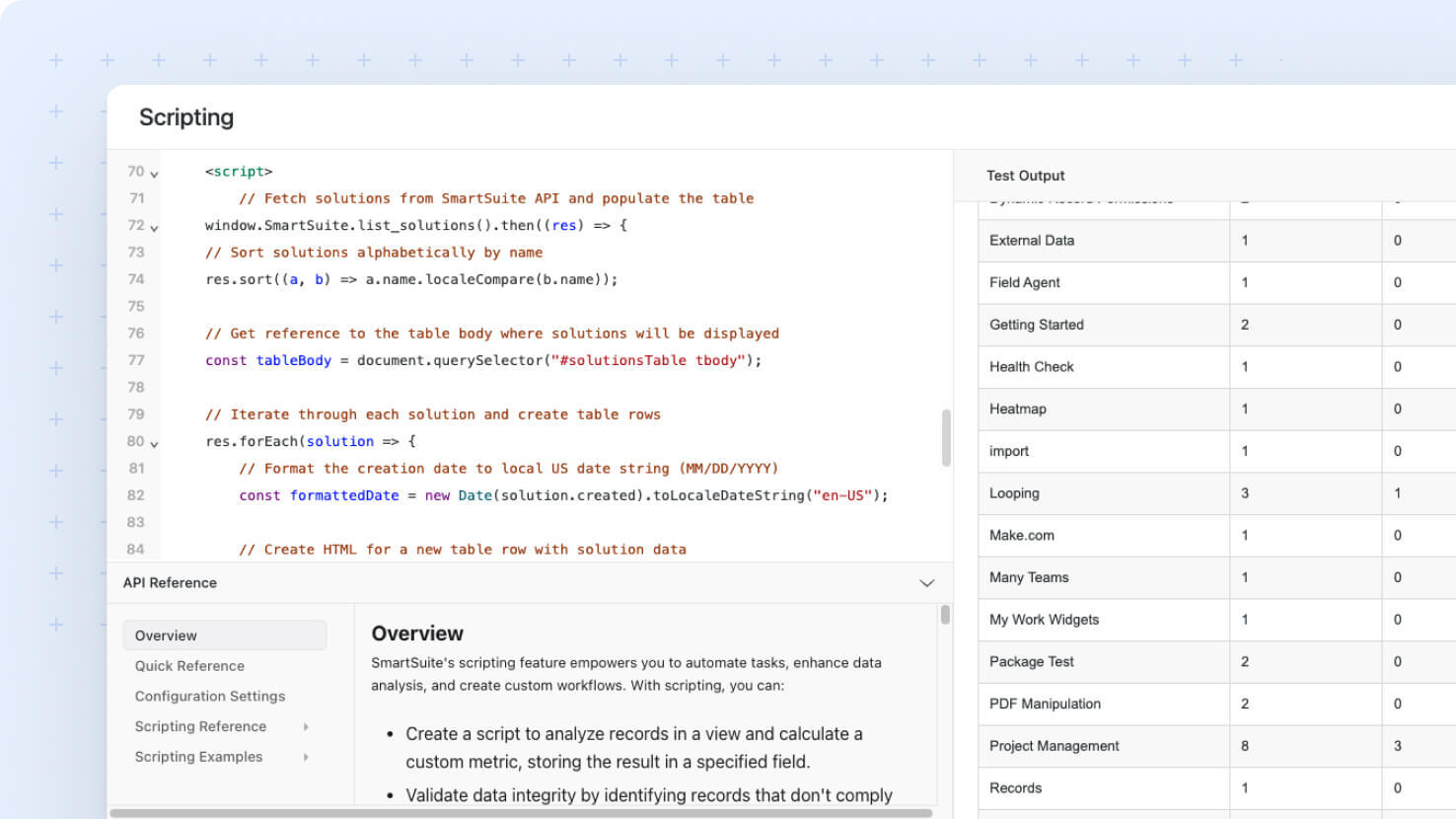
Scripting: Subscribe to Filter Widget State Changes
We’re excited to roll out a new Scripting capability: Subscribe to Filter Widget state changes. Previously, Script widgets had no way to access or stay in sync with the state of other dashboard widgets. This update removes that limitation, allowing script widgets running in sandboxed iframes to automatically receive filter state and respond to changes in real time. The result is dashboards that behave more like interactive applications rather than static reports.
Key Highlights
- Real-Time State Awareness: Script widgets can now receive events when a subscribed Filter widget changes. Previously, filter values were not accessible to scripts.
- Initial State Access on Load: Each Script widget now receives the current filter state when it initializes, ensuring it starts with the correct context.
- Targeted Subscriptions: Subscribe to specific Filter widgets so only relevant filter changes trigger your scripts.
- Enhanced Dashboard Interaction: Build responsive, interconnected dashboards where widgets react dynamically to shared state.
- Built for the Future: The underlying design supports future expansion to additional dashboard events, such as grid selection or record focus changes.
How It Works
- Script widgets subscribe to one or more Filter widgets using a secure subscription API that delivers both the current filter state and subsequent updates directly to the script.
- When a Filter widget changes, the subscribed script receives an event with the latest selection data and can respond automatically.
- The subscription model ensures scripts stay synchronized with filter state throughout the dashboard session.
- Multiple Script widgets can subscribe independently, with subscriptions scoped to the active dashboard session to prevent cross-interference.
This update removes a long-standing limitation around cross-widget awareness and enables true event-driven scripting on dashboards—unlocking more dynamic, context-aware SmartSuite experiences.
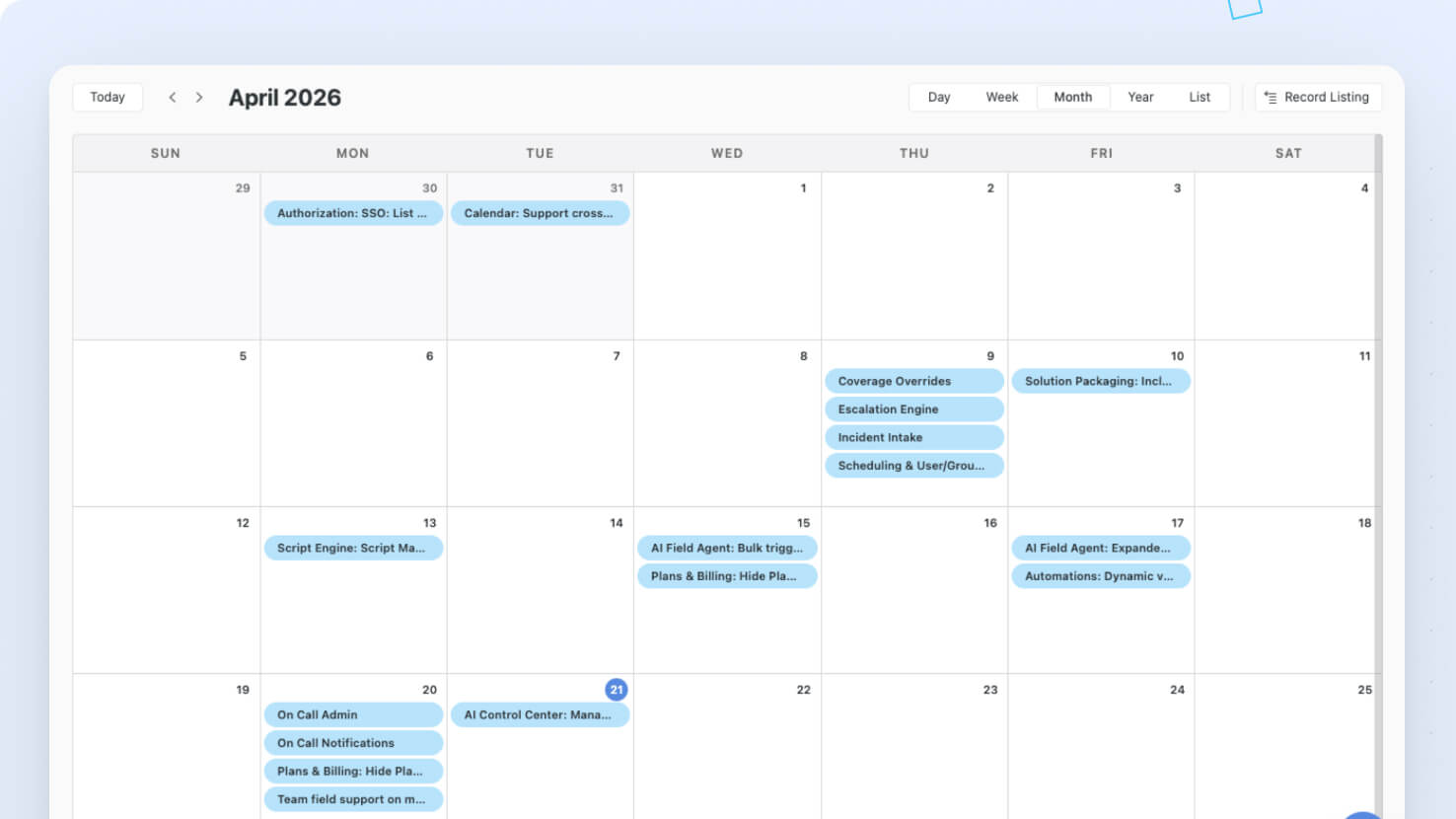
Calendar View Widget
We've made several updates to the Calendar view and widget to give you a cleaner, simpler, and more intuitive experience. These changes are part of our ongoing work to improve layout consistency and responsiveness across SmartSuite.
Key Highlights
- Navigation Arrows: Both “Prev” and “Next” arrows are now grouped together and shifted to the left of the current date display. The date text itself has been moved from the center to the left for a more natural reading flow.
- Record Listing Button: The Record Listing button now sits below the main toolbar. Even when the toolbar is turned off, the button is always easy to access and automatically reduces in size when the widget is resized.
- Adaptive Scale Controls: On smaller widget widths (2 columns), the standard scale buttons (Hours, Day, Week, Month) have been replaced with a dropdown menu. This ensures a neat, uncluttered interface while still offering all available views.
- Clean Widget Header: The horizontal line that appeared under the widget title in previous versions has now been
removed for a more open and consistent design—mirroring the look of the Timeline widget.
How It Works
- When you open the Calendar widget or view, you’ll notice the navigation arrows are now all aligned to the left, making it easier to switch between dates.
- The repositioned Record Listing button remains visible below the toolbar, with its size automatically adjusting if the widget becomes smaller.
- For smaller displays, the scale control buttons transform into a dropdown list. This dropdown includes options for Hours, Day, Week, and Month, ensuring all view modes are still at your fingertips.
- The header has been refreshed by removing the divider below the title to match the clean aesthetic found in other similar widgets.

Vendor Portal Product
Vendor due diligence is still mostly run over email, with sensitive evidence sitting in inboxes and shared drives. SmartSuite's Vendor Portal solution gives organizations a secure, dedicated interface for collaborating with third parties on onboarding, due diligence, and ongoing compliance, while keeping every interaction connected to internal risk and governance workflows.
Key Highlights
- Centralized Vendor Collaboration: Manage every vendor interaction in one portal, replacing email-based onboarding, documentation, and assessment cycles.
- Secure, Role-Based Access: Ensure vendors only see and edit their own data, maintaining strict segregation and reducing the risk of unauthorized access.
- Standardized Forms and Evidence Submission: Use structured questionnaires, forms, and evidence workflows to improve data quality and consistency at scale.
- Automated Workflows and Notifications: Drive vendor engagement with automated task routing, reminders, and notifications that accelerate due diligence cycles.
- Connected to Third-Party Risk: Tie vendor submissions directly into TPRM, contracts, and assessments for a single connected vendor record.
- Dashboards and Reporting: See real-time visibility into vendor progress, evidence completeness, overdue tasks, and overall third-party risk posture.
How It Works
- Vendor requests are launched from internal workflows such as onboarding, due diligence assessments, periodic reviews, or compliance updates.
- Designated vendor contacts get secure portal access to complete questionnaires, upload evidence, and respond to follow-up requests in a guided environment.
- Submitted information and documents are validated, categorized, and routed into internal SmartSuite workflows for review and evaluation.
- Risk, compliance, procurement, and business teams assess submissions, request more information when needed, and update ratings, status, and remediation.
- Dashboards and workflows provide real-time visibility into vendor activity, completion progress, overdue tasks, and ongoing compliance obligations.
- Optional AI features can pre-review submissions, surface gaps, summarize responses, and recommend follow-ups, with human review retained throughout.
Vendor risk and procurement teams get faster, cleaner, more auditable third-party interactions, with the security boundary and connected internal workflows that compliance, security, and audit teams expect.

Third Party Risk Product
Vendors, suppliers, and contractors now sit at the center of nearly every operational and regulatory risk story. SmartSuite's Third-Party Risk Management solution provides a centralized, enterprise-wide framework for governing those relationships across their full lifecycle, from onboarding and risk assessment through ongoing monitoring, SLA tracking, and offboarding.
Key Highlights
- End-to-End Third-Party Lifecycle Management: Run onboarding, engagement structuring, risk assessments, due diligence, monitoring, and termination from a single system of record.
- Centralized Vendor and Engagement Management: Maintain a single source of truth for vendor profiles, ownership, service scope, contracts, and dependencies.
- Risk-Based Assessment Framework: Score inherent and residual risk at the engagement level using data sensitivity, regulatory exposure, operational dependency, and service criticality.
- Due Diligence and Control Evaluation: Collect, review, and validate vendor questionnaires, documentation, and artifacts to assess control effectiveness and compliance posture.
- Ongoing Monitoring and SLA Tracking: Monitor vendor performance through KPIs, SLAs, and continuous assessments to manage risk over the life of the engagement.
- Dashboards and Reporting: See real-time visibility into vendor risk exposure, high-risk vendors, due diligence progress, SLA performance, and remediation activities.
How It Works
- Vendor profiles and engagement records are created and linked to services, ownership, contracts, and business context.
- Each engagement undergoes an inherent risk assessment that determines its risk level and the scope of required due diligence.
- Teams collect questionnaires, artifacts, and evidence, evaluate controls, and document any risks, issues, or compliance gaps that surface.
- Vendor performance is monitored through KPIs, SLAs, and periodic reassessments, with issues and remediation tracked through workflows.
- Structured offboarding workflows handle data disposition, access removal, and compliance validation when relationships end.
- Optional AI features can collect public compliance artifacts, draft tailored evidence requests, and surface emerging vendor risk, with human review retained throughout.
Vendor risk teams get a connected view of every third party, every engagement, and every open issue, ready to support audit requests and board-level reporting on third-party exposure.


Automations: SmartSuite email action send limits
We’ve introduced email sending safeguards to help ensure reliable and consistent communication across SmartSuite workspaces. These protections are designed to maintain platform stability while supporting everyday notification and automation use.
Key Highlights
- Email Sending Safeguards: Workspaces on Free, Trial, Team, and Pro plans now have a daily email sending limit in place to ensure consistent delivery and prevent unintended overuse.
- Enterprise-Ready by Design: Enterprise and Signature plans are not impacted and continue to operate without email sending limits.
- Clear Failure Messaging: If a workspace reaches its daily email sending threshold, any affected automation will fail with a clear, readable message so teams understand why the action did not complete.
How It Works
- The email sending limit applies at the workspace level and covers all emails sent within a 24-hour period.
- Once the limit is reached, email-based automations pause and display a clear message indicating that the workspace has reached its email sending limit.
- Email sending automatically resumes once the limit window resets.
- If your organization requires a higher email sending limit, you can reach out to SmartSuite Support to discuss available options.
These safeguards help ensure dependable email delivery across SmartSuite while providing a clear path forward for teams with higher-volume communication needs.
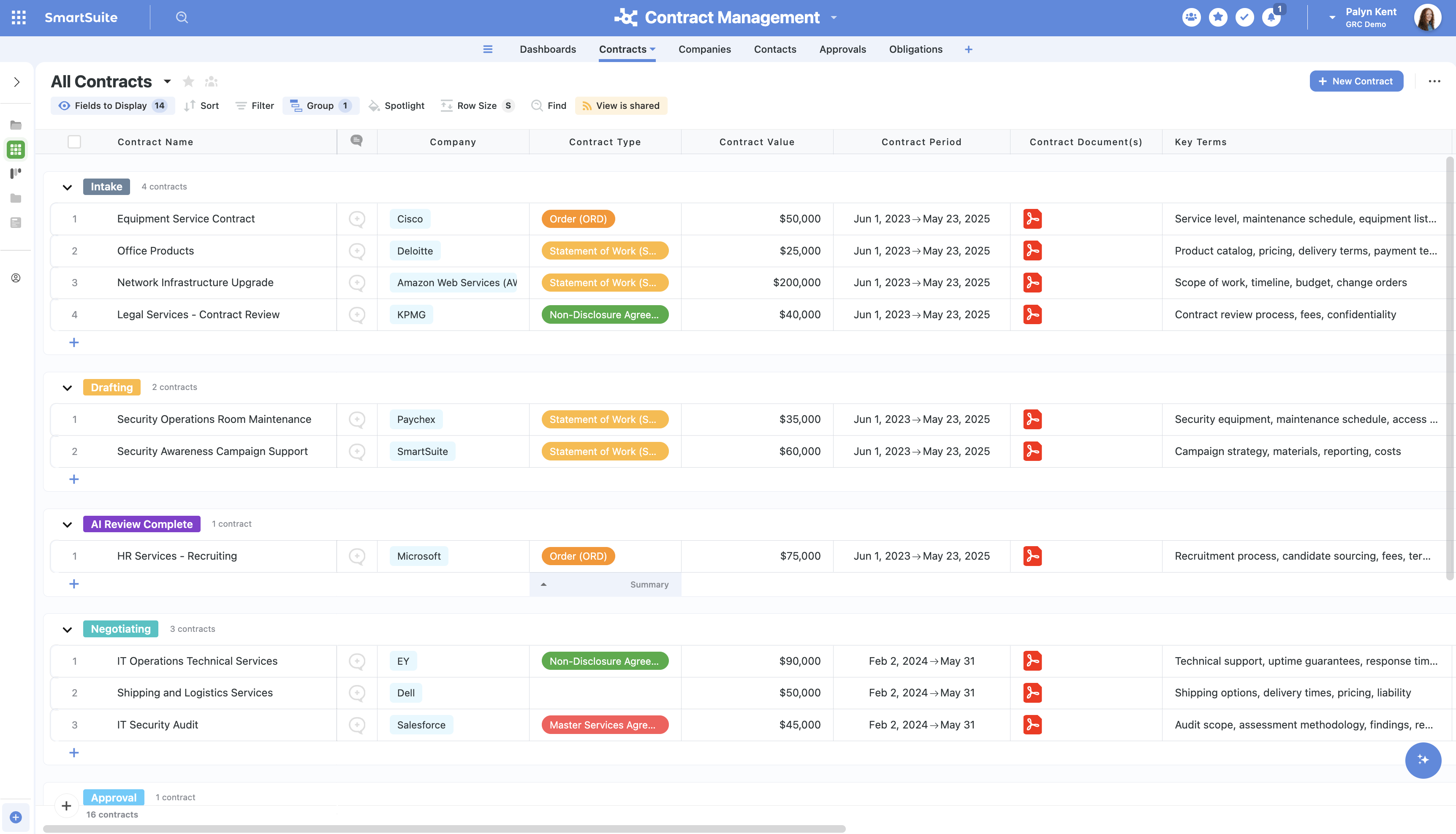
Contract Lifecycle Management (CLM) Product
Most contract pipelines still live in shared inboxes, redlined Word docs, and a handful of folders no one fully owns. SmartSuite's Contract Lifecycle Management solution centralizes the entire contract lifecycle, from intake through drafting, negotiation, approval, execution, and renewal, in a connected platform that legal, procurement, finance, and business teams can all work in.
Key Highlights
- End-to-End Contract Lifecycle Management: Run intake, drafting, negotiation, execution, and renewal from a single system of record.
- Centralized Contract Repository: Maintain a single source of truth for agreements, amendments, obligations, and approval workflows across the organization.
- Workflow Automation and Collaboration: Streamline contract intake, drafting, negotiation, and approval routing with automated workflows and structured collaboration.
- Obligation and Renewal Tracking: Track commitments, milestones, renewal dates, and expirations with automated reminders so nothing slips.
- Connected Counterparty View: Link contracts to related companies, contacts, vendors, and exceptions for full visibility into dependencies and risk.
- Dashboards and Reporting: Get real-time visibility into contract pipeline, cycle times, bottlenecks, high-risk agreements, and outstanding obligations.
How It Works
- Contract requests are submitted through structured intake workflows that capture contract type, counterparties, and business context up front.
- Teams collaborate on drafting, reviewing, and negotiating contracts inside structured workflows with the right reviewers looped in at the right stage.
- Contracts are routed for approval based on predefined hierarchies, executed, and centrally tracked along with every version and signoff.
- Contract records are connected to companies, contacts, obligations, and exceptions so dependencies and risk are visible at a glance.
- Teams monitor commitments, milestones, and renewal timelines through automated reminders and dashboards to keep compliance on track.
- Optional AI features can draft language, flag risky clauses, summarize terms, and surface renewal exposure, with human review retained throughout.
Contract owners get a connected, defensible record for every agreement, every obligation, and every counterparty, with the cycle-time and risk visibility legal and finance teams have been asking for.

Charts: Advanced Formatting for X and Y Axis
We’re excited to introduce new advanced formatting options for your chart axes. Now you can precisely control the numerical display for both X and Y axes in your charts, making your data visualization clearer and more tailored to your needs.
Key Highlights
- Formatting Settings Button: For every applicable axis, you’ll see a dedicated “Formatting Settings” button that gives you complete control over number, currency, or percent displays.
- Customizable Modal: Clicking the button opens a modal where you can adjust settings such as precision, decimal and thousands separators, large number abbreviations, and even the currency code when needed.
- Smart Defaults: If you choose not to customize, the system will automatically use formatting options pulled from the first numeric field in your Values section, and will continue to auto-adjust unless you’ve made a manual change.
How It Works
- For each supported chart type - including dashboard views, standalone charts, and embedded widgets - a “Formatting Settings” button appears on any numeric axis that can be formatted.
- When you click the button, a modal appears displaying all available formatting options.
- Select your desired formatting type (Number, Currency, or Percent) and further adjust specific settings like precision and separators to suit your data.
- The system initially applies default formatting based on the first numeric value entered, and it will update automatically as field orders change until you open the modal and set your own preferences.
- Once you define your custom settings, they remain consistent even if you rearrange chart fields later on.
This enhancement ensures your charts are not only more visually appealing but also perfectly formatted to highlight your key data insights.

Scripting: Additional Utility Functions
We’ve rolled out a series of improvements designed to make your SmartSuite scripting experience more intuitive and powerful. This update boosts usability and security while adding several highly requested functions for handling files, navigation, external requests, and UI styling.
Key Highlights
- Hydrated Records Option: Retrieve extra record details effortlessly using the hydrated flag on GET/List requests.
- Secure Redirection: A new function now lets your script safely send users to specific records, tables, or solutions in one simple step.
- File Download Capability: Trigger secure downloads of blob data directly from your scripts with the new download_data() function.
- Proxy Fetch Support: Bypass common CORS issues by routing external HTTP requests through a smart proxy service – complete with an easy-to-manage URL allowlist.
- Grid Selections: Quickly obtain the IDs of records selected in a grid widget using the get_grid_selections() method.
- CSS Injection: Enhance your script interfaces by injecting basic CSS into iframes to ensure a consistent look and feel.
How It Works
- Developers can now leverage a set of new SDK methods—such as download_data(), redirect_to(), get_file(), and get_grid_selections()—to perform file downloads, secure navigation, and data retrieval with a simple postMessage to the SmartSuite host.
- When using download_data(), the script encodes the file’s data and securely triggers a download without redirecting the user away from the current tab.
- The redirect_to() function safely hands off navigation tasks to the SmartSuite host, ensuring that only valid, permitted destinations are used.
- For external HTTP calls, proxyFetch routes your request through our secure server-side endpoint, while a dedicated UI allows you to configure a URL allowlist for added safety.
- Lastly, injecting basic CSS into iframes helps maintain consistent styling across components embedded in your scripts, making your customizations look great every time.
This comprehensive update is aimed at simplifying your development process and enhancing overall script functionality in SmartSuite. Enjoy faster, more secure, and visually cohesive scripting!
Charts: Enhanced Numeric Formatting in Tooltips
We’ve rolled out an update to our charts that improves the way numeric values are displayed when you hover over any chart segment. Previously, tooltips ignored your custom numeric formatting options, which could leave your charts looking off. Now, tooltips accurately reflect settings like decimals, thousands separators, currency symbols, and more - making your data presentations look both precise and professional.
Key Highlights
- Field-Level Formatting: Chart tooltips now display numeric values using the formatting settings you define for each field.
- Broad Compatibility: This enhancement applies to all Chart Views, whether you’re using standalone features or embedded Chart Widgets.
- Consistent Appearance: Whether it’s a formula, lookup, or standard numeric field, the appropriate decimal precision, currency symbols, and large number abbreviations are respected.
- Locale & Default Settings: For numeric fields lacking a specific configuration, formatting automatically follows your locale settings, with a default precision of .00 when needed.
How It Works
- When you hover over a chart segment, the tooltip checks the numeric field’s defined formatting - displaying numbers with the correct separators, symbols, and precision.
- The update ensures that all numeric fields, including those from formulas and lookups, use field-level settings for a consistent look across all your charts.
- If a field doesn’t have explicit precision set, or if the value is derived from an AVG operator with a default of 1, the system defaults to showing numbers with a .00 precision.

Crisis Management Product
When a crisis hits, the cost of fragmented tools and unclear ownership is measured in minutes. SmartSuite's Crisis Management solution gives organizations a centralized, rapid-response framework for preparing for, responding to, and recovering from critical events, with the situational awareness leaders and responders need to make decisions under pressure.
Key Highlights
- End-to-End Crisis Lifecycle Management: Run intake, escalation, response execution, and post-incident review in a single system of record.
- Standardized Response Playbooks: Use structured procedures for different crisis scenarios so actions stay consistent, compliant, and repeatable across teams.
- Task Management and Coordination: Break response activities into assignable tasks with clear ownership, priorities, and deadlines for full accountability.
- Stakeholder Management and Communication: Identify, notify, and engage internal and external stakeholders quickly through structured communication workflows.
- Real-Time Dashboards and Reporting: Monitor crisis status, response progress, task completion, and emerging risks in one operational view.
- Audit-Ready Record: Capture decisions, communications, and actions in a single timeline that holds up to regulatory and post-event scrutiny.
How It Works
- Crisis events are logged in a centralized system with severity, impact, ownership, and timeline captured up front.
- The right response playbook is activated based on crisis type, guiding teams through predefined workflows and escalation paths.
- Response activities are broken into tasks that are assigned, tracked, and managed across teams for coordinated execution.
- Communication workflows drive timely updates, approvals, and escalation to relevant internal and external stakeholders.
- Dashboards and analytics provide real-time visibility into incident status, response progress, and emerging risks across the enterprise.
- Optional AI features can classify events, recommend playbooks, summarize the situation, and surface bottlenecks, with human oversight retained throughout.
Crisis response teams and leadership get a single operational picture during the event and a defensible record afterward, ready for board reviews, regulator inquiries, and lessons-learned cycles.

Formula Field: Complexity validation
We’ve introduced improvements to the Formula Field that help keep formulas performant and easier to maintain by proactively managing complexity. These updates provide clearer guidance as you build formulas, helping prevent expressions that could lead to performance issues or unexpected errors.
Key Highlights
- Linked Record Depth Limit: New validation enforces a maximum linked-record depth of 3 levels, with immediate feedback when a formula exceeds this limit.
- Formula Complexity Warnings: As you build a formula, SmartSuite now warns you when you’re approaching complexity limits and shows a clear error if the limit is exceeded.
- Backward Compatibility: Existing formulas that exceed these limits will continue to run as-is. The new validation applies only to newly created or edited formulas.
- Clear Visual Feedback: Warning messages are visually distinct (yellow/orange with an alert icon), making it easy to tell the difference between cautions and blocking errors.
How It Works
- While creating or editing a formula, SmartSuite continuously evaluates linked-record depth and overall expression complexity.
- When a formula approaches the supported limits, a warning appears to help you simplify before issues arise.
- If a formula exceeds the allowed limits, an error message guides you to revise the expression before saving.
- These safeguards also enable behind-the-scenes optimizations that improve overall formula performance and system reliability.
This update helps you build cleaner, more efficient formulas while protecting performance at scale - resulting in a smoother, more predictable formula-editing experience.

SmartSuite for Microsoft 365
We’re introducing the initial release of Office 365 integrations, establishing a secure and controlled foundation for connecting O365 at the workspace level. This release focuses on connection management, permissions, and system email behavior, with additional functionality planned for future phases.
Key Highlights
- Office 365 Integration: Workspace-level support for connecting Office 365 is now available for Enterprise and Signature plans.
- Explicit Enable/Disable Controls: Integrations are disabled by default and must be explicitly enabled by an Account Administrator.
- Permission-Based Access: Only Account Administrators can configure or modify Office 365 integration settings.
- System Email Configuration (Phase 1): System email behavior is now tied to the Office 365 connection state, with safe defaults in place.
- Secure Defaults by Design: Workspaces remain protected until an administrator intentionally activates the integration.
How It Works
- Account Administrators can connect Office 365 from a new Integrations section within Workspace Settings, with clear success and error feedback during setup.
- Once connected, system emails are sent via the Office 365 email bot using the configured system email. Until a default email is set, messages continue to send from noreply@smartsuite.com
- Administrators are prompted with confirmations when disabling or removing the integration, and notification emails are sent to ensure visibility and accountability.
- Email settings automatically adapt based on whether Office 365 is connected, exposing configuration options only when applicable.
- A workspace-level flag ensures Office 365 remains inactive until explicitly enabled, establishing a secure baseline for future enhancements.
This initial release establishes the core Office 365 integration framework, enabling future expansion into Communications Center and automation workflows in upcoming phases.
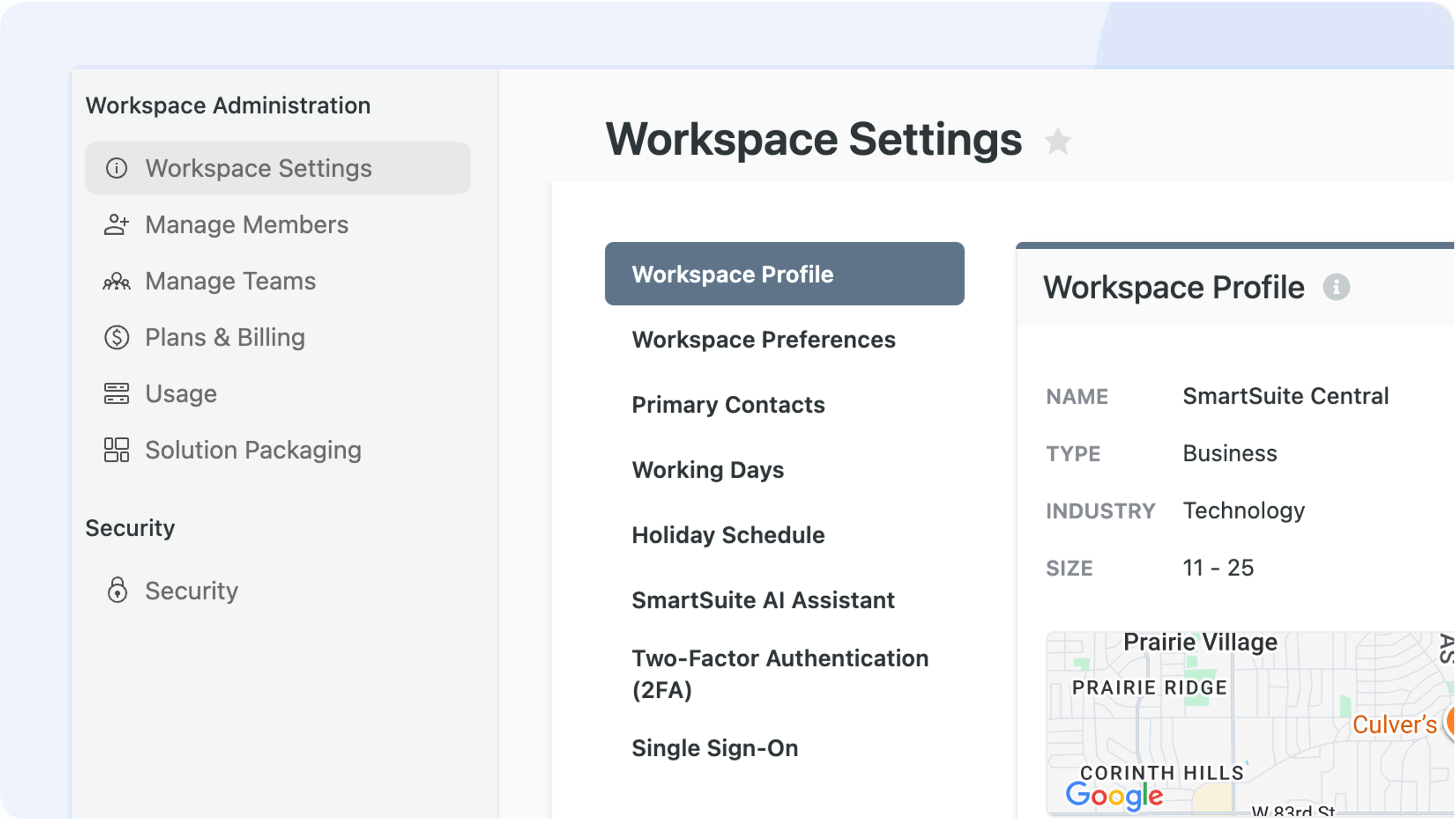
Workspace Administration Redesign
We've refreshed Workspace Administration to make finding settings simpler and more intuitive. The main menu has now shifted from a top row display to a left-side vertical panel that organizes your tools into a two-level hierarchy, allowing for easier navigation through your workspace settings.
Key Highlights
- Left-Side Navigation: The main menu has been relocated from its previous top row position to a vertical panel on the left, giving you a clearer view of your Workspace Administration items.
- Two-Level Structure: The menu now supports a hierarchical layout. Items are grouped into primary categories like Workspace Administration and Security / Access, with related sub-items nested underneath.
- Streamlined Settings: Several existing options under Workspace Administration / General have been repositioned. For instance, settings such as Workspace Profile, Workspace Settings, Logo, Primary Contacts, Working Days, and the SmartSuite AI Assistant are now condensed for easier access.
How It Works
- Administrators and users will now find key settings along a reorganized left sidebar. This change not only declutters the interface but also divides functionalities into clearly defined groups.
- The updated menu structure separates general workspace configuration from security settings such as IP Address Restrictions, SSO, 2FA, and more - ensuring that sensitive controls are easier to locate.
- SmartSuite continues to enhance its administrative interfaces, offering clearer structure, better organization, and more user-friendly controls across your workspace.
This update is part of our ongoing effort to refine workspace organization and navigation. Enjoy a cleaner, more intuitive interface that puts all your essential settings within reach.
.jpg)
What's New in SmartSuite: November 2025
This month’s release introduces powerful enhancements that streamline how teams manage data, collaborate, and scale their work in SmartSuite. From more flexible record views and improved permissions to smarter automations and solution packaging, these updates are designed to reduce friction and elevate everyday workflows.

Automations: Allow Creation of New Choices
We’ve expanded Automations to give you more flexibility when working with Single and Multiple Select fields. When an automation receives new values that aren’t already available as choices, it can now create them automatically—keeping your processes nimble and responsive without any manual cleanup.
Key Highlights
- Automation-Driven Choice Creation: Automatically add missing options to Single and Multiple Select fields when new values appear in automation inputs.
- Intuitive Field Controls: Hovering over a select field reveals a dedicated checkbox and an explanatory icon, helping you clearly understand and manage the feature.
- Case-Insensitive Matching: Inputs are compared without regard to letter case, preventing duplicate choices and ensuring accuracy.
- Mixed Input Handling: When inputs contain both existing and new values, the system adds only what’s missing—nothing more, nothing less.
- Safe + Transactional Updates: A built-in locking mechanism ensures field structure updates occur safely, even during parallel executions.
How It Works
- When an automation encounters an input containing a value not present in the select field, you’ll see the option to enable automatic creation of that choice.
- Once enabled, the automation locks the field to verify the current structure and avoid conflicts.
- The system then safely writes the new choice(s) and completes the update transactionally.
- The result: a seamless process that keeps your select fields accurate and up to date.
This capability is available on all plan types and is designed to support more dynamic automation scenarios—especially those driven by AI-generated or user-submitted values.
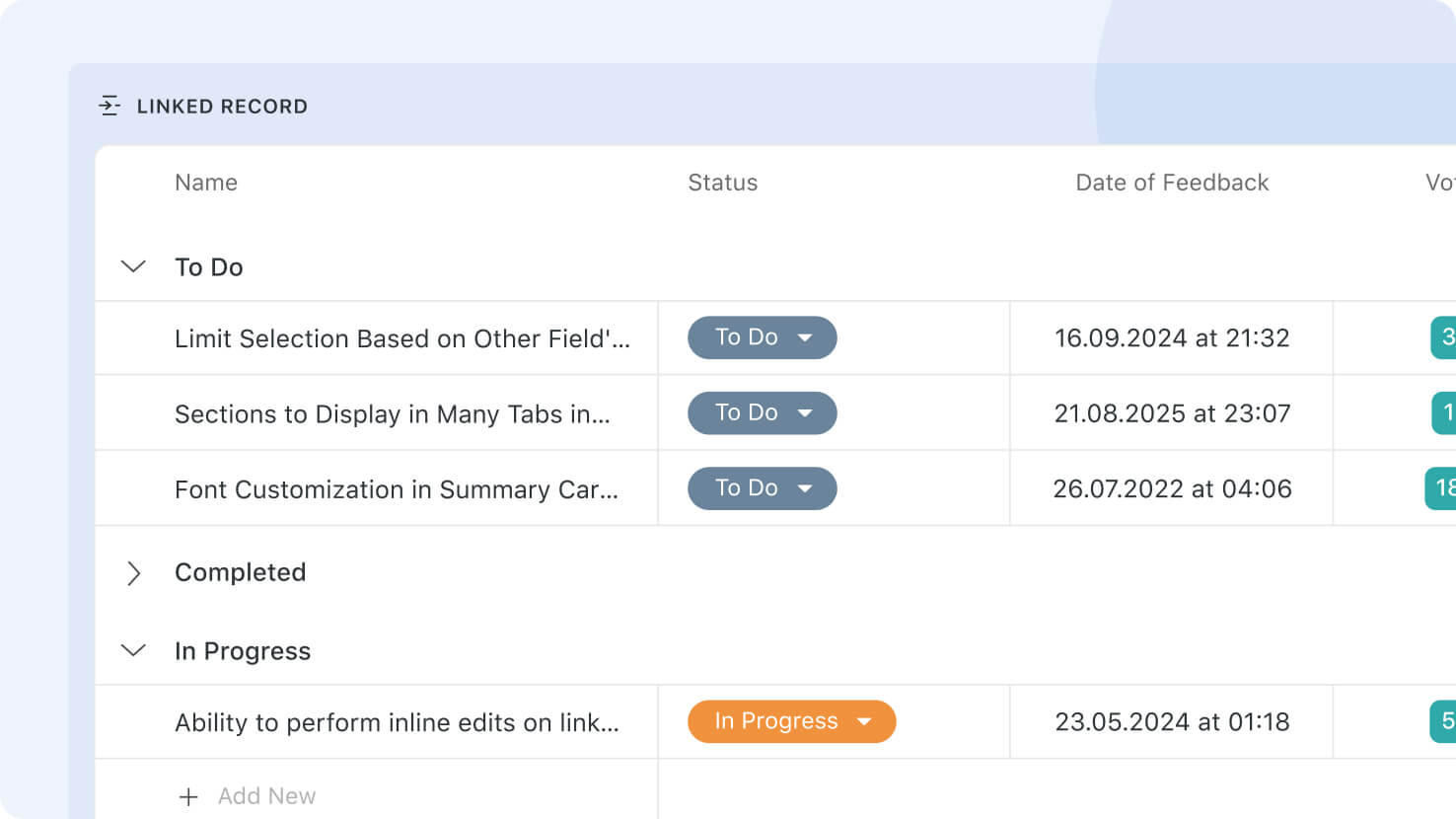
Linked Record Grouping
We’ve added a new Group By option to Linked Records, giving you more control over how related data is displayed on Record Pages and within Record Detail Widgets. You can now group linked records by a specific field—making large sets of related information easier to scan, sort, and understand at a glance.
This enhancement improves the clarity and usability of linked record views, especially for teams working with complex datasets such as project tasks, CRM accounts, inventory lists, or any structure involving multiple related records.
Key Highlights
- Group By Functionality: Choose one field in the Linked Record settings to automatically group related records.
- Sorting & Collapsing Options: Define how groups are ordered and whether they should start collapsed for a cleaner view.
- Broad Display Support: Works across most display formats—including Compact, Expanded, Simplified, and Table (with virtual scrolling)—with the exception of Standard view.
- Instant Refresh: Any updates to grouping settings are reflected immediately in the Record Page, Record Detail Widget, and drill-in modals.
How It Works
- Open the Linked Record field settings and locate the new Group By configuration.
- Select the field you want to group by, choose the sort order for the groups, and decide if groups should be collapsed by default.
- Once saved, your linked records will appear grouped in all supported display formats on Record Pages and in Record Detail Widgets.
- Any changes you make to the grouping configuration apply instantly—keeping your views consistent and up-to-date across all relevant components.
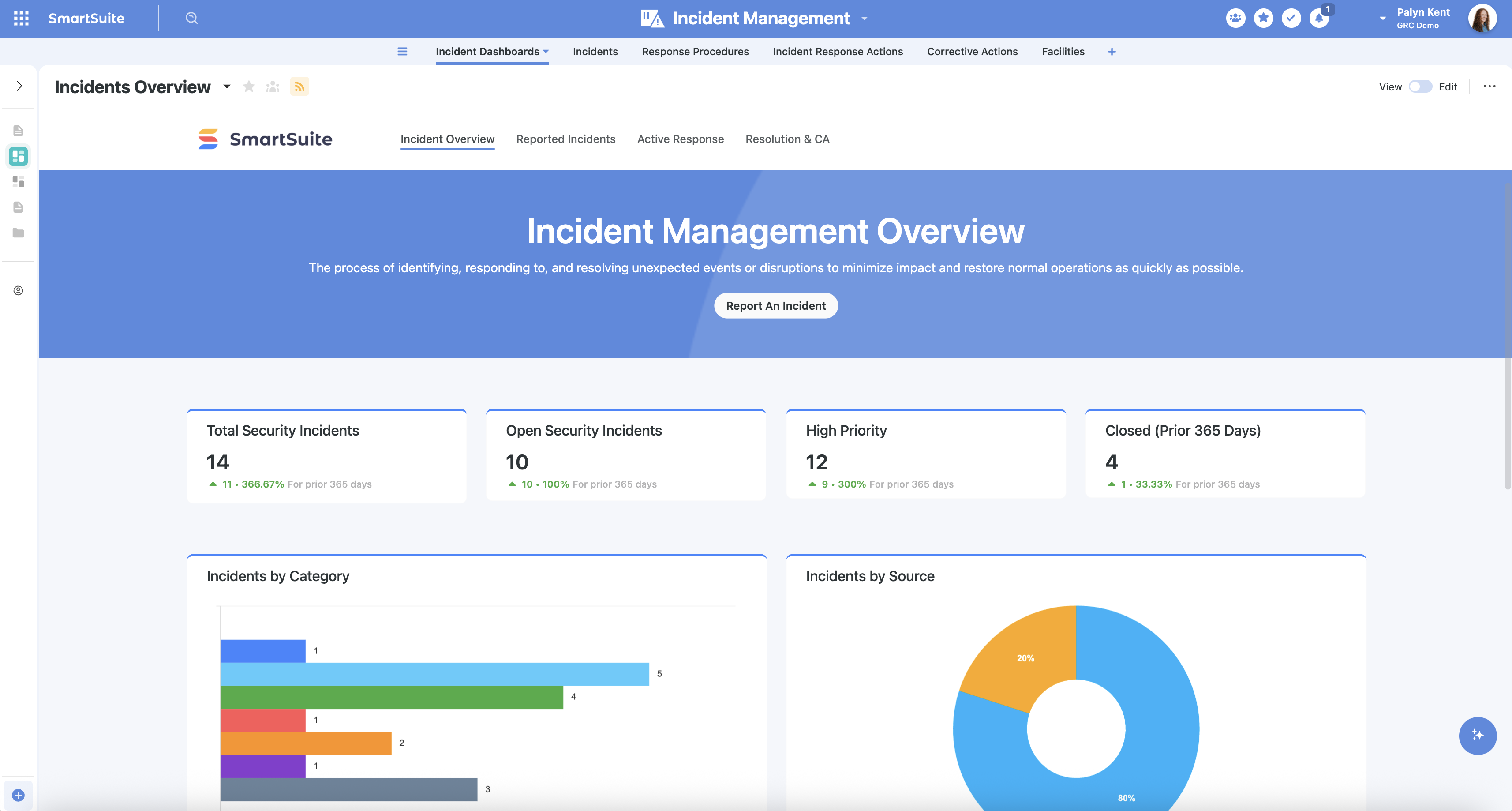
Incident Management Product
Incidents rarely stay confined to one system or team. SmartSuite's Incident Management solution gives organizations a unified, end-to-end framework for identifying, triaging, responding to, and resolving incidents across operational, IT, cybersecurity, and compliance domains, all in one connected platform.
Key Highlights
- End-to-End Incident Lifecycle Management: Run reporting, triage, response, resolution, and root-cause analysis in a single system of record.
- Standardized Intake and Triage: Categorize, prioritize, and route incidents consistently based on severity, impact, and domain.
- Response Coordination and Visibility: Track in-progress actions, ownership, workload, and response status in real time across teams.
- Corrective Action Tracking: Document, assign, and monitor remediation activities through completion for full accountability and compliance.
- Cross-Domain Linking: Connect incidents to risks, controls, assets, and policies so impact is visible without leaving the record.
- Dashboards and Reporting: Monitor incident trends, severity levels, response performance, and resolution outcomes through real-time analytics.
How It Works
- Incidents are submitted through structured intake workflows so users, systems, and monitoring tools all report in a consistent format.
- Each incident is evaluated, assigned a severity level, and routed to the appropriate team or owner for investigation and action.
- Teams coordinate containment, investigation, communication, and resolution through structured workflows and real-time dashboards.
- Remediation activities are defined, assigned, monitored, and validated to ensure incidents are fully resolved and less likely to recur.
- Dashboards and reporting provide continuous visibility into incident volume, severity, response times, and resolution outcomes.
- Optional AI features can classify incidents, recommend routing, summarize details, and surface recurring root causes, with human review retained throughout.
Incident response teams get one connected place to handle every incident across the enterprise, with the audit trail and trend visibility needed to drive both day-to-day resolution and longer-term continuous improvement.