
April 2026 Product Updates
April’s updates enhance AI Field Agents with a smarter prompt-writing experience and expanded field support, along with a new button action for faster, more structured record creation—making SmartSuite even more intuitive and efficient.
AI Field Agent: SmartDoc Prompt Experience
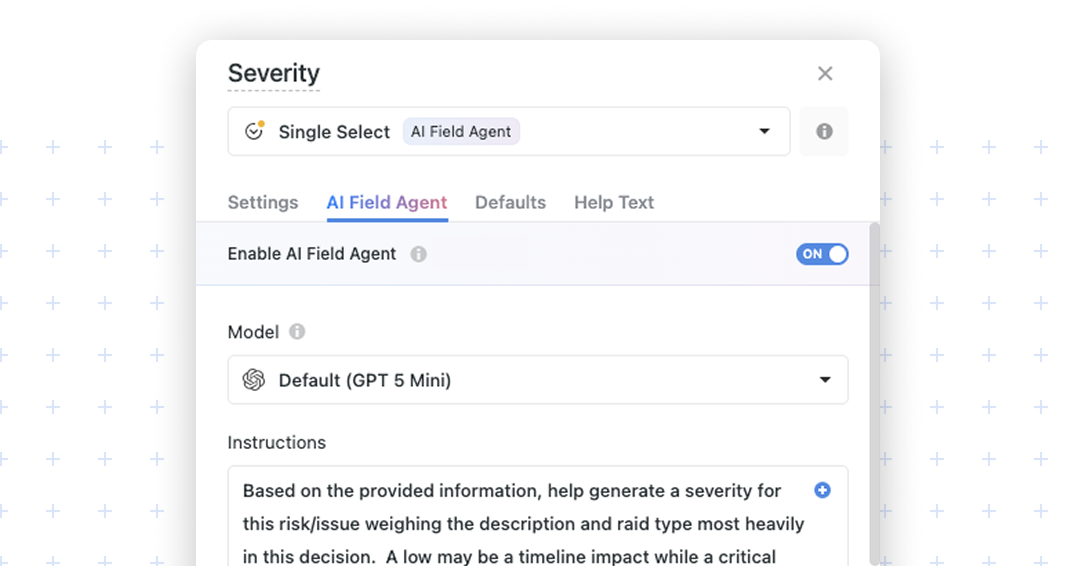
We’re excited to introduce an improved prompt-writing experience for AI Field Agent. Prompt input now uses a SmartDoc-powered editor, giving teams a more flexible and intuitive way to write, organize, and refine instructions. This enhancement makes it easier to create clearer prompts, include field references, and work with rich formatting when configuring AI-driven fields.
Key Highlights
- Better prompt writing: Create more structured, readable prompts with a richer editing experience.
- Improved clarity: Use formatting tools to organize instructions so prompts are easier to review and maintain.
- Familiar editing experience: Work in a SmartDoc-style input that feels consistent with the rest of SmartSuite.
- Easier context insertion: Add field references directly into the prompt so the AI can use record data in its response.
How It Works
- Open the AI Field Agent settings for your field.
- In the Instructions area, write your prompt using the SmartDoc-powered editor.
- Use the toolbar to format your instructions with options such as bold, italic, underline, strikethrough, text color, quotes, bullet lists, numbered lists, links, and clear formatting.
- Insert field references directly into the prompt, such as related fields like Project Tasks, Stage, and Due Date, to give the AI the right business context.
- Combine written instructions and field references to guide how the AI should generate, classify, summarize, or evaluate content.
This updated experience is especially useful when prompts need more structure, such as step-by-step guidance, clearly defined expectations, or dynamic context pulled from record fields.
AI Field Agent: Expanded Field Support

We've enhanced our platform by extending AI Field Agent support to a broader range of field types. Now, you can leverage AI Field Agent capabilities on Title (manual), Text, Number, Status, Multiple Select, and Link fields to streamline your record creation and data management processes.
Key Highlights
- Expanded Field Support: AI Field Agent now works with Title (manual), Text, Number, Status, Multiple Select, and Link fields.
- Updated Prompt Data: Improved prompt handling for Single/Multiple Select and Status fields now include choices, descriptions, and numeric values (when applicable) when sending field data, providing clearer context for AI processing.
- Backend & Frontend Updates: Both the underlying services and user-facing components have been refreshed to support these additional fields.
How It Works
- All supported field types now include an AI Field Agent configuration section in field settings.
- AI Field Agent outputs for list-type fields (Single/Multi Select, Status) are automatically constrained to their configured values.
- The system automatically passes additional field settings (choice descriptions and numeric values) as part of the API request, eliminating extra configuration steps.
This update is available to all users across all plans. Enjoy a smarter, more efficient way to interact with your data!
Button Action: Create a Record
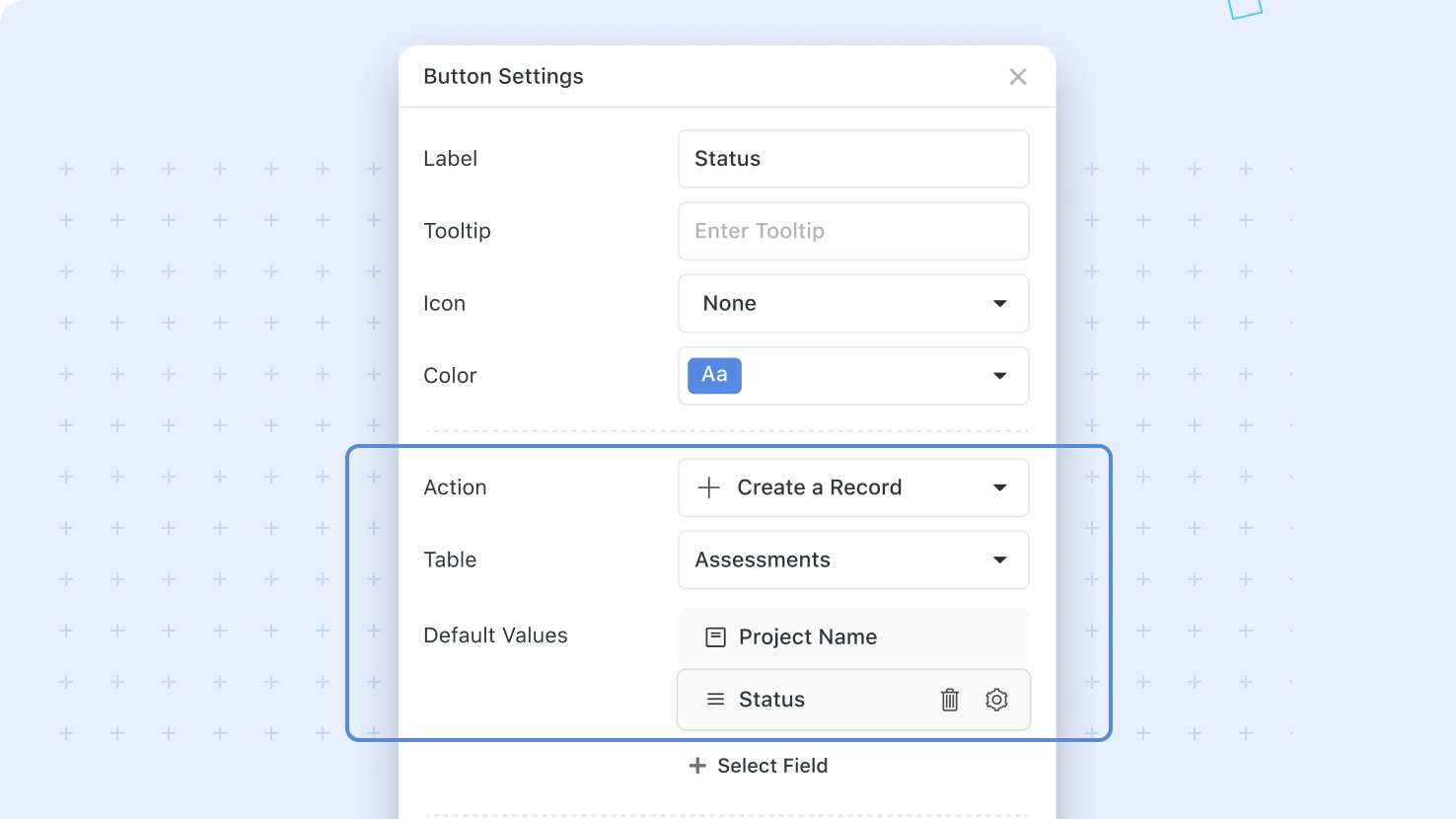
We’re excited to roll out a new button action that streamlines record creation across dashboards and widgets. This feature lets you open a Record Page pre-populated with static default values, ensuring a smoother and more structured workflow.
Key Highlights
- New “Create a Record” action: Quickly launch a new record directly from dashboards or view widgets.
- Predefined default values: Set static values that override field-level defaults for consistent data entry.
- Enhanced enterprise workflows: Ideal for self-service request portals and multi-entry dashboards, keeping record creation simple and controlled.
- Broad support across interfaces: Now available in Dashboard tabs, Button Rows, Hero sections, and Simple Banners.
How It Works
- In button configuration, selecting the Create a Record action type will prompt you to select the table you want to create a record in.
- You can optionally define default values for the new record, which will override any field-level default values.
- Once configured, clicking the “Create a Record” button will open a new record in the selected table, with any configured default values applied.
This enhancement is designed to support a controlled intake workflow while preserving consistency with existing record template logic. Enjoy a more direct and efficient way to create records in SmartSuite!
Form View: Default Values
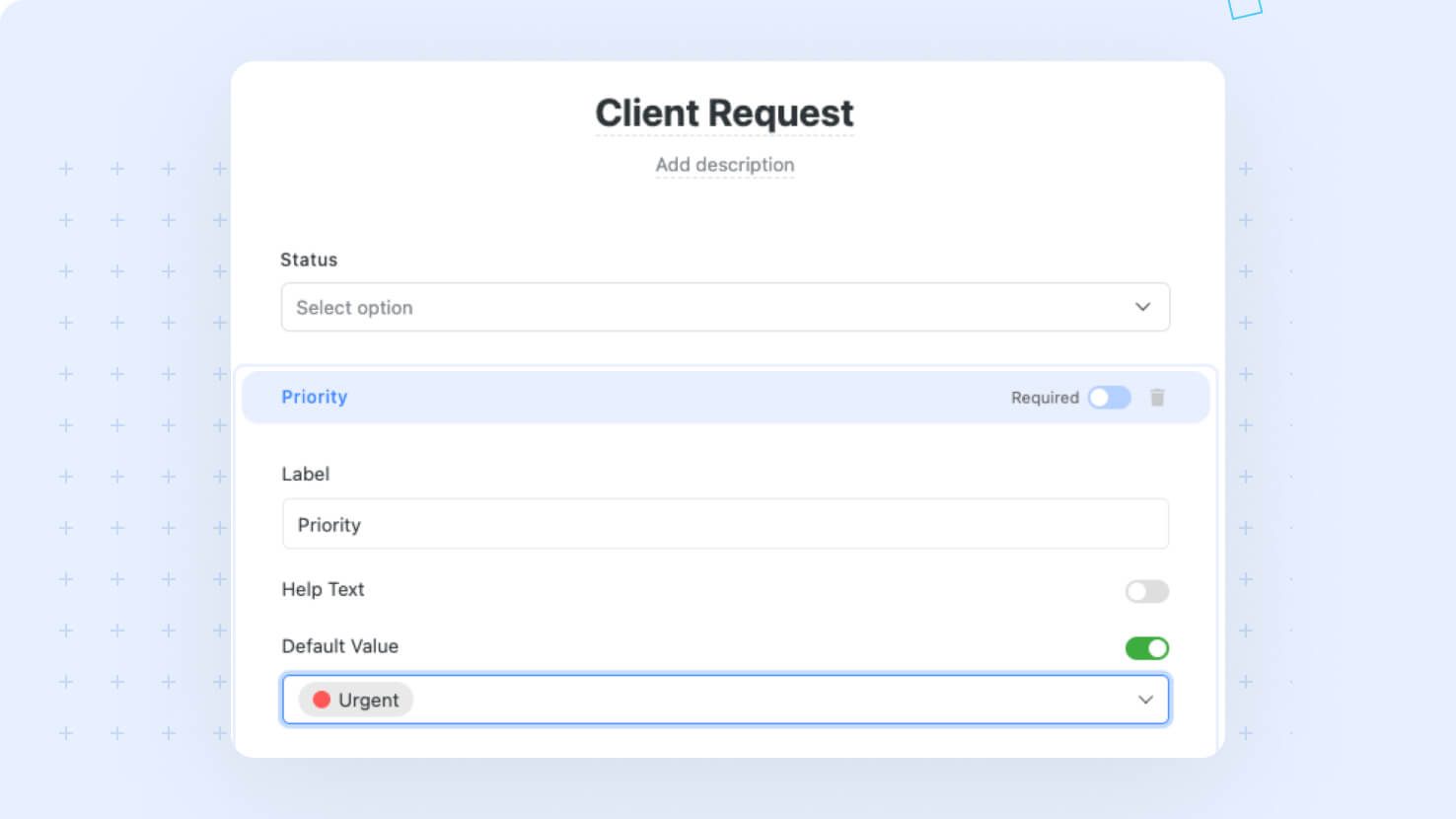
We've enhanced our Forms experience to simplify setting up default values for your fields. With this update, you can now choose to set default values for specific fields. This ensures that you always have the flexibility to enable or disable the default value functionality without losing any previously configured settings.
Key Highlights
- Broad Field Support: Default values can be configured for Text, Text Area, numeric, and select fields, as well as special fields such as Assigned To, Date, and Due Date (for internal forms).
- Transparent UI Behavior: When the flag is activated, a dedicated field picker component appears, offering you a choice between field values and system values (details about the current user and environment) ensuring that you can easily pick from any available options, including predefined user and date/time values.
- Override field-level defaults: Specifying a form-level default value will override the field's own default value, allowing you to tune the user experience for specific workflows.
How It Works
- Upon activation, users will see the field picker component, making it simple to select default values based on the specific field type.
- Even if the flag is later disabled, any default values that have been set remain intact and can be restored simply by re-enabling the feature.
- The entire update is built to seamlessly integrate into your form creation process, with clear guidance provided via our design and requirements documentation.
This update is designed to give you greater control over your Forms experience, making it easier and more intuitive to manage default data inputs. Enjoy a more streamlined and customizable form setup with SmartSuite!
Form View: Support for Lookup Fields
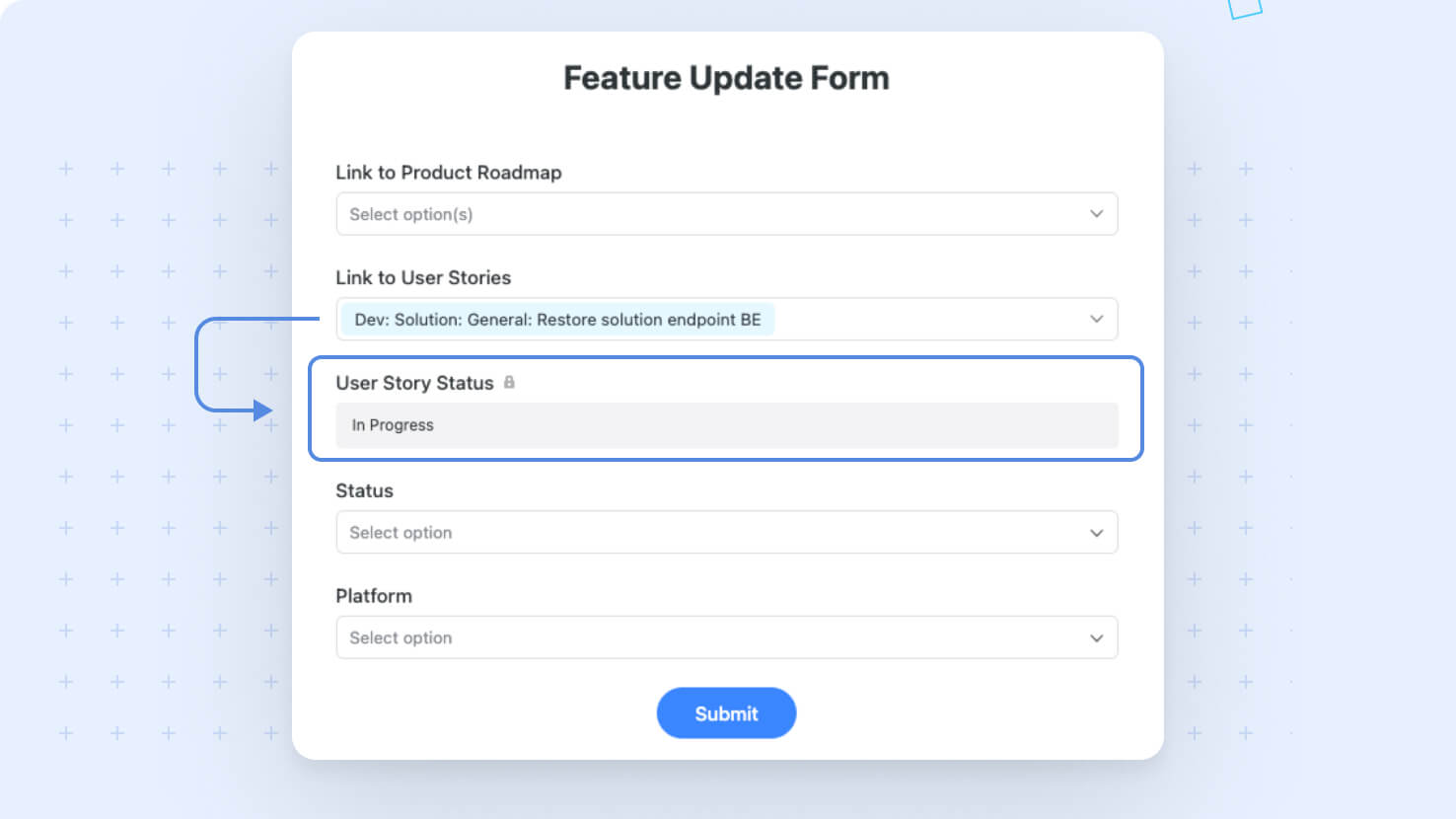
We've enhanced our Forms experience by introducing support for Lookup fields. This update makes it easier for you to display related information from linked records right within your forms, ensuring data is clearly presented without the need to save the record.
Key Highlights
- Lookup Field Integration: Form creators can now include Lookup fields to automatically pull in related record details, offering richer context for form respondents.
- Automatic Update: Lookup field values populate as soon as their dependent Linked Record's value is updated, providing you with information about the related field even before the record is saved.
- Streamlined User Experience: The new setup prevents hidden Lookup fields from interfering with form submissions and keeps the form clean and functional across different stages of deployment.
How It Works
- Lookup fields now appear in the Form Editor, allowing you to select them and place them on your form canvas.
- The implementation guarantees that hidden fields won’t block form submissions, maintaining a smooth user experience throughout.
With this update you now have immediate access to details from selected Linked Records while you edit the form, improving visibility and enhancing the user experience.
Button Row Widget: Card Display
Key Highlights
- New Card Style: Pick Card under the Style Tab to render each button as a full card with rich-text description support up to 200 characters.
- Service Desk Ready: ITSM dashboards can pair each card with a description that explains what the action does, ideal for self-service intake.
- Up to Seven Per Row: Choose Auto or any value from 1 to 7 for cards per row, mirroring the Button-style configuration.
- Same Action Set: Card buttons support the same actions as standard buttons, including Open URL, Create a Record, Open a Form, and Run a Script.
- Enterprise Color Palette: A new palette of enterprise colors is available across both Button and Card styles for consistent branding.
How It Works
- Open a Button Row widget's settings and switch to the Style Tab to choose between Button (default) and Card.
- For each button, configure the Label, Icon, Color, Action, and a Tooltip (Button style) or Description (Card style) using the standard rich-text component.
- The Buttons-Per-Row dropdown controls how many cards display per row, with Auto sizing based on widget width.
- Existing Button Row widgets keep their current Button style on first load, so no dashboard breaks during the upgrade.
This is the first of several display refinements coming to dashboard widgets. Use Card style to give action-heavy boards the breathing room their actions deserve.
Button Action: Open a Form
Dashboard buttons can now launch SmartSuite forms directly, opening them in an authenticated session inside the app. ITSM teams running service catalogs, GRC teams capturing attestations, and any builder who wants a one-click jump from action to data entry get a faster, in-context way to open the right form.
Key Highlights
- Open a Form Action: A button can launch any internal SmartSuite form, picked by Solution, Table, and Form name.
- Service Catalog Ready: ITSM service desks can wire each request type to its intake form for one-click submission from a dashboard.
- GRC Attestation Friendly: Compliance review boards can put control-attestation forms one click away from the underlying record.
- Flexible Display: Choose Popup (default), Slider, Fullscreen, or New Tab to control how the form appears on click.
- Authenticated Context: The form opens in internal mode, with the current user known, so field and record permissions apply automatically.
How It Works
- When configuring a button, choose Open a Form, then select a Solution and Table using the standard picker.
- The Form dropdown lists every form in the selected table in A-to-Z order; pick one to wire the action.
- The Open In setting controls whether the form appears as a Popup, Slider, Fullscreen, or in a New Tab on click.
- The form launches inside the SmartSuite app in a ready-to-fill state, so the current user submits as themselves with full attribution captured in the record's Created By.
- The action is supported across Button Row widgets, dashboard tabs, and view-based widgets, giving consistent behavior wherever buttons appear.
Pair this with Internal Forms to streamline service desks, compliance intake, and any workflow where the next step is filling out a form.
View Based Widgets: Support for Custom Buttons
The hardcoded Add New Record button on every view-based widget has been replaced with a configurable button bar that supports up to ten custom buttons. Service desks, compliance boards, and project dashboards built on Grid, Card, Calendar, Timeline, Chart, or Gantt widgets get full button configurability without rebuilding anything.
Key Highlights
- Configurable Button Bar: View-based widgets share the same button component used in Button Row widgets, replacing the old hardcoded button.
- Up to Ten Buttons: Configure as many as ten buttons per widget, with the first two visible and the rest under a '...' overflow.
- Broad Widget Support: Grid, Card, Calendar, Timeline, Chart, and Gantt widgets all pick up the change in the same release.
- Service Desk Friendly: ITSM teams can place Create Ticket, Open Form, Open URL, and Run Script buttons side by side on a single widget.
- Safe Migration: Existing widgets with Allow Inline Edit or Allow Edit enabled get an automatic Create-a-Record button preserving the previous label, color, and target table, so no flows break.
How It Works
- Open a view-based widget's configuration to access the new Buttons section, where you can add, remove, reorder, and configure each button.
- Each button supports the standard properties: Label, Icon, Color, Tooltip or Description, Ask for Confirmation, and Action.
- Supported actions include Open URL, Create a Record (with default values), Open a Form, and Run a Script, identical to Button Row buttons.
- During the upgrade, the system migrates existing buttons automatically: Allow Inline Edit and Allow Edit settings keep their other behaviors but no longer control the Add Record button.
- Chart Widgets do not get a migration button by default, since they did not previously expose Add Record.
Combine this with Open a Form to build dashboards where every common workflow is one click away from the right view.
Be sure to the What's New page for a complete list of enhancements and subscribe to say up to date on future ones.
SmartSuite provides work platform for standardizing workflows in the following areas:
- Governance, Risk & Compliance
- IT & Service Ops
- Project / Portfolio Management
- Business Operations