



Time Tracking — Know Exactly Where Every Hour Went
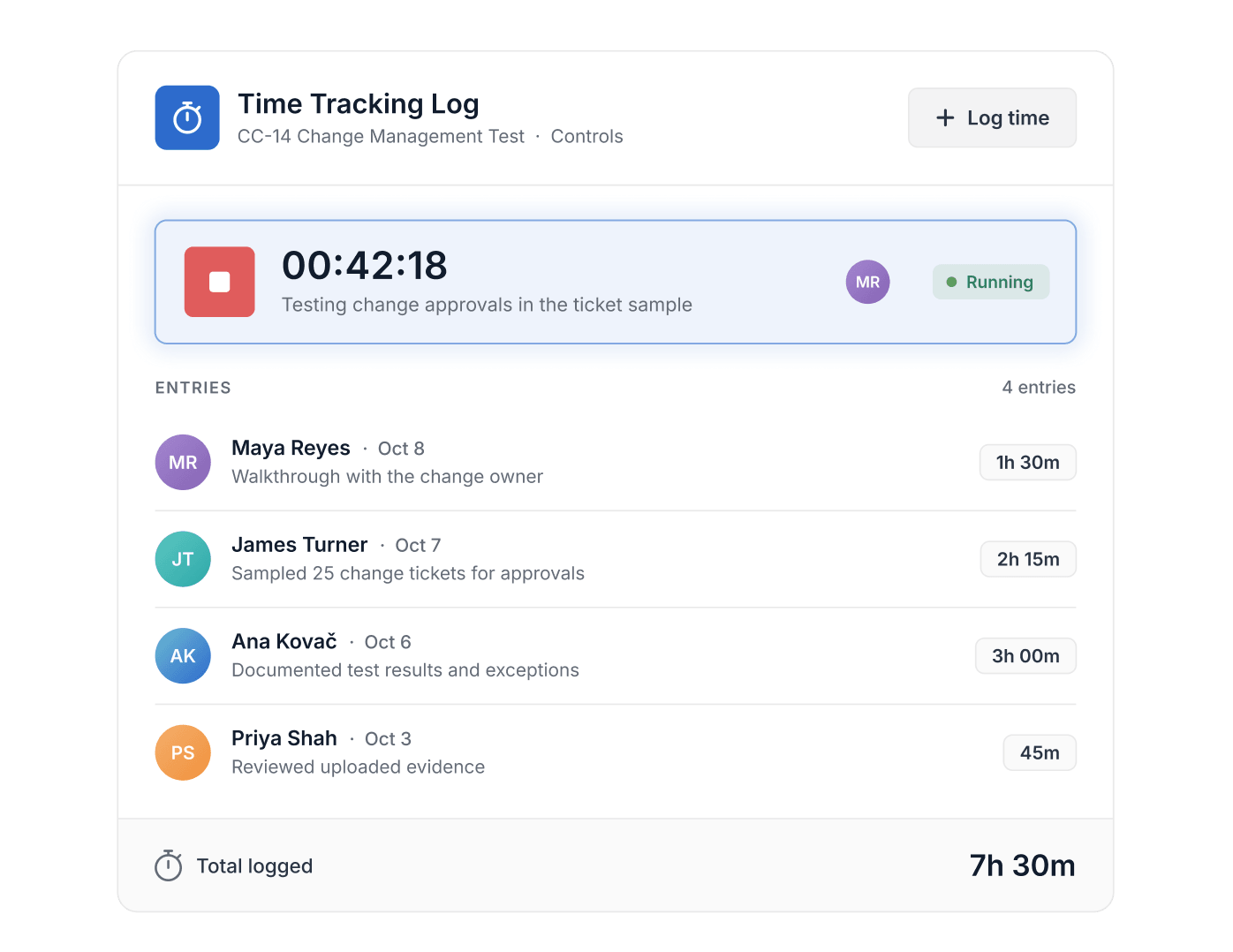
The Time Tracking Log Field records time against any Record—by timer or manual entry—capturing who worked, for how long, and on what, then rolling every entry into totals your reports and formulas can use.
- Time Tracking is a field type available on every plan with varying limitations.
- Each entry records the member, a duration typed in natural language such as 1h 30m, and a note of up to 250 characters.
- The field shows the total time logged across all entries.
- Display is a colored pill or text, and an entry can be made required.
- Time Tracking Log values can be summed, averaged or charted as Min and Max in Chart View.
What Is Time Tracking?
Time Tracking in SmartSuite is the Time Tracking Log Field—a dedicated Field type that lets Members log time spent on a Record through manual entry or a built-in start/stop timer. Each entry captures the Member's identity, the duration, and an optional work note, and the Field displays a running total across all entries. It helps consultants, service teams, and project leads turn logged effort into billing, utilization, and workload insight—available on all current SmartSuite plans and supported in the Mobile App.
Built-In Timer
Start the Timer and Keep Working—It Follows You
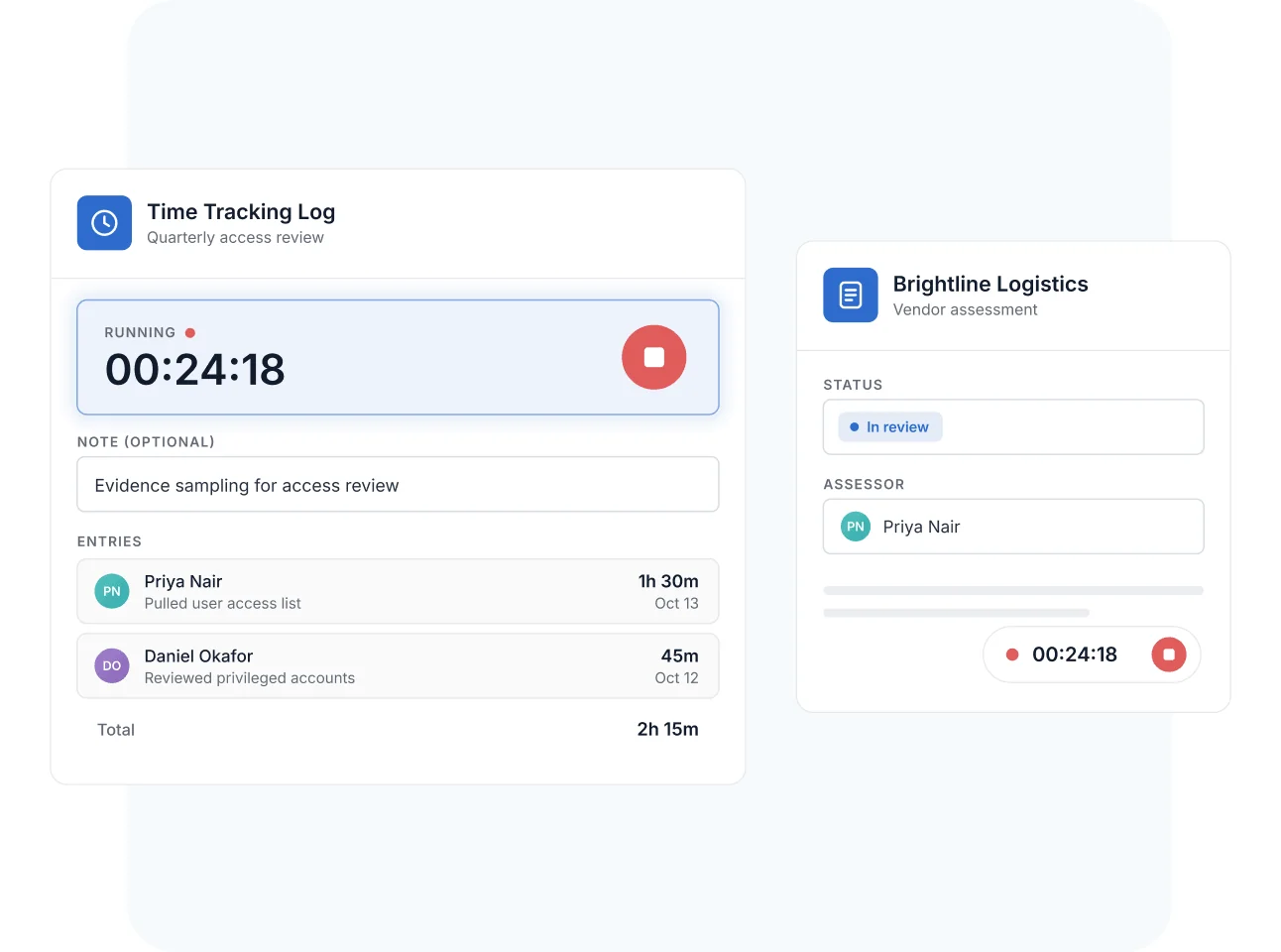
Press the green play button to start timing, add an optional note about what you're working on, and get back to work. While the timer runs, a floating pill shows elapsed time even as you navigate to other Records—press the red stop button and the session logs itself automatically, attributed to you.
No separate stopwatch app, no reconstructing hours at the end of the week.
Manual Entry
Log Time with Natural-Language Durations or Time Ranges
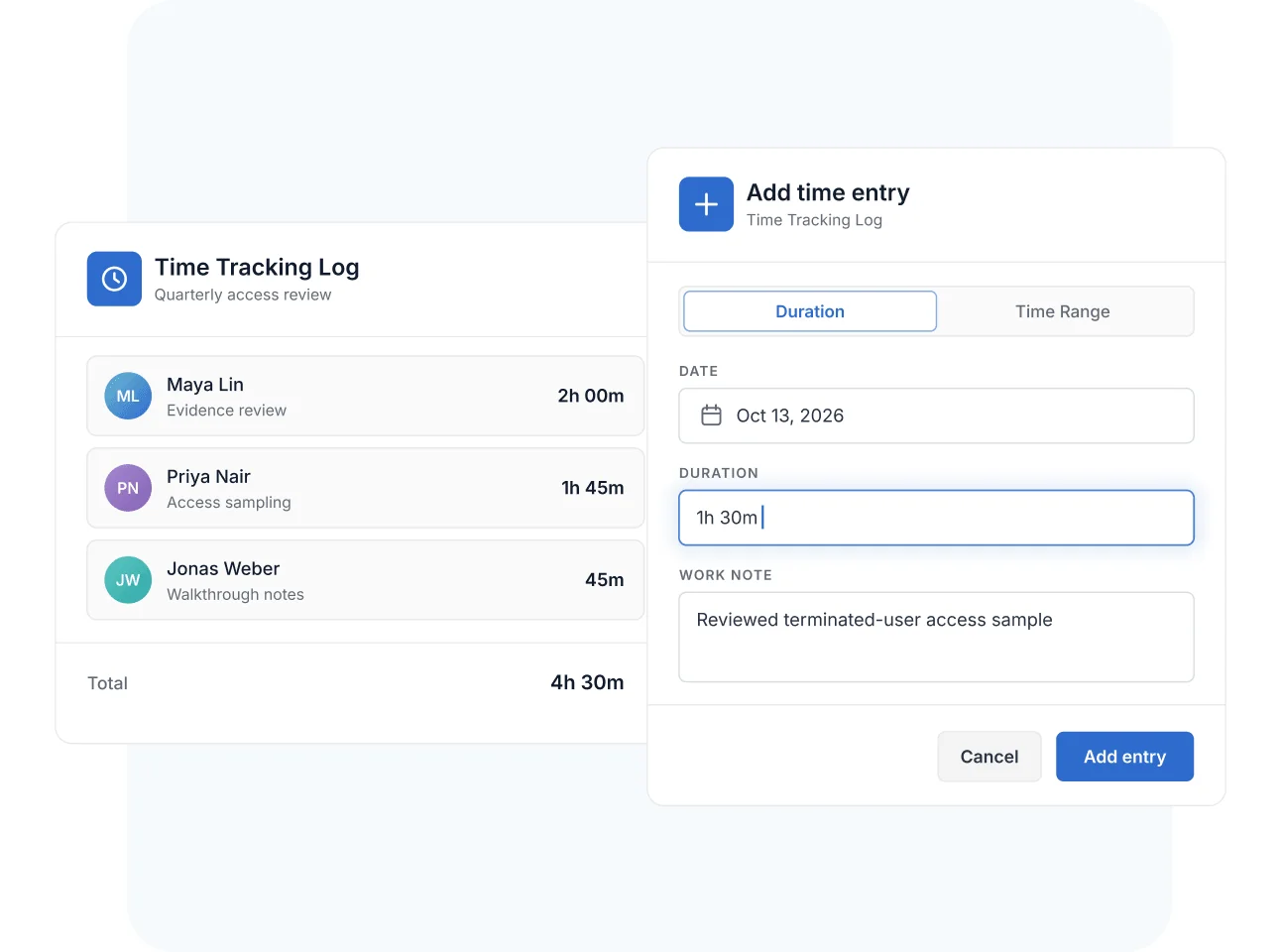
Forgot to run the timer? Add entries after the fact two ways: the Duration tab accepts natural-language input like "1h 30m" or "2 hours" against a specific date, and the Time Range tab calculates duration automatically from a start and end time. Every entry carries the Member's identity and an optional work note of up to 250 characters, and the Field keeps a running total across all entries.
Time Reporting
Roll Up Reported Time with Grouping and Formula Fields
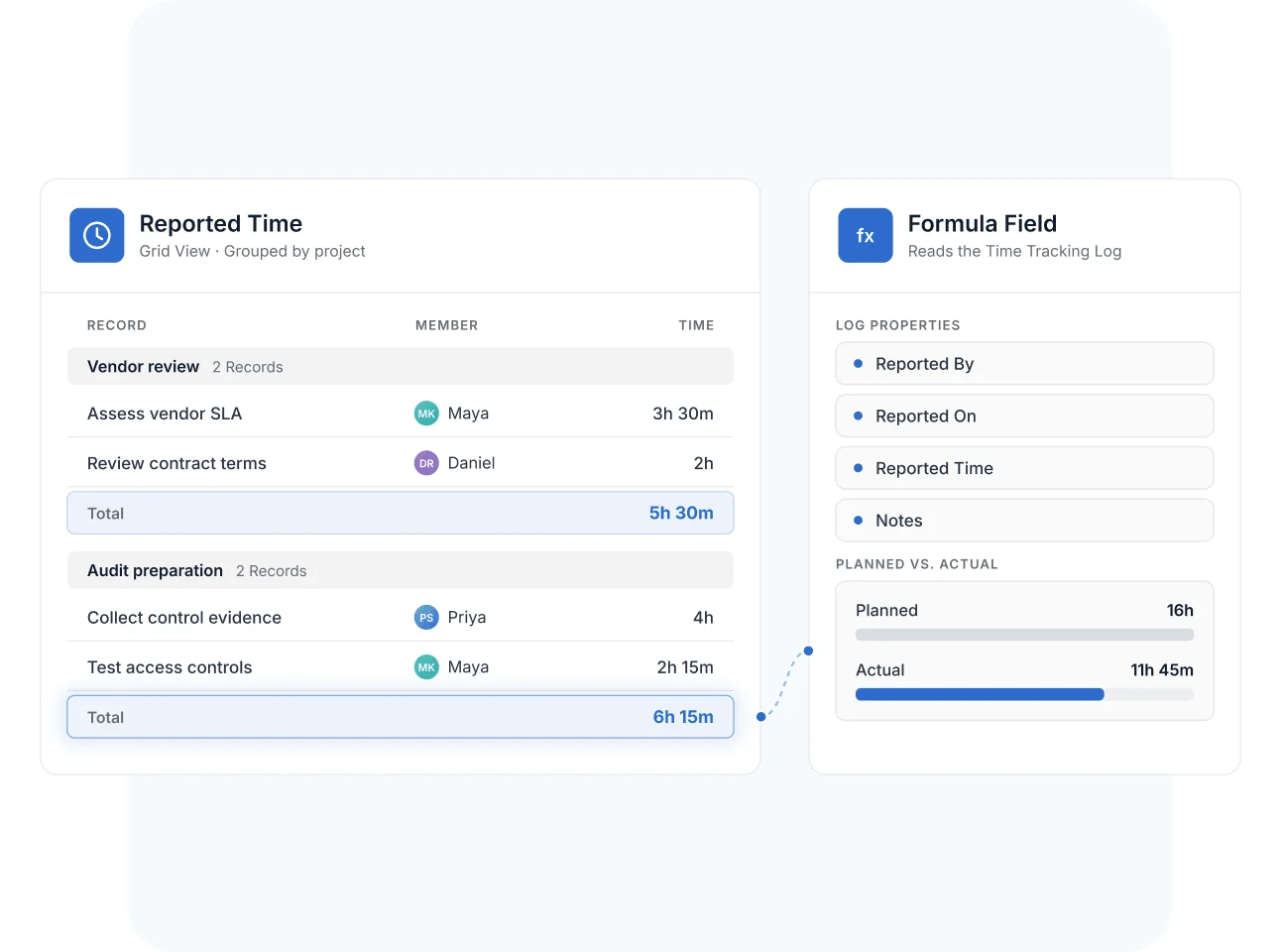
Grouped views total time with summary footers—hours by project, by client, or by Member without exporting anything. For custom analysis, Formula Fields reference the log through dot notation for Reported By, Reported On, Reported Time, and Notes—enabling date-range filtering, note aggregation, and planned-versus-actual comparisons.
Mobile & Offline
Track Time from the Mobile App, Online or Offline
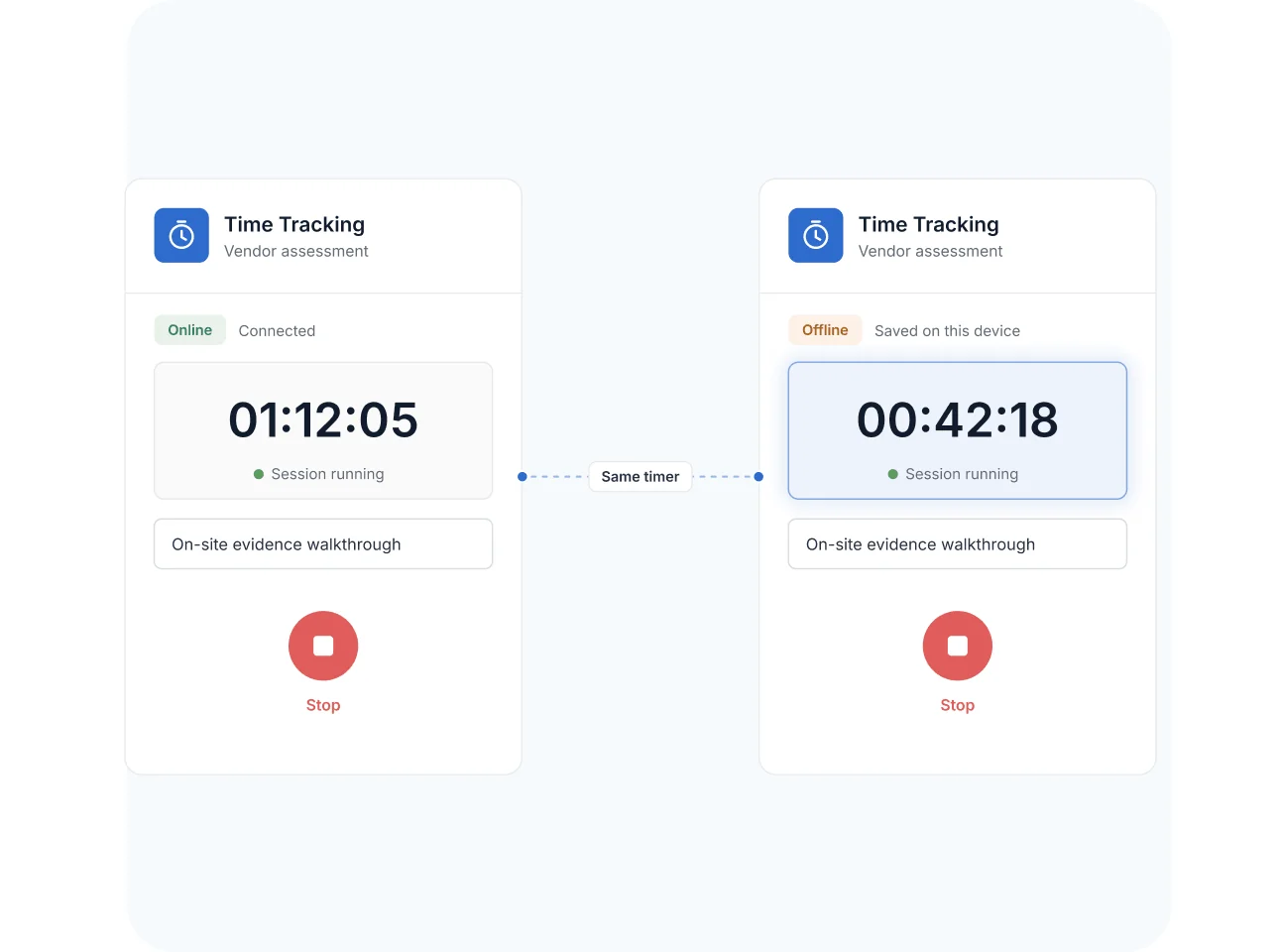
The timer works in the SmartSuite mobile app on iOS and Android—including offline tracking that logs your session locally and syncs it once the device reconnects. Field engineers, consultants on site, and anyone working between networks keep accurate records without waiting for a connection.
Time Tracking
Logged time is operational truth—it evidences effort, sizes teams, and shows what a compliance program actually costs. Time Tracking captures it at the Record level, where the work happens.
A compliance team logs hours against control-testing and evidence-collection Records, giving leadership a defensible picture of what audit readiness actually costs each cycle.
Risk assessors log time with notes directly on assessment Records, so each entry documents who performed the work, when, and for how long—context that supports review and traceability.
Hours logged against remediation Records show what closing findings actually takes, by severity and by system. Leadership sees where remediation effort concentrates—and prioritizes fixes with recorded effort behind the decision.
Analysts log time on third-party assessment Records, making the cost of due diligence visible per vendor and per tier. Scoping the next review cycle starts from recorded effort, not guesswork.
Roll logged hours into Dashboards—actuals per analyst and per program ground next cycle’s allocations in what control testing and remediation really took.
Time Tracking is a dedicated Field type—the Time Tracking Log—that lets Members log time spent on a Record through a built-in start/stop timer or manual entry. Each entry records who worked, the duration, and an optional note, with a running total across all entries.
A green play button starts the session, optionally with a note about what you're working on. A floating pill shows elapsed time even as you navigate to other Records, and the red stop button ends the session and logs it automatically.
Yes, two ways. The Duration tab accepts natural-language input like "1h 30m" or "2 hours" with a specific date, and the Time Range tab calculates duration from start and end times automatically.
Yes. Grouped views total time with summary footers, and Formula Fields reference the log via dot notation—Reported By, Reported On, Reported Time, and Notes—for custom rollups like date-range sums or per-member totals.
Yes. The timer is supported in the SmartSuite mobile app on iOS and Android, including offline tracking—sessions log locally and sync once the device reconnects.
SmartSuite's pricing page lists Time Tracking as available on all current plans—Team, Professional, and Enterprise. The Field's help article notes availability across plan types with varying limitations.
Every entry is attributed to a specific Member with a timestamp, duration, and optional note, stored on the Record itself. That gives GRC and service teams a traceable account of effort that helps them stay audit-ready.
Capture Hours as They Happen, Not from Memory
Start the timer, do the work, and let SmartSuite keep the record—attributed, totaled, and ready for reporting.