



AI Control Center — One Place to Govern Every AI Feature
Switch AI Assistant, AI Field Agents, and the AI Workflow Agent on or off, manage the LLM connections behind them, and set what connected AI assistants can do—so admins decide where AI runs before anyone builds on it.
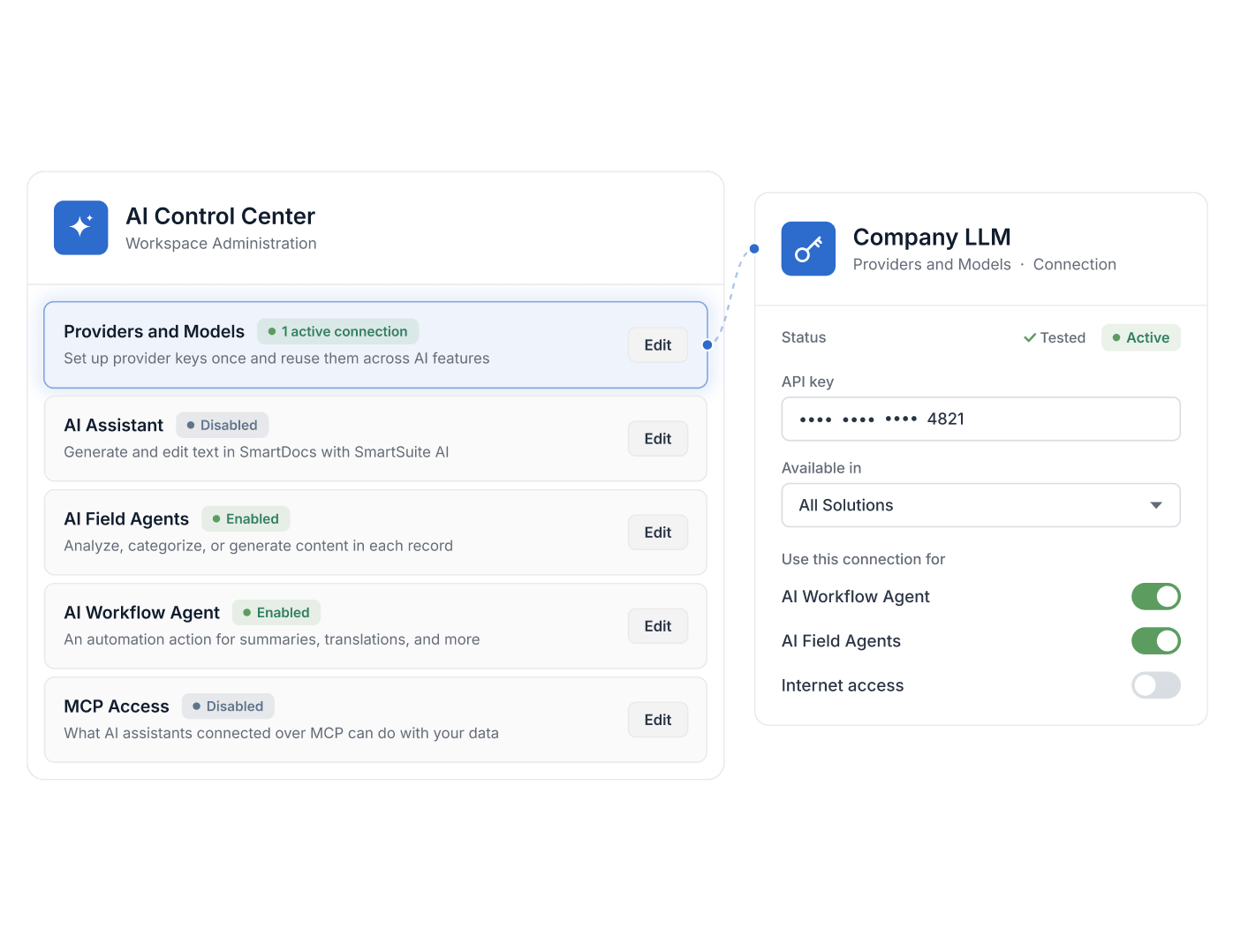
- AI Control Center sits in Workspace Administration and is managed by Workspace Administrators only.
- Provider connections are set up once with a provider key, tested, scoped to all or selected Solutions, and enabled for AI Workflow Agent, AI Field Agent or both.
- Every workspace includes a SmartSuite Trial connection with 100 free requests and no API key.
- Each connection has a Used In tab and an Activity History of every API call with feature, Solution, date and result.
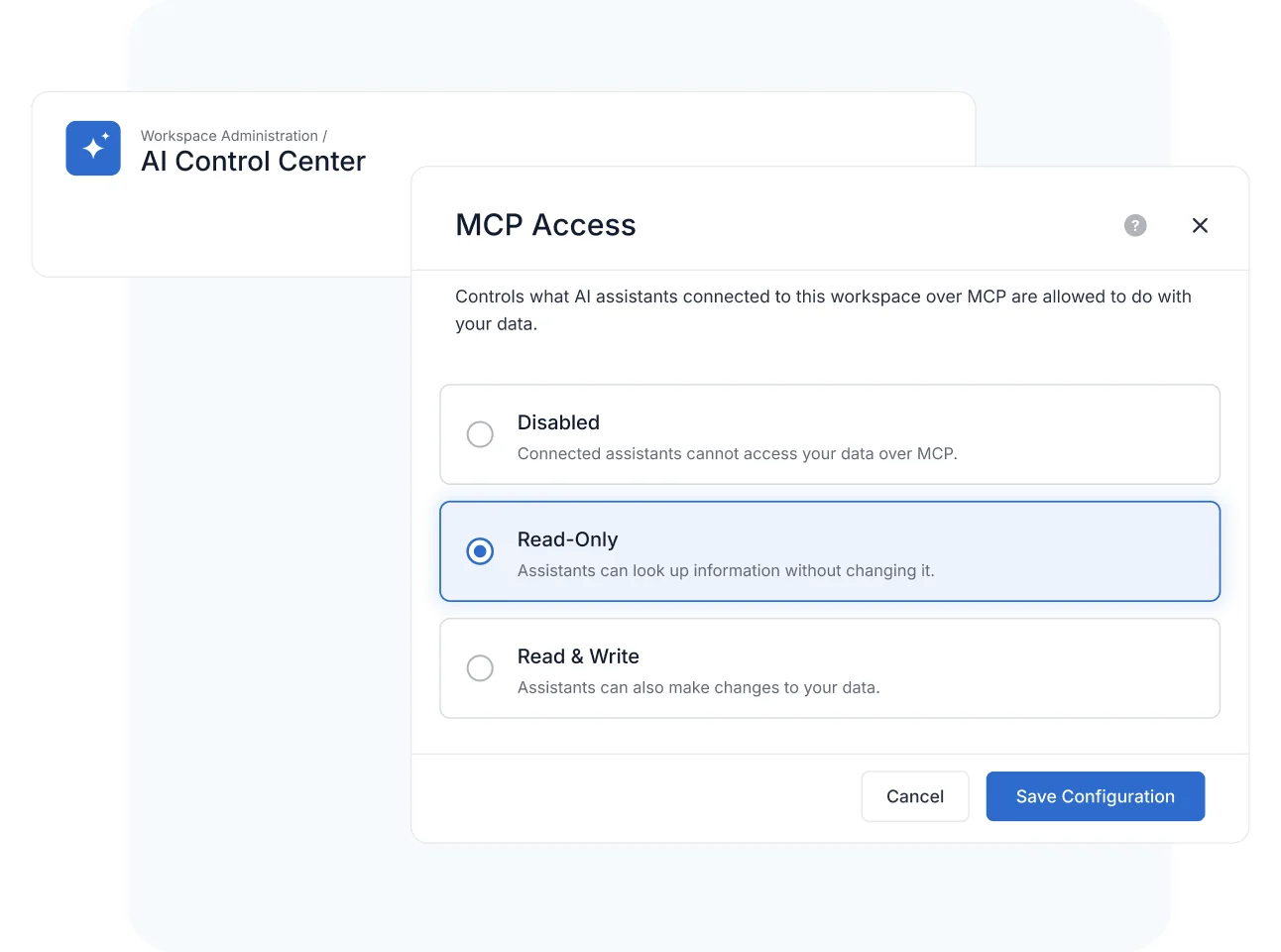
- MCP Access is set to Disabled, Read-Only or Read and Write; the default is Read-Only, and lowering it applies to existing connections within about a minute.
What Is the AI Control Center?
AI Control Center is the SmartSuite Workspace Administration page for governing every AI capability in a workspace. Workspace Administrators use it to enable or disable AI Assistant, AI Field Agents, and the AI Workflow Agent; manage the LLM provider connections and models those features run on; and set what AI assistants connected over MCP are allowed to do with workspace data. It helps IT, security, and GRC teams roll out AI deliberately—one control per capability, one place for provider keys, and one access setting for external agents.
Feature Controls
Turn Each AI Feature On or Off From the AI Control Center
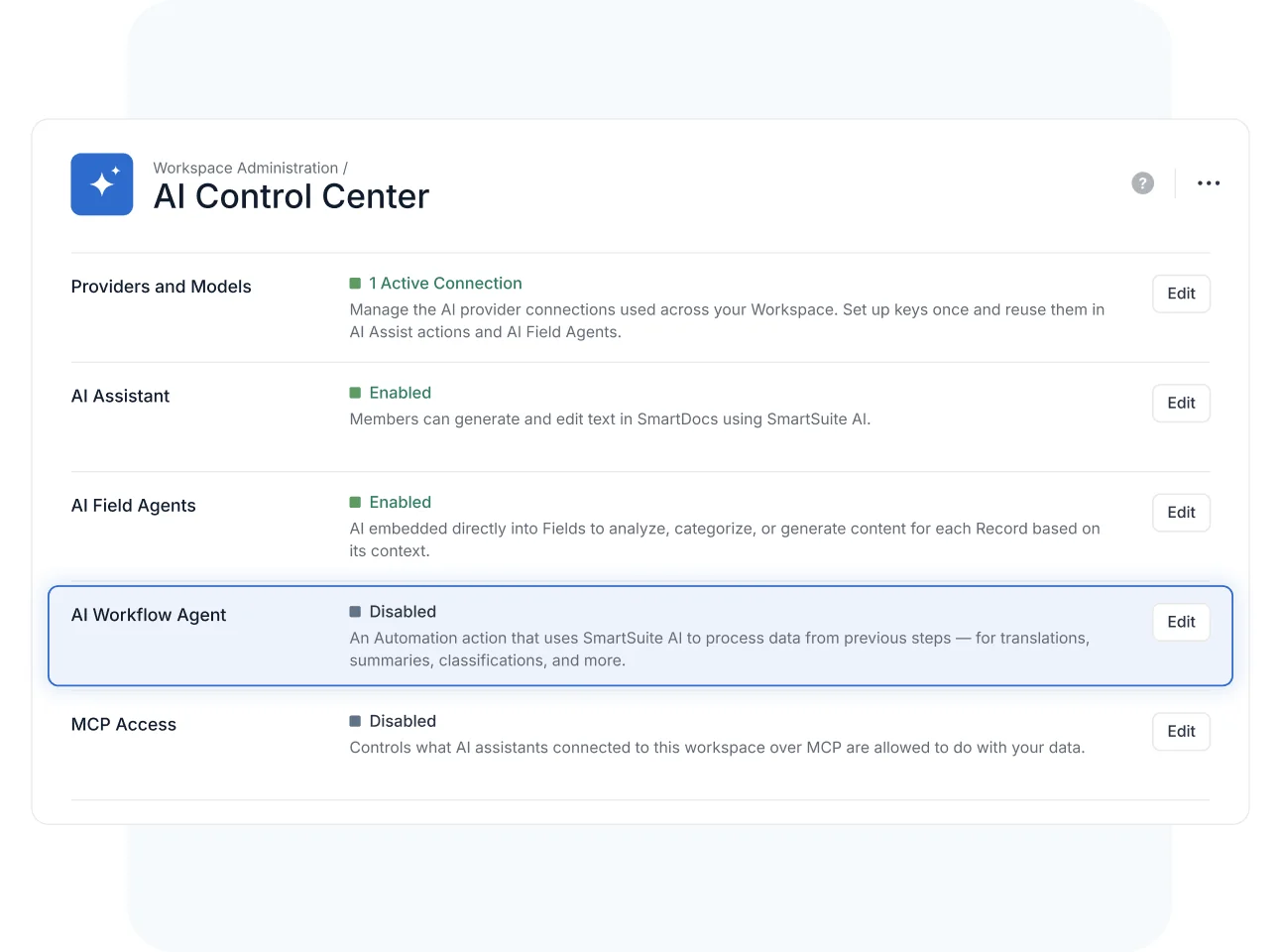
The AI Control Center lists every AI capability in the workspace with its current status and an Edit control: AI Assistant, Providers and Models, AI Field Agents, the AI Workflow Agent, and MCP Access. Each one is set independently, and changes apply across the workspace.
Enable AI Field Agents for record-level enrichment while the AI Workflow Agent stays off until your automations are reviewed—adoption moves at the pace your governance process sets.
AI Assistant
Control AI Assistant Across SmartDocs, Solutions, and the Asset Library
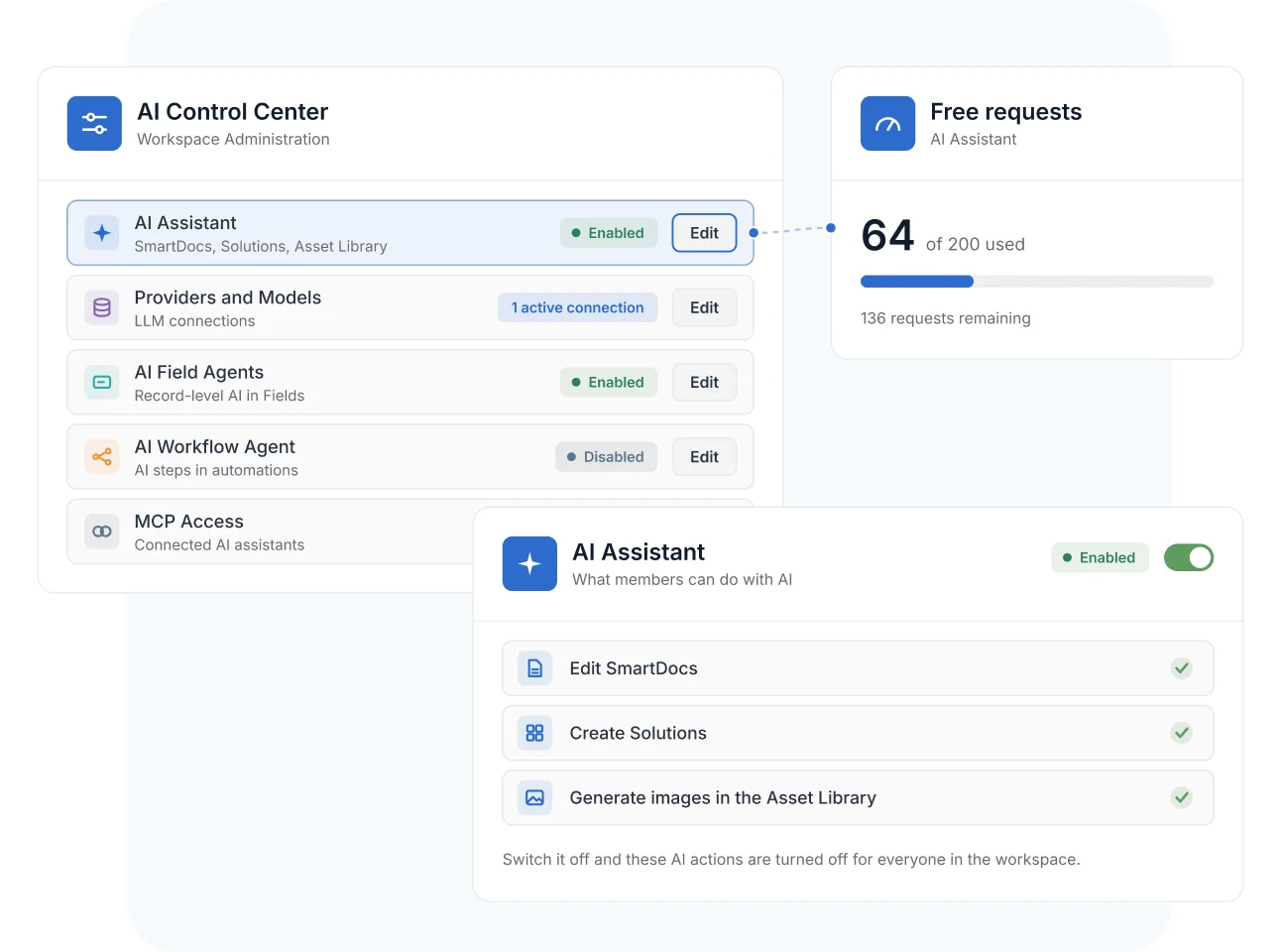
When AI Assistant is enabled, members can use AI to edit SmartDocs, create Solutions, and generate images in the Asset Library. Switch it off and those AI actions are turned off for everyone in the workspace.
Every workspace starts with 200 free AI Assistant requests, and the AI Control Center shows how much of that allowance has been used.
Providers and Models
Manage AI Providers and Models Once, Reuse Them Everywhere
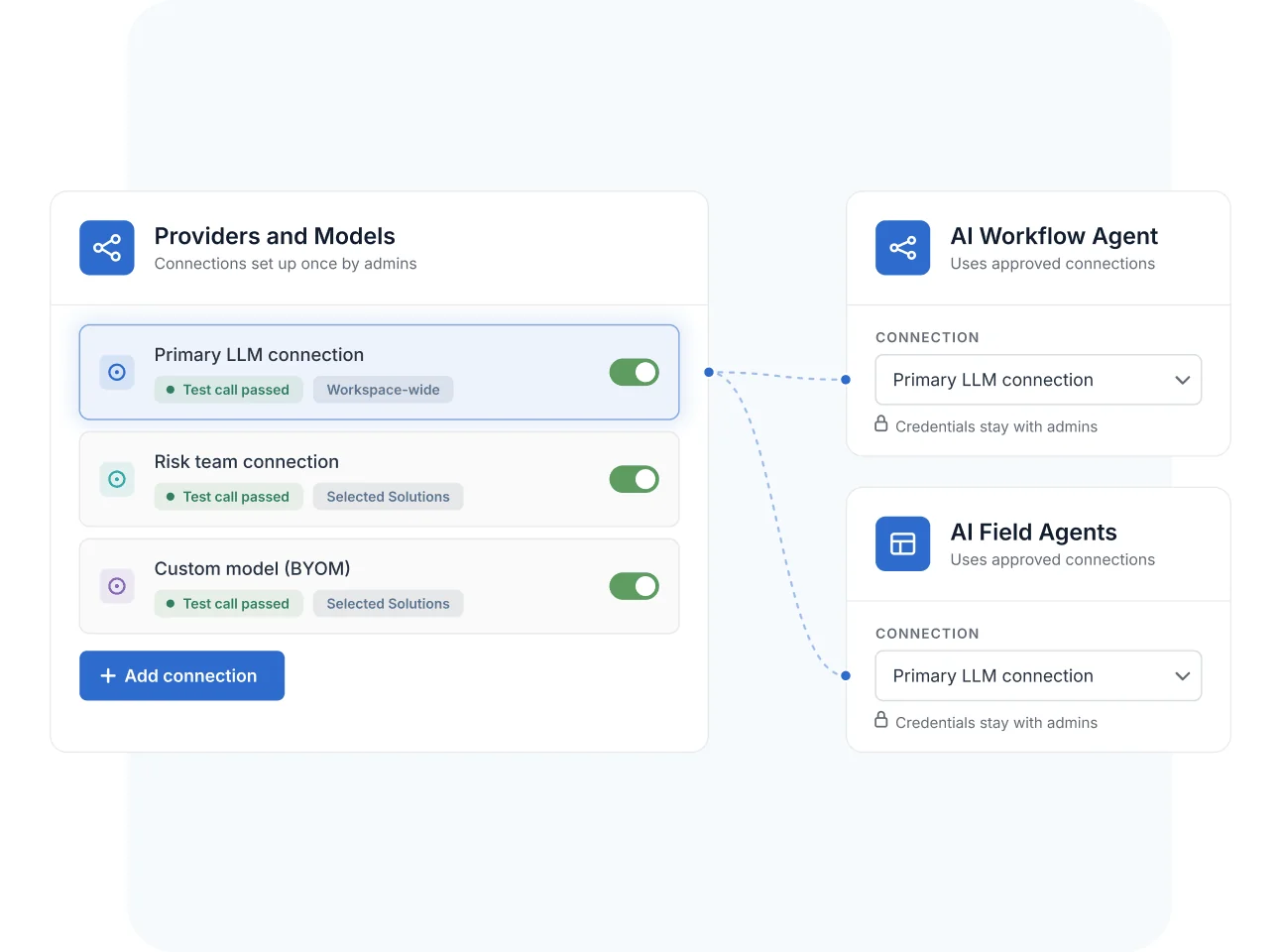
Providers and Models holds the LLM connections your workspace uses. Admins set up provider keys once—OpenAI, Anthropic, Google Gemini, Amazon Bedrock, Azure OpenAI, Perplexity AI, Nscale, IBM watsonx, or xAI—and reuse them in AI Workflow Agents and AI Field Agents. Each connection passes a test call before anyone builds on it.
Connections can be available workspace-wide or limited to specific Solutions and enabled per feature, so builders only choose from approved models and never handle credentials. Organizations with their own AI standards can also bring their own model (BYOM).
MCP Access
Set What Connected AI Assistants Can Do With Your Data
MCP Access controls what AI assistants connected to your workspace over MCP are allowed to do with your data. Set it to Read-only and connected assistants can look up information in SmartSuite without changing it.
Teams get the convenience of asking questions from the AI tools they already use, while write access stays a deliberate admin decision.
AI Control Center
For risk and compliance teams, AI adoption is a governance decision before it is a capability decision. The AI Control Center turns that decision into settings—which features run, on which models, and how far external agents can reach.
Enable AI Assistant for policy drafting first, keep AI Field Agents and the AI Workflow Agent off until your AI risk review signs off, then switch each on as it clears approval—one control per capability.
Restrict a sensitive compliance Solution to your organization's approved model connection—or a BYOM connection—so regulated data never flows to a provider your security team has not vetted.
Let analysts query the risk register and control library from an AI assistant over MCP while MCP Access stays Read-only—connected assistants can read governed data without changing it.
Turn your written AI acceptable-use policy into enforced settings—feature switches, per-Solution connection scoping, and the MCP Access level decide where AI runs, so the policy lives in configuration, not in a document nobody checks.
Pair the AI Control Center with the AI Workflow Agent—builders adding AI steps to compliance automations choose only from admin-approved connections, scoped to the Solutions where AI is allowed.
The AI Control Center is the Workspace Administration page where admins govern every AI capability in the workspace: AI Assistant, Providers and Models, AI Field Agents, the AI Workflow Agent, and MCP Access. SmartSuite's pricing page refers to these capabilities as AI Admin Controls.
AI Assistant, AI Field Agents, and the AI Workflow Agent each have their own status and Edit control. AI Assistant covers AI editing in SmartDocs, AI-assisted Solution creation, and image generation in the Asset Library.
Providers and Models supports connections to OpenAI, Anthropic, Google Gemini, Amazon Bedrock, Azure OpenAI, Perplexity AI, Nscale, IBM watsonx, and xAI—each with its own credential requirements. Organizations can also bring their own approved model (BYOM).
Yes. Each connection is available to all Solutions or specific ones, and independently enabled for the AI Workflow Agent and AI Field Agents. Builders only see connections that are active for their Solution and feature.
MCP Access sets what AI assistants connected to your workspace over MCP are allowed to do with your data. A Read-only setting lets them look up information without changing it, and it is managed in the same place as every other AI control.
Yes. Every workspace starts with 200 free AI Assistant requests, and the AI Control Center shows how many have been used. Admins can add provider connections in Providers and Models for AI Field Agents and the AI Workflow Agent.
Only Workspace Administrators. The AI Control Center sits in Workspace Administration, so feature switches, provider keys, and MCP Access are changed through one controlled surface rather than by individual builders.
It puts every AI decision in one admin-only place: which AI features are switched on, which provider connections exist and where they can be used, and what external assistants can do over MCP. Your AI policy lives in those settings, which helps GRC and security teams show how AI use is controlled across the workspace.
Scale AI Across Teams Without Losing Control
Switch each AI feature on when you're ready, connect approved models once, and set how far external agents reach—your builders get AI, your admins keep governance.